
1. Introduction
This manual provides essential information for the proper setup, operation, and maintenance of your NIMO 15.6 inch Laptop Computer. Please read this manual thoroughly before using your device to ensure optimal performance and longevity. Keep this manual for future reference.
2. Produit terminéview
2.1. Composants de l'ordinateur portable
The NIMO 15.6 inch Laptop features a Full HD display, a backlit keyboard, and an integrated fingerprint reader for secure access. It is powered by an AMD Ryzen 5 3500U processor and runs on Windows 11.

Figure 2.1 : Face avant view of the NIMO 15.6 inch Laptop, showcasinet son écran et la disposition de son clavier.
2.2. Ports et connecteurs
Your NIMO laptop is equipped with various ports for comprehensive connectivity, allowing you to connect peripherals and external devices.

Figure 2.2: Expanded Connectivity Options. This image illustrates the location and type of ports available on the laptop, including Type-C (Charge Only), USB 3.0, HDMI, Type-C (Full Function), Charge LED, Micro SD Reader, USB 2.0, USB 3.0, Headphone Combo, and Kensington Lock.
- Type-C (charge uniquement) : Pour entrée de puissance.
- USB 3.0 : Pour le transfert de données à haut débit.
- HDMI: Pour la connexion à des écrans externes.
- Type-C (Fonctionnalités complètes) : Supports Power Delivery (PD), DisplayPort (DP), and data transfer.
- LED de charge : Indique l'état de charge.
- Lecteur de carte micro SD : Pour la lecture des cartes Micro SD.
- USB 2.0 : Pour les périphériques USB standard.
- USB 3.0 : Pour le transfert de données à haut débit.
- Headphone Combo: Pour la sortie audio et l'entrée microphone.
- Verrou Kensington : Pour des raisons de sécurité physique.
3. Installation
3.1. Charge initiale
Before first use, connect the laptop to a power outlet using the provided 65W PD Type-C charger. The Charge LED indicator will illuminate. Allow the battery to charge fully.

Figure 3.1: Type-C 65W PD Charger. This image highlights the versatility of the 65W Power Delivery charger, capable of charging the laptop, tablets, and smartphones, reducing cable clutter.
3.2. Mise sous tension
Open the laptop lid. Press the power button located on the keyboard deck. The laptop will boot up, and you will be guided through the Windows 11 initial setup process.
3.3. Installation de Windows 11
Follow the on-screen instructions to configure your Windows 11 operating system. This includes selecting your region, language, connecting to a Wi-Fi network, and setting up your user account.
4. Mode d'emploi
4.1. Clavier et saisie
The laptop features a backlit keyboard for comfortable typing in various lighting conditions, a responsive touchpad, and a numeric keypad for data entry.

Figure 4.1: Effortless Typing in Any Environment. This image demonstrates the backlit keyboard, touchpad, fingerprint reader, and numeric keypad, enhancing user experience and productivity.
- Clavier rétroéclairé : Appuyez sur le Fn key and the appropriate function key (usually F3 or F4, indicated by a keyboard icon) to adjust the backlight brightness or turn it on/off.
- Pavé tactile : Use the touchpad for navigation. Supports multi-touch gestures for scrolling, zooming, and other functions.
- Clavier numérique: Provides dedicated number keys for efficient data entry.
4.2. Reconnaissance des empreintes digitales
The integrated fingerprint reader allows for secure and quick login. Set up your fingerprint in Windows Settings under 'Sign-in options'.
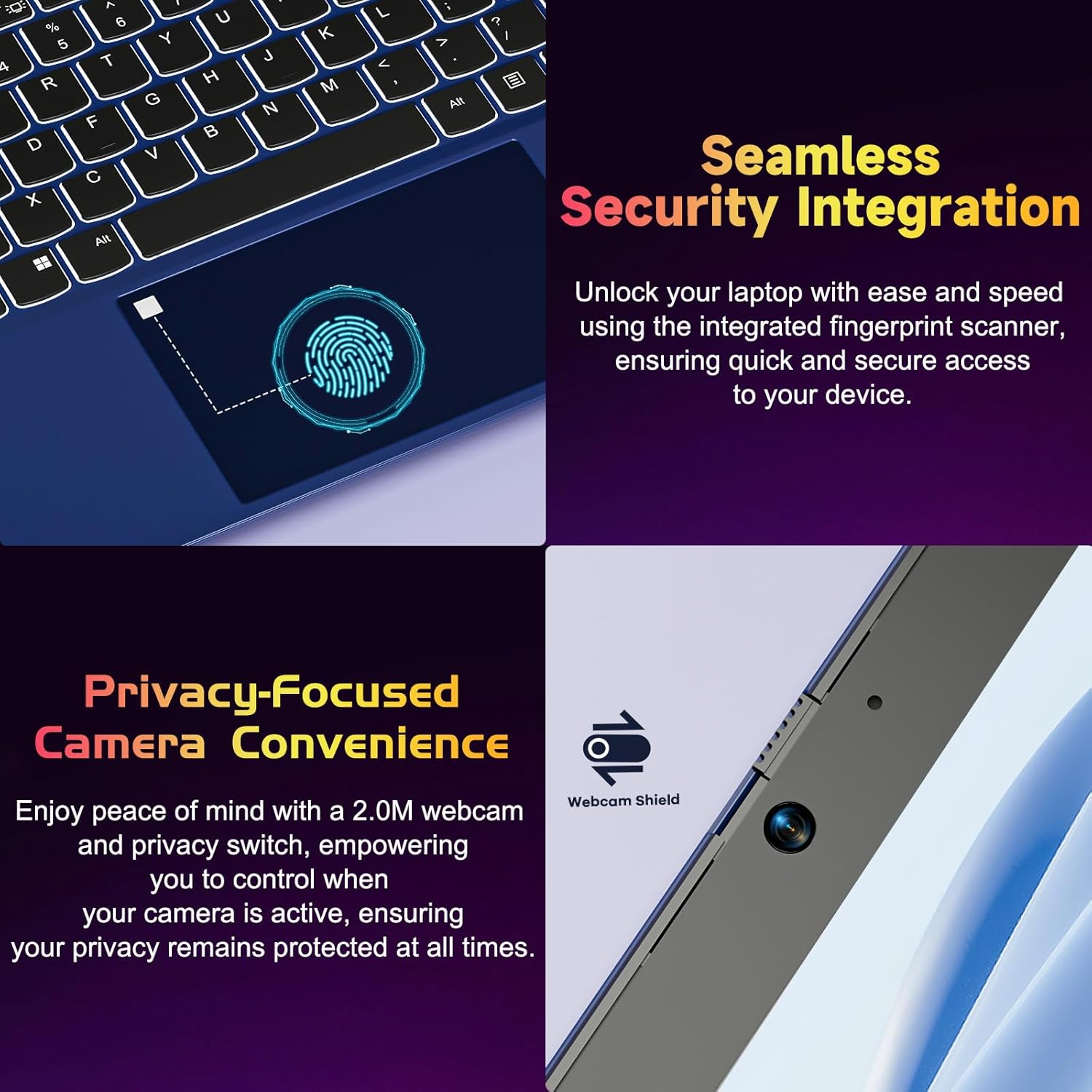
Figure 4.2: Seamless Security Integration and Privacy-Focused Camera. This image highlights the fingerprint scanner for quick and secure access, and the 2.0MP webcam with a physical privacy switch for enhanced user privacy.
4.3. Fonctions d'affichage
The 15.6 inch Full HD (1920 x 1080 Pixel) IPS display offers vivid visuals and a wide viewing angle. The 180° lay-flat hinge allows for flexible screen positioning, ideal for sharing content.

Figure 4.3: Vivid Full HD Display. This image emphasizes the laptop's 15.6-inch Full HD (1920x1080) IPS display, offering bright visuals and eye protection.

Figure 4.4: 180° Lay-Flat Hinge. This image illustrates the laptop's ability to lay flat, expanding usage scenarios and facilitating content sharing.
4.4. WebConfidentialité de la caméra
The laptop includes a 2.0MP webcam with a physical privacy switch (Webcam Shield). Slide the switch to cover the camera lens when not in use to ensure your privacy.
5. Entretien
- Nettoyage: Utilisez un chiffon doux non pelucheux pour nettoyer l'écran et l'extérieur. Pour les taches tenaces, frottez légèrement.ampNettoyez le chiffon avec de l'eau ou un nettoyant pour écrans. Évitez les produits chimiques agressifs.
- Entretien de la batterie: Pour prolonger la durée de vie de la batterie, évitez de la décharger complètement et fréquemment. Rangez l'ordinateur portable dans un endroit frais et sec s'il n'est pas utilisé pendant une période prolongée.
- Mises à jour logicielles : Mettez régulièrement à jour votre système d'exploitation Windows et vos pilotes pour garantir des performances et une sécurité optimales.
- Extension de stockage : The laptop supports dual DDR4 SO-DIMM slots and M.2 NVMe SSD for memory and storage expansion. Consult a qualified technician for upgrades.
6. Dépannage
6.1. Problèmes d'alimentation
- L'ordinateur portable ne s'allume pas : Ensure the laptop is charged. Connect the charger and wait a few minutes before attempting to power on again.
- La batterie ne se charge pas: Verify the charger is properly connected to both the laptop and the power outlet. Try a different outlet.
6.2. Problèmes d'affichage
- L'écran est vide : Check if the laptop is powered on. Try adjusting screen brightness using the function keys. If an external monitor is connected, ensure it is properly configured.
6.3. Problèmes de performance
- L'ordinateur portable est lent : Close unnecessary applications. Check for background processes consuming high resources. Ensure sufficient free storage space. Consider performing a system scan for malware.
6.4. Problèmes de connectivité
- Connexion Wi-Fi impossible : Assurez-vous que le Wi-Fi est activé. Redémarrez votre routeur et votre ordinateur portable. Vérifiez les paramètres réseau de Windows.
7. Spécifications
| Fonctionnalité | Détail |
|---|---|
| Marque | NIMO |
| Nom du modèle | NIMO N152R |
| Taille de l'écran | 15.6 pouces |
| Résolution de l'écran | 1920 x 1080 pixels (Full HD) |
| Processeur | AMD Ryzen 5 3500U (3.7 GHz, 4 cœurs, 8 threads) |
| BÉLIER | 8 Go de mémoire DDR4 (extensible) |
| Vitesse de la mémoire | 3200 MHz |
| Disque dur | 256 GB SSD (Upgradable M.2 NVMe) |
| Coprocesseur graphique | AMD Integrated graphics (Vega) |
| Système opérateur | Windows 11 |
| Type sans fil | 802.11abg |
| Ports USB | 1x USB 2.0, 2x USB 3.0, 2x USB-C (1x Charge Only, 1x Full Function) |
| Port HDMI | Oui |
| Lecteur Micro SD | Oui |
| Durée de vie moyenne de la batterie | 5 heures |
| Poids de l'article | 3.8 livres (1.72 kg) |
| Dimensions du produit | 14.07 x 8.98 x 0.76 pouces |
| Couleur | Rose |
| Arrière WebRésolution de came | 2 MP |
8. Garantie et assistance
Your NIMO laptop comes with a 2-year warranty, covering manufacturing defects and hardware malfunctions under normal use. Additionally, a 90-day free return policy is provided.

Figure 8.1: After-Sales Support. This image outlines the 2-year warranty, 90-day return policy, and professional customer service available for NIMO products.
8.1. Contacter l'assistance
For technical assistance, warranty claims, or product-related questions, please contact the NIMO U.S.-based support team. Contact information can typically be found on the official NIMO website ou emballage du produit.
9. Consignes de sécurité
Pour éviter toute blessure ou tout dommage à votre appareil, veuillez respecter les consignes de sécurité suivantes :
- N’exposez pas l’ordinateur portable à des températures extrêmes, à la lumière directe du soleil ou à une forte humidité.
- Évitez de placer des objets lourds sur l'ordinateur portable.
- Use only the provided charger or a compatible 65W PD Type-C charger.
- N’essayez pas de démonter ou de réparer l’ordinateur portable vous-même. Veuillez faire appel à un technicien qualifié.
- Tenez les liquides éloignés de l'ordinateur portable pour éviter tout choc électrique ou dommage.
- Assurez une ventilation adéquate lors de l'utilisation de l'ordinateur portable afin d'éviter toute surchauffe.