
1. Introduction
Thank you for choosing the JOMAA VM604 Wireless Ergonomic Vertical Mouse. This advanced mouse is designed to provide superior comfort and efficiency, reducing wrist strain during prolonged use. Featuring multi-device connectivity, adjustable DPI, and a unique multi-function dial, the VM604 is an ideal tool for various computing environments.
Veuillez lire attentivement ce manuel avant d'utiliser le produit afin d'assurer son bon fonctionnement et d'en maximiser la durée de vie.
2. Produit terminéview
2.1 Contenu du paquet
- JOMAA VM604 Ergonomic Vertical Mouse
- Récepteur USB (2.4 GHz)
- Câble de chargement USB-C
- Manuel d'utilisation
2.2 Composants de la souris
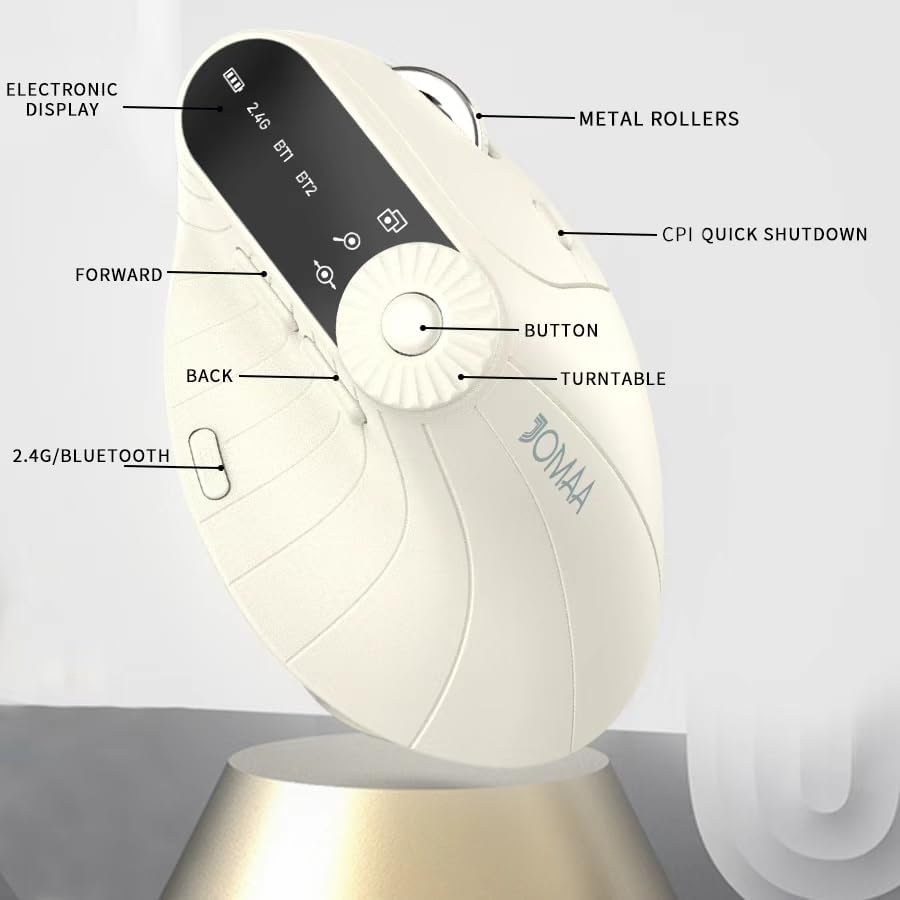
Image 1: Labeled components of the JOMAA VM604 mouse, highlighting the electronic display, metal rollers, CPI quick shutdown, forward/back buttons, turntable, and 2.4G/Bluetooth switch.
- Bouton clic gauche : Standard left mouse function.
- Bouton clic droit : Standard right mouse function.
- Molette: Pour le défilement vertical.
- Bouton avant : Navigue vers l'avant dans web navigateurs ou file explorateurs.
- Bouton Retour : Navigue en arrière dans web navigateurs ou file explorateurs.
- Multi-function Turntable/Dial: Offers three functions: 1. Window switching, 2. Zoom in/out (for pages and images), 3. Page moves left/right (for Excel).
- DPI/CPI Adjustment Button: Permet de faire défiler les paramètres DPI (1000/1200/1600/2400).
- Affichage électronique : Shows battery level, connection mode (2.4G, BT1, BT2), and DPI setting.
- Commutateur de mode de connexion (en bas) : Toggles between 2.4G, Bluetooth 1 (BT1), and Bluetooth 2 (BT2) modes.
- Power ON/OFF Switch (Bottom): Active ou désactive la souris.
- Port de chargement USB-C : Situé à l'avant de la souris.
- Emplacement de rangement pour récepteur USB : Located at the bottom of the mouse.
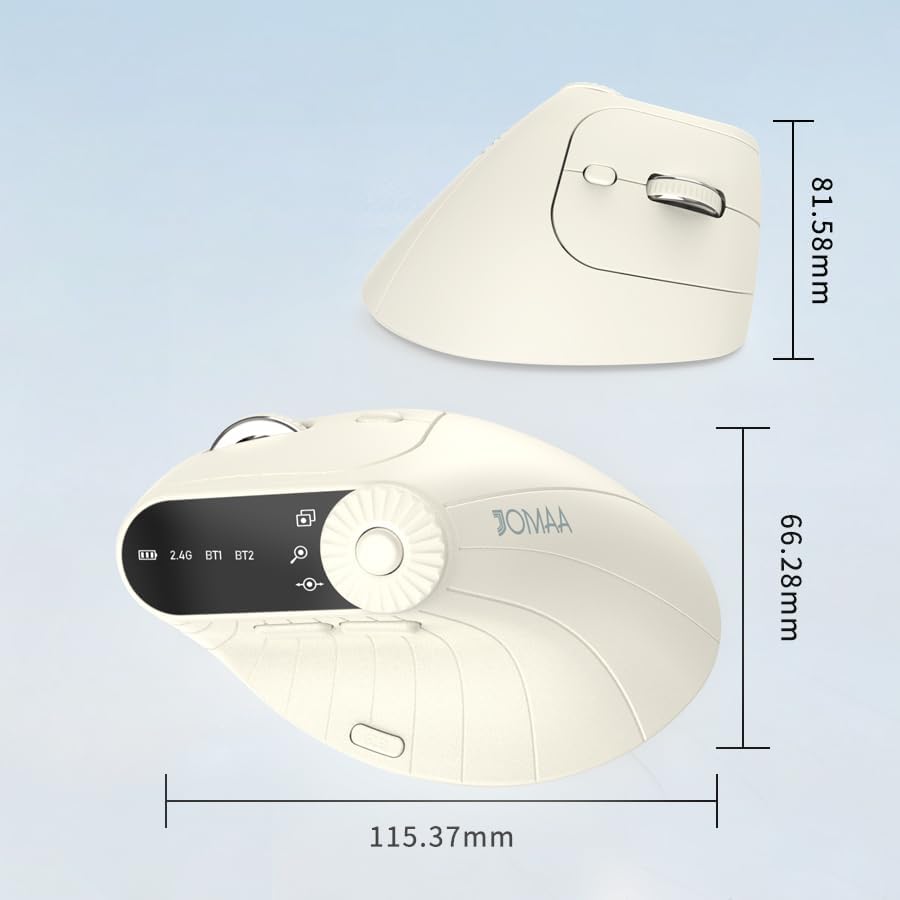
Image 2: Dimensions of the JOMAA VM604 mouse, showing its ergonomic vertical design.

Image 3: Illustration of the JOMAA VM604's 57-degree ergonomic design, promoting a natural handshake posture to reduce wrist pressure.
3. Installation
3.1 Chargement de la souris
The JOMAA VM604 mouse features a built-in rechargeable battery. To charge:
- Connect the provided USB-C charging cable to the charging port at the front of the mouse.
- Connectez l'autre extrémité du câble USB à une source d'alimentation USB (par exemple, un port USB d'ordinateur, un adaptateur secteur USB).
- The electronic display will indicate charging status.

Image 4: The JOMAA VM604 mouse connected via USB-C for charging, with a visible charging indicator on the electronic display.
3.2 Connexion sans fil 2.4 GHz
Pour une connexion sans fil stable et rapide :
- Repérez le récepteur USB rangé dans la fente située au bas de la souris.
- Branchez le récepteur USB dans un port USB disponible sur votre ordinateur.
- Turn on the mouse using the ON/OFF switch at the bottom.
- Slide the connection mode switch to the '2.4G' position. The mouse should automatically connect to your computer.
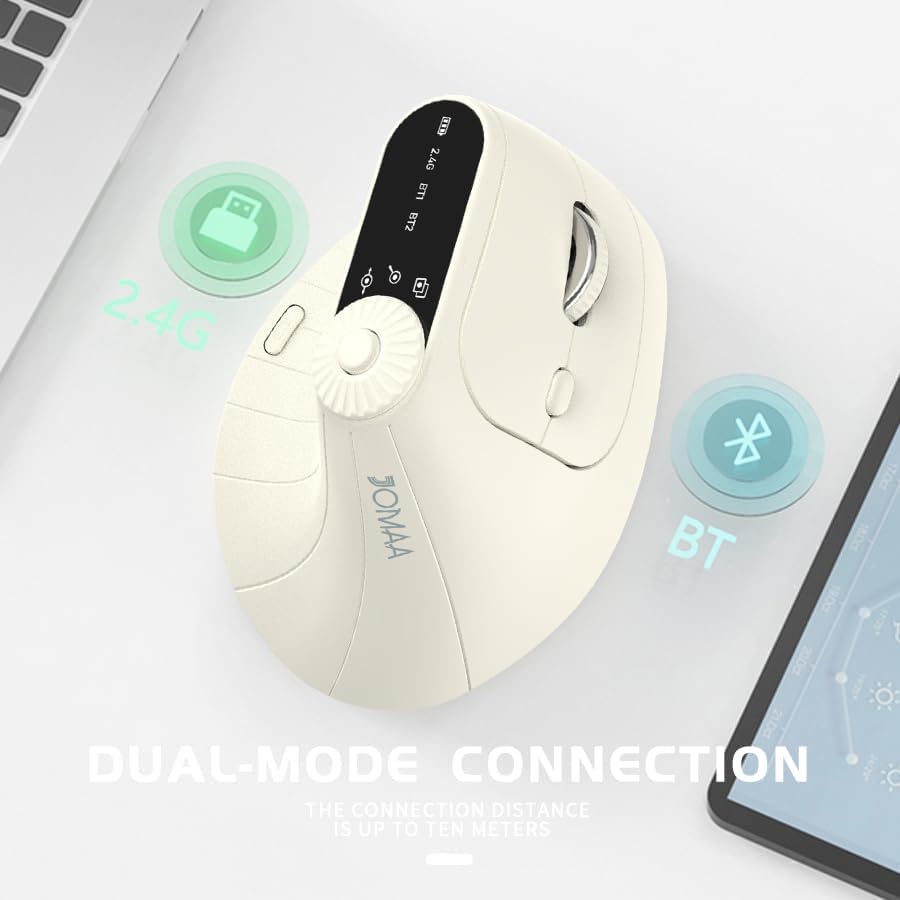
Image 5: The JOMAA VM604 mouse illustrating its dual-mode connection capabilities, including the 2.4G USB receiver and Bluetooth options.
3.3 Connexion Bluetooth (BT1/BT2)
The mouse can connect to two different Bluetooth devices:
- Turn on the mouse using the ON/OFF switch at the bottom.
- Slide the connection mode switch to either 'BT1' or 'BT2' position.
- For the first Bluetooth connection or to reset a connection, press and hold the connection mode switch for 3-5 seconds until the Bluetooth indicator on the electronic display starts blinking.
- On your device (PC, Laptop, MacBook), go to Bluetooth settings and search for 'JOMAA VM604' (or similar name).
- Select the mouse to pair. The indicator light will stop blinking once connected.
- To switch between connected devices, simply double-click the connection mode switch to cycle through 2.4G, BT1, and BT2.
4. Mode d'emploi
4.1 Ajustement PPP
Adjust the mouse sensitivity (DPI/CPI) to suit your preference:
- Press the DPI Adjustment Button (Component 7) located near the multi-function dial.
- Each press will cycle through the available DPI settings: 1000, 1200, 1600, and 2400.
- The electronic display will show the current DPI setting.
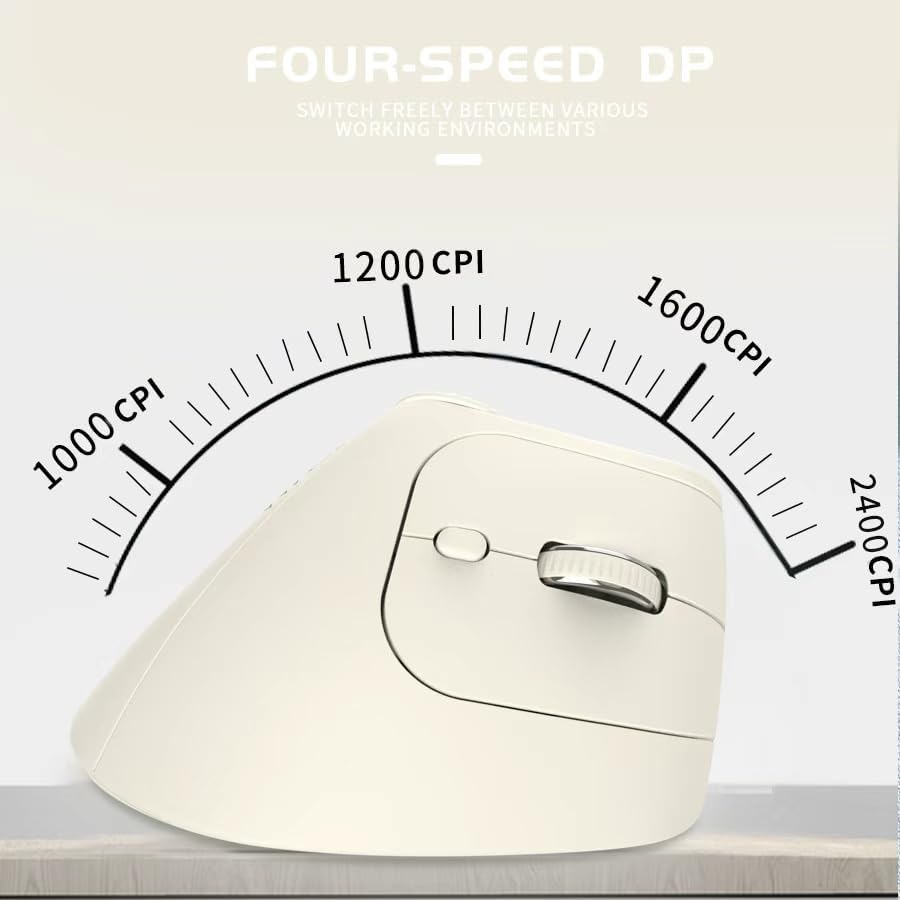
Image 6: The JOMAA VM604 mouse highlighting its four-speed CPI settings (1000, 1200, 1600, 2400) for precise optical tracking.
4.2 Multi-Function Turntable
The unique turntable (Component 6) provides enhanced control:
- Window Switching: Rotate the dial to quickly switch between open application windows.
- Zoom avant/arrière : Rotate the dial to zoom in or out on pages and images.
- Page Left/Right: Useful for navigating large spreadsheets in applications like Excel.

Image 7: The multi-function knob on the JOMAA VM604 mouse, demonstrating its uses for window switching, zooming in/out on pages and images, and moving pages left/right in applications like Excel.
4.3 Boutons Suivant/Précédent
Use the Forward (Component 4) and Back (Component 5) buttons for quick navigation in web navigateurs et file explorateurs.
5. Entretien
5.1 Nettoyage
Pour maintenir des performances et une hygiène optimales :
- Éteignez la souris avant de la nettoyer.
- Utilisez un chiffon doux et sec.amp cloth to wipe the surface of the mouse.
- Évitez d’utiliser des produits chimiques agressifs ou des matériaux abrasifs.
- Periodically clean the optical sensor at the bottom with a cotton swab.
5.2 Entretien de la batterie
Pour prolonger la durée de vie de la batterie :
- Évitez de décharger complètement la batterie fréquemment.
- Rechargez régulièrement la souris, même si sa batterie n'est pas complètement déchargée.
- If the mouse will not be used for an extended period, turn it off.

Image 8: The JOMAA VM604 mouse demonstrating its intelligent hibernate mode, which activates after 60 seconds of inactivity to save power.
6. Dépannage
- Souris ne répondant pas : Ensure the mouse is turned on and fully charged. Check the connection mode (2.4G or Bluetooth) and ensure it's correctly paired/connected to your device. For 2.4G, try plugging the USB receiver into a different port. For Bluetooth, try re-pairing the device.
- Le mouvement du curseur est erratique : Clean the optical sensor at the bottom of the mouse. Ensure the surface you are using is clean and suitable for mouse operation. Adjust the DPI setting to a lower value if the cursor is too fast.
- Problèmes de connexion Bluetooth : Ensure your device's Bluetooth is enabled. Try forgetting the device in your Bluetooth settings and re-pairing. Ensure the mouse is in the correct BT1 or BT2 mode and in pairing mode (blinking indicator).
- Multi-function dial not working: Ensure the mouse is properly connected. Some functions may require specific application support.
7. Spécifications
| Fonctionnalité | Détail |
|---|---|
| Dimensions du produit | 6 x 4 x 0.04 pouces |
| Poids de l'article | 7.4 onces |
| Numéro de modèle de l'article | VM604 |
| Piles | 1 9V batteries required (included) - Note: Product features built-in rechargeable battery, 9V battery information may be a listing error. |
| Technologie de connectivité | Bluetooth, USB (sans fil 2.4 GHz) |
| Dossier spécial | Ergonomic Design, Multi-function Turntable, Adjustable DPI, Rechargeable |
| Technologie de détection de mouvement | Optique |
| Paramètres PPP | 1000/1200/1600/2400 |
| Couleur | Beiga |
8. Garantie et assistance
JOMAA products are designed and manufactured to the highest quality standards. This product is covered by a limited warranty from the date of purchase. For detailed warranty information, technical support, or customer service inquiries, please refer to the contact information provided on the product packaging or visit the official JOMAA website.
Veuillez conserver votre preuve d'achat pour les réclamations au titre de la garantie.
9. Vidéo officielle du produit
Vidéo 1: Un plusview of the JOMAA VM604 Ergonomic Mouse, showcasing its unique vertical design and comfortable grip. This video highlights the physical appearance and ergonomic benefits of the mouse.