
1. Introduction
Thank you for choosing the JOMAA Wireless Folding Keyboard. This compact and versatile keyboard is designed for enhanced productivity across multiple devices, featuring both Bluetooth and 2.4G connectivity, a built-in trackpad, and customizable RGB backlighting. This manual provides essential information for setup, operation, and maintenance to ensure optimal performance.
2. Contenu du colis
- JOMAA Wireless Folding Keyboard
- Câble de chargement USB (Type-C)
- 2.4G USB Receiver (stored magnetically within the keyboard)
- Manuel d'utilisation
3. caractéristiques du produit
- Connectivité multi-appareils : Supports 2 Bluetooth channels and 1 x 2.4G USB receiver connection, allowing seamless switching between up to three devices.
- Mise en page pleine grandeur : Despite its foldable design, it offers a full-size keyboard layout including a numeric keypad for comprehensive input.
- Pavé tactile intégré : A foldable trackpad provides mouse-like control, eliminating the need for an external mouse.
- Rétroéclairage RVB personnalisable : Features vibrant RGB backlighting with multiple colors and brightness levels for use in various lighting conditions.
- Conception ultra-portable : Folds compactly for easy storage and transport, ideal for travel and remote work.
- Batterie rechargeable : Equipped with a 1200mAh high-capacity battery, offering up to 150 hours of uninterrupted work (without backlight).
- Fermeture magnétique : Ensures the keyboard remains securely folded when not in use.
- Touches de commutation à ciseaux : Offre une expérience de frappe confortable et réactive.
4. Installation
4.1. Charger le clavier
Before first use, fully charge the keyboard using the provided USB Type-C cable. The charging port is located on the side of the keyboard. A full charge typically takes 2-3 hours.
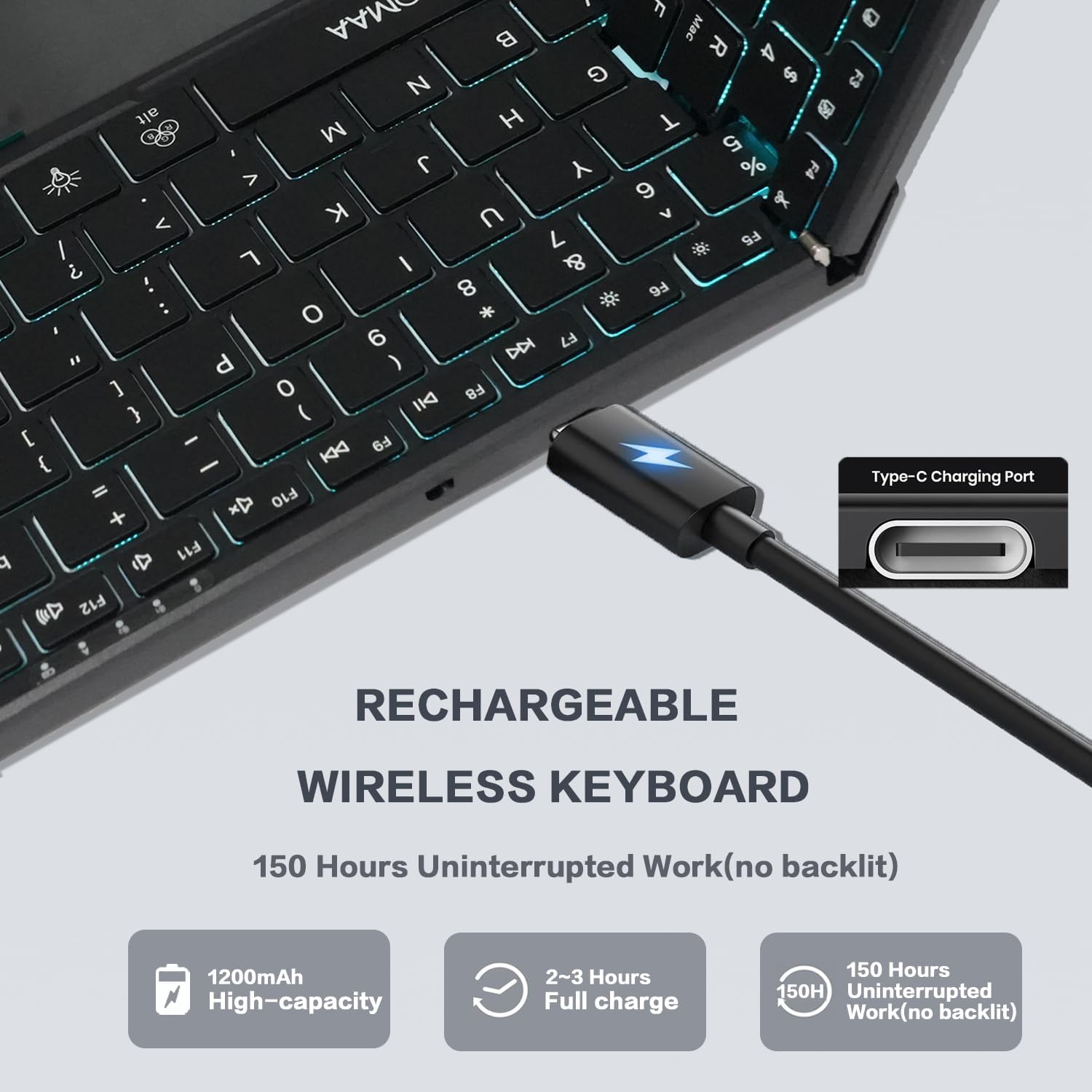
Image: The JOMAA Wireless Folding Keyboard showing its Type-C charging port and battery life indicators.
4.2. Déplier le clavier
Gently unfold the keyboard until it lies flat. The magnetic closure will release, and the keyboard will automatically power on. The trackpad will also extend from its storage position.
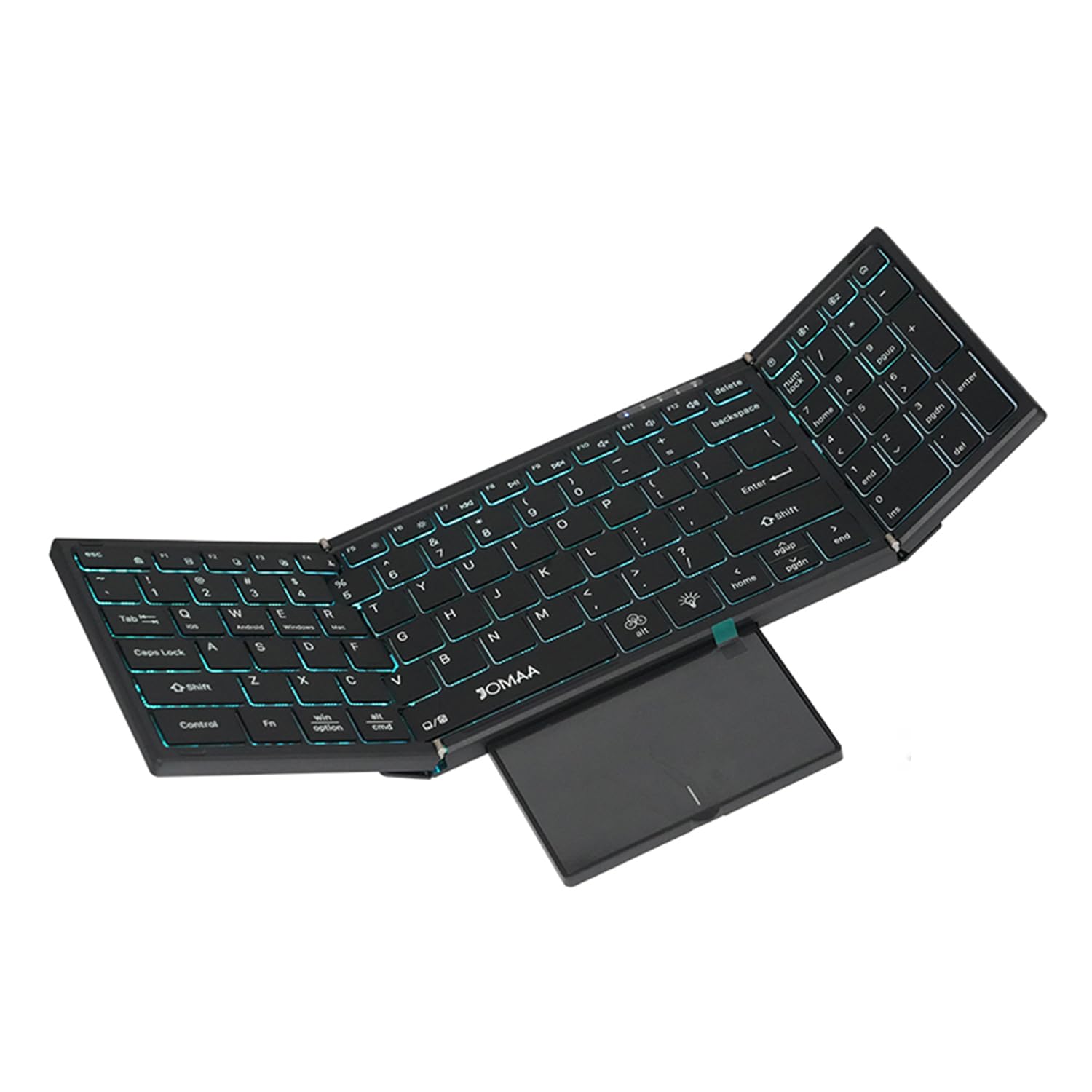
Image: The JOMAA Wireless Folding Keyboard fully unfolded, showcasing its full-size layout, RGB backlighting, and extended trackpad.
4.3. Connexion aux appareils
Le clavier prend en charge la connectivité sans fil 2.4 GHz et Bluetooth.
4.3.1. Connexion sans fil 2.4G
- Locate the 2.4G USB receiver, which is magnetically stored within the keyboard's trackpad compartment.
- Branchez le récepteur USB sur un port USB-A disponible de votre ordinateur ou appareil.
- Presse Fn + 2.4G (usually the key above the numeric keypad) to switch to 2.4G mode. The indicator light will confirm the connection.
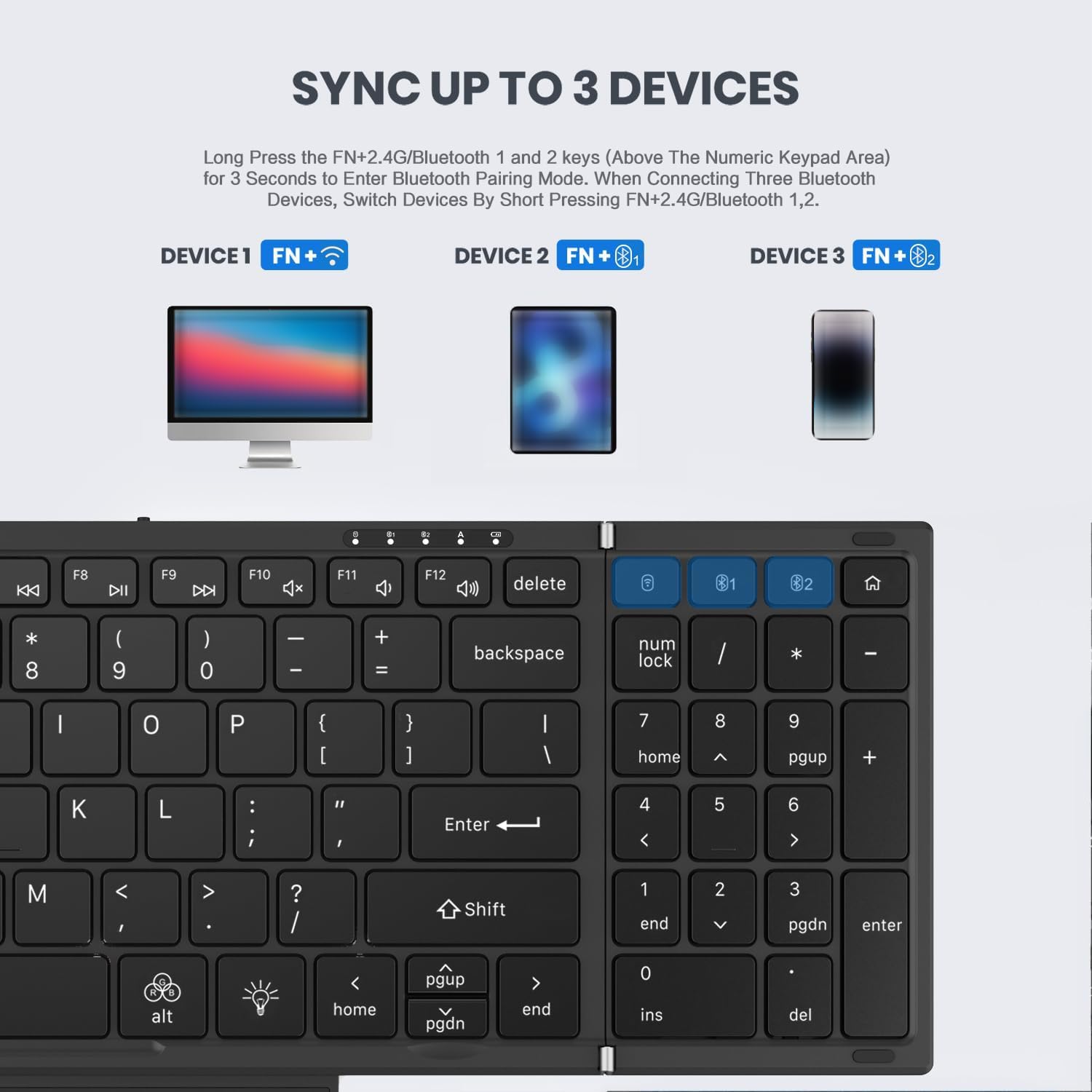
Image: Instructions for syncing the keyboard to multiple devices, highlighting the 2.4G and Bluetooth pairing keys.
4.3.2. Connexion Bluetooth (BT1 / BT2)
- Appuyez et maintenez Fn + B1 or Fn + B2 for 3 seconds to enter Bluetooth pairing mode. The corresponding indicator light will flash rapidly.
- On your device (laptop, tablet, phone), go to Bluetooth settings and search for 'JOMAA Keyboard'.
- Sélectionnez le clavier à appairer. Le voyant du clavier cessera de clignoter une fois la connexion établie.
- Pour basculer entre les appareils Bluetooth appairés, appuyez brièvement sur Fn + B1 or Fn + B2.
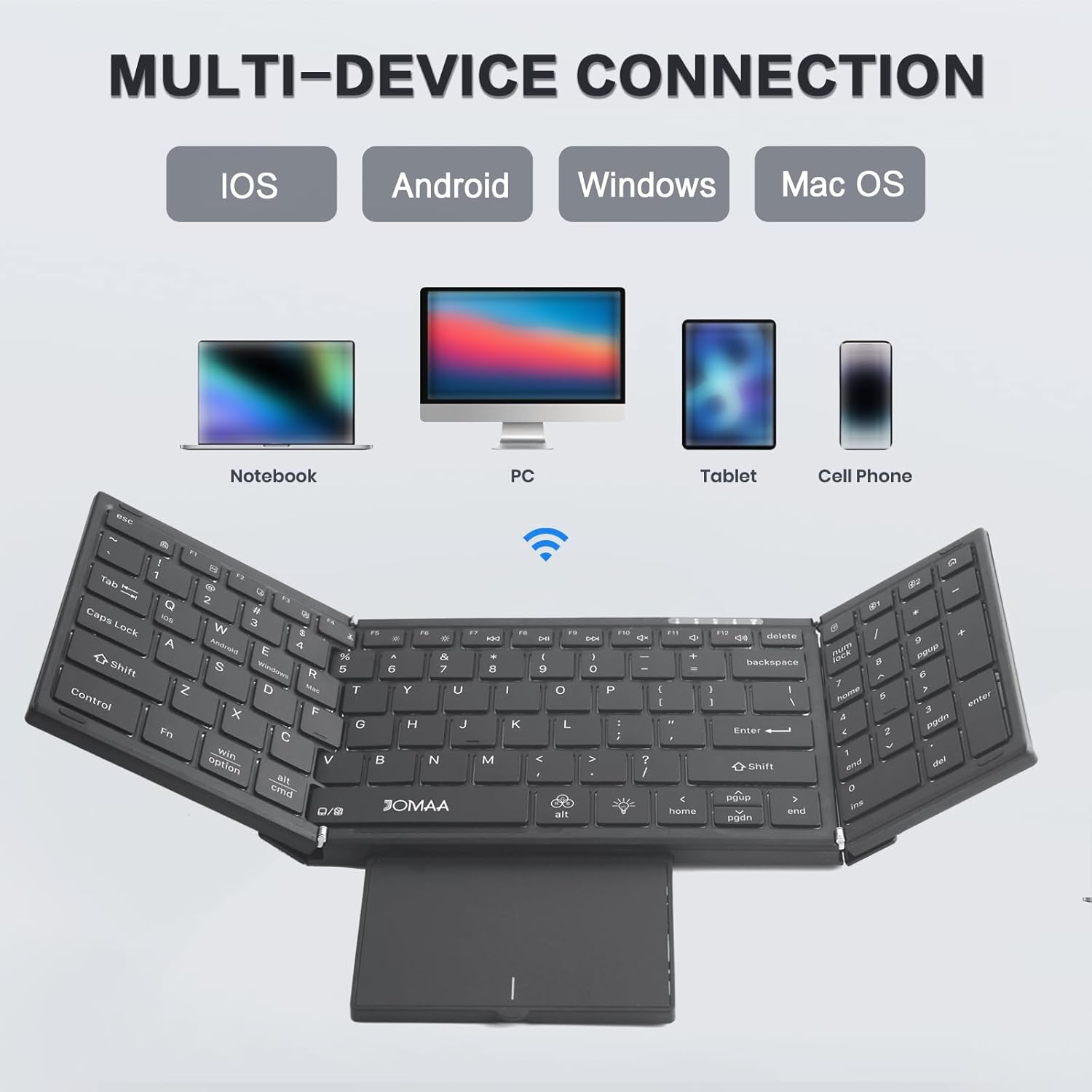
Image: The JOMAA keyboard demonstrating its multi-device connection capabilities with iOS, Android, Windows, and Mac OS devices.
5. Mode d'emploi
5.1. Saisie
The keyboard features a full-size QWERTY layout with scissor switch keys for a comfortable and quiet typing experience.
5.2. Utilisation du pavé tactile
The integrated trackpad supports multi-gesture controls. To activate or deactivate the trackpad, use the dedicated function key combination. The trackpad is designed to provide laptop-like control.

Image: The foldable trackpad of the JOMAA keyboard, highlighting its larger size and mouse-like functionality.
5.2.1. Trackpad Mode Switching
To optimize trackpad gestures for different operating systems, use the following key combinations:
- Fn + Q : Pour les appareils iOS
- Fn + W : Pour les appareils Android
- Fn + E : Pour les appareils Windows
5.3. Rétroéclairage RVB
The keyboard features customizable RGB backlighting. Use the dedicated backlight control keys to adjust brightness and change colors.

Image: The JOMAA keyboard displaying its RGB backlighting, illustrating how it can be used day or night with adjustable brightness and multiple colors.
5.3.1. Contrôle du rétroéclairage
- Presse Fn + Alt (light bulb icon) to cycle through 7 available backlight colors.
- Presse Fn + Light Brightness Icon to adjust between 4 levels of backlight brightness (High-Medium-Low-Off).
5.4. Mode économie d'énergie
The keyboard is designed to enter an auto-sleep mode after 10 minutes of inactivity to conserve battery life. Press any key to reactivate it.
6. Entretien
- Gardez le clavier propre en l’essuyant avec un chiffon doux et sec.
- Évitez d'exposer le clavier à des températures extrêmes, à l'humidité ou à la lumière directe du soleil.
- Ne tentez pas de démonter le clavier, car cela pourrait annuler la garantie.
7. Dépannage
7.1. Clavier non connecté
- Assurez-vous que le clavier est chargé et allumé.
- Verify the correct connection mode (2.4G or Bluetooth) is selected using the Fn key combinations.
- For Bluetooth, ensure your device's Bluetooth is enabled and the keyboard is in pairing mode.
- Pour la bande 2.4 GHz, assurez-vous que le récepteur USB est correctement branché.
- Essayez de redémarrer à la fois le clavier et votre appareil.
7.2. Trackpad Issues
- Ensure the trackpad is extended and not covered.
- Verify the trackpad mode is correctly set for your operating system (Fn + Q/W/R).
- If the cursor jumps erratically, ensure your palm is not accidentally touching the trackpad while typing. Consider temporarily disabling the trackpad if not needed.
7.3. Le rétroéclairage ne fonctionne pas
- Assurez-vous que la batterie du clavier est suffisamment chargée.
- Presse Fn + Light Brightness Icon to cycle through brightness levels, ensuring it's not set to 'Off'.
8. Spécifications
| Marque | JOMAA |
| Modèle | DF006T |
| Technologie de connectivité | Bluetooth, sans fil 2.4 GHz |
| Appareils compatibles | Windows, Mac, iOS, Android devices (Laptop, PC, Tablet, Cell Phone) |
| Dossier spécial | Foldable, RGB Backlight, Built-in Trackpad, Rechargeable |
| Nombre de clés | 64 |
| Capacité de la batterie | 1200mAh |
| Battery Life (no backlight) | Jusqu'à 150 XNUMX heures |
| Temps de charge | 2-3 heures |
| Matériel | Plastique |
9. Garantie et assistance
This product comes with a three-month manufacturer's warranty. For technical support, troubleshooting assistance, or warranty claims, please contact JOMAA customer service through the retailer where the product was purchased.
10. Produit terminéview Vidéo
Video: A brief demonstration of the JOMAA Wireless Folding Keyboard, showcasing its foldable design, RGB backlighting, and multi-functional trackpad.