
Consignes de sécurité importantes
Please read these instructions carefully before using the Avtech DGM5907SVSGAT IP Dome Camera. Keep this manual for future reference.
- Ensure proper power supply (PoE or compatible adapter) to prevent damage.
- Do not expose the camera to extreme temperatures, humidity, or direct sunlight beyond its operating specifications.
- Manipulez l'appareil photo avec précaution. Évitez de le faire tomber ou de le soumettre à de fortes vibrations.
- Installation should be performed by qualified personnel and comply with local electrical codes.
- Ne tentez pas de démonter ou de modifier l'appareil photo. Cela annulera la garantie.
- Nettoyez l'objectif et le boîtier de l'appareil photo avec un chiffon doux et sec. Évitez les produits chimiques agressifs.
Produit terminéview
The Avtech DGM5907SVSGAT is a 5MP AI IP Dome Camera designed for advanced surveillance. It features AI-based human and vehicle detection to minimize false alarms, ONVIF support for system integration, and Power-over-Ethernet (PoE) for simplified installation. The camera provides clear images with Starlight visibility, an integrated microphone for audio recording, and an effective IR range of up to 50 meters for night surveillance. Its WDR (Wide Dynamic Range) function enhances image clarity in challenging lighting conditions, and the IP66 housing ensures durability in various environments.
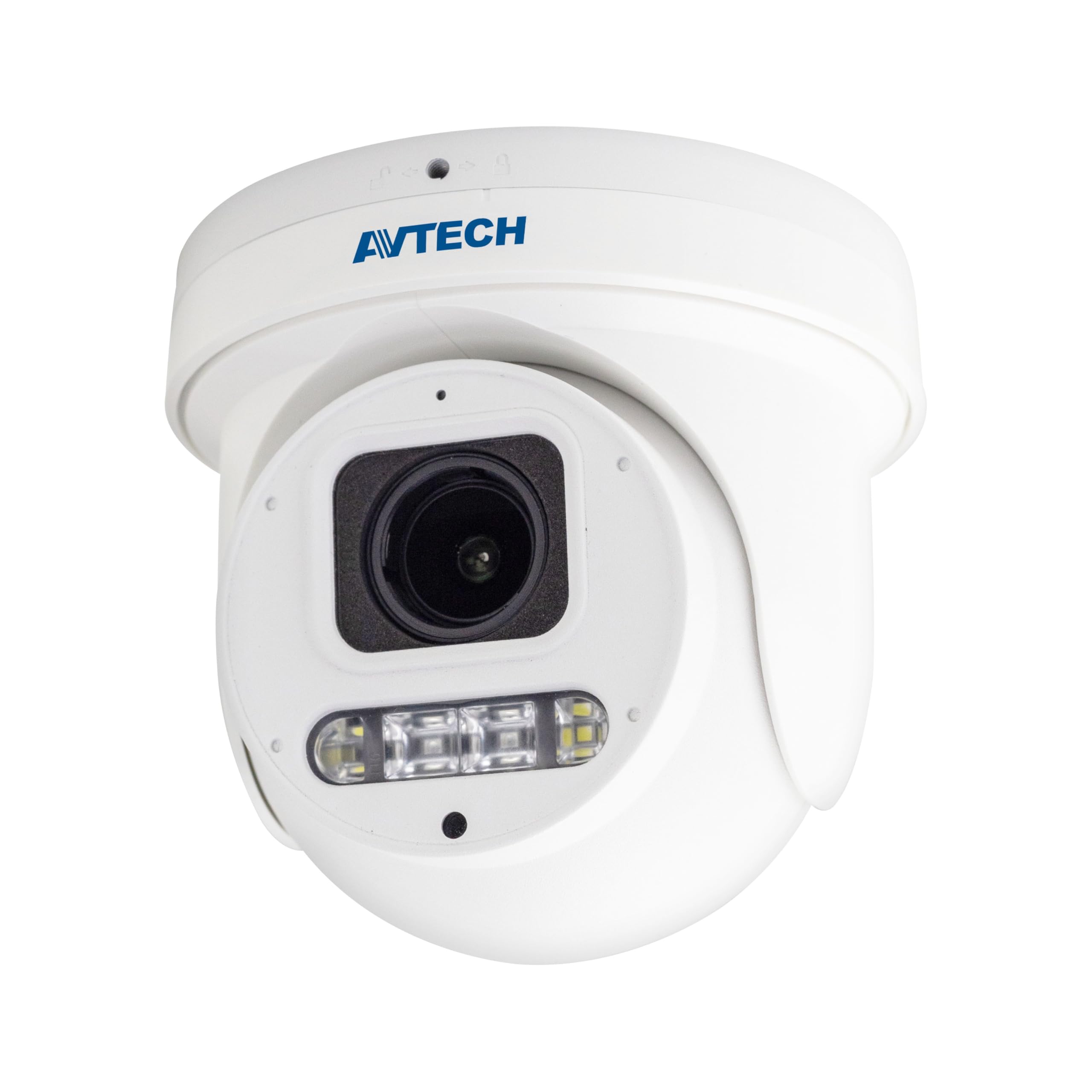
Figure 1 : Devant view of the Avtech DGM5907SVSGAT 5MP AI IP Dome Camera. This image shows the dome-shaped camera housing, the lens assembly, and the IR LEDs visible around the lens.
Contenu du colis
Verify that all items are present in the package. If any items are missing or damaged, contact your dealer immediately.
- Avtech DGM5907SVSGAT 5MP AI IP Dome Camera
- Mounting Screw Kit (screws, wall anchors)
- Connecteur étanche pour câble Ethernet
- Guide de démarrage rapide
- Gabarit de perçage
Installation
1. Installation physique
Before mounting, ensure the installation location provides a clear field of view and is within range of your network infrastructure (PoE switch/injector).
- Préparez la surface de montage : Use the provided drilling template to mark the screw holes on the wall or ceiling.
- Trous de forage : Drill pilot holes at the marked positions. Insert wall anchors if mounting on drywall or masonry.
- Fixez la base de la caméra : Fixez la base de montage de la caméra à la surface à l'aide des vis fournies.
- Connectez le câble réseau : Connect an Ethernet cable (RJ-45) from your PoE switch/injector to the camera's network port. Ensure the waterproof connector is properly sealed if installing outdoors.
- Ajuster l'angle de la caméra : Loosen the adjustment screws on the dome to position the camera lens for the desired viewAjuster l'angle. Serrer les vis une fois le réglage effectué.
Figure 2 : Illustrative diagram of the Avtech DGM5907SVSGAT camera mounting process. This image depicts the camera base being secured to a surface, with an Ethernet cable connected.
2. Configuration du réseau
The camera typically obtains an IP address automatically via DHCP. If your network does not use DHCP, you may need to use a discovery tool provided by Avtech or manually configure the IP address.
- Se connecter au réseau : Ensure the camera is powered via PoE and connected to your local network.
- Découvrir l'adresse IP : Use the Avtech IP Camera Utility software (available on the Avtech website) to discover the camera's IP address on your network.
- Accéder Web Interface: Ouvrir un web browser (Internet Explorer 6+, Microsoft Edge, or Google Chrome) and enter the camera's IP address in the address bar.
- Se connecter: Enter the default username and password (refer to the Quick Start Guide for default credentials). It is highly recommended to change the default password immediately for security.
- Assistant de configuration initiale : Follow the on-screen wizard to configure basic network settings, date/time, and user accounts.
Mode d'emploi
1. Vivre View et enregistrement
Une fois connecté au web interface, you can access the live video feed and manage recording settings.
- En direct View: Accédez à la section « En direct ». View' section to see the real-time video feed from the camera.
- Recording to MicroSD: The camera supports a MicroSD card up to 256 GB. Insert the card into the designated slot (usually accessible by opening the dome cover). Configure recording schedules and event-triggered recording (e.g., motion detection, AI detection) in the 'Storage' or 'Recording' settings.
- Compression vidéo : The camera supports H.265 and H.264 compression. H.265 offers better compression efficiency, reducing storage and bandwidth requirements. Adjust this in the 'Video Settings'.
2. AI Detection (Human and Vehicle)
The AI detection feature helps reduce false alarms by distinguishing between humans/vehicles and other moving objects.
- Enable AI Detection: Go to 'Event' or 'AI Settings' in the web interface. Enable 'Human Detection' and/or 'Vehicle Detection'.
- Configurer les zones de détection : Draw specific areas on the live view where you want AI detection to be active.
- Définir la sensibilité : Adjust the sensitivity levels to optimize detection performance and minimize false positives.
- Configurer les actions : Specify actions to be taken upon detection, such as recording, sending notifications, or triggering alarms.
3. Image Enhancement Features
- Vision nocturne IR: The camera automatically switches to IR mode in low light conditions, providing clear black and white images up to 50 meters. Ensure the IR LEDs are not obstructed.
- WDR (large plage dynamique) : Enable WDR in 'Image Settings' to improve image quality in scenes with both very bright and very dark areas, such as entrances or windows.
- Starlight Visibility: This feature enhances low-light performance, allowing the camera to capture color images in very dim conditions before switching to IR mode.
Entretien
Un entretien régulier garantit des performances optimales et une longue durée de vie à votre appareil photo.
- Nettoyage: Periodically clean the camera lens and housing with a soft, lint-free cloth. For stubborn dirt, use a mild cleaning solution specifically designed for optical lenses. Do not use abrasive cleaners.
- Mises à jour du micrologiciel : Check the Avtech official website regularly for firmware updates. Firmware updates can improve performance, add new features, and enhance security. Follow the instructions provided with the firmware update package carefully.
- Gestion du stockage: If using a MicroSD card for recording, periodically review enregistré footage and manage storage space. Format the MicroSD card occasionally to maintain performance.
- Inspection des câbles : For outdoor installations, inspect network cables and waterproof connectors for any signs of wear or damage.
Dépannage
Cette section aborde les problèmes courants que vous pourriez rencontrer avec votre appareil photo.
| Problème | Cause possible | Solution |
|---|---|---|
| Aucun flux d'images/vidéos | No power; Network connection issue; Incorrect IP address | Check PoE connection; Verify network cable; Use IP utility to find camera IP; Ensure firewall is not blocking access. |
| Caméra hors ligne | Network cable disconnected; Router/switch issue; IP address conflict | Check physical network connections; Restart network equipment; Verify unique IP address. |
| Mauvaise qualité d'image | Dirty lens; Incorrect resolution settings; Insufficient lighting; WDR not enabled | Clean the lens; Adjust resolution in settings; Ensure adequate lighting or enable IR; Enable WDR for high contrast scenes. |
| Fausses alarmes fréquentes | Sensitivity too high; Detection zone too wide; Environmental factors (e.g., moving branches) | Adjust AI detection sensitivity; Refine detection zones; Ensure AI detection is enabled for human/vehicle only. |
| Impossible d'accéder web interface | Incorrect IP address; Browser compatibility; Firewall blocking | Verify IP address; Use recommended browsers (IE, Edge, Chrome); Temporarily disable firewall for testing. |
Caractéristiques
Detailed technical specifications for the Avtech DGM5907SVSGAT IP Dome Camera.
- Capteur d'image : CMOS 1/2.8”
- Résolution maximale : 2592 x 1944 (5MP)
- Lentille: f2.7 ~ 13.5mm / F1.6 ~ F2.2
- Viewing Angle (Diagonal): Tele 40° ~ Wide 117°
- Éclairage minimum : 0.001 Lux (IR off), 0 Lux (IR on)
- Vitesse d'obturation : AUTO, 1 / 25s ~ 1 / 100000s
- LED IR: 4 unité
- Effective IR Distance: Jusqu'à 50 mètres
- Mode jour/nuit : Automatique
- WDR: Oui (120dB)
- RTC (horloge en temps réel) : Oui
- Emplacement microSD : Jusqu'à 256 Go
- Compression vidéo : H.265 / H.264
- Main Stream Resolution: 5MP (2592x1944) / 4MP (2560x1440) / 3MP (2304x1296) / 2MP (1080P) / 720P
- Fréquence d'images : 5MP @ 25FPS
- Multiple Video Streams: 2 flux
- Contrôle du débit : 512 kbit/s - 12 Mbit/s, VBR/CBR
- Amélioration de l'image : WDR / BLC / HLC / 2D DNR / 3D DNR
- Audio: Microphone intégré
- Protocoles réseau : ONVIF supported
- Pouvoir: PoE (Power-over-Ethernet)
- Logement: IP66 Weatherproof
- Compatibilité: Internet Explorer 6+, Microsoft Edge, Google Chrome, Windows 10/8/7, DirectX 9.0+
Garantie et assistance
Avtech products are designed for reliability and performance. This product comes with a standard manufacturer's warranty against defects in materials and workmanship.
- Période de garantie : Please refer to your purchase documentation or the Avtech official webConsultez notre site pour connaître les conditions et la durée de garantie spécifiques applicables dans votre région.
- Support technique : For technical assistance, troubleshooting, or warranty claims, please contact Avtech customer support.
- Ressources en ligne : Visit the official Avtech website for FAQs, driver downloads, firmware updates, and additional product information.
Coordonnées:
Website: www.avtech.com.tw
E-mail: support@avtech.com
Téléphone: +1-XXX-XXX-XXXX