
1. Introduction
This manual provides detailed instructions for the ETOE Google TV Streaming Device. This device transforms any compatible TV into a smart TV, offering access to a wide range of streaming services, apps, and smart features powered by Google TV. Please read this manual thoroughly before use to ensure proper setup and operation.

Image: The ETOE Google TV Streaming Device connected to a television, showcasing its streaming capabilities.
2. Contenu du colis
Vérifiez que tous les éléments sont présents dans votre colis :
- ETOE Google TV Streaming Device (T2 Stick) x1
- Télécommande x1
- Power Cable (Micro USB) x1
- HDMI Extension Cable x1
- Manuel d'utilisation x1
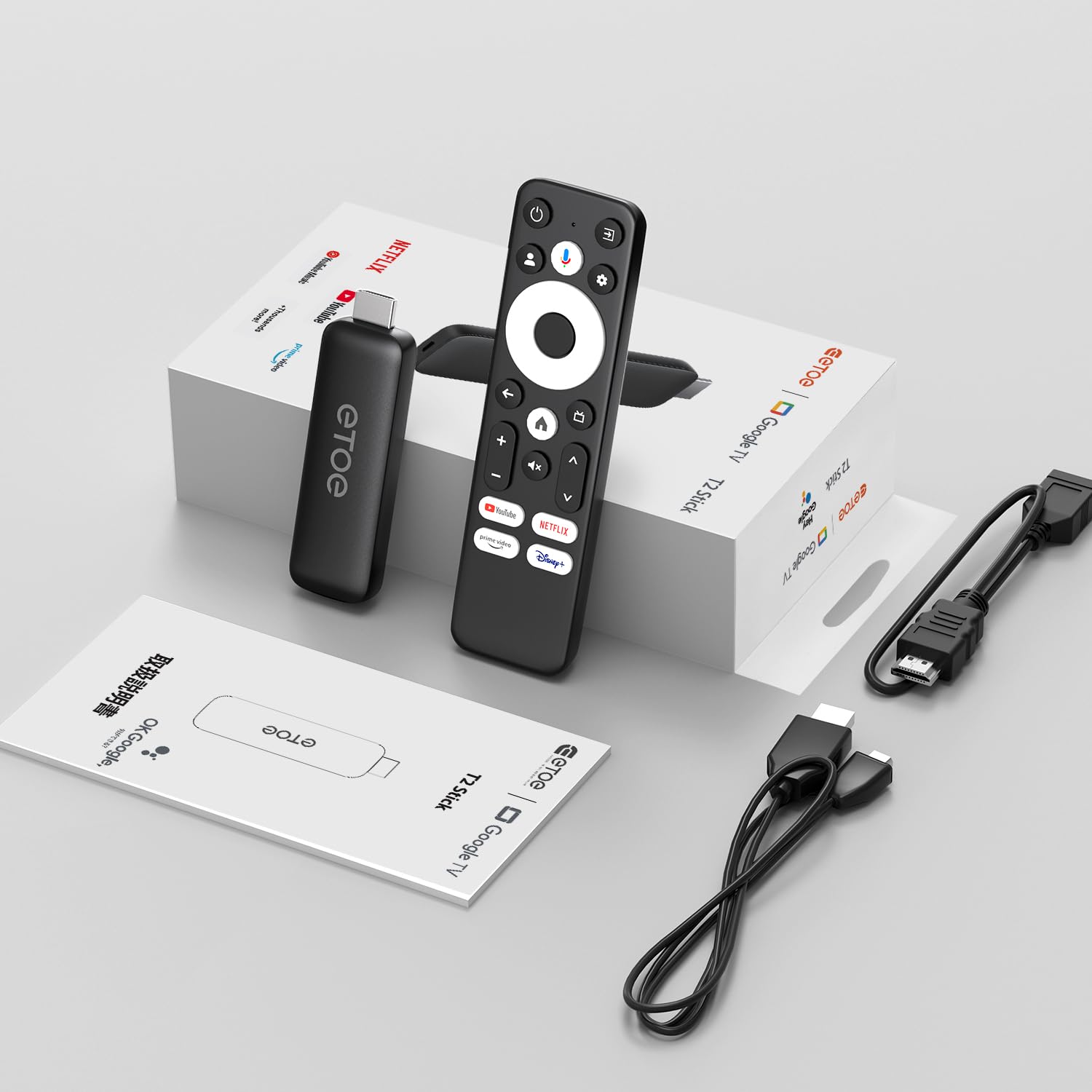
Image: All components included in the ETOE Google TV Streaming Device package.
3. Guide de configuration
Follow these steps to set up your ETOE Google TV Streaming Device:
3.1. Connectez l'appareil
- Connexion électrique : Connect one end of the USB cable to the TV stick and the other end to a power adapter (not included). Plug the power adapter into a nearby power outlet. Alternatively, you can connect the USB cable directly to a USB port on your TV or monitor for power.
- Connexion HDMI : Insert the TV stick into an available HDMI port on your television. If the HDMI port is difficult to access, use the included HDMI extension cable.
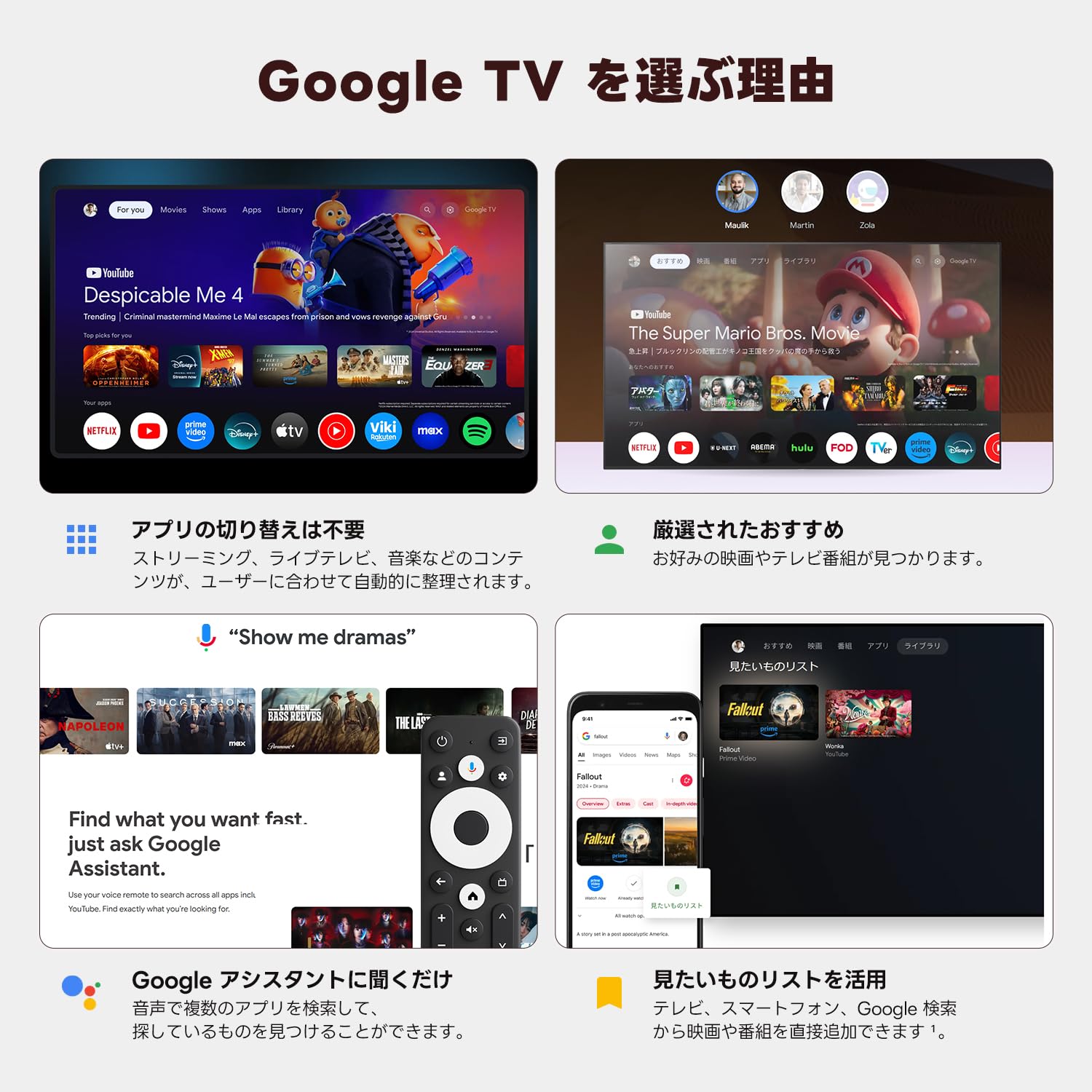
Image: Connection diagram for the ETOE Google TV Streaming Device.
3.2. Configuration initiale et appairage à distance
Turn on your TV and select the correct HDMI input. The device will boot up, and you will see a welcome screen. Follow the on-screen instructions to complete the initial setup, which includes pairing your remote control.
To pair the remote, press and hold the Maison et Dos buttons simultaneously for approximately 5 seconds, or until the LED on the remote blinks green. Keep the remote within 3 feet of the streaming device during pairing.
3.3. Video Guide: Unboxing and Setup
Video: A short demonstration of unboxing the ETOE Google TV Streaming Device and performing the initial setup steps, including remote pairing and language selection.
4. Mode d'emploi
Once set up, navigate the Google TV interface using your remote control.
4.1. Naviguer dans l'interface
- Use the directional pad (D-pad) on the remote to move between menu items.
- Appuyez sur le Centre bouton pour sélectionner un élément.
- Appuyez sur le Dos bouton pour revenir à l'écran précédent.
- Appuyez sur le Maison button to go to the Google TV home screen.
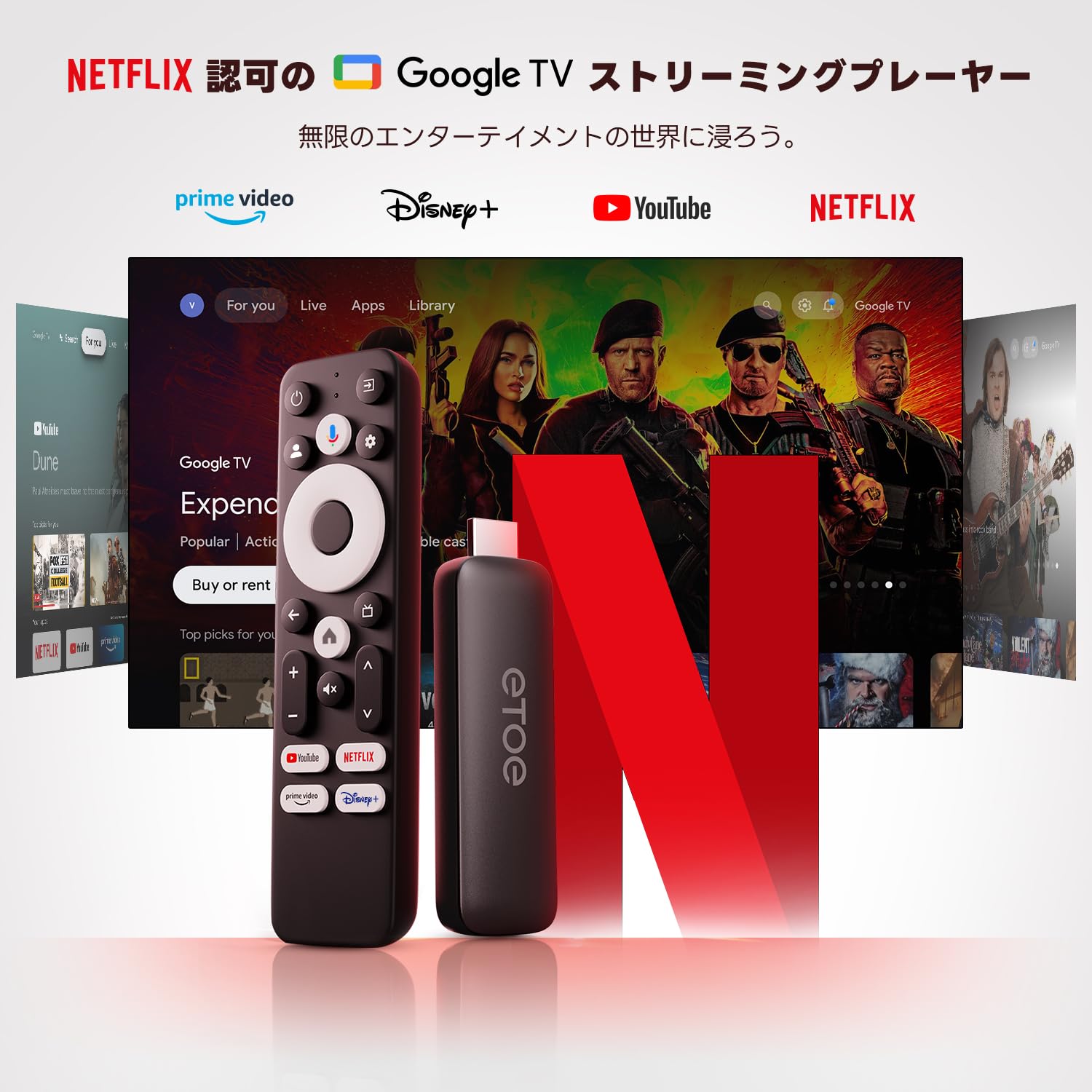
Image: The ETOE Google TV interface with the remote control.
4.2. Commande vocale avec l'Assistant Google
The ETOE Google TV Streaming Device supports Google Assistant for hands-free control. Press the Assistant Google button on your remote or say "OK Google" (if enabled) to activate voice commands.
- Rechercher films et émissions de télévision.
- Ouvrir les candidatures.
- Contrôler la lecture (lecture, pause, saut).
- Régler le volume.
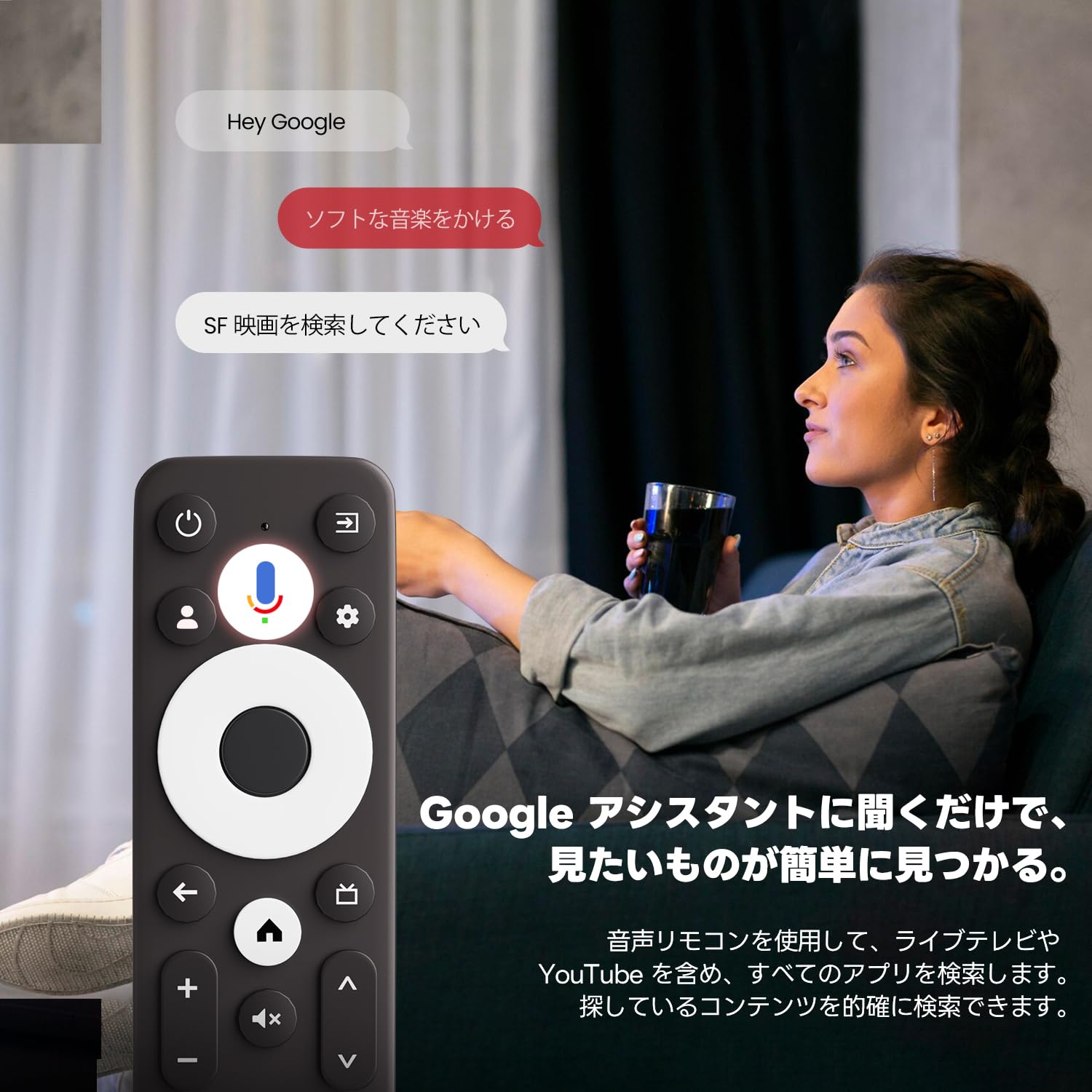
Image: Using voice commands with the ETOE Google TV remote.
4.3. Applications de diffusion en continu
Access a vast library of content from popular streaming services like Netflix, YouTube, Prime Video, Disney+, and many more. The Google TV interface organizes content from all your subscriptions, making it easy to discover new shows and movies.
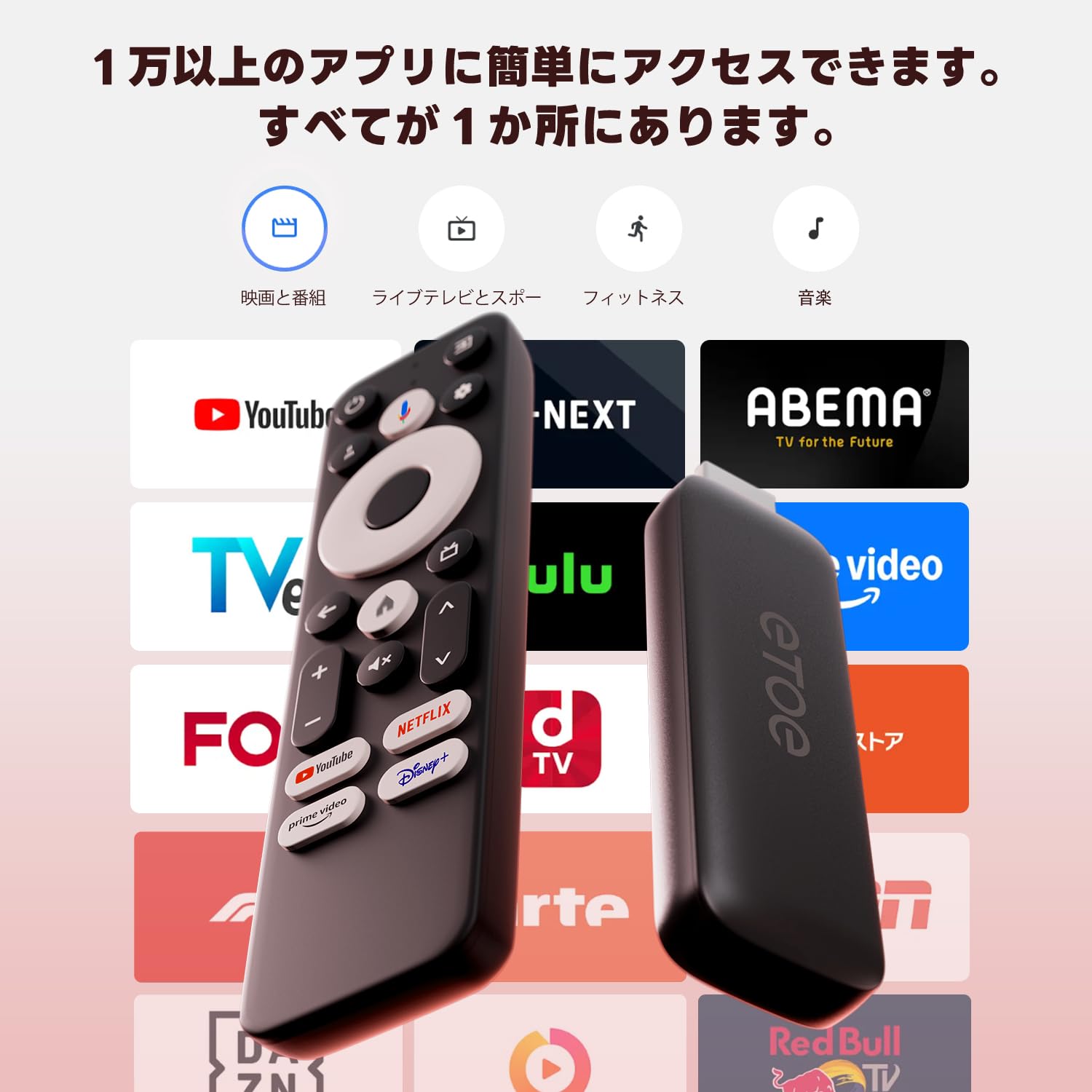
Image : Terminéview of popular streaming applications accessible on the device.
4.4. Google Cast / Screen Mirroring
The device supports Google Cast, allowing you to mirror content from your smartphone or tablet directly to your TV screen. This feature is ideal for sharing photos, videos, or presentations.
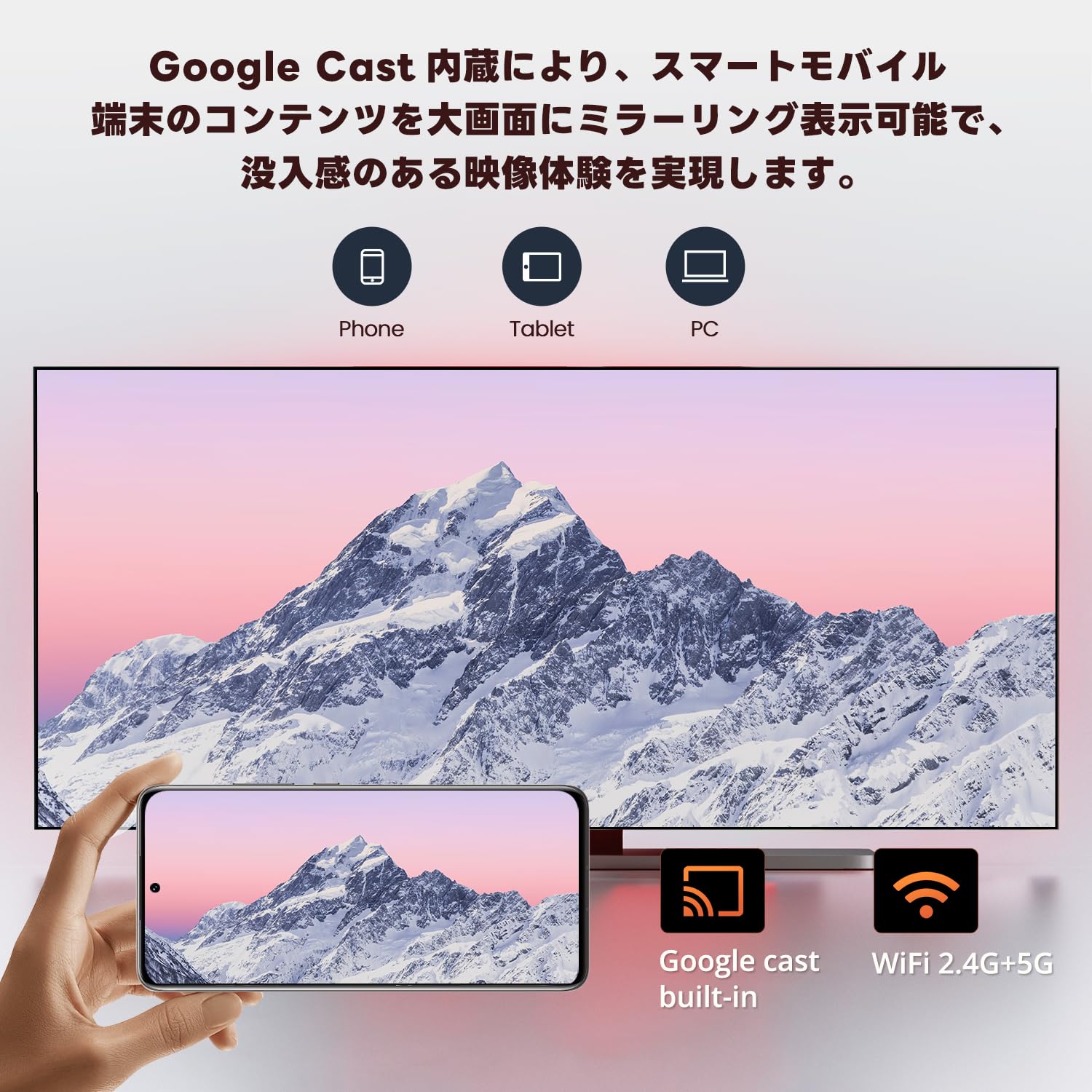
Image: Smartphone screen mirroring to a TV using Google Cast.
5. Caractéristiques
The ETOE Google TV Streaming Device offers a range of features designed to enhance your entertainment experience:
- Official Google TV: Access over 700,000 movies and TV episodes from various streaming services.
- Sortie Full HD 1080p : Enjoy vivid and clear images with 1080p resolution support.
- Wi-Fi double bande (2.4 GHz et 5 GHz) : Ensures stable and fast wireless connectivity for smooth streaming.
- Bluetooth 5.0: Connect wireless accessories such as headphones or game controllers.
- Assistant Google : Use voice commands for search, playback control, and more.
- Google Cast Built-in: Diffusez facilement du contenu depuis vos appareils mobiles vers votre téléviseur.
- Recommandations personnalisées : Google TV apprend vos préférences et vous suggère des contenus adaptés à vos goûts.
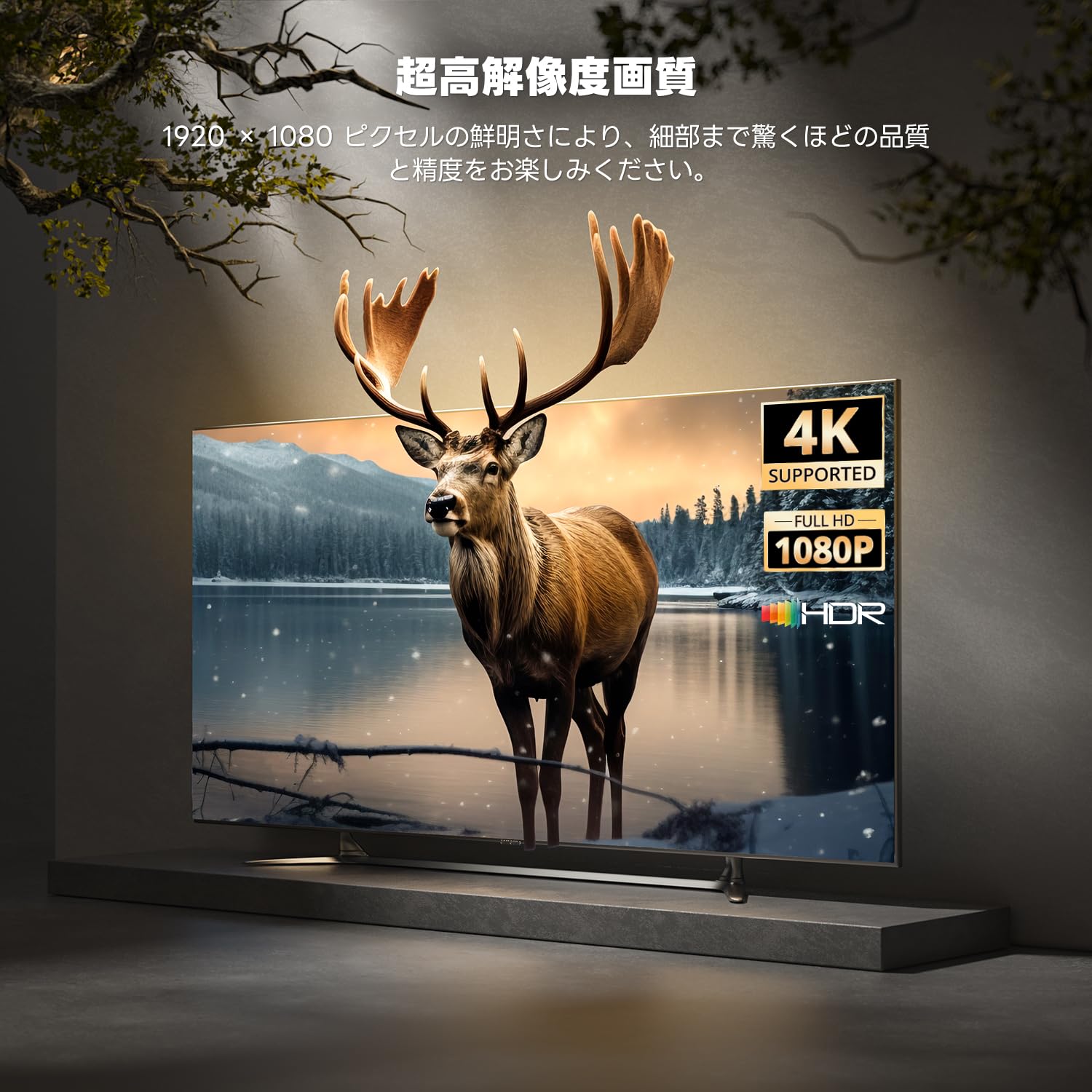
Image: High-resolution display capabilities of the device.
6. Entretien
To ensure the longevity and optimal performance of your ETOE Google TV Streaming Device, follow these maintenance guidelines:
- Nettoyage: Utilisez un chiffon doux et sec pour nettoyer l'appareil. N'utilisez pas de nettoyants liquides ni d'aérosols.
- Ventilation: Ensure the device is placed in a well-ventilated area to prevent overheating. Do not cover the device.
- Stockage: En cas de non-utilisation prolongée, débranchez l'appareil et rangez-le dans un endroit frais et sec.
- Mises à jour logicielles : Keep the device's software updated to the latest version for improved performance and security. Updates are typically managed automatically by Google TV.
7. Dépannage
If you encounter issues with your ETOE Google TV Streaming Device, refer to the following common problems and solutions:
| Problème | Solution possible |
|---|---|
| Pas d'alimentation / L'appareil ne s'allume pas | Ensure the power cable is securely connected to the device and a working power outlet. Try a different power adapter or USB port. |
| Pas de signal à la télévision | Verify the HDMI cable is securely connected to both the device and the TV. Ensure your TV is set to the correct HDMI input. Try a different HDMI port or cable. |
| La télécommande ne répond pas | Check the remote's batteries and replace if necessary. Re-pair the remote by holding the Home and Back buttons for 5 seconds. |
| Problèmes de connexion Wi-Fi | Restart your Wi-Fi router. Go to the device's Wi-Fi settings and reconnect to your network. Ensure the device is within range of your router. |
| L'application se bloque ou plante | Restart the application. Clear the app's cache and data in the device settings. If the problem persists, uninstall and reinstall the app. |
| Mauvaise qualité vidéo | Check your internet connection speed. Ensure your TV supports the resolution being streamed. Adjust video quality settings within the streaming app if available. |
8. Spécifications
Key technical specifications for the ETOE Google TV Streaming Device (Model D2861):
- Marque: ETOE
- Numéro de modèle : D2861
- Facteur de forme : Clé TV
- Couleur: Noir
- Technologie de connectivité: Wi-Fi (2.4 GHz et 5 GHz), Bluetooth 5.0
- Type de connecteur : HDMI
- Résolution de sortie vidéo: 1080p (1920x1080)
- Codecs vidéo: H.264, H.265/HEVC
- Poids du produit : 190 g
- Dimensions du colis : 19.3 x 9.1 x 4.6 cm
9. Garantie et assistance
ETOE provides a 12-month warranty and 30-day return policy for this product. For any initial defects or compatibility issues, please contact customer support. Japanese language support is available, and manufacturer warranty ensures comprehensive post-purchase assistance.
For further assistance, please visit the official ETOE store or contact customer support through the provided channels.
- Boutique officielle: ETOE Official Store on Amazon.co.jp