1. Introduction
Merci pour votre achatasing the LYNCAST N300 Mini Smart Projector. This manual provides essential information for setting up, operating, and maintaining your projector. Please read it thoroughly before use to ensure optimal performance and safety.
The LYNCAST N300 is a portable smart projector featuring Android 13, 1080P native resolution with 4K support, automatic keystone correction, WiFi 6, and Bluetooth 5.4 connectivity. Its 180° rotatable design offers flexible projection angles for various environments.
2. Consignes de sécurité
- Ne regardez pas directement l'objectif du projecteur lorsque le lamp est allumé.
- Assurez une ventilation adéquate autour du projecteur pour éviter toute surchauffe.
- Utilisez uniquement l’adaptateur secteur fourni.
- Tenez le projecteur éloigné de l'eau ou de tout autre liquide.
- Évitez de placer le projecteur sur des surfaces instables.
- N’essayez pas de démonter ou de réparer le projecteur vous-même. Contactez un technicien qualifié.
- Tenir hors de portée des enfants.
3. Contenu du colis
Vérifiez que tous les éléments sont présents dans votre colis :
- LYNCAST N300 Mini Smart Projector
- Adaptateur secteur
- Câble HDMI
- Télécommande
- Manuel de l'utilisateur (ce document)
4. Produit terminéview
4.1 Composants du projecteur
Familiarize yourself with the main components and interfaces of your LYNCAST N300 projector.
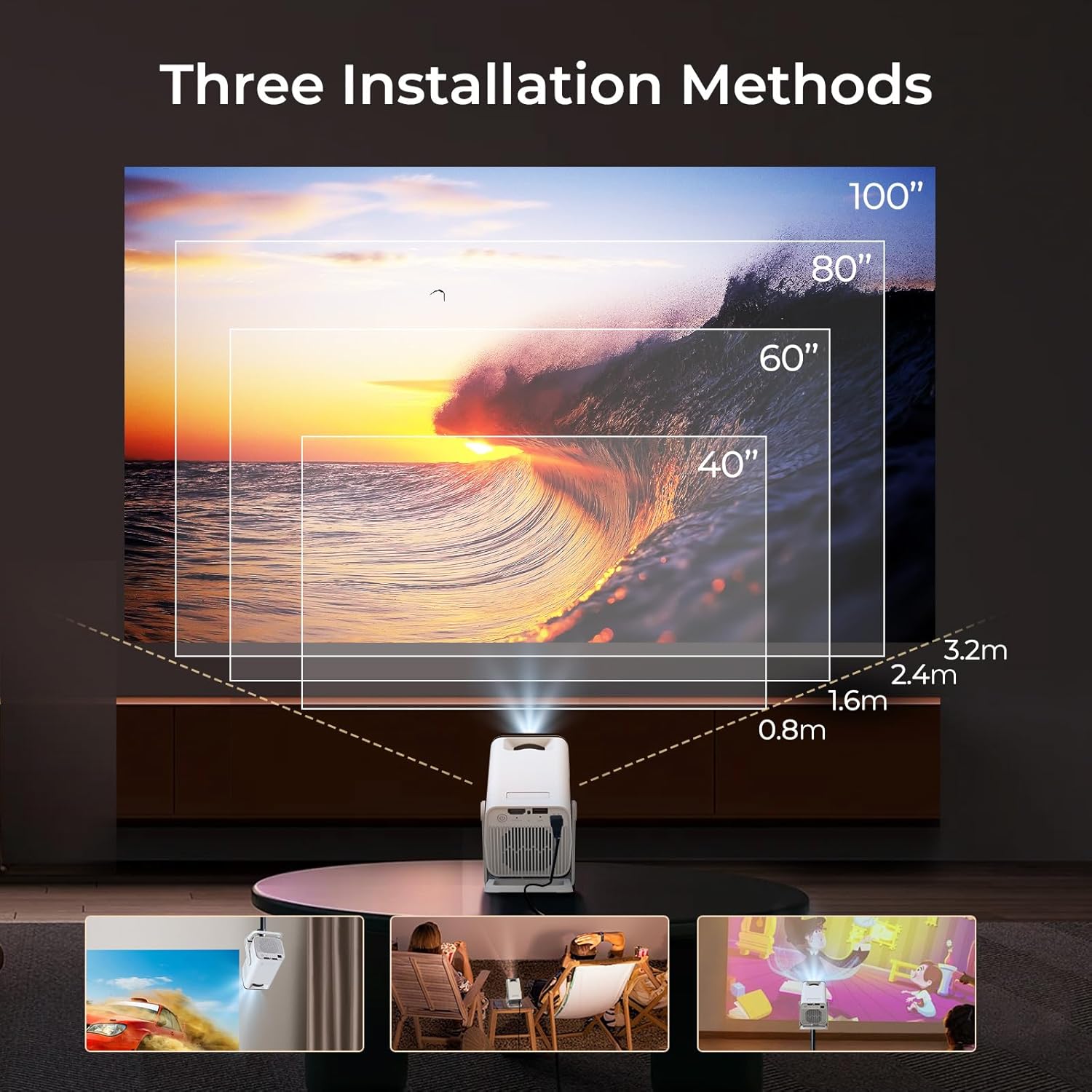
Image 4.1: Arrière view of the LYNCAST N300 projector showing HDMI and USB ports.
- Lentille: Projette l'image sur l'écran.
- Molette de mise au point : Réglage manuel de la netteté de l'image.
- Bouton d'alimentation : Allume/éteint le projecteur.
- Port HDMI: Connects to external devices like TV sticks, laptops, gaming consoles (PS5), and TV boxes.
- Port USB : Connects to USB storage devices or charges compatible devices.
- Puissance d'entrée : Connecte l'adaptateur secteur.
- Conférencier: Sortie audio intégrée.
- Support réglable : Allows for 180° rotation and flexible projection angles.
5. Installation
5.1 Connexion d'alimentation
- Branchez l'adaptateur secteur au port d'entrée d'alimentation du projecteur.
- Branchez l’adaptateur secteur sur une prise murale.
- Appuyez sur le bouton d'alimentation du projecteur ou de la télécommande pour l'allumer.
5.2 Réglage du positionnement et de l'angle
The LYNCAST N300 features a 180° rotatable design, allowing for versatile placement options.

Image 5.1: The projector's adjustable stand allows for various projection angles, including ceiling projection.
- Placez le projecteur sur une surface stable.
- Adjust the projector's angle using its integrated stand to project onto a wall, ceiling, or screen. The stand supports up to 180° rotation.
5.3 Réglage de la mise au point
To achieve a clear image, manually adjust the focus.

Image 5.2: Location of the manual focus wheel on the projector.
- Allumez le projecteur et affichez une image.
- Rotate the focus wheel located on the side of the projector until the image appears sharp and clear.
5.4 Correction automatique du trapèze
The LYNCAST N300 features automatic keystone correction to adjust distorted images caused by angled projection. This feature automatically squares the image.
- The projector will automatically detect and correct vertical keystone distortion.
- If further adjustments are needed, refer to the on-screen display (OSD) settings for manual keystone correction options.
6. Mode d'emploi
6.1 Connecting External Devices via HDMI
Connect devices such as TV sticks, laptops, gaming consoles, or TV boxes using an HDMI cable.
- Connectez une extrémité du câble HDMI au port HDMI du projecteur.
- Connect the other end to the HDMI output of your external device.
- Sélectionnez la source d'entrée HDMI dans le menu du projecteur.
Connectivité USB 6.2
Le port USB vous permet de lire des fichiers multimédias. files directement depuis un périphérique de stockage USB.
- Insérez votre périphérique de stockage USB dans le port USB du projecteur.
- Navigate to the media player application on the projector's home screen to browse and play files.
6.3 Connectivité sans fil (WiFi 6 et Bluetooth 5.4)
The projector supports WiFi 6 for faster and more stable internet connection and Bluetooth 5.4 for audio devices.
6.3.1 Connexion au Wi-Fi
- Go to the projector's Settings menu.
- Select "Network & Internet" or "WiFi".
- Choose your desired WiFi network and enter the password if prompted.
6.3.2 Connexion des appareils Bluetooth
- Go to the projector's Settings menu.
- Sélectionnez « Appareils connectés » ou « Bluetooth ».
- Activez le Bluetooth et recherchez les appareils disponibles.
- Sélectionnez votre enceinte ou vos écouteurs Bluetooth à appairer.
6.4 Duplication d'écran (Lien avec le téléphone)
Mirror your iOS or Android device screen to the projector.

Image 6.1: Screen mirroring from a smartphone to the projector.
6.4.1 For iOS Devices (AirPlay)
- Ensure both your iOS device and the projector are connected to the same WiFi network.
- Sur votre appareil iOS, ouvrez le Centre de contrôle et appuyez sur « Recopie d’écran ».
- Sélectionnez le projecteur dans la liste des appareils disponibles.
6.4.2 For Android Devices (Miracast/Google Cast)
- Ensure both your Android device and the projector are connected to the same WiFi network.
- On your Android device, go to Settings and look for "Cast", "Screen Mirroring", or "Wireless Display". The exact name may vary by device.
- Sélectionnez le projecteur dans la liste des appareils disponibles.
6.5 Using Android 13 Smart Features
The LYNCAST N300 runs on Android 13, providing access to a wide range of applications.

Image 6.2: Android 13 interface showing pre-installed applications.
- Applications préinstallées : Access popular streaming services like Netflix, YouTube, Prime Video, and Disney+ directly from the home screen.
- App Store : Téléchargez et installez des applications supplémentaires depuis la boutique d'applications intégrée.
- Navigation: Use the remote control to navigate the Android interface.
7. Entretien
7.1 Nettoyage de la lentille
- Utilisez un chiffon doux non pelucheux spécialement conçu pour les lentilles optiques.
- Gently wipe the lens to remove dust or smudges. Do not use abrasive cleaners or excessive force.
7.2 Nettoyage du boîtier du projecteur
- Essuyez l'extérieur du projecteur avec un chiffon doux et sec.
- N’utilisez pas de nettoyants liquides ni de solvants.
7.3 Stockage
- Lorsqu'il n'est pas utilisé pendant une période prolongée, rangez le projecteur dans un endroit frais et sec, à l'abri de la lumière directe du soleil et des températures extrêmes.
- Consider using the original packaging or a protective case to prevent dust accumulation and damage.
8. Dépannage
| Problème | Cause possible | Solution |
|---|---|---|
| Pas de courant | Câble d'alimentation non branché ; prise de courant défectueuse | Vérifiez que le câble d'alimentation est bien branché ; essayez une autre prise de courant. |
| Aucune image | Incorrect input source; Loose HDMI cable; Device not powered on | Select correct input source; Check HDMI cable connection; Ensure connected device is powered on. |
| Image floue | Mise au point incorrecte ; projecteur trop loin/trop près | Adjust the manual focus wheel; Reposition the projector for optimal distance. |
| Pas de son | Volume too low; Muted; Incorrect audio output selected; Bluetooth device not connected | Augmenter le volume ; Réactiver le son ; Vérifier les paramètres audio ; Reconnecter l’appareil Bluetooth. |
| La télécommande ne fonctionne pas | Dead batteries; Obstruction between remote and projector | Remplacez les piles ; assurez-vous d'une ligne de visée dégagée vers le récepteur infrarouge du projecteur. |
| Problèmes de connexion Wi-Fi | Mot de passe incorrect ; hors de portée ; problèmes de routeur | Vérifiez le mot de passe Wi-Fi ; rapprochez le projecteur du routeur ; redémarrez le routeur. |
9. Spécifications
| Fonctionnalité | Détail |
|---|---|
| Marque | LYNCAST |
| Nom du modèle | Netflix VisualCube N300 (X1AA) |
| Système opérateur | Android 13 |
| Technologie d'affichage | LED, laser |
| Résolution native | 1920x1080 (1080P) |
| Prise en charge de la résolution maximale | 3840 Pixels (4K) |
| Rapport de contraste | 1000:1 |
| Technologie de connectivité | Bluetooth 5.4, Wi-Fi 6 |
| Interface matérielle | HDMI, USB |
| Caractéristiques spéciales | Automatic Obstacle Avoidance (Auto Keystone), 180° Rotation |
| Appareils compatibles | Speaker, Game Console, Laptop, Smartphone, Tablet, TV Stick |
| Dimensions du produit | 10 x 10 x 17 cm |
| Poids du produit | 770 g |
| Type de montage | Support de table |
10. Garantie et assistance
For warranty information and technical support, please refer to the warranty card included in your package or visit the official LYNCAST webConsultez le site. Conservez votre reçu d'achat comme preuve d'achat.
LYNCAST Official Website: LYNCAST Brand Store on Amazon
11. Démonstration vidéo du produit
Regardez cette vidéo pour un aperçu visuel.view of the LYNCAST N300 Mini Smart Projector's features and usage.
Vidéo 11.1: LYNCAST N300 Projector overview, demonstrating features like Netflix compatibility, portable design, 270° rotation, manual focus, and phone link (screen mirroring).