
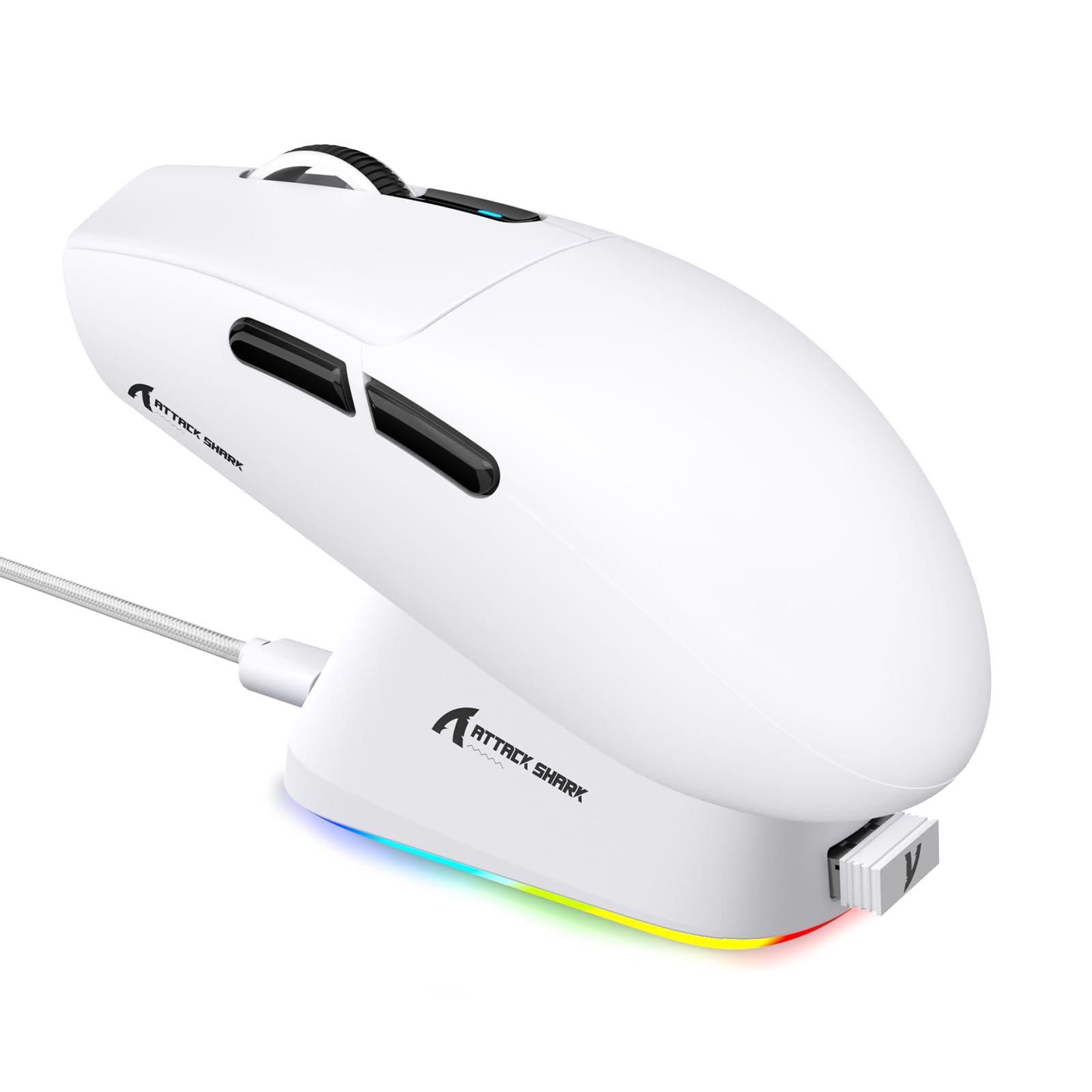
1. Introduction
This manual provides detailed instructions for the setup, operation, maintenance, and troubleshooting of your ATTACK SHARK G3PRO Wireless Gaming Mouse. Please read this manual thoroughly to ensure proper use and to maximize your gaming experience.

Image : Un surview of the ATTACK SHARK G3PRO mouse and its features, including magnetic fast charging, PAW3311 sensor, web cloud drive, RGB rapid charging dock, and lightweight design.
2. Contenu du colis
Vérifiez que tous les éléments sont présents dans votre colis :
- Souris de jeu sans fil ATTACK SHARK G3PRO
- Station de chargement magnétique RGB
- Récepteur USB 2.4 G
- Câble de chargement/données USB-C vers USB-A
- Manuel d'utilisation
3. Installation
3.1 Charge initiale
Before first use, it is recommended to fully charge the mouse. Connect the USB-C cable to the charging dock and a power source. Place the mouse onto the magnetic charging dock. The RGB lighting on the dock will indicate charging status.
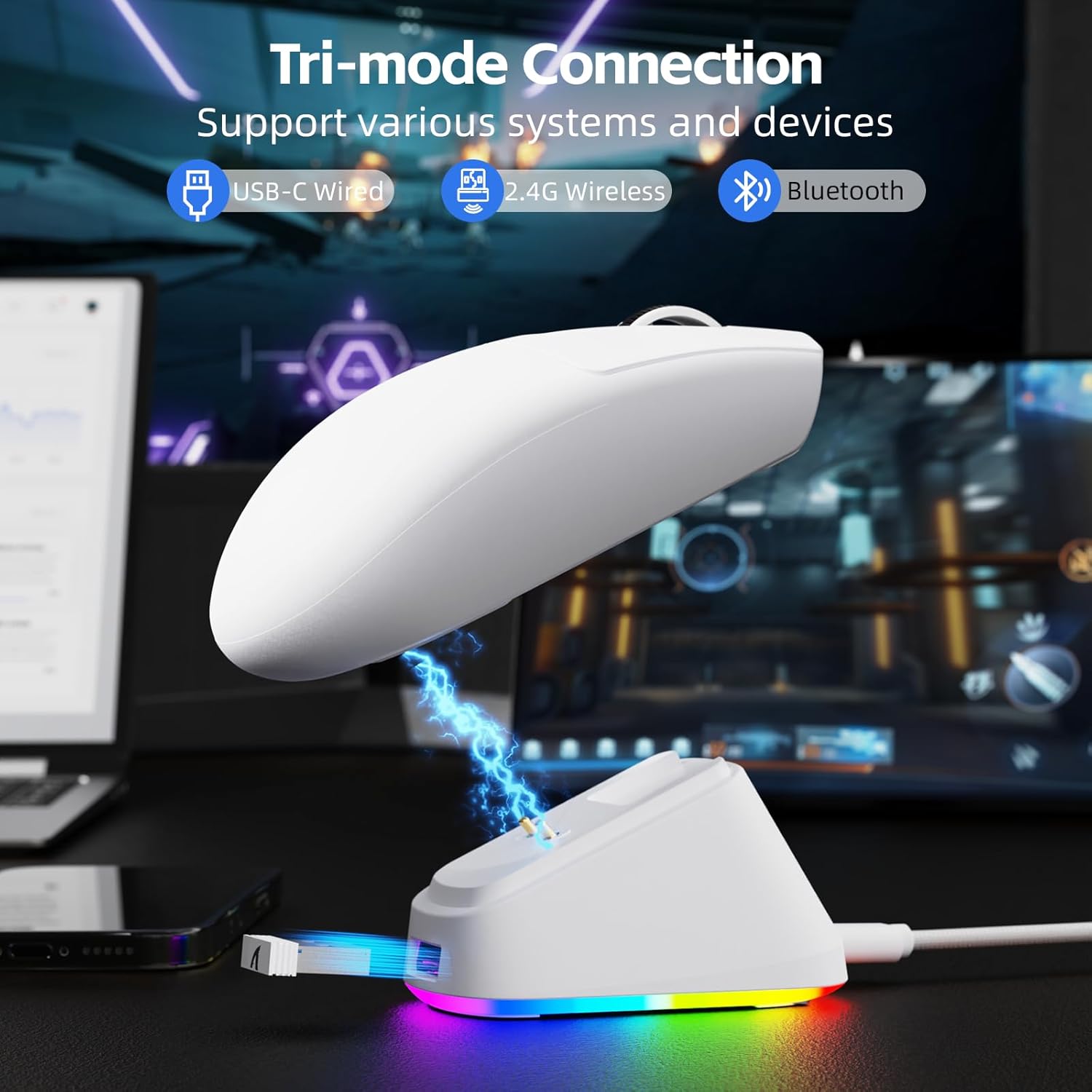
Image: The ATTACK SHARK G3PRO mouse magnetically attached to its RGB charging dock, showing the charging thimbles and USB-C port.
For a visual guide on charging, please watch the following video:
Video: This video demonstrates the magnetic charging dock and its features for the ATTACK SHARK G3PRO Wireless Gaming Mouse.
3.2 Connexion de la souris
The G3PRO supports three connection modes: 2.4GHz Wireless, Bluetooth, and USB-C Wired. A switch on the bottom of the mouse allows you to select the desired mode.

Image: The ATTACK SHARK G3PRO mouse with visual indicators for Wired, 2.4G, and Bluetooth connectivity modes.
Mode sans fil 2.4 GHz :
- Locate the 2.4G USB receiver, typically stored within the charging dock or the mouse itself.
- Branchez le récepteur USB dans un port USB disponible sur votre ordinateur.
- Set the switch on the bottom of the mouse to "2.4G".
- La souris devrait se connecter automatiquement.
Mode Bluetooth:
- Set the switch on the bottom of the mouse to "BT".
- Sur votre ordinateur ou appareil, accédez aux paramètres Bluetooth et activez le Bluetooth.
- Rechercher new devices and select "ATTACK SHARK G3PRO" to pair.
Mode filaire USB-C :
- Connectez le câble USB-C directement de la souris à votre ordinateur.
- La souris fonctionnera comme une souris filaire et se rechargera simultanément.
For a visual guide on product features and connectivity, please watch the following video:
Video: This video demonstrates the various color options and the magnetic charging feature of the ATTACK SHARK G3PRO Wireless Gaming Mouse, showcasinet sa conception et sa fonctionnalité.
4. Utilisation de la souris
4.1 Fonctions des boutons
The ATTACK SHARK G3PRO features 5 programmable buttons:
- Click gauche: Action principale.
- Clic-droit: Menu d'actions/contexte secondaire.
- Molette de défilement/clic central : Défilement vers le haut/bas, clic central pour le défilement universel ou d'autres fonctions.
- Bouton avant : Default for navigating forward in web navigateurs/dossiers.
- Bouton de retour : Default for navigating backward in web navigateurs/dossiers.
- Commutateur PPP : Parcourt les niveaux de DPI prédéfinis.

Image: A detailed diagram illustrating the location and default functions of the multi-functional buttons on the ATTACK SHARK G3PRO mouse.

Image : Une explosion view and labeled diagram of the G3PRO mouse components, including buttons, switches, charging points, and the 2.4G/OFF/BT mode switch.
4.2 Ajustement PPP
The mouse features a dedicated DPI switch to cycle through various sensitivity levels, ranging from 800 to 25,000 DPI. The current DPI setting is indicated by an LED light.

Image: A visual representation of the 25,000 DPI optical sensor's precision and how mouse movement trajectory sensitivity scales with DPI settings.
4.3 Taux de participation
The G3PRO supports a 1000Hz polling rate in both wired and 2.4GHz wireless modes, ensuring rapid response times for competitive gaming.

Image: A diagram illustrating the 1000Hz polling rate capability in both wired and wireless modes, highlighting millisecond response times.
5. Logiciels et personnalisation
Customize your G3PRO mouse settings using the intuitive web driver or downloadable software from ATTACK SHARK. This allows for personalization of DPI, polling rate, macros, and more.
- Web Conducteur: Accéder au web-based configuration tool for quick adjustments without installation.
- Downloadable Software: For advanced customization and profile management, download the dedicated software.

Image: A screenshot of the ATTACK SHARK Hub software interface, showing options for mouse settings, DPI settings, parameter settings, macro editing, and personal center.

Image: The cloud-driven programming interface for the G3PRO mouse, displaying options for button settings, DPI adjustments, polling rate settings, and power management.
6. Entretien
6.1 Nettoyage
Pour des performances optimales, nettoyez régulièrement votre souris. Utilisez un chiffon doux et sec pour essuyer sa surface. Pour les saletés tenaces, un chiffon légèrement plus sec peut être utile.amp Un chiffon peut être utilisé, à condition d'empêcher toute humidité de pénétrer dans les composants internes. Évitez les produits chimiques agressifs et les matériaux abrasifs.
6.2 Stockage
When not in use for extended periods, store the mouse and charging dock in a cool, dry place. Ensure the USB receiver is securely stored, ideally within the charging dock's designated slot, to prevent loss.
7. Dépannage
| Problème | Cause possible | Solution |
|---|---|---|
| Souris ne répondant pas (2.4 GHz) | Low battery; Receiver not plugged in; Incorrect mode selected; Driver issue. | Charge the mouse; Ensure receiver is firmly plugged in; Set mouse to "2.4G" mode; Reinstall mouse drivers. |
| Souris ne répondant pas (Bluetooth) | Batterie faible ; Bluetooth non activé sur l’appareil ; Non apparié ; Mode incorrect sélectionné. | Charge the mouse; Enable Bluetooth on your device; Re-pair the mouse in Bluetooth settings; Set mouse to "BT" mode. |
| Le rétroéclairage RGB de la station de charge ne fonctionne pas. | Cable not connected; Power source issue. | Ensure USB-C cable is securely connected to dock and power source; Try a different USB port or power adapter. |
| Suivi incohérent | Dirty sensor; Uneven surface; Interference (wireless). | Clean the optical sensor; Use a clean, even mouse pad; Reduce wireless interference by moving other devices or using wired mode. |
| Les boutons ne répondent pas | Conflit logiciel ; Dommages physiques. | Check software settings for button remapping; Test on another computer; Contact support if physical damage is suspected. |
8. Spécifications
| Fonctionnalité | Détail |
|---|---|
| Marque | ATTAQUER LE REQUIN |
| Modèle | G3PRO |
| Couleur | Blanc |
| Technologie de connectivité | Sans fil 2.4 GHz, Bluetooth, filaire USB-C |
| Technologie de détection de mouvement | Optique (capteur PAW3311) |
| DPI max. | 25,000 DPI |
| Taux de sondage | 1000 Hz |
| Accélération | 40 G |
| Vitesse de suivi | 400 IPS |
| Interrupteurs | Mechanical (100 Million Clicks) |
| Capacité de la batterie | 500mAh |
| Autonomie de la batterie | Jusqu'à 200 XNUMX heures |
| Poids | 59 g ± 3 g |
| Boutons | 5 |
| Orientation de la main | Ambidextre |
| Appareils compatibles | Ordinateur portable, ordinateur personnel, smartphone, tablette |
| Système opérateur | Windows, macOS |
For a comparison of G3 and G3PRO models, refer to the image below:

Image: A table comparing the specifications of the ATTACK SHARK G3 and G3PRO models, highlighting differences in components and features.
9. Consignes de sécurité
- N'exposez pas l'appareil à des températures extrêmes ou à l'humidité.
- Évitez de laisser tomber ou de soumettre l'appareil à des impacts violents.
- Tenir hors de portée des enfants.
- Ne tentez pas de démonter ou de modifier l'appareil, car cela annulera la garantie et pourrait l'endommager.
- Utilisez uniquement le câble de chargement et la station d'accueil fournis.
10. Garantie et assistance
The ATTACK SHARK G3PRO Wireless Gaming Mouse comes with a standard manufacturer's warranty. For detailed warranty information, please refer to the warranty card included in your package or visit the official ATTACK SHARK website.
For technical support, troubleshooting assistance, or to inquire about replacement parts, please contact ATTACK SHARK customer service through their official website ou les coordonnées fournies dans l'emballage de votre produit.
Officiel Website: Boutique ATTACK SHARK sur Amazon