
1. Introduction
The VSTARCAM CB76-2 Tiny Camera is a compact and portable indoor security camera designed for various monitoring needs. Featuring 2.4GHz WiFi connectivity, a built-in rechargeable battery, IR night vision, and human detection capabilities, it serves as an effective solution for home security, baby monitoring, or pet surveillance. Its 136° wide-angle lens ensures broad coverage, and its small size allows for flexible placement.
2. Produit terminéview
2.1 Contenu du paquet
Vérifiez que tous les éléments sont présents dans le colis :
- VSTARCAM CB76-2 Camera x 1
- Manuel d'utilisation x 1
- Câble de chargement x 1
- Support de montage x 1
2.2 Composants de la caméra
Familiarize yourself with the camera's physical features.

Image: The VSTARCAM CB76-2 Tiny Camera, showing its compact design and integrated stand.

Image: The VSTARCAM CB76-2 camera connected to a charging cable, illustrating its rechargeable battery feature.
The camera features a lens, microphone, power button, reset button, and a charging port. The included bracket allows for flexible positioning.
3. Guide de configuration
3.1 Charge initiale
Before first use, fully charge the camera using the provided charging cable and a standard USB power adapter (not included). A full charge ensures optimal performance and battery life.

Image: Visual guide for the initial setup process, including app download, charging, and connection steps.
3.2 Téléchargement de l'application et inscription au compte
- Download the "O-KAM Pro" app from your device's app store (App Store for iOS or Google Play for Android).
- Ouvrez l'application et suivez les instructions à l'écran pour créer un nouveau compte ou vous connecter si vous en avez déjà un.
3.3 Connexion de la caméra au Wi-Fi
The camera supports 2.4GHz Wi-Fi connections only. Ensure your router is configured for 2.4GHz or has a mixed mode enabled.
- Power on the camera by long-pressing the power button.
- Open the "O-KAM Pro" app and tap the "+" icon to add a new device.
- Select the option to add a camera and follow the prompts. You may be asked to scan a QR code located on the camera body or connect via Bluetooth.
- Saisissez le nom (SSID) et le mot de passe de votre réseau Wi-Fi 2.4 GHz lorsque vous y êtes invité.
- Wait for the camera to connect to your Wi-Fi network. The app will indicate a successful connection.

Image: Illustration of the two connection methods: Bluetooth for initial discovery and 2.4GHz WiFi for continuous operation.
If connection fails, ensure your Wi-Fi is 2.4GHz, the password is correct, and the camera is within range of your router. You may need to reset the camera by long-pressing the reset button until the indicator light changes.
3.4 Installation flexible
The compact design and included bracket allow for versatile placement. The camera can be placed on a tabletop, shelf, or mounted to a wall or ceiling using the bracket.

Image : Examples of flexible camera placement in various indoor environments like home, office, car, and shop.
4. Mode d'emploi
4.1 En direct View et enregistrement
Once connected, open the O-KAM Pro app to access the live video feed from your camera. You can initiate manual recordings or capture screenshots directly from the app interface.

Image: A smartphone screen displaying a 4-screen live view from multiple VSTARCAM cameras within the O-KAM Pro app.
4.2 Détection humaine et alertes
The camera features AI human detection. When human movement is detected, the camera will automatically record and send real-time alerts to your smartphone via the O-KAM Pro app.

Image: Depiction of the camera detecting a person and sending a real-time alert notification to a smartphone.
You can customize detection sensitivity and set specific activity zones within the app to reduce false alarms.

Image: An illustration showing how to define a customizable activity zone within the camera's field of view en utilisant l'application.
Vision nocturne infrarouge 4.3
The camera is equipped with infrared (IR) night vision, allowing it to capture clear images and videos in low-light conditions or complete darkness.
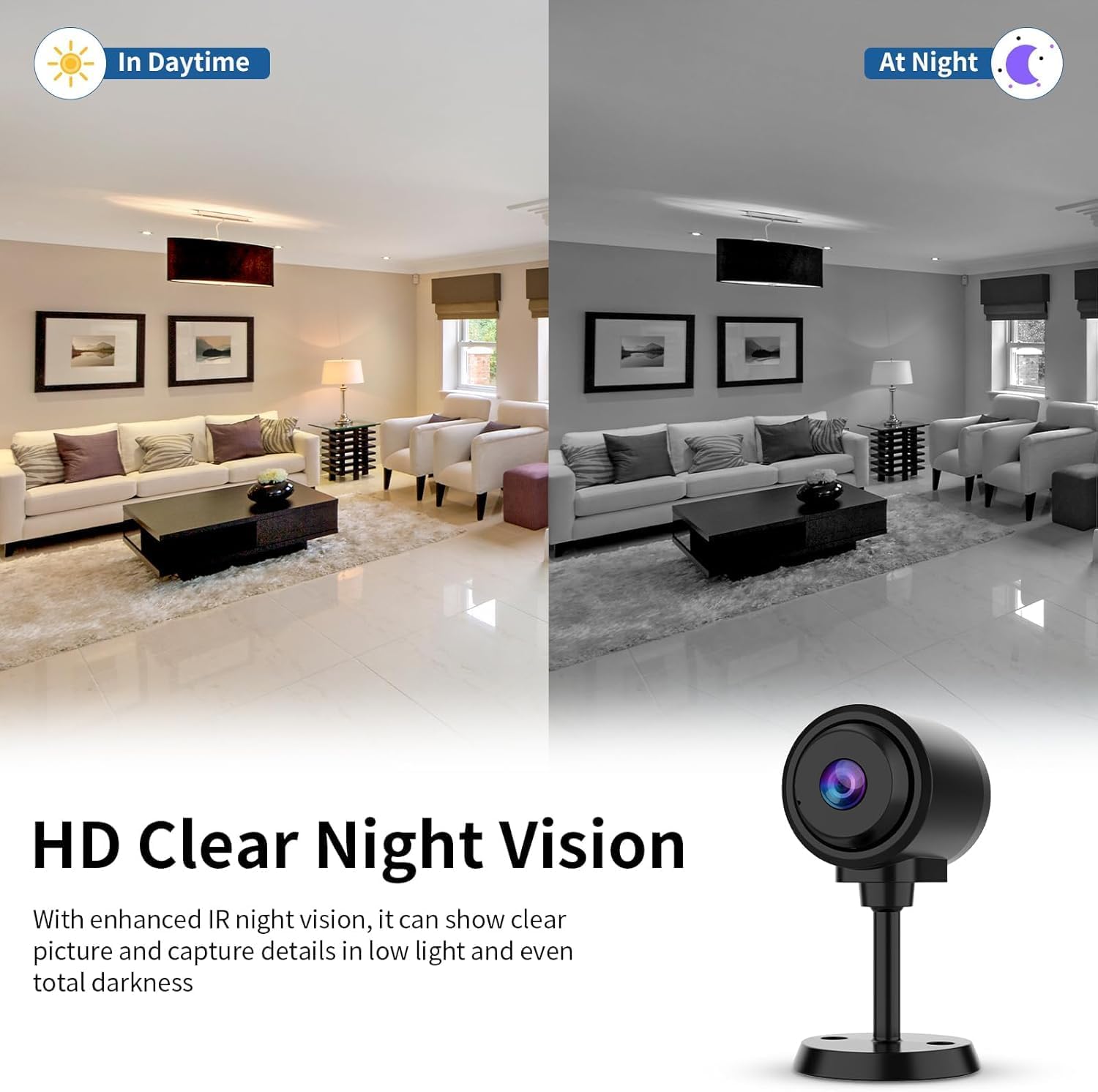
Image: Comparison of daytime and nighttime views, demonstrating the camera's clear night vision capabilities.
4.4 Wide-Angle View
The 136° wide-angle lens provides extensive coverage, minimizing blind spots and allowing you to monitor a larger area with a single camera.

Image: A visual representation of the camera's 136-degree wide-angle field of view dans un cadre de salon.
4.5 Surveillance audio
With a built-in high-fidelity microphone and advanced noise reduction, the camera allows for clear audio pickup. You can hear sounds from the camera's environment through the app.

Image: An illustration showing the camera's sound pickup capability with noise reduction, indicating clear audio capture.
4.6 Options de stockage
La caméra prend en charge deux méthodes de stockage pour les enregistrements.tage:
- Stockage local : Insert a TF card (up to 256GB, not included) into the camera's slot for continuous or event-based recording.
- Stockage dans le cloud : Subscribe to the cloud storage service via the O-KAM Pro app for secure, remote access to your recordings. A free trial may be available.

Image: Visual representation of the camera's flexible storage options, including TF card and cloud storage.
4.7 Multi-utilisateurs Viewpartager et créer
The O-KAM Pro app allows multiple users to view the camera feed simultaneously on various devices (Android, iOS, Windows). You can share access with family and friends through the app's sharing features.

Image: Depicts multiple users viewing the camera feed on different devices, highlighting the multi-user and sharing capabilities.

Image: Shows various devices (laptop, smartphone) displaying the camera feed, emphasizing remote monitoring and sharing with multiple users.
5. Entretien
5.1 Nettoyage
To maintain optimal image quality, regularly clean the camera lens with a soft, dry, lint-free cloth. Avoid using harsh chemicals or abrasive materials that could scratch the lens or camera body.
5.2 Entretien de la batterie
- For stable and long-lasting monitoring, it is recommended to use the camera connected to a power source via the charging cable, especially for continuous operation.
- If operating on battery, recharge the camera promptly when the battery low indicator appears in the app.
- Avoid exposing the camera to extreme temperatures, which can affect battery life and performance.
5.3 Placement optimal
Place the camera in an area with good Wi-Fi signal strength to ensure stable connectivity. Avoid placing it near large metal objects or other devices that may cause interference.
6. Dépannage
6.1 La caméra ne se connecte pas au Wi-Fi
- Vérifier la bande Wi-Fi : Assurez-vous que votre réseau Wi-Fi fonctionne en 2.4 GHz. La caméra n'est pas compatible avec le Wi-Fi 5 GHz.
- Mot de passe Wi-Fi : Vérifiez que le mot de passe Wi-Fi saisi dans l'application est correct.
- Intensité du signal : Rapprochez la caméra de votre routeur Wi-Fi pour améliorer la puissance du signal.
- Réinitialiser l'appareil photo : Long-press the reset button on the camera until the indicator light changes, then attempt the connection process again.
- Paramètres du routeur : Redémarrez votre routeur Wi-Fi.
6.2 Mauvaise qualité d'image / Problèmes de vision nocturne
- Nettoyer la lentille : Nettoyez délicatement l'objectif de l'appareil photo avec un chiffon doux.
- Éclairage: Assurez-vous qu'aucun obstacle ne bloque la caméra. view or the IR lights during night vision mode.
- Paramètres de résolution : Check the video resolution settings in the O-KAM Pro app to ensure it's set to HD.
6.3 La batterie se décharge rapidement
- Puissance continue : For extended use, connect the camera to a continuous power source.
- Frequent Activity: High frequency of motion detection events and recordings will consume more battery. Adjust detection sensitivity or schedule recording times.
- Signal Wi-Fi : A weak Wi-Fi signal can cause the camera to work harder, leading to faster battery drain.
- Température: Extreme cold or heat can reduce battery efficiency.
6.4 Aucune alerte de détection de mouvement
- Notifications de l'application : Ensure notifications are enabled for the O-KAM Pro app in your phone's settings.
- Paramètres de détection : Verify that human detection is enabled and sensitivity is appropriately set within the app.
- Zones d'activité : Check if activity zones are correctly configured and not excluding the areas you wish to monitor.
- Calendrier d'enregistrement : Confirm that the recording schedule in the app is active during the desired monitoring times.
7. Spécifications
| Nom du modèle | CB76-2 |
| Utilisation intérieure/extérieure | Intérieur |
| Technologie de connectivité | Sans fil (Wi-Fi 2.4 GHz) |
| Source d'énergie | Électrique filaire (batterie rechargeable) |
| Résolution de capture vidéo | 1296p |
| ViewAngle d'attaque | 136 degrés |
| Type de contrôleur | IOS, Android, MAC, PC (via O-KAM Pro App) |
| Type de montage | Support de table, autoportant |
| Type d'alerte | Détection de mouvement uniquement (détection humaine) |
| Options de stockage | Carte TF (jusqu'à 256 Go), stockage cloud |
| Dimensions de l'article (L x l x H) | 1.68 x 1.38 x 1.4 pouces |
| Poids de l'article | 4.6 onces |
| Matériel | Plastique |
8. Garantie et assistance
8.1 Informations sur la garantie
VSTARCAM products are covered by a limited warranty. Please refer to the warranty card included in your package or visit the official VSTARCAM webConsultez le site pour connaître les conditions générales de garantie détaillées. Conservez votre reçu d'achat comme preuve d'achat pour toute réclamation au titre de la garantie.
8.2 Assistance clientèle
For technical assistance, troubleshooting, or any questions regarding your VSTARCAM CB76-2 camera, please contact VSTARCAM customer support. Contact information can typically be found on the official VSTARCAM website or within the O-KAM Pro app's help section.
Ressources en ligne :
- Official VSTARCAM Website: www.vstarcam.com (Remarque : Ceci est un espace réservé URLVeuillez vous référer à la documentation produit pour plus de précisions. URL)
- O-KAM Pro App: Check the 'Help' or 'FAQ' section within the app.