
1. Introduction
The MGSTN Snap Cam is an ultra-compact and lightweight wearable action camera designed for hands-free recording. It captures high-definition video and is suitable for various activities, from daily vlogging to outdoor sports. This manual provides essential information for setting up, operating, and maintaining your Snap Cam.
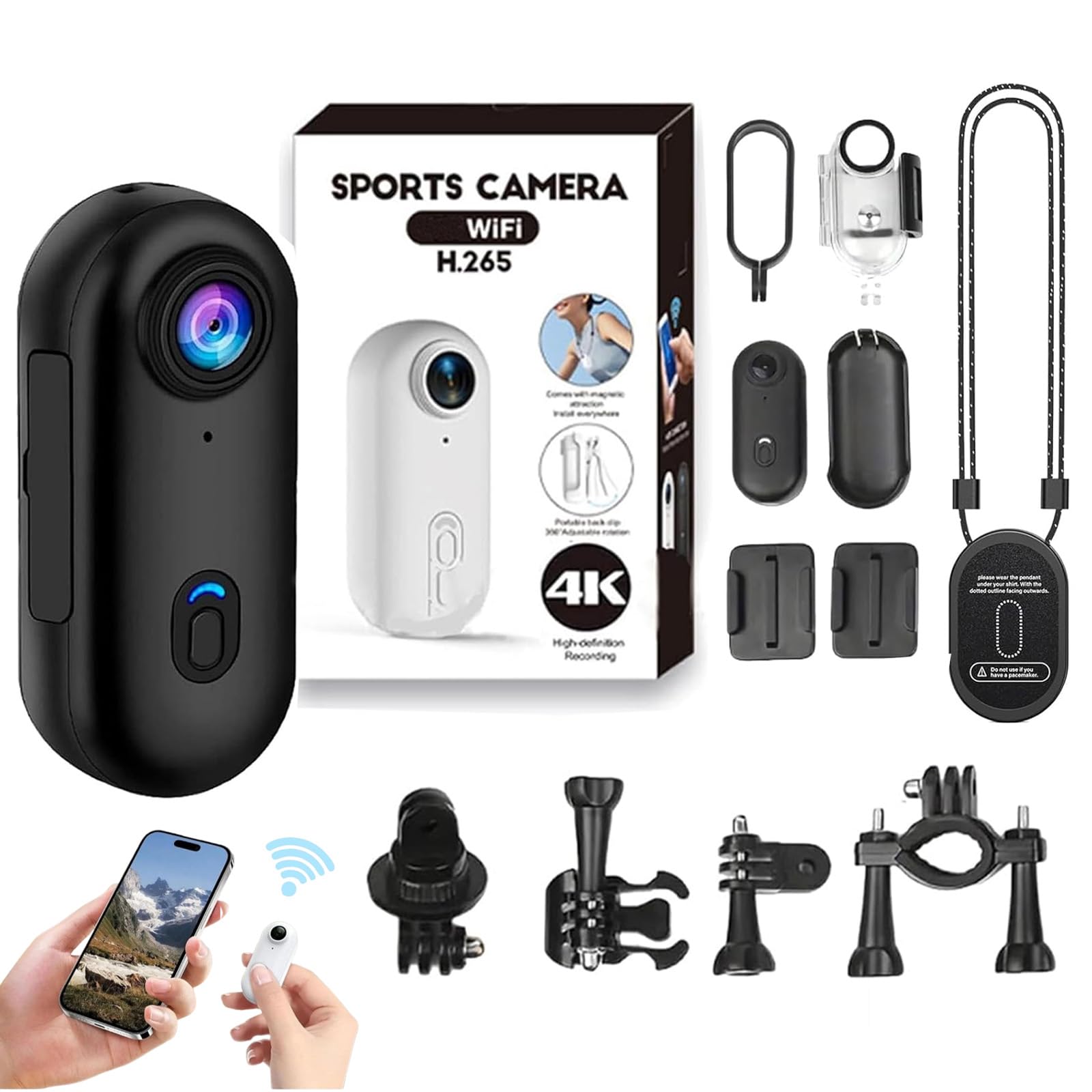
Image 1.1: The MGSTN Snap Cam 4K Mini Handsfree Bodycam.
Vidéo 1.1 : Un overview of the MGSTN Snap Cam's features and accessories, demonstrating its compact size, 4K resolution capabilities, and various mounting options including a magnetic necklace, waterproof case, and back clip mount. It also highlights the companion app for real-time footagsuivi électronique.
2. Contenu de la boîte
Vérifiez que tous les éléments sont présents dans votre colis :
- The Snap Cam unit
- Boîtier étanche
- Magnetic Necklace/Lanyard
- Clip de montage arrière
- Câble de chargement USB
- Manuel de l'utilisateur (ce document)
- Other mounting accessories (may vary by package)
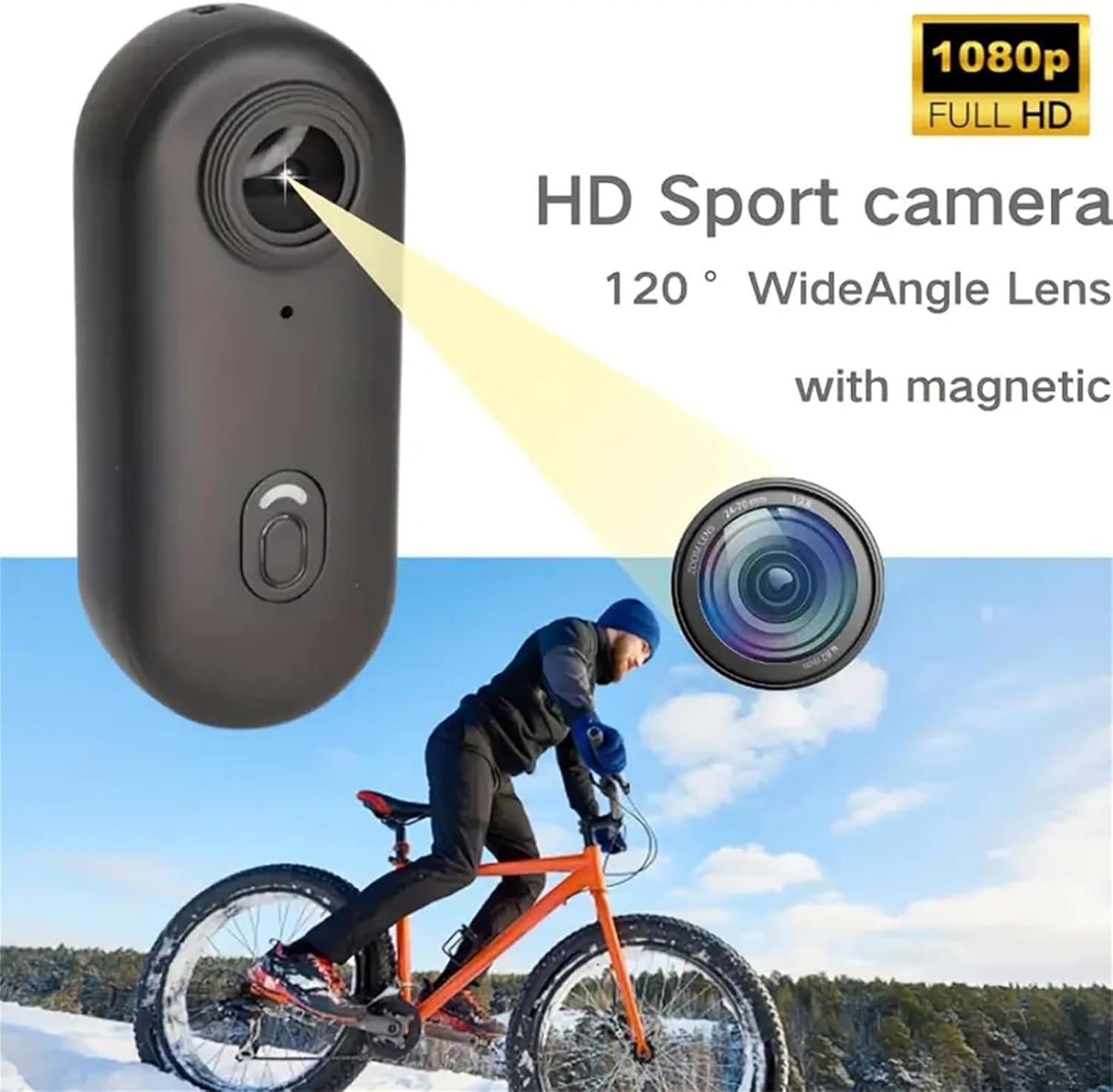
Image 2.1: Snap Cam with various accessories, including the waterproof case, magnetic lanyard, and mounting options.
3. Produit terminéview
The Snap Cam features a compact design with essential controls and indicators.

Image 3.1: Key controls and indicators on the Snap Cam.
- Lentille: Wide-angle lens for capturing footage.
- Power/Record Button: Used to power on/off the device and start/stop recording.
- Voyant lumineux : Displays device status (e.g., power, recording, Wi-Fi, charging).
- Microphone: Pour l'enregistrement audio.
- Port USB : Pour le chargement et le transfert de données.
- Emplacement pour carte micro SD : Pour l'insertion de la carte mémoire.

Image 3.2: Physical dimensions of the Snap Cam.
4. Installation
4.1. Insertion d'une carte micro SD
A Micro SD card (not included) is required for recording. The camera supports up to 128GB. Use a Class 10, UHS Speed Class 3 (U3), or Video Speed Class 60 (V60) card for optimal performance, especially for 4K recording.
- Repérez l'emplacement pour carte Micro SD sur le côté de l'appareil photo.
- Insérez délicatement la carte Micro SD, contacts vers le bas, jusqu'à ce qu'elle s'enclenche.
- Pour retirer la carte, appuyez à nouveau dessus jusqu'à ce qu'elle ressorte.
4.2. Chargement de la batterie
Before first use, fully charge the Snap Cam.
- Connect the camera to a USB power source using the provided USB cable.
- Le voyant lumineux s'allumera pendant la charge.
- The indicator light will turn off once charging is complete.
- A full charge provides approximately 90 minutes of 4K recording or 150 minutes of 1080P recording. The camera supports recording while charging.
Image 4.1: The indicator light turns off when charging is complete.
5. Utilisation de l'appareil photo
5.1. Mise sous/hors tension et enregistrement
- Mise sous tension : Press and hold the Power/Record button for a few seconds until the indicator light illuminates.
- Démarrer l'enregistrement : Once powered on, press the Power/Record button once to start recording. The indicator light will flash to indicate recording is in progress.
- Arrêter l'enregistrement : Press the Power/Record button once again to stop recording. The indicator light will return to a steady state.
- Éteindre: Press and hold the Power/Record button for a few seconds until the indicator light turns off.
Image 5.1: Visual guide for basic camera operations.
5.2. Enregistrement en boucle
The Snap Cam supports loop recording, which automatically overwrites the oldest files when the memory card is full. This ensures continuous recording without manual deletion of old footage.
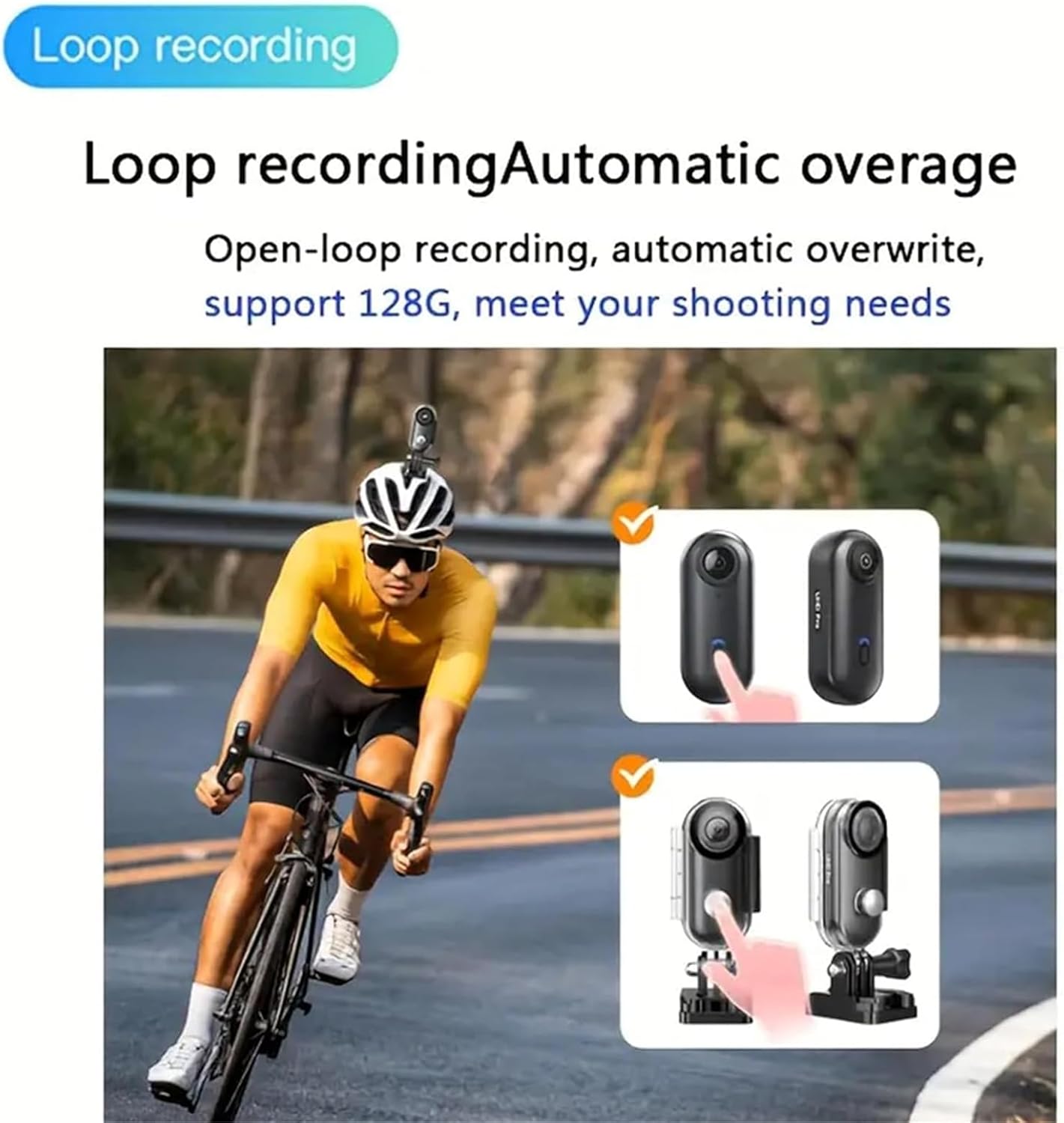
Image 5.2: Loop recording functionality.
5.3. Connectivité Wi-Fi et utilisation de l'application
The built-in Wi-Fi allows for easy transfer of footage to your smartphone and real-time viewing.
- Activate Wi-Fi Mode: Double-click the Power/Record button after the camera is powered on. The blue-green LED will flash to indicate Wi-Fi mode is active.
- Connectez-vous à l'application : On your smartphone, open Wi-Fi settings and connect to the camera's hotspot (SSID will be displayed on the camera or in the app).
- Utilisez l'application : Open the dedicated Snap Cam app (download from your app store) to view vivre footage, transfert files et ajustez les paramètres.
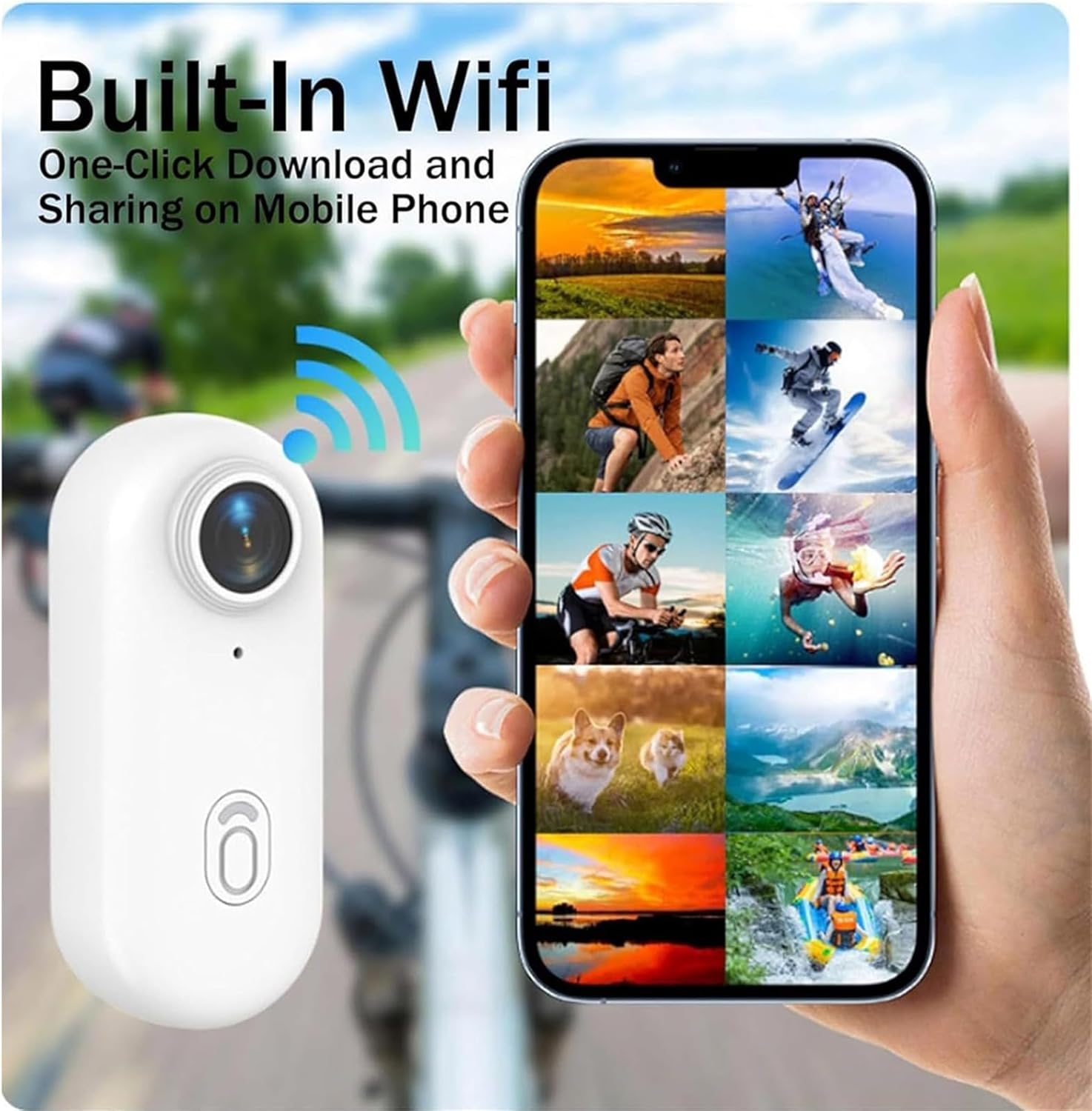
Image 5.3: Seamless file transfer and live view via Wi-Fi.

Image 5.4: Step-by-step quick guide for Wi-Fi connection.
5.4. Utilisation de l'étui étanche
The included waterproof case allows the Snap Cam to be used at depths of up to 30 meters (98 feet). The camera itself is not waterproof without the case.
- Assurez-vous que l'appareil photo est bien placé à l'intérieur de son boîtier étanche.
- Vérifiez que le boîtier est correctement scellé avant de l'immerger.
- After use in water, rinse the case with fresh water and dry thoroughly.

Image 5.5: The Snap Cam in its waterproof case for underwater use.
5.5. Options de montage
The Snap Cam offers flexible mounting options for various scenarios:
- Lanière magnétique : Wear around your neck for easy POV shots.
- Fixation par clip arrière : Clip onto clothing, backpacks, or belts.
- Support casque : Attach to helmets for cycling or other sports.
- Support de guidon: Secure to bicycle handlebars.

Image 5.6: Versatile mounting options for the Snap Cam.

Image 5.7: The back clip allows for flexible positioning.
6. Entretien
6.1. Soins généraux
- Veillez à ce que l'appareil photo soit propre et exempt de poussière et de débris.
- Utilisez un chiffon doux et sec pour nettoyer le boîtier de l'appareil photo.
- Pour la lentille, utilisez un chiffon et une solution de nettoyage spécialisés pour lentilles.
- Évitez d'exposer l'appareil photo à des températures extrêmes ou à la lumière directe du soleil pendant des périodes prolongées.
6.2. Entretien de l'étui étanche
- After each use in water, especially saltwater, rinse the waterproof case thoroughly with fresh water.
- Laisser sécher complètement l'étui à l'air libre avant de le ranger.
- Regularly inspect the O-ring seal for any signs of damage or wear. Replace if necessary to maintain waterproof integrity.
7. Dépannage
| Problème | Cause possible | Solution |
|---|---|---|
| La caméra ne s'allume pas. | La batterie est épuisée. | Chargez complètement l'appareil photo à l'aide du câble USB fourni. |
| La caméra n'enregistre pas. | Aucune carte Micro SD insérée ou carte pleine/corrompue. | Insert a compatible Micro SD card. Format the card if necessary (refer to app settings). Ensure sufficient storage space. |
| Impossible de se connecter au Wi-Fi/à l'application. | Wi-Fi mode not activated on camera; incorrect password; app issues. | Double-click the Power/Record button to activate Wi-Fi mode. Ensure you are connecting to the correct Wi-Fi network. Restart both camera and phone. Reinstall the app if problems persist. |
| La qualité vidéo est médiocre. | Lens is dirty; insufficient lighting; incorrect resolution setting. | Nettoyez l'objectif. Assurez-vous d'un éclairage suffisant. Vérifiez les paramètres de résolution dans l'application. |
| Camera gets warm during use. | Normal operation, especially during 4K recording or prolonged use. | This is normal. If it becomes excessively hot, power off the camera and allow it to cool down. |
8. Spécifications
| Fonctionnalité | Détail |
|---|---|
| Marque | MGSTN |
| Numéro de modèle | SZFG |
| Résolution de capture vidéo | 4K, 1080p |
| Résolution vidéo efficace | 4 Kilopixels |
| Type de lentille | Grand angle (120°) |
| Type de mémoire flash | Micro SD (supports up to 128GB, Class 10, U3/V60 recommended) |
| Format de capture vidéo | MP4 |
| Technologie de connectivité | Bluetooth, Wi-Fi |
| Niveau de résistance à l'eau | Waterproof (with included case, up to 30m/98ft) |
| Durée de vie moyenne de la batterie | 90 minutes (4K), 150 minutes (1080P) |
| Caractéristiques spéciales | 360 Degree Capture, Time Lapse, Loop Recording, Recording while Charging |
| Facteur de forme | Ultra compact |
9. Garantie et assistance
9.1. Informations sur la garantie
The product warranty information is not explicitly provided in the product details. Please refer to your purchase documentation or contact the seller for specific warranty terms.
9.2. Assistance clientèle
For further assistance, technical support, or inquiries, please refer to the MGSTN brand store on Amazon or contact the seller directly through your purchase platform.