
Introduction
Thank you for choosing the SABLUTE Multi-Device Wireless Keyboard and Mouse Combo. This manual provides detailed instructions for setting up, operating, maintaining, and troubleshooting your new device. Please read this manual carefully before use to ensure optimal performance and longevity of your product.

Image: The SABLUTE Wireless Keyboard and Mouse Combo displayed on a desk, connected to a laptop, tablet, and smartphone, highlighting its multi-device compatibility.
Contenu du colis
- Clavier sans fil SABLUTE
- SABLUTE Wireless Mouse
- Récepteur USB (pour connexion 2.4 GHz)
- Câble de chargement USB
- Manuel d'utilisation
Installation et connexion
Charger les appareils
Before initial use, ensure both the keyboard and mouse are fully charged. Use the provided USB charging cable to connect them to a power source (e.g., computer USB port, USB wall adapter).
- Charging time: Approximately 4.5 hours for full charge.
- Battery life: Keyboard up to 460 hours (no backlight), Mouse up to 50 hours (no backlight).
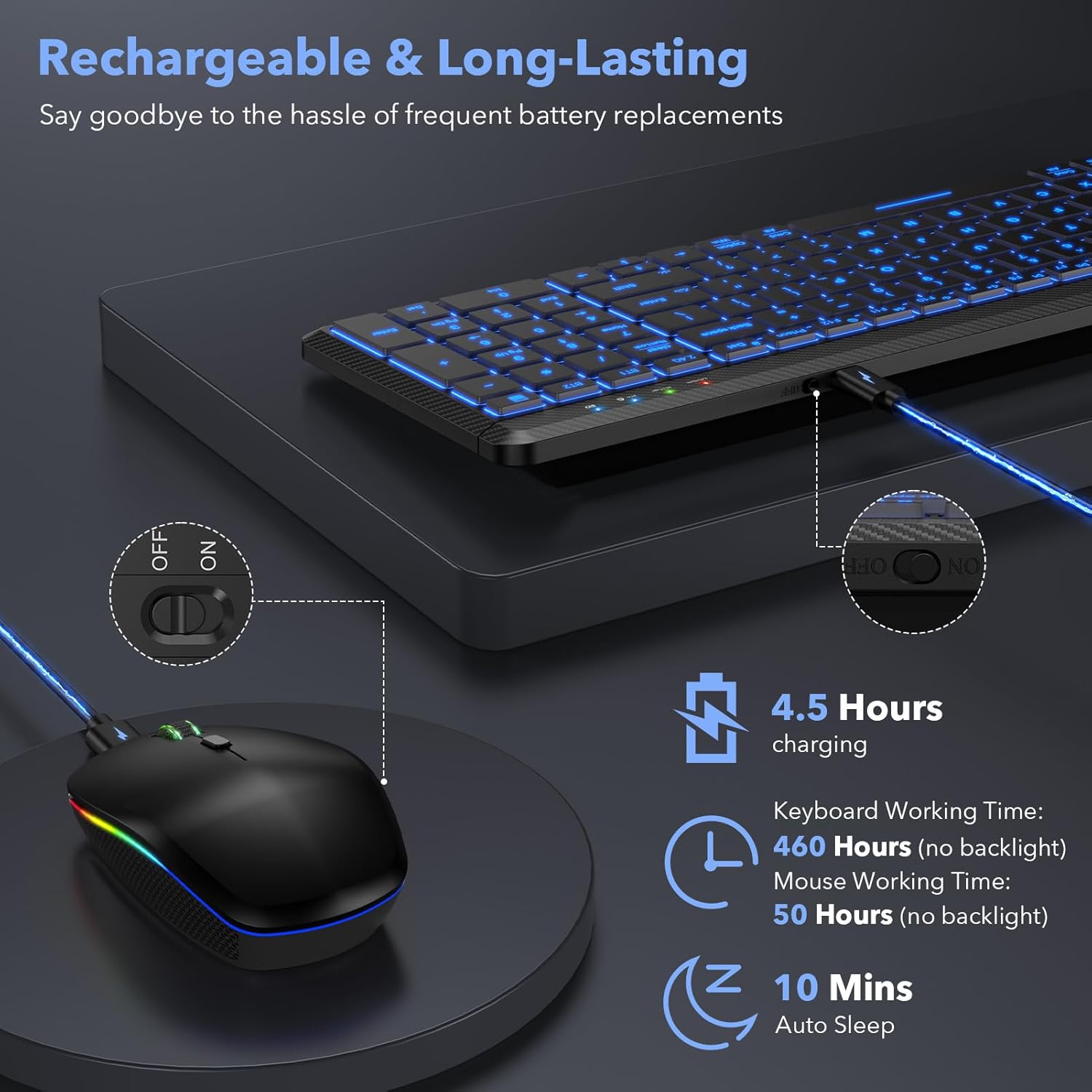
Image: The keyboard and mouse connected to a charging cable, illustrating the rechargeable feature.
Connecting to Devices (Multi-Mode)
The combo supports three connection methods: 2.4GHz USB receiver, Bluetooth 3.0 (BT1), and Bluetooth 5.0 (BT2). You can connect up to three devices simultaneously and switch between them.
- 2.4GHz USB Connection:
a. Insert the USB receiver into an available USB port on your computer.
b. Turn on the keyboard and mouse. They should automatically connect to the 2.4GHz channel. - Connexion Bluetooth (BT1/BT2) :
a. Turn on the keyboard and mouse.
b. On the keyboard, press Fn + BT1 or Fn + BT2 to select the desired Bluetooth channel. The indicator light will flash.
c. On your device (Mac, iOS, Android, iPad, etc.), go to Bluetooth settings and search for 'SABLUTE Keyboard' or 'SABLUTE Mouse'.
d. Select the device to pair. Once paired, the indicator light will stop flashing.
e. Repeat for the other Bluetooth channel if connecting a third device.

Image: A visual representation of the keyboard and mouse connected to a laptop, tablet, and smartphone, demonstrating the 2.4GHz, BT1, and BT2 connection options.
Basculer entre les appareils connectés
To switch between connected devices on the keyboard, simply press Fn + 2.4G, Fn + BT1, ou Fn + BT2.
Video: Demonstrates the multi-device switching functionality of the SABLUTE Wireless Keyboard, showing how to seamlessly transition between different connected devices.
Mode d'emploi
Contrôle du rétroéclairage du clavier
Le clavier est doté d'un rétroéclairage 7 couleurs avec 3 niveaux de luminosité.
- Réglage de la luminosité : Presse Fn + Maj pour faire défiler 3 niveaux de luminosité.
- Changement de couleur du rétroéclairage : Presse Fn + Entrée to switch between the 7 available backlight colors.
- Turning Off Backlight: Continuez à appuyer Fn + Maj until the backlight turns off, or simply turn off the keyboard when not in use to conserve battery.

Image: The keyboard displaying various backlight colors and illustrating the key combinations for adjusting brightness and changing colors.
Fonctionnement silencieux
Both the keyboard and mouse are designed for quiet operation, reducing noise by over 95% compared to traditional peripherals. This allows for a more focused working environment.

Image: A visual representation emphasizing the quiet operation of the keyboard and mouse, suitable for undisturbed work or rest.
Comfortable Typing Experience
The keyboard features slightly concave, ultra-thin keycaps designed to conform to your fingertips, reducing strain during extended typing sessions. The ergonomic design provides a comfortable 6-degree tilt.
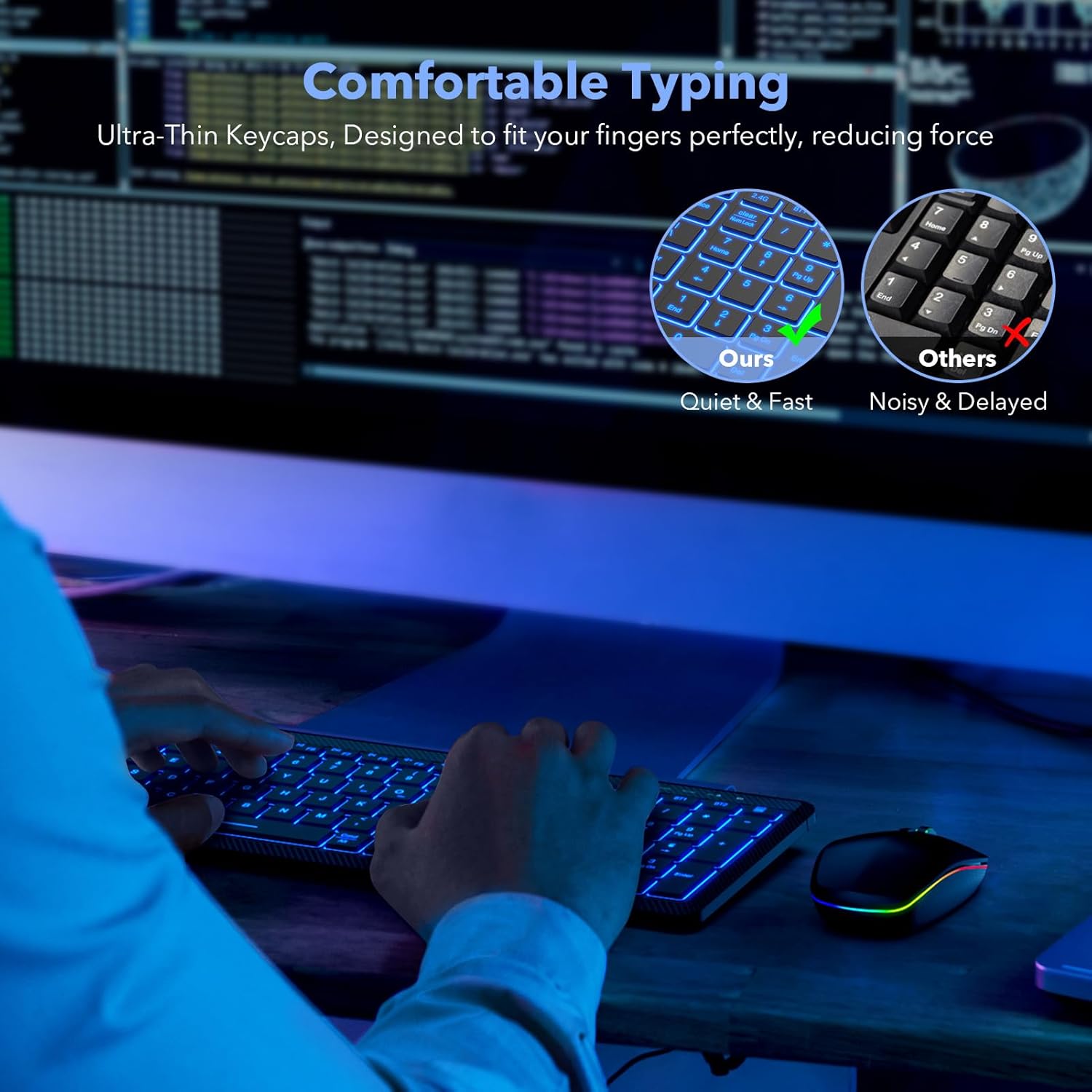
Image : Un gros plan view of the keyboard's keycaps and its ergonomic profile, highlighting the comfortable typing experience.
Caractéristiques de la souris
The RGB silent mouse offers:
- 3 Tracking Speeds: Adjustable DPI settings for precise control.
- 3 modes de connexion : 2.4GHz, Bluetooth 3.0, and Bluetooth 5.0.
- 15 modes d'éclairage: Effets lumineux RVB personnalisables.
- Conception rechargeable : Batterie 650mAh intégrée.

Image: The SABLUTE RGB rechargeable mouse with its key features such as tracking speed, connection modes, and lighting modes visually indicated.
Entretien
Nettoyage
The keyboard is designed to be waterproof and dustproof, as well as spill-resistant. To clean, gently wipe the surfaces with a soft, damp chiffon. Évitez d'utiliser des produits chimiques agressifs ou des matériaux abrasifs.
Gestion de la batterie
The devices feature an energy-saving management system:
- Veille automatique : After 10 minutes of inactivity, the keyboard and mouse will enter auto-sleep mode to conserve power.
- Réveillez-vous: Press any key or click the mouse to wake the devices.

Image: The keyboard and mouse illustrating their power-saving features, including auto-sleep and long battery life.
Dépannage
- L'appareil ne se connecte pas :
a. Ensure the keyboard and mouse are charged.
b. Verify the correct connection mode (2.4G, BT1, BT2) is selected on the keyboard.
c. For Bluetooth, ensure your device's Bluetooth is enabled and the devices are in pairing mode.
d. Try restarting your device and the keyboard/mouse. - Rétroéclairage défectueux ou faible :
a. Ensure the keyboard is charged.
b. presse Fn + Maj pour régler les niveaux de luminosité.
c. The backlight may automatically turn off in low battery situations. - Keys sticking or unresponsive:
a. Ensure the keyboard is clean and free from debris.
b. If the issue persists, contact customer support. - Curseur de la souris erratique ou ne répondant pas :
a. Ensure the mouse is charged.
b. Check the mouse's optical sensor for any obstructions.
c. Try adjusting the tracking speed.
Caractéristiques
| Fonctionnalité | Détail |
|---|---|
| Marque | SABLÈTE |
| Modèle | B0FB39YF43 |
| Couleur | Noir |
| Technologie de connectivité | Bluetooth (3.0, 5.0), 2.4GHz USB |
| Caractéristiques spéciales | Lightweight, Backlit (7 colors, 3 brightness), Waterproof & Dustproof, Spill Resistant, Silent Click Mouse |
| Appareils compatibles | Laptop, Smartphone, Tablet (MacBook Pro/Air, iPad, iMac, iOS, Android, Ipad, Windows) |
| Capacité de la batterie du clavier | 1500mAh |
| Capacité de la batterie de la souris | 650mAh |
| Keyboard Working Time (no backlight) | Jusqu'à 460 XNUMX heures |
| Mouse Working Time (no backlight) | Jusqu'à 50 XNUMX heures |
| Fonction de veille automatique | 10 minutes d'inactivité |
| Poids de l'article | 1.9 livres |
| Dimensions du colis | 15.24 x 6.34 x 2.48 pouces |
Garantie et assistance
SABLUTE s'engage à fournir des produits de qualité et à assurer la satisfaction de ses clients. Votre produit est couvert par les garanties suivantes :
- Remplacement sous 90 jours : Pour tout défaut de fabrication.
- Garantie constructeur de 360 jours : Couvre les défauts de matériaux et de fabrication.
- Brand Care: Service client dédié.
For technical support or warranty claims, please contact us:
- Téléphone (États-Unis) : 1-888-905-9607
- Horaires d'ouverture: Du lundi au vendredi, de 9h00 à 1h00 PST et de 2h00 à 6h00 PST
- E-mail: (Veuillez vous référer à l'emballage du produit ou aux instructions officielles) website for email contact)

Image: SABLUTE customer support details, including response time, replacement policy, manufacturer warranty, and contact number.