
ARCCTV P2
ARCCTV 2K Security Camera Outdoor P2 User Manual
Modèle : P2
1. Introduction
This manual provides detailed instructions for the installation, operation, and maintenance of your ARCCTV 2K Security Camera Outdoor P2. Please read this manual thoroughly before using the product to ensure correct usage and optimal performance. Keep this manual for future reference.

Illustration 1.1 : Avant view of the ARCCTV 2K Security Camera Outdoor P2.
2. Contenu de la boîte
Vérifiez que tous les composants sont présents dans le package :
- Boîtier de l'appareil photo
- Adaptateur secteur 5V1A
- Vis de montage (jeu)
- Autocollant de positionnement des vis
- Autocollant d'avertissement
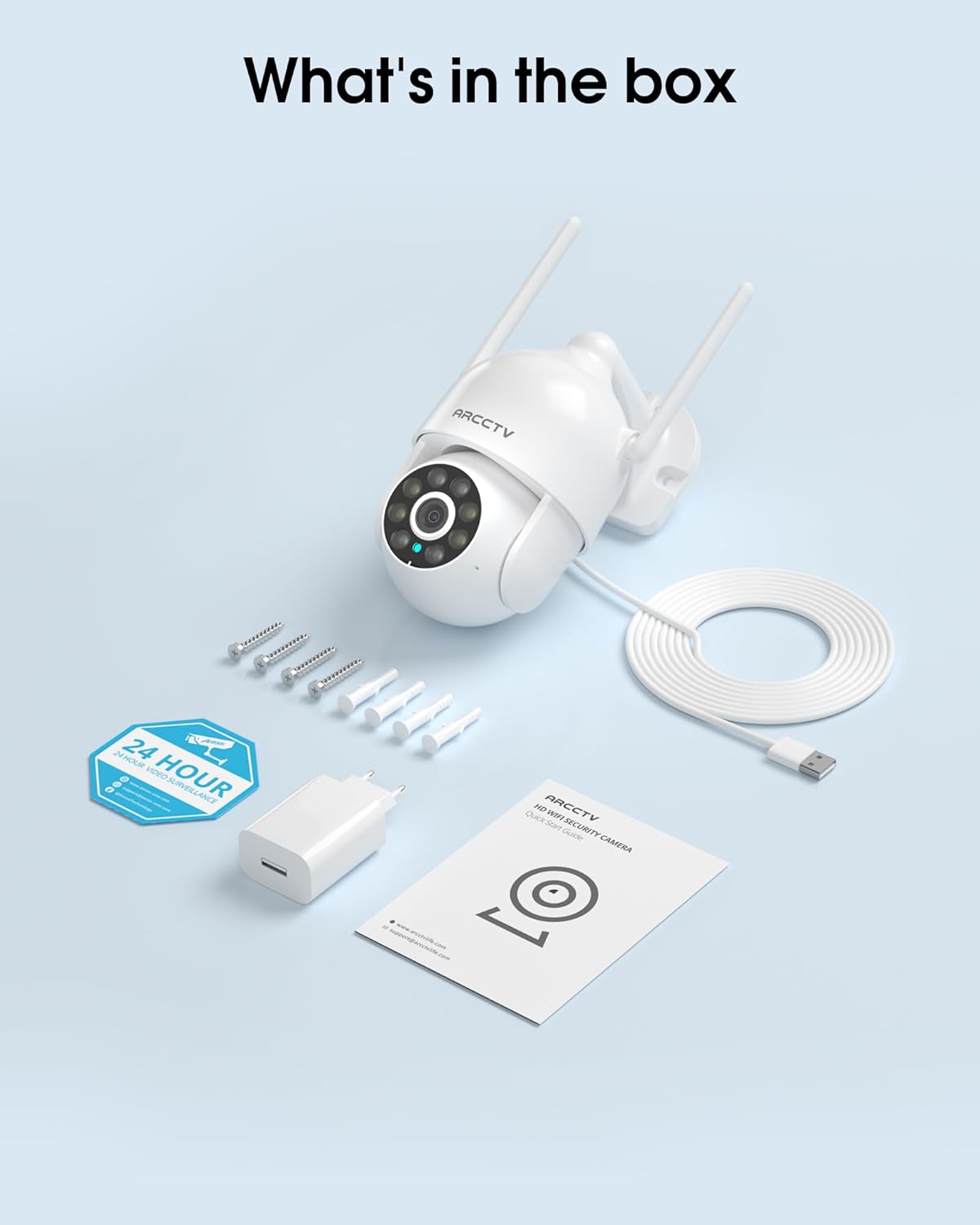
Image 2.1: All items included in the ARCCTV 2K Security Camera package.
3. caractéristiques du produit
- Résolution 2K Ultra HD : Provides clear 2304x1296p video.
- Vision nocturne en couleur : Built-in spotlight enables vivid color monitoring in low light.
- Panoramique-inclinaison-zoom à 360° (PTZ) : Remotely control 355° horizontal and 90° vertical rotation.
- Suivi automatique des mouvements : Smart AI automatically follows and records detected movement.
- Wi-Fi bi-bande : Supports both 2.4G and 5G WiFi for stable connectivity.
- Audio bidirectionnel: Microphone et haut-parleur intégrés pour la communication.
- IP66 résistant aux intempéries : Durable design for outdoor use in various weather conditions (-4°F ~ 122°F).
- Stockage flexible : Supports local microSD card storage (up to 128GB, not included) and optional cloud storage.
- Enregistrement 24h/7 et XNUMXj/XNUMX : Continuous recording capability with stable power supply.
4. Installation
4.1 Installation
- Choisissez un emplacement : Choisissez un emplacement extérieur dégagé. view of the area you wish to monitor. Ensure it is within range of your Wi-Fi network and a power outlet.
- Montez la caméra : Use the provided screw positioning sticker to mark drill holes. Drill holes, insert wall anchors, and secure the camera body to the wall using the mounting screws.
- Connecter l'alimentation : Plug the 5V1A power adapter into the camera and then into a power outlet. The camera will power on and begin its startup sequence.
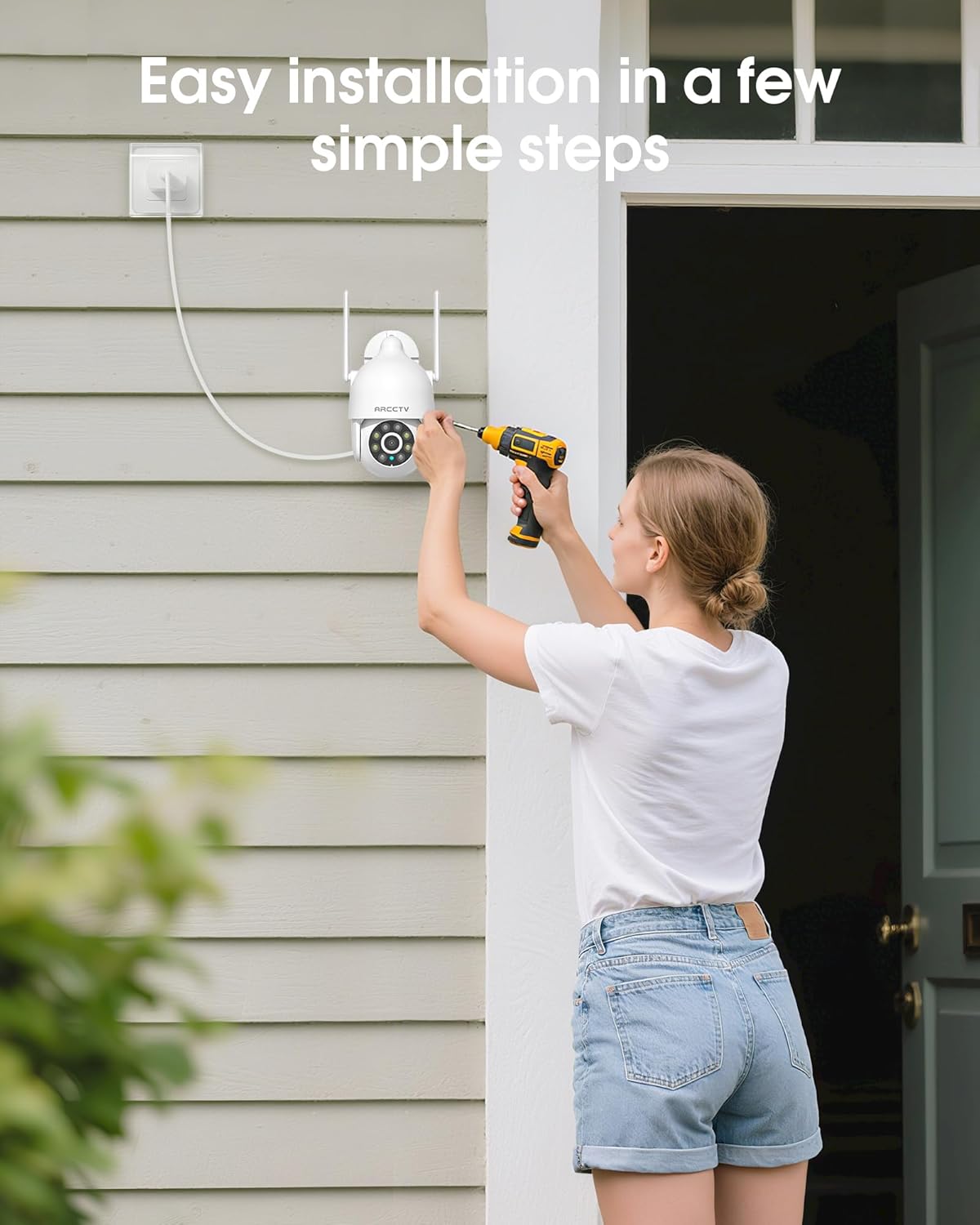
Image 4.1: Illustration of easy camera installation steps.
4.2 Téléchargement de l'application et création d'un compte
- Download the official ARCCTV app from your smartphone's app store (iOS or Android).
- Ouvrez l'application et suivez les instructions à l'écran pour créer un nouveau compte ou vous connecter si vous en avez déjà un.
4.3 Connexion Wi-Fi
- Dans l'application, appuyez sur l'icône « Ajouter un appareil » ou « + ».
- Select your camera model and follow the prompts to connect it to your Wi-Fi network. The camera supports both 2.4GHz and 5GHz bands for stable connectivity.
- Ensure your smartphone is connected to the same Wi-Fi network during the setup process.
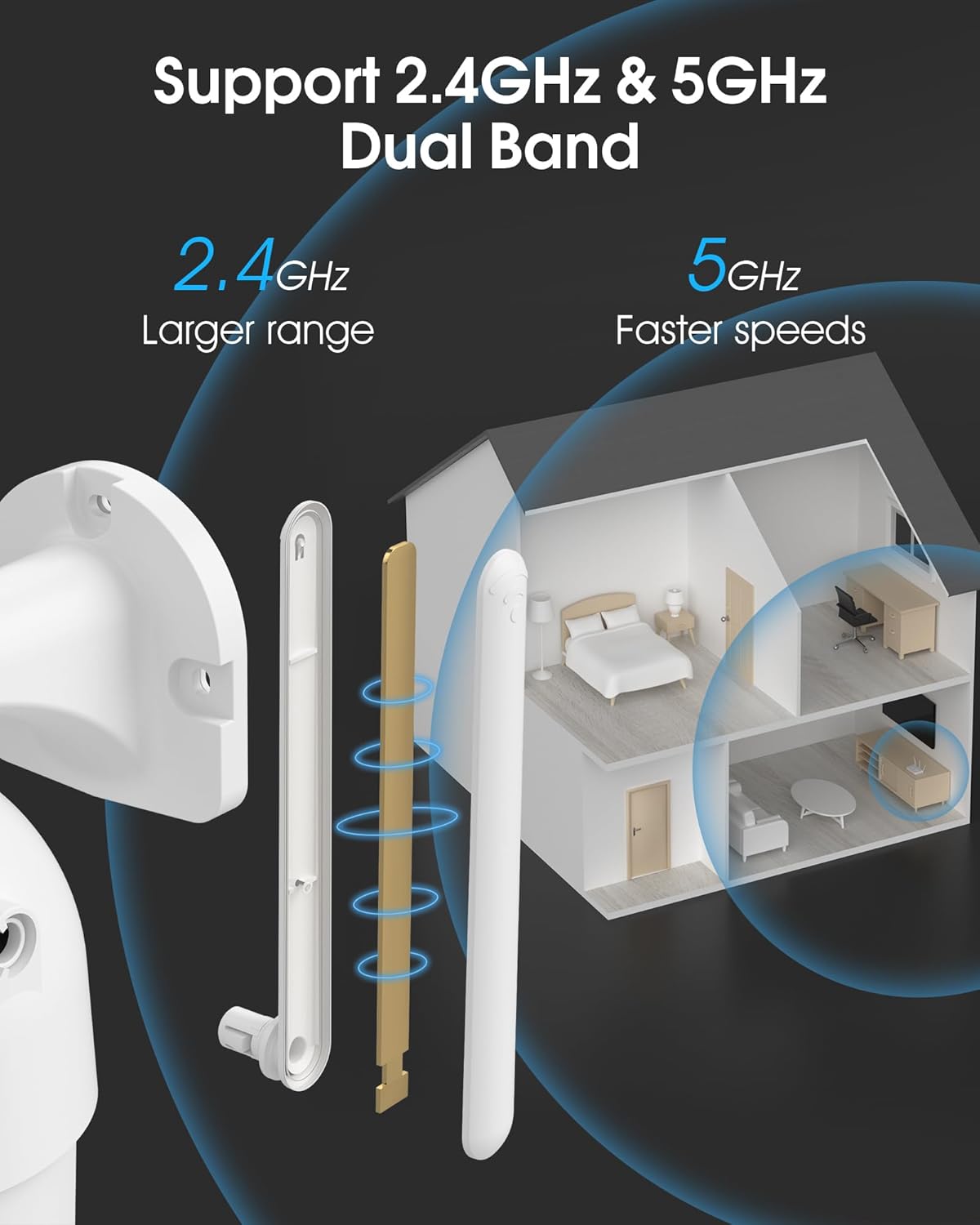
Image 4.2: The camera supports both 2.4GHz (larger range) and 5GHz (faster speeds) Wi-Fi bands.
4.4 Installation de la carte microSD (facultatif)
For local storage, install a microSD card (up to 128GB, not included) into the designated slot on the camera. Ensure the camera is powered off before inserting or removing the card.

Image 4.3: Location of the microSD card slot on the camera.
5. Utilisation de l'appareil photo
5.1 En direct View
Open the ARCCTV app and select your camera to view the live feed. You can monitor your property in real-time.
5.2 Commande panoramique, d'inclinaison et de zoom (PTZ)
En direct view screen, use the directional controls to rotate the camera horizontally (Pan: 355°) and vertically (Tilt: 90°) to adjust the viewangle d'attaque. Vous pouvez également définir des points de repère prédéfinis pour une navigation rapide.
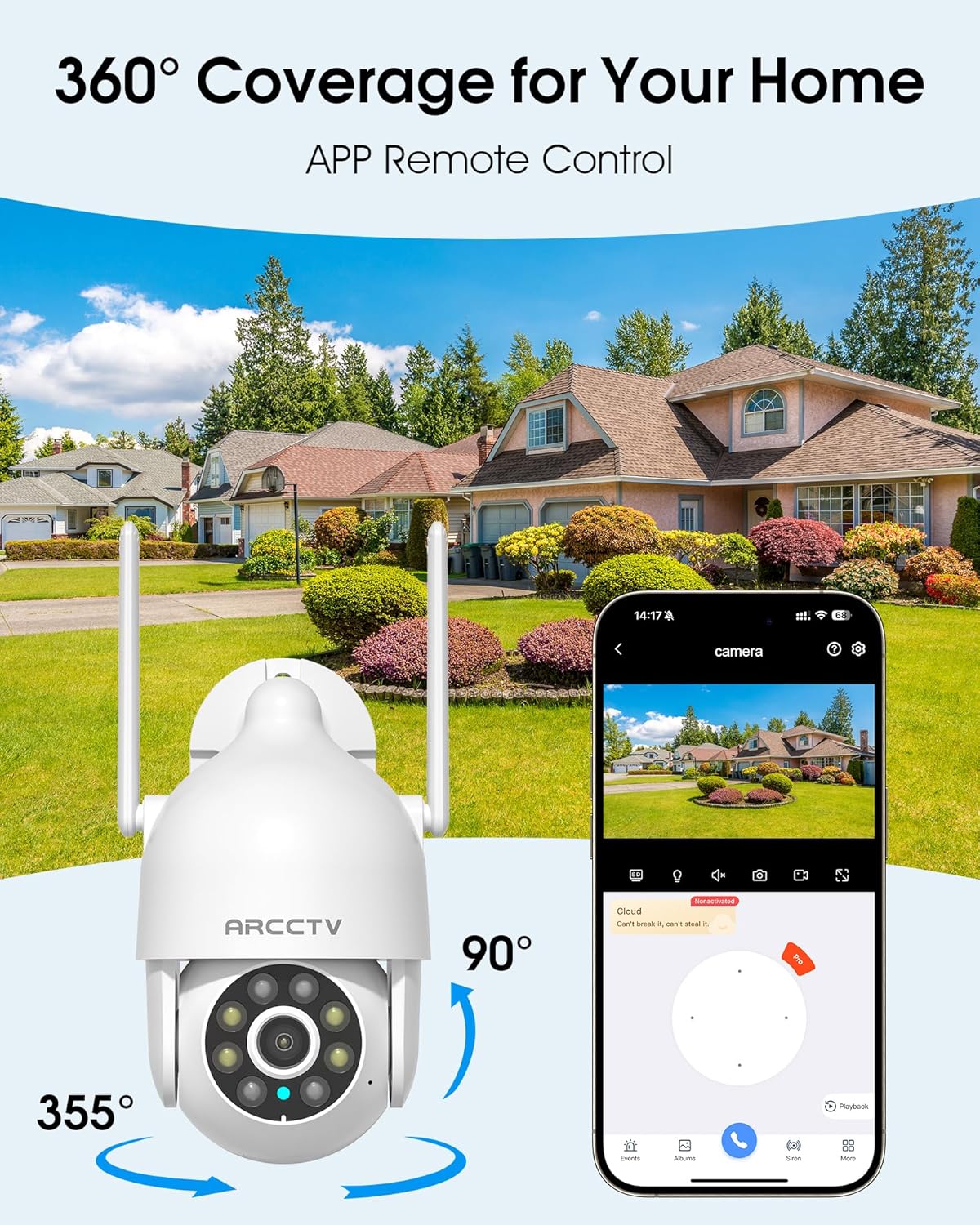
Image 5.1: The camera offers 360° coverage through remote pan and tilt controls.
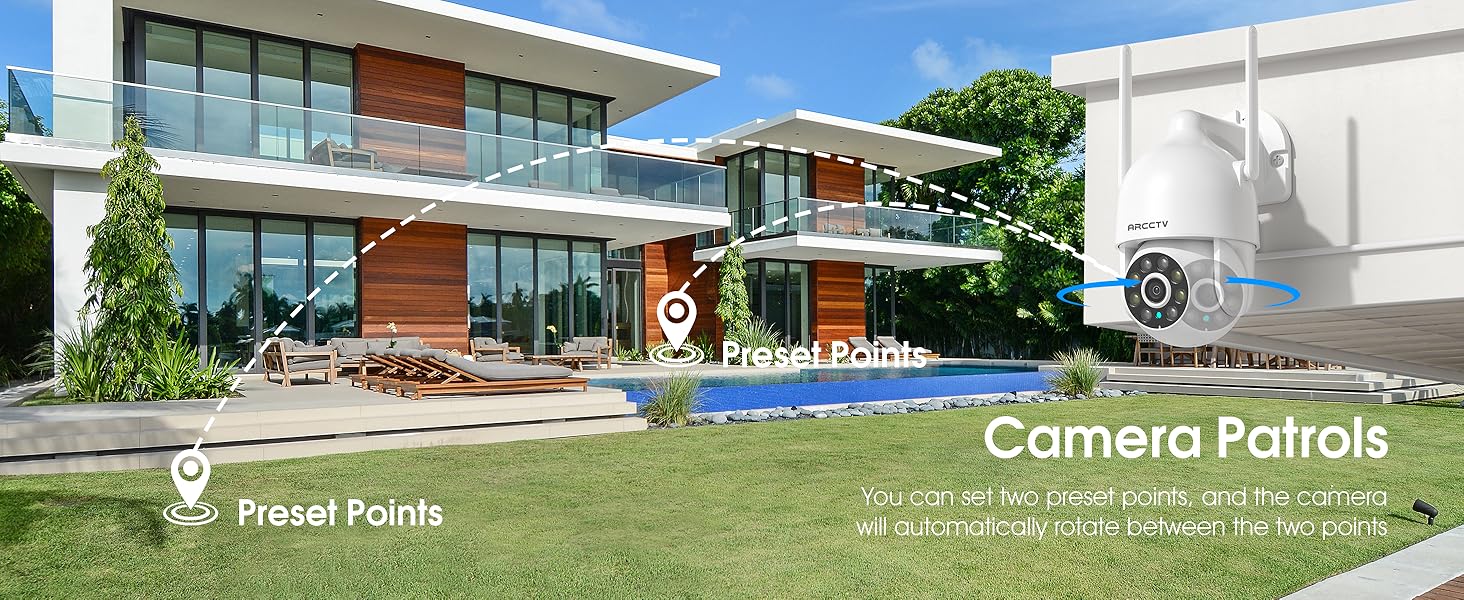
Image 5.2: Setting up camera patrol routes between preset points.
5.3 Suivi des mouvements et alertes
The camera features smart AI motion tracking that automatically follows detected movement. You can customize alert zones and receive instant notifications on your smartphone when motion is detected.

Image 5.3: The camera's smart motion tracking feature in action.

Image 5.4: Instant alerts with customizable settings, including spotlight, siren, and two-way audio.
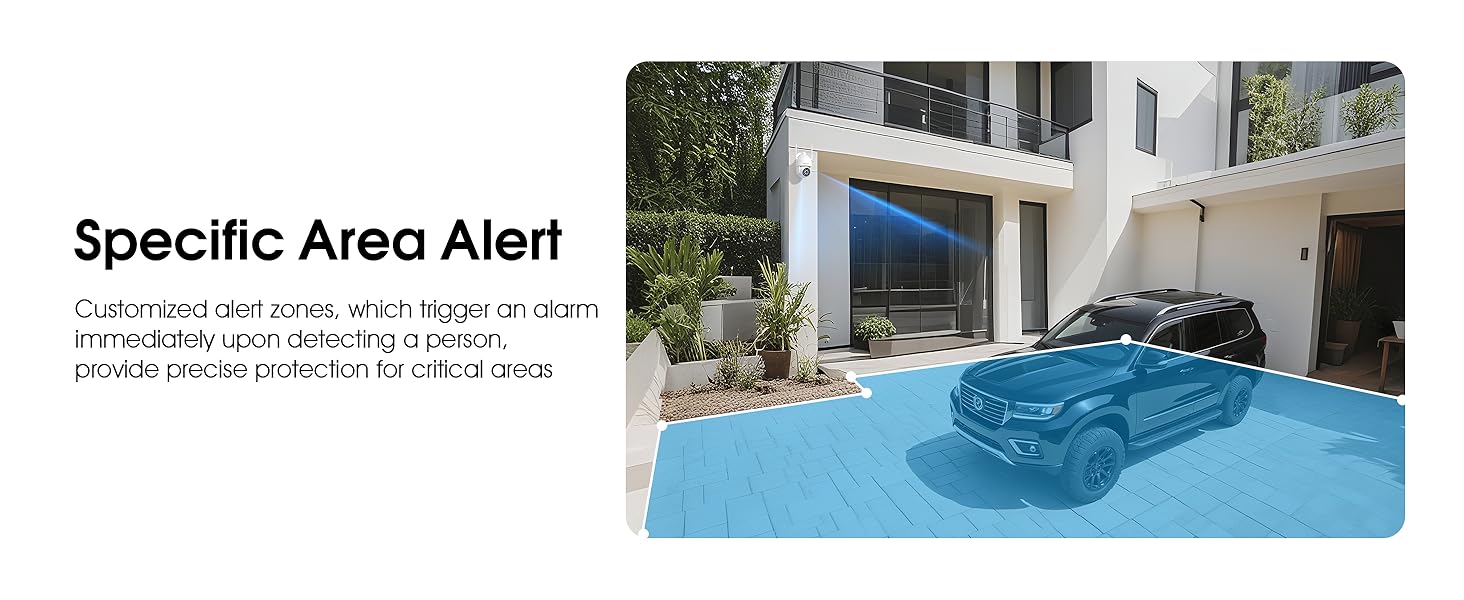
Image 5.5: Setting up specific area alerts for precise protection.
5.4 Modes de vision nocturne
The camera offers both full-color night vision (activated by the built-in spotlight) and infrared night vision for clear monitoring in various low-light conditions.

Image 5.6: Comparison of Color Night Vision and Infrared Night Vision.
5.5 Audio bidirectionnel
Use the two-way audio feature to communicate with visitors or deter unwanted guests directly through the camera's built-in microphone and speaker.
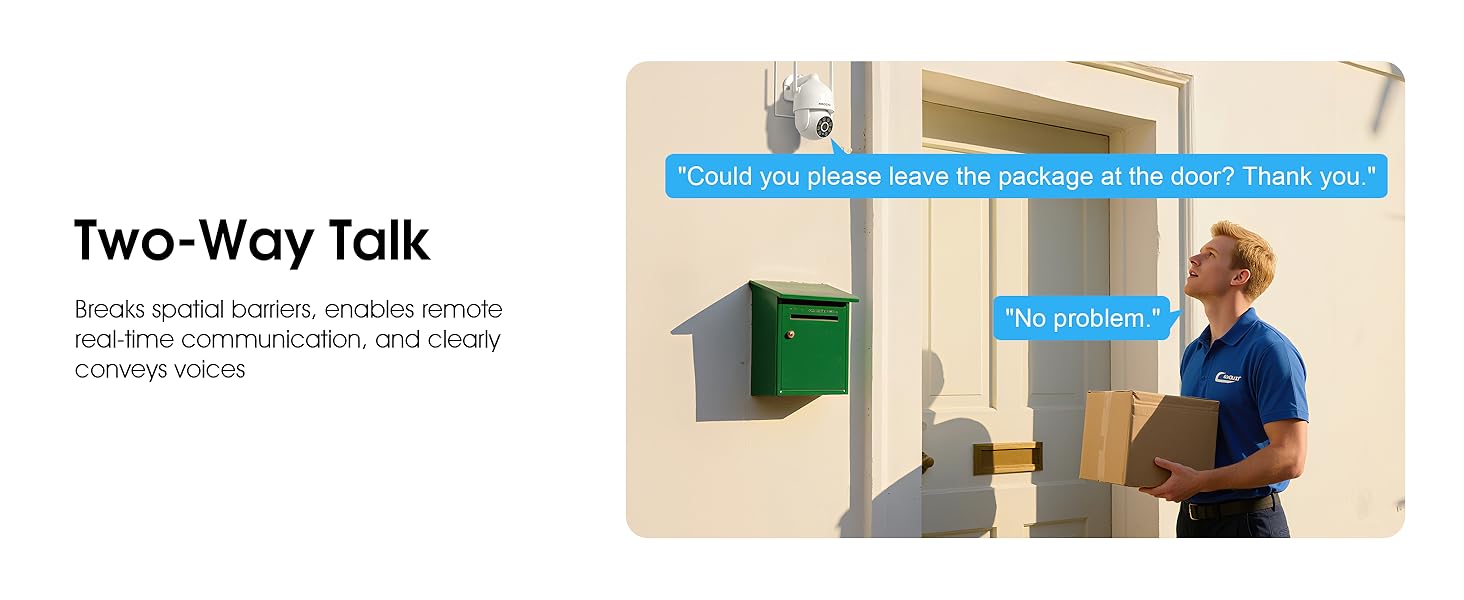
Image 5.7: Utilizing two-way talk for remote communication.
5.6 Enregistrement et lecture
La caméra prend en charge l'enregistrement continu 24h/24 et 7j/7. Footage can be saved to a local microSD card (up to 128GB) or to optional cloud storage. Access recorded videos through the app's playback function.

Image 5.8: The camera provides 24/7 recording capabilities.
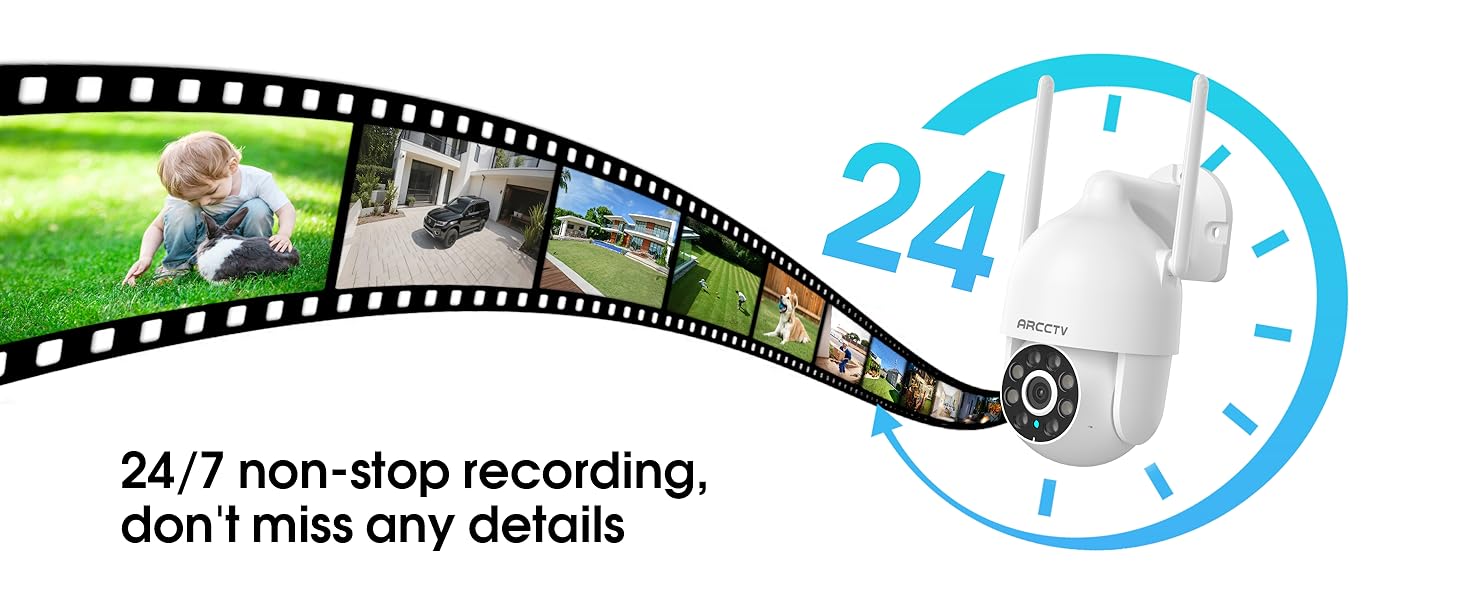
Image 5.9: Continuous 24/7 recording ensures no details are missed.
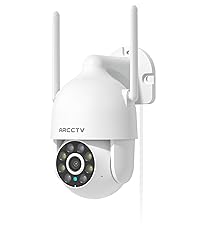
Image 5.10: Cloud storage encryption for secure and accessible recordings (subscription may apply).
5.7 Partage familial
The app supports multi-member sharing, allowing family members to view the camera feed and collaborate on security monitoring.
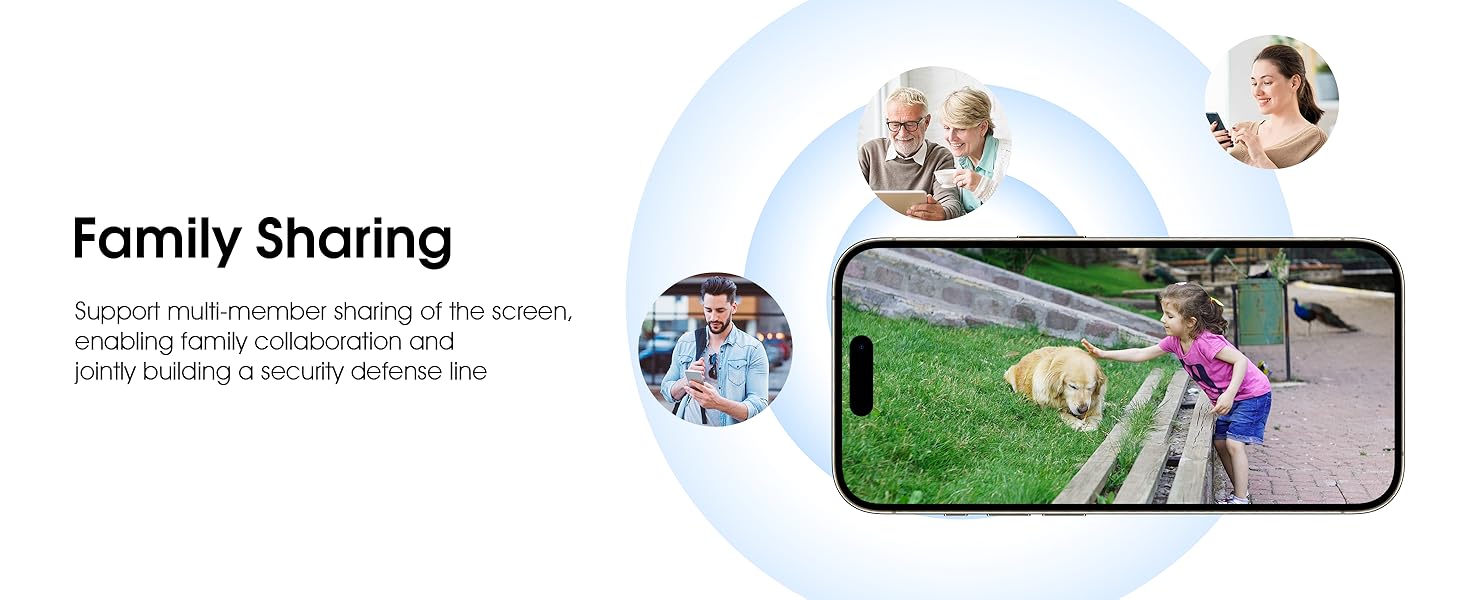
Image 5.11: The family sharing feature allows multiple users to access the camera feed.
5.8 Compatibilité avec Alexa
The camera is compatible with Alexa, allowing you to check the monitoring screen using voice commands.
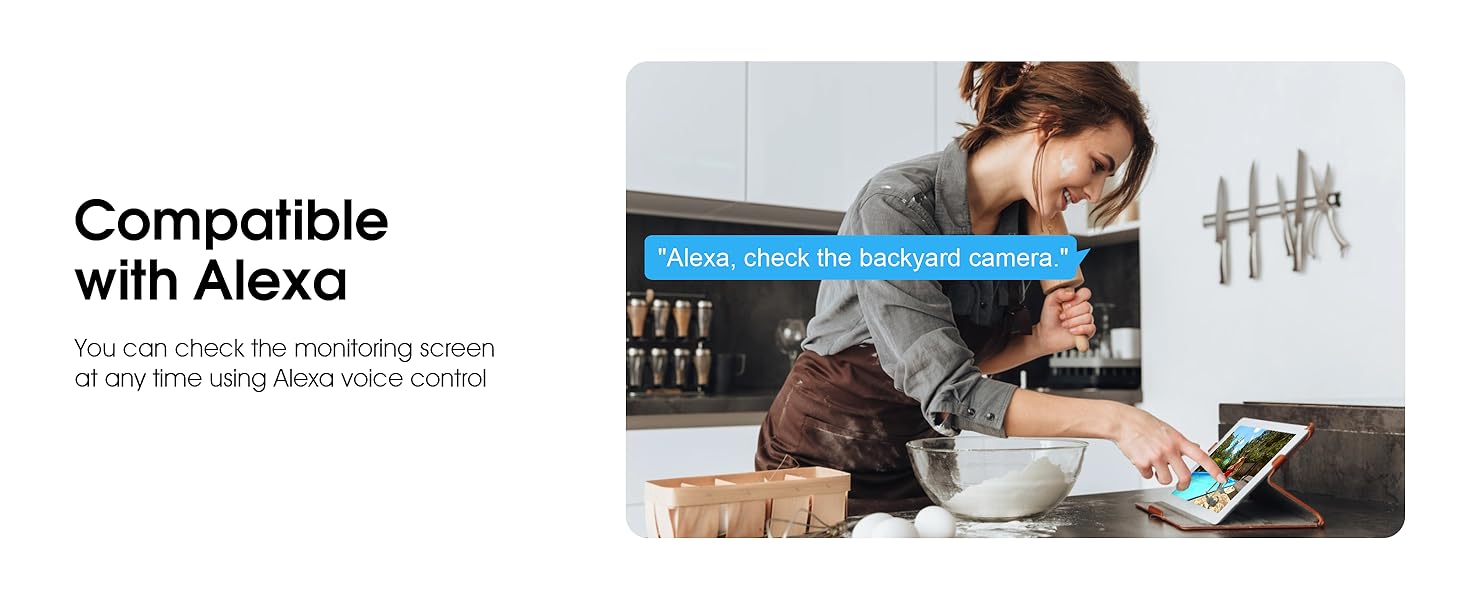
Image 5.12: Voice control via Alexa for convenient monitoring.
6. Entretien
6.1 Nettoyage de l'appareil photo
Nettoyez régulièrement l'objectif et le boîtier de l'appareil photo avec un chiffon doux et sec.amp Nettoyer avec un chiffon pour enlever la poussière et les débris. Ne pas utiliser de produits chimiques agressifs ni de nettoyants abrasifs.
6.2 mises à jour du micrologiciel
Ensure your camera's firmware is up to date for optimal performance and security. Check for updates within the ARCCTV app and follow the instructions to install them.
6.3 Gestion du stockage
If using a microSD card, regularly check its status in the app. Format the card periodically to maintain performance. For cloud storage, manage your subscription and storage space through the app.
7. Dépannage
- La caméra ne se connecte pas au Wi-Fi :
- Ensure your Wi-Fi network is 2.4GHz or 5GHz and has a strong signal at the camera's location.
- Vérifiez que le mot de passe Wi-Fi est correctement saisi.
- Redémarrez votre routeur et votre caméra.
- Mauvaise qualité d'image :
- Nettoyez l'objectif de l'appareil photo.
- Assurez un éclairage adéquat pour une vision nocturne optimale.
- Vérifiez la vitesse de votre connexion internet.
- La détection de mouvement ne fonctionne pas :
- Vérifiez que la détection de mouvement est activée dans les paramètres de l'application.
- Ajustez les paramètres de sensibilité.
- Assurez-vous qu'aucun obstacle ne se trouve dans le champ de vision de la caméra. view.
- Aucun enregistrement sur carte microSD :
- Ensure a microSD card is properly inserted and formatted in the app.
- Check if the card is full; consider formatting or replacing it.
- Vérifiez les paramètres d'enregistrement dans l'application.
8. Spécifications
| Fonctionnalité | Spécification |
|---|---|
| Nom du modèle | P2 |
| Utilisation intérieure/extérieure | De plein air |
| Résolution de capture vidéo | 2K (2304x1296p) |
| Technologie de connectivité | Sans fil (Wi-Fi) |
| Technologie de communication sans fil | Wi-Fi (2.4G/5G Dual-Band) |
| ViewAngle d'attaque | 360 degrés (panoramique à 355°, inclinaison à 90°) |
| Gamme de vision nocturne | 50 pieds |
| Niveau de résistance à l'eau | Étanchéité IP66 |
| Source d'énergie | Adaptateur secteur 5V1A |
| Taille maximale de la mémoire flash prise en charge | 128 Go (MicroSD) |
| Capacités d'enregistrement audiovisuel | Vidéo et audio |
| Dossier spécial | 2-Way Audio, Motion Tracking, Full Color Night Vision |
| Dimensions de l'article L x l x H | 7.8 x 6.6 x 5.3 pouces |
| Poids de l'article | 1.39 livres |
9. Garantie et assistance
For warranty information and technical support, please refer to the official ARCCTV website or contact their customer service directly. Contact details are typically provided on the product packaging or within the mobile application.
Ask a question about this manual
Ask about setup, troubleshooting, compatibility, parts, safety, or missing instructions. Manuals+ will review the question and use this page’s manual context to help answer it.