
Introduction
Welcome to the user manual for your new VAIO SX-R Laptop. This document provides essential information to help you set up, operate, maintain, and troubleshoot your device. Please read this manual thoroughly to ensure optimal performance and longevity of your laptop.
Produit terminéview
The VAIO SX-R is a high-performance laptop designed for productivity and creative tasks. It features an Intel Core Ultra 7 processor, a vibrant 14-inch WQXGA Touch Display, ampla mémoire et un stockage rapide.
Caractéristiques principales
- Processeur: Intel Core Ultra 7 (16-Core, AI-Boosted) for enhanced speed and responsiveness.
- Afficher: 14-inch WQXGA Touch Display (2560x1600) offering high resolution and wide color gamut.
- Mémoire: 32GB LPDDR5 RAM for superior multitasking.
- Stockage: 1TB PCIe NVMe SSD for fast data access and ample stockage.
- Système opérateur: Windows 11 Pro with enterprise-grade security and productivity features.
- Sécurité: Integrated IR Camera and Fingerprint Reader for secure login.
- Châssis: Durable Carbon Fiber construction.
Composants et ports d'un ordinateur portable

Figure 1: VAIO SX-R Laptop, illustrating the overall design.
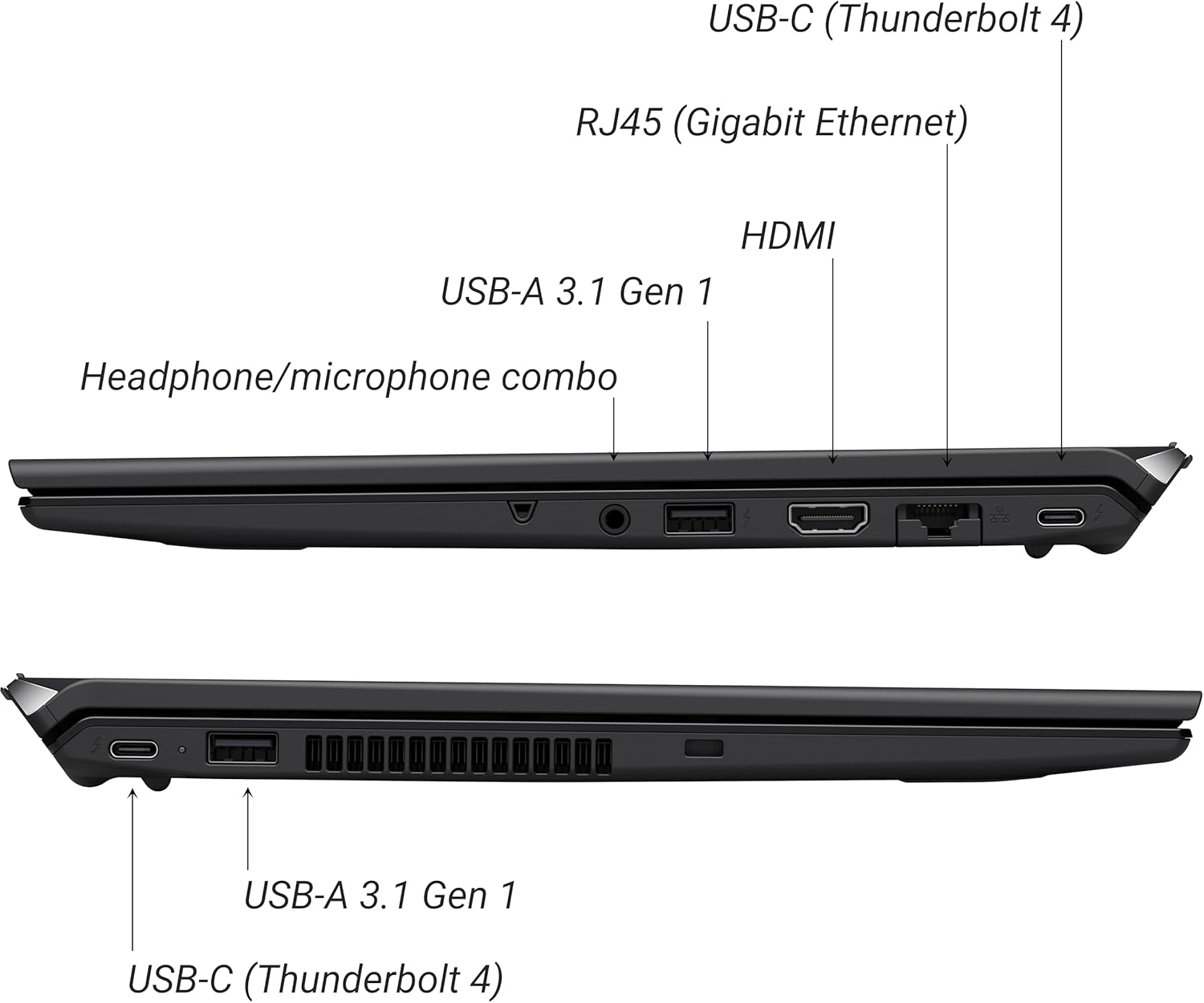
Figure 2: Port layout of the VAIO SX-R Laptop. The left side includes a headphone/microphone combo jack, USB-A 3.1 Gen 1, HDMI, RJ45 (Gigabit Ethernet), and USB-C (Thunderbolt 4). The right side features another USB-C (Thunderbolt 4) and USB-A 3.1 Gen 1 port.
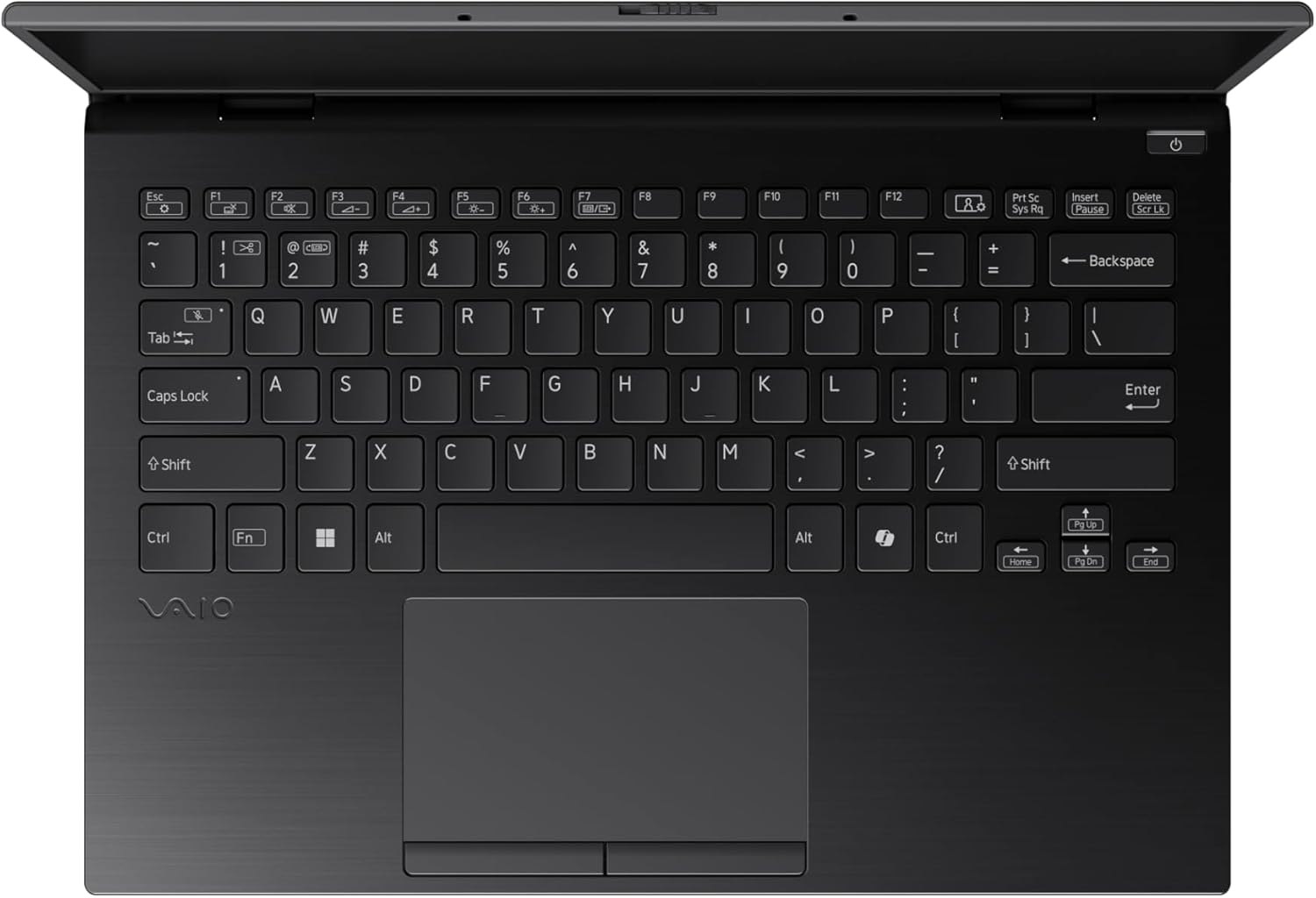
Figure 3: The VAIO SX-R Laptop keyboard and touchpad, featuring a backlit keyboard and integrated fingerprint sensor.
Installation
1. Mise sous tension initiale
- Connecter l'alimentation : Branchez l'adaptateur secteur au port d'alimentation de l'ordinateur portable, puis à une prise murale.
- Ouvrir l'ordinateur portable : Ouvrez délicatement le couvercle de l'ordinateur portable.
- Mise sous tension : Press the power button, typically located on the top right of the keyboard deck. The power indicator light will illuminate.
2. Installation de Windows 11 Pro
Follow the on-screen instructions to complete the initial Windows 11 Pro setup. This includes:
- Sélectionnez votre région et votre disposition de clavier.
- Connexion à un réseau Wi-Fi.
- Acceptation du contrat de licence.
- Creating or logging in with a Microsoft account.
- Setting up your PIN, fingerprint, or facial recognition (IR Camera).
3. Connexion de périphériques
You can connect external devices such as mice, keyboards, external monitors, and USB drives to the available ports as shown in Figure 2.
Opérationnel
1. Utilisation de base
- Clavier: Use the integrated backlit keyboard for typing. Function keys (F1-F12) often have secondary functions accessible via the 'Fn' key.
- Pavé tactile : Le pavé tactile de précision prend en charge les gestes multitouch pour la navigation.
- Écran tactile : Interact directly with the 14-inch WQXGA display using touch gestures.
2. Fonctions de sécurité
- Lecteur d'empreintes digitales: Enroll your fingerprints through Windows Settings > Accounts > Sign-in options for quick and secure login.
- Caméra infrarouge : Utilize Windows Hello facial recognition for convenient and secure access. Set this up in Windows Settings > Accounts > Sign-in options.
3. Gestion de l'alimentation
- Mode veille: Close the lid or press the power button briefly to put the laptop to sleep.
- Fermer: Go to Start > Power > Shut down to turn off the laptop completely.
- Redémarrage: Go to Start > Power > Restart to reboot the system.
Entretien
1. Nettoyage
- Écran: Utilisez un chiffon doux et non pelucheux légèrement dampTerminez avec de l'eau ou un nettoyant pour écrans. Évitez les produits chimiques agressifs.
- Clavier et châssis : Utilisez un chiffon doux. Pour les taches tenaces, un chiffon légèrement plus épais fera l'affaire.amp On peut utiliser un chiffon imbibé de savon doux, en veillant à ce qu'aucun liquide ne pénètre dans les ouvertures.
- Ports: Utilisez de l'air comprimé pour dépoussiérer délicatement les ports.

Figure 4: The VAIO SX-R features a water-resistant keyboard, designed to withstand minor spills.
2. Mises à jour logicielles
Regularly update your Windows operating system and device drivers to ensure optimal performance, security, and compatibility. Access updates via Windows Settings > Windows Update.
3. Entretien de la batterie
- Évitez les températures extrêmes.
- Ne déchargez pas complètement la batterie fréquemment.
- Pour un stockage à long terme, chargez la batterie à environ 50-60 %.
Dépannage
Cette section aborde les problèmes courants que vous pourriez rencontrer.
1. L'ordinateur portable ne s'allume pas
- Assurez-vous que l'adaptateur secteur est correctement connecté à la fois à l'ordinateur portable et à une prise de courant fonctionnelle.
- Vérifiez si la prise de courant fonctionne en y branchant un autre appareil.
- Si la batterie est complètement déchargée, laissez-la se recharger pendant au moins 30 minutes avant de tenter de l'allumer.
2. Problèmes d'affichage
- Pas d'affichage : Branchez un moniteur externe au port HDMI pour vérifier si le problème provient de l'écran interne de l'ordinateur portable.
- Affichage clignotant/déformé : Update your graphics drivers. Adjust display resolution and refresh rate in Windows Settings > System > Display.
3. Problèmes de connectivité Wi-Fi
- Ensure Wi-Fi is enabled in Windows Settings > Network & internet > Wi-Fi.
- Redémarrez votre routeur et votre modem.
- Exécutez l'utilitaire de résolution des problèmes réseau Windows.
4. Performances lentes
- Fermez les applications inutiles qui s'exécutent en arrière-plan.
- Check Task Manager (Ctrl+Shift+Esc) for resource-intensive processes.
- Ensure your system is up to date and free from malware.
Caractéristiques
Below are the detailed specifications for the VAIO SX-R Laptop (Model: VJS4R1X0511B).
| Fonctionnalité | Spécification |
|---|---|
| Marque | VAIO |
| Nom du modèle | VAIO SX-R |
| Numéro de modèle de l'article | VJS4R1X0511B |
| Système opérateur | Windows 11 Pro |
| Processeur | Intel Core Ultra 7 (1.4 GHz) |
| Mémoire RAM | 32 Go LPDDR5 |
| Disque dur | SSD PCIe NVMe de 1 To |
| Taille de l'écran | 14 pouces |
| Résolution de l'écran | 2560 x 1600 pixels (WQXGA) |
| Carte graphique | Intel Integrated Graphics |
| Type sans fil | 802.11bgn |
| Ports USB 3.0 | 3 |
| Durée de vie moyenne de la batterie | 10 heures |
| Poids de l'article | 3.1 livres |
| Dimensions du produit | 14.2 x 15 x 3.3 pouces |
| Caractéristiques spéciales | Backlit Keyboard, Fingerprint Reader, HD Audio, Memory Card Slot, Webcame |
Garantie et assistance
1. Informations sur la garantie
Your VAIO SX-R Laptop is covered by a manufacturer's warranty. Please refer to the warranty card included with your product packaging for specific terms, conditions, and duration. Keep your proof of purchase for warranty claims.
2. Assistance technique
For technical assistance, troubleshooting beyond this manual, or service inquiries, please contact VAIO customer support. You can typically find contact information on the official VAIO websur le site ou dans la documentation fournie avec votre ordinateur portable.
- Support en ligne: Visit the official VAIO support website for FAQs, driver downloads, and contact options.
- Assistance téléphonique : Veuillez consulter la documentation de votre produit pour connaître les numéros de téléphone du support régional.