
1. Introduction
This manual provides essential information for the setup, operation, maintenance, and troubleshooting of your NINGMEI Gaming PC Desktop. Please read these instructions carefully before using your new computer to ensure optimal performance and longevity. Keep this manual for future reference.
2. Guide de configuration
2.1 Déballage et inspection initiale
Carefully remove the PC from its packaging. Inspect the computer for any visible damage that may have occurred during transit. Retain all packaging materials for potential future shipping or warranty claims.
Remarque importante : For shipping protection, the graphics card (GPU) may be shipped uninstalled or partially secured. You may need to fully seat or install the GPU before first use. Refer to the internal components section for guidance.
2.2 Connexion de périphériques
- Moniteur: Connect your monitor to the graphics card's display outputs (HDMI, DisplayPort, DVI) located at the rear of the PC. Ensure a secure connection.
- Clavier et souris : Connect your keyboard and mouse to the available USB ports on the rear or front of the PC.
- Pouvoir: Branchez le câble d'alimentation au bloc d'alimentation (PSU) situé à l'arrière du PC, puis à une prise murale.
- Réseau: For a wired internet connection, connect an Ethernet cable to the RJ45 port on the rear of the PC.
- Audio: Connect speakers or headphones to the audio jacks on the rear or front of the PC.
2.3 Premier démarrage et installation de Windows 11
After connecting all peripherals, press the power button located on the front panel. The system will initiate the boot process. Follow the on-screen instructions to complete the Windows 11 Home setup, including language, region, network connection, and user account creation.

Image : Avant view of the NINGMEI Gaming PC Desktop, showcasing its white chassis and internal blue RGB lighting from the fans and CPU cooler.
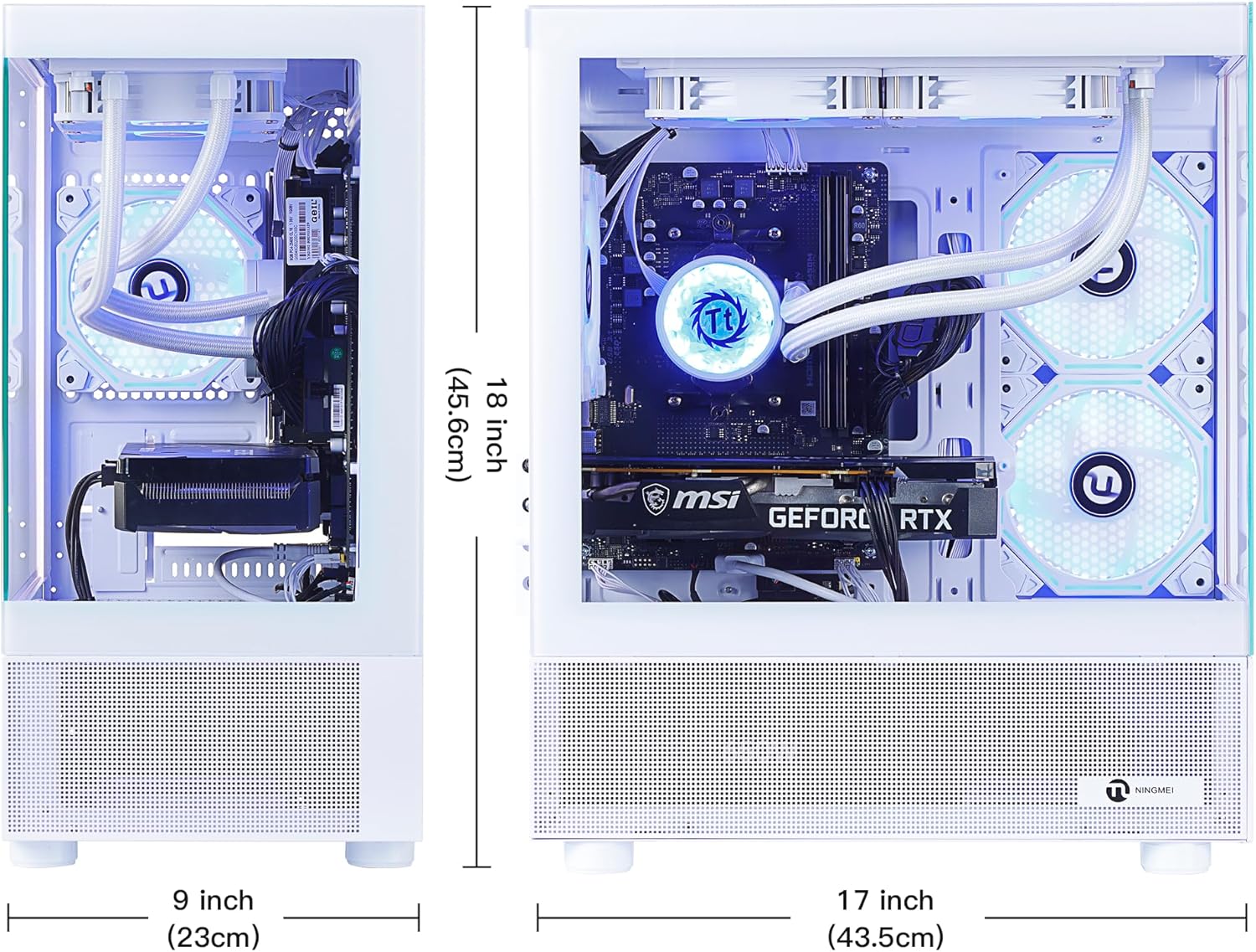
Image: Dimensions of the NINGMEI Gaming PC Desktop. The front view shows a width of 9 inches (23 cm) and a height of 18 inches (45.6 cm). The side view shows a depth of 17 inches (43.5 cm).
3. Mode d'emploi
3.1 Mise sous/hors tension
- Mise sous tension : Appuyez sur le bouton d'alimentation sur le panneau avant.
- Éteindre: In Windows, go to Start > Power > Shut down. Avoid directly holding the power button to turn off the PC unless absolutely necessary, as this can lead to data loss or system instability.
3.2 Front Panel Ports and Buttons
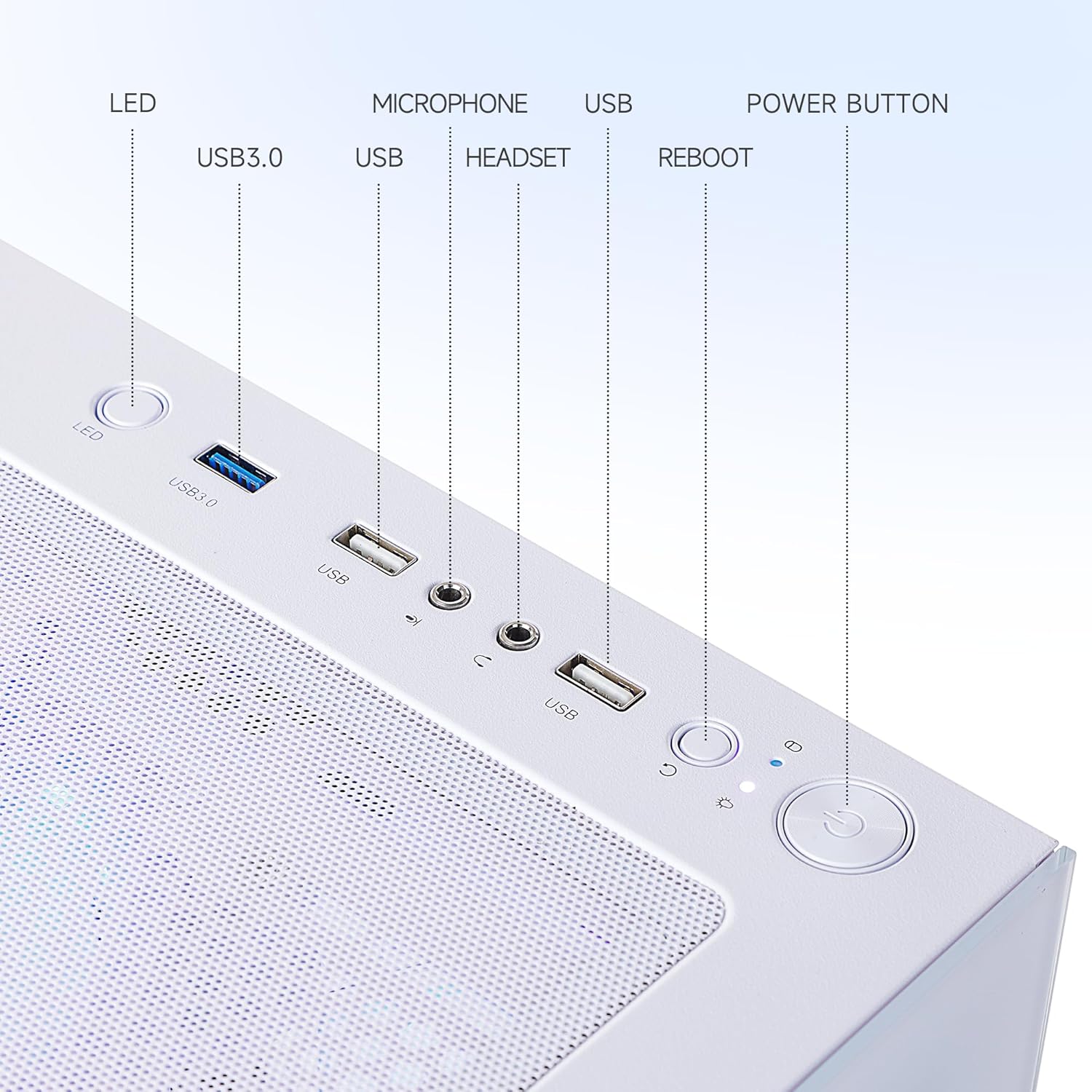
Image : Gros plan view of the front panel ports and buttons on the NINGMEI Gaming PC Desktop. From left to right: LED button, USB 3.0 port, two USB ports (likely USB 2.0), Microphone jack, Headset jack, Reboot button, and Power button.
- Bouton LED : This button controls the RGB lighting effects of the internal fans and CPU cooler. Press to cycle through available lighting modes or colors. Note that some models may have fixed RGB lighting.
- Ports USB 3.0 (x2) : Pour un transfert de données à haut débit avec les appareils compatibles.
- Ports USB (x2) : Standard USB ports for peripherals like keyboards, mice, or USB drives.
- Prise microphone: Connectez un micro.
- Prise casque : Connectez un casque ou un casque.
- Bouton de redémarrage : Initiates a system restart. Use only when the system is unresponsive.
- Bouton d'alimentation : Allume ou éteint l'ordinateur.
3.3 Ports du panneau arrière
Le panneau arrière offre diverses options de connectivité :
- Ports USB 3.2 Gen 1 (x6) : High-speed USB ports for various devices.
- Ports USB 2.0 (x6) : Ports USB standard pour périphériques.
- Video Outputs (DVI, HDMI): Connect your monitor(s) to the graphics card outputs.
- Port Ethernet RJ45 : Pour connexion réseau filaire.
- Prises audio : For connecting speakers, headphones, or other audio devices.
4. Entretien
4.1 Gestion de la poussière
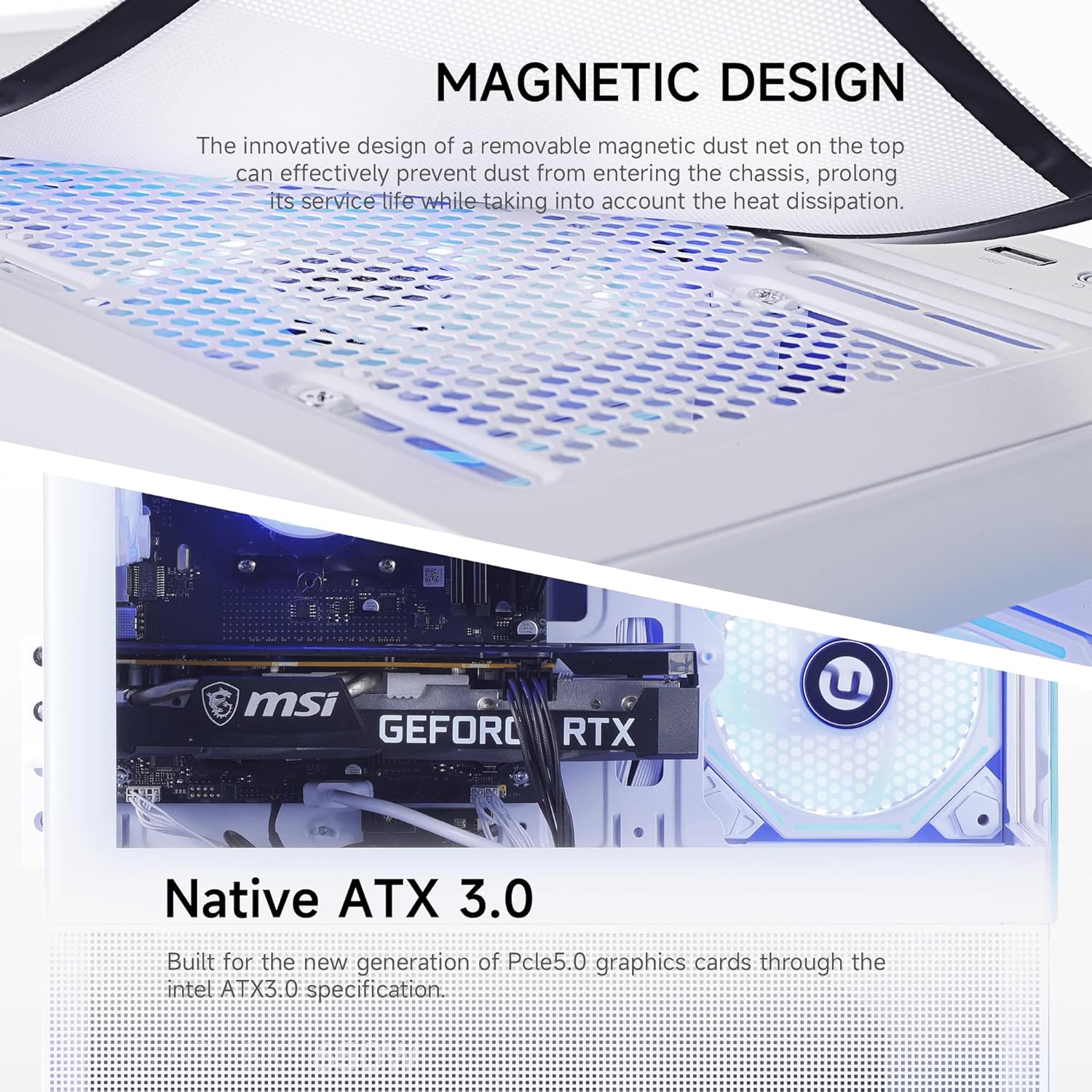
Image : Haut view of the PC case showing a magnetic dust net, designed to prevent dust from entering the chassis. Below, a close-up of the motherboard and GPU slot highlights Native ATX 3.0 support for modern graphics cards.
Your NINGMEI PC is equipped with a removable magnetic dust net on the top panel. Regularly clean this filter to prevent dust accumulation, which can impede airflow and affect cooling performance. Gently remove the magnetic filter and clean it with a soft brush or cloth.
4.2 Nettoyage général
- Extérieur: Utilisez un chiffon doux et sec.amp cloth to wipe down the exterior of the PC. Avoid harsh chemicals.
- Intérieur: Periodically, with the PC powered off and unplugged, use compressed air to clear dust from internal components, especially fans and heatsinks.
4.3 Mises à jour logicielles
Regularly update your operating system (Windows 11) and device drivers (especially graphics card drivers) to ensure optimal performance, security, and compatibility with new software and games.
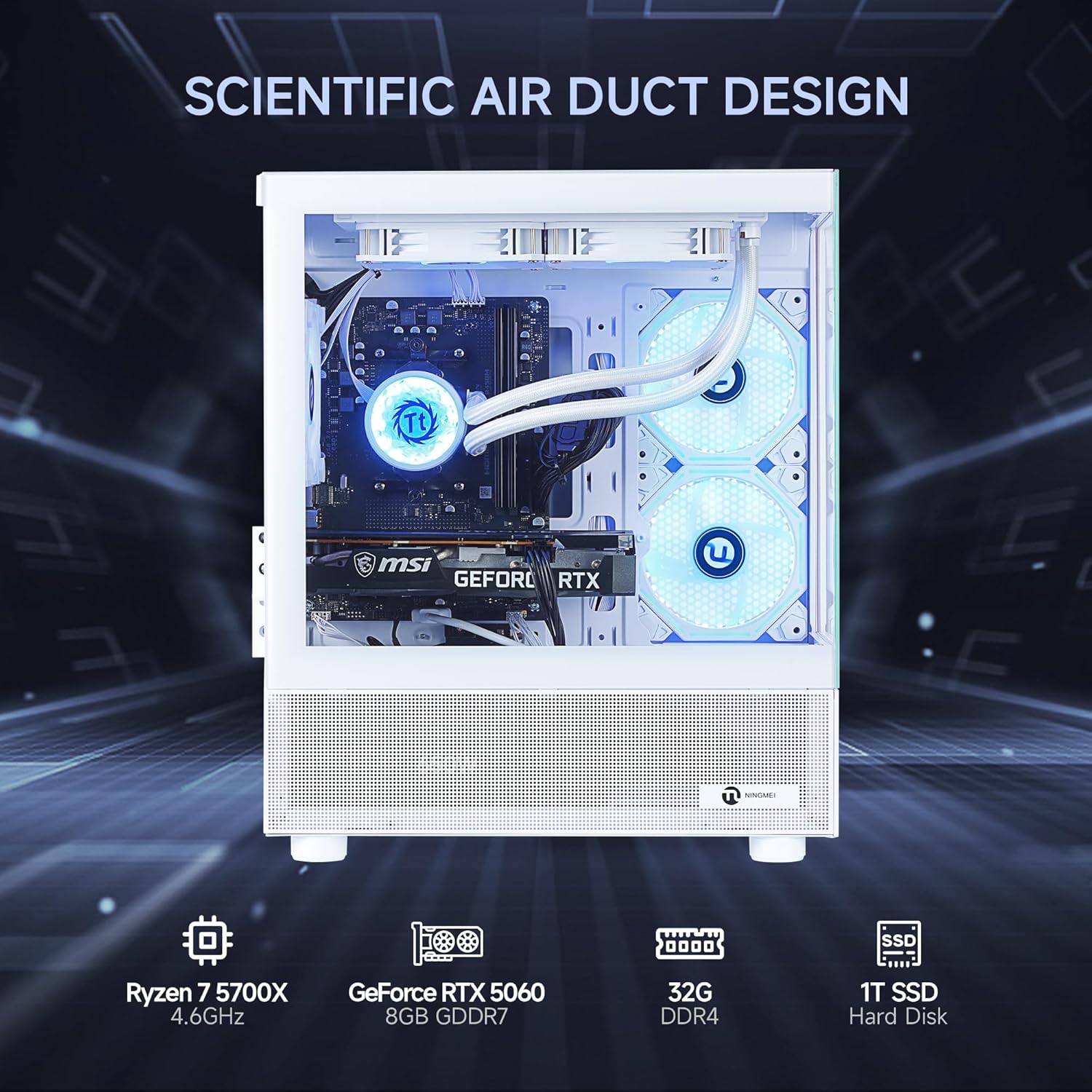
Image : Intérieure view of the NINGMEI Gaming PC Desktop, illustrating the scientific air duct design for efficient cooling. Key components are highlighted with icons: Ryzen 7 5700X CPU, GeForce RTX 5060 GPU, 32GB DDR4 RAM, and 1TB SSD.
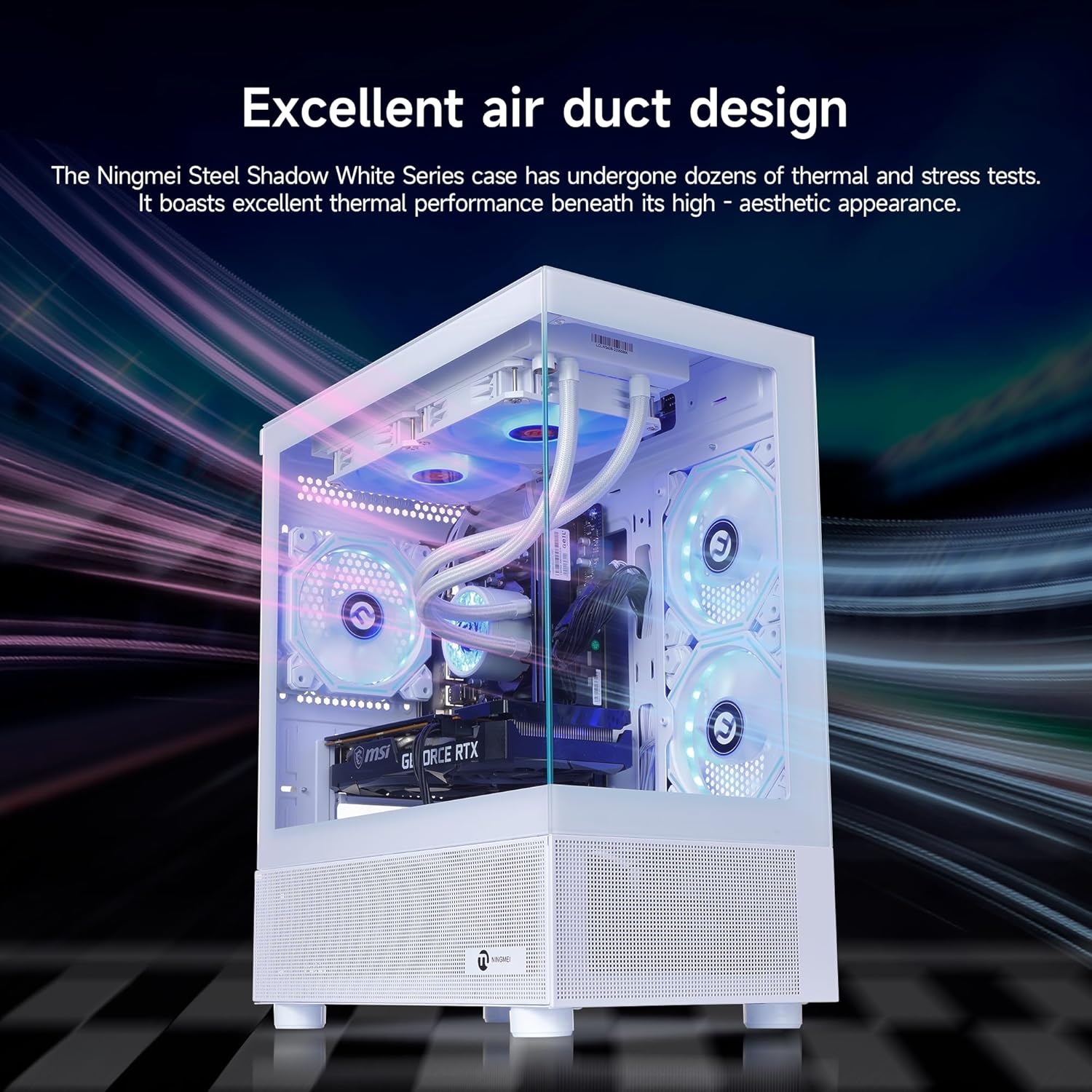
Image: The NINGMEI Steel Shadow White Series case demonstrating its excellent air duct design. The image shows internal components with visual representations of airflow, indicating effective thermal management.
5. Dépannage
5.1 Problèmes courants et solutions
- L'ordinateur ne s'allume pas :
Ensure the power cable is securely connected to both the PC's power supply and a working wall outlet. Check the power switch on the PSU (if present) is in the 'On' position. - Aucun affichage sur le moniteur :
Verify that the monitor cable is securely connected to the graphics card's output port and the monitor's input port. Ensure the monitor is powered on and set to the correct input source. If the graphics card was user-installed, ensure it is fully seated in its PCIe slot and the power cables are connected. - Périphériques (clavier/souris) ne répondant pas :
Try connecting the peripherals to different USB ports. Ensure drivers are installed (Windows usually handles this automatically). - RGB Lighting is Fixed or Not Changing:
Some models may have fixed RGB lighting configurations. If an LED button is present, press it to cycle through available modes. If no changes occur, the lighting may not be user-adjustable on your specific model. - Problèmes de performance du système :
Ensure all drivers are up to date. Check for background applications consuming resources. Monitor system temperatures to rule out overheating.
6. Spécifications
| Composant | Spécification |
|---|---|
| Processeur | AMD Ryzen 7 5700X (8 Cores, 16 Threads, 3.4 GHz Base, up to 4.6 GHz Boost) |
| Carte mère | B550M Chipset |
| Carte graphique | NVIDIA GeForce RTX 5060 8GB (128-bit) |
| BÉLIER | 32GB DDR4 3200MHz with Heat Spreader |
| Stockage | SSD NVMe M.1 Gen4 de 2 To |
| Alimentation électrique | 650W 80+ Bronze Certified |
| Système opérateur | Windows 11 Famille 64 bits |
| Refroidissement | RGB Colorful 240mm Liquid Cooling PC & 4 ARGB System Fans |
| Ports avant | 2x USB 3.0, 2x USB, HD-Audio & Mic, LED Button, Reboot Button, Power Button |
| Ports arrière | 6x USB 3.2 Gen 1, 6x USB 2.0, 1x DVI, 1x HDMI, 1x RJ45 Ethernet |
| Réseau | Realtek 1Gb Ethernet port |
| Résolution maximale | 7680x4320 |
| Poids de l'article | 23.4 livres |
7. Garantie et assistance
7.1 Informations sur la garantie
Your NINGMEI Gaming PC Desktop comes with a free one-year warranty covering manufacturing defects and hardware malfunctions under normal use conditions. Please retain your proof of purchase for warranty claims.
7.2 Assistance technique
NINGMEI offers free lifetime technical support for this product. If you encounter any issues or have questions not covered in this manual, please contact NINGMEI customer support through the official channels provided at the time of purchase or on the NINGMEI website.