
1. Introduction
Thank you for choosing the LEFFOT M1 Plus Android 14.0 TV Box. This device is designed to transform your television into a smart entertainment hub, offering stunning 4K UHD visuals, powerful performance, and a wide range of connectivity options. This manual provides detailed instructions for setting up, operating, and maintaining your TV box to ensure an optimal user experience.
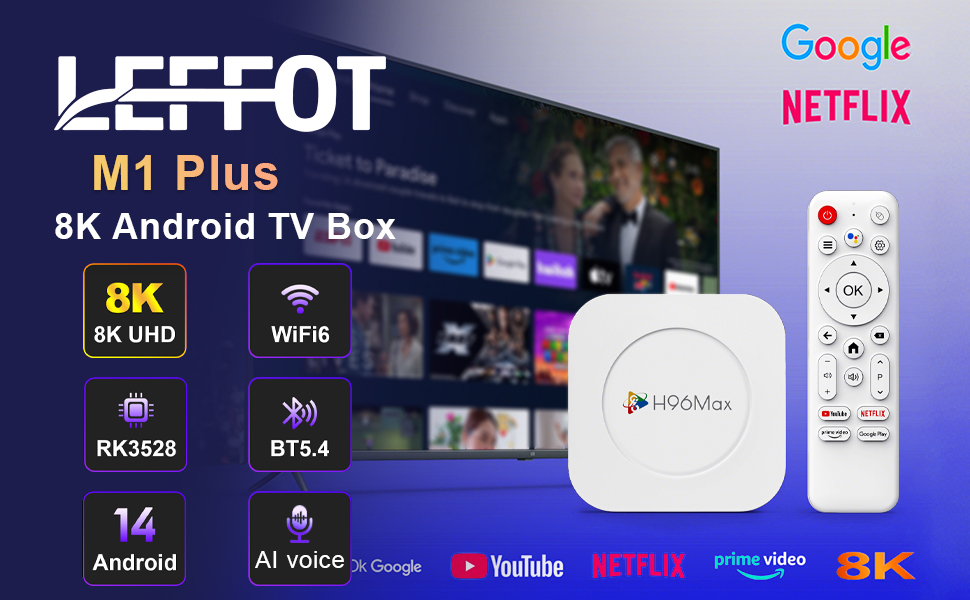
Image 1.1 : Terminéview of the LEFFOT M1 Plus Android TV Box highlighting its core features like 8K UHD, WiFi 6, BT 5.4, Android 14, and AI voice control.
2. Consignes de sécurité
Veuillez lire attentivement toutes les consignes de sécurité avant d'utiliser l'appareil. Le non-respect de ces consignes peut entraîner un choc électrique, un incendie ou endommager l'appareil.
- Utilisez uniquement l’adaptateur secteur fourni.
- N’exposez pas l’appareil à l’eau, à l’humidité ou à des températures extrêmes.
- Assurez une ventilation adéquate autour de l’appareil pour éviter toute surchauffe.
- N’essayez pas de démonter ou de réparer l’appareil vous-même. Contactez un technicien qualifié.
- Gardez l'appareil à l'abri de la lumière directe du soleil et des sources de chaleur.
3. Contenu du colis
Vérifiez que tous les éléments sont présents dans le colis :
- LEFFOT M1 Plus Android TV Box
- Télécommande
- Câble HDMI
- Adaptateur secteur
- Manuel de l'utilisateur (ce document)
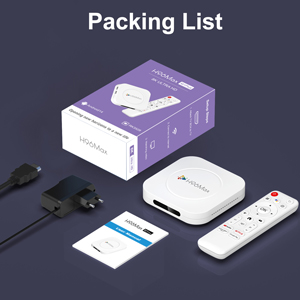
Image 3.1: The package contents including the TV box, remote control, power adapter, and HDMI cable.
4. Produit terminéview
Familiarize yourself with the components and ports of your LEFFOT M1 Plus TV Box.
4.1. Device and Remote

Image 4.1: The LEFFOT M1 Plus TV Box (left) and its accompanying remote control (right).
4.2. Ports et interfaces
The TV box features various ports for connectivity:
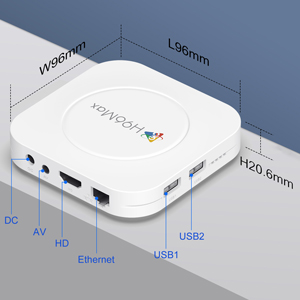
Image 4.2 : Détail view of the TV box's ports: DC (power), AV (audio/video out), HD (HDMI), Ethernet, USB1, and USB2.
- CC: Port d'entrée d'alimentation.
- UN V: Analog audio/video output (for older TVs).
- Haute définition : Sortie HDMI pour la connexion à votre téléviseur.
- Ethernet : RJ-45 port for wired network connection.
- USB1 et USB2 : USB ports for connecting external devices like USB drives, keyboards, or mice.
5. Installation
Follow these steps to set up your LEFFOT M1 Plus TV Box:
- Se connecter à la télévision : Connect one end of the provided HDMI cable to the "HD" port on the TV box and the other end to an HDMI input port on your television. Note the HDMI input number (e.g., HDMI 1, HDMI 2) on your TV.
- Connecter l'alimentation : Plug the power adapter into the "DC" port on the TV box, then plug the adapter into a wall outlet.
- Mise sous tension : Le décodeur devrait s'allumer automatiquement. Si ce n'est pas le cas, appuyez sur le bouton d'alimentation de la télécommande.
- Sélectionnez l'entrée TV : On your TV, use the remote control to select the corresponding HDMI input source you connected the TV box to.
- Assistant de configuration initiale : Suivez les instructions à l'écran pour terminer la configuration initiale, notamment la sélection de la langue, du fuseau horaire et de la connexion réseau.
6. Mode d'emploi
Navigate and use your TV box effectively.
6.1. Navigation de base
- Use the directional (Haut, Bas, Gauche, Droite) buttons on the remote to move between menu items and applications.
- Appuyez sur le OK bouton permettant de sélectionner un élément ou de confirmer une action.
- Appuyez sur le Dos bouton pour revenir à l'écran précédent.
- Appuyez sur le Maison bouton pour revenir à l'écran d'accueil principal.
6.2. Accès aux applications
From the home screen, you can access pre-installed applications or download new ones from the Google Play Store. Navigate to the desired app icon and press OK pour le lancer.

Image 6.1: The Android 14.0 TV Box home screen displaying popular streaming applications.
6.3. Commande vocale
The LEFFOT M1 Plus supports voice control via Google Assistant. To use this feature:
- Ensure your remote control is paired and has working batteries.
- Appuyez sur le Assistant vocal button (often a microphone icon) on your remote.
- Speak clearly into the remote's microphone. You can ask to open apps, search for content, or control playback.

Image 6.2: Demonstrating the convenient voice control feature using the remote and Google Assistant.
6.4. Media Playback and Display Features
Enjoy high-quality media with advanced features:
- 8K UHD : The device supports up to 8K*4K@23fps and 4Kx2K@60fps resolution with HDR10 for vibrant and detailed visuals.
- Airplay, DLNA, WiFidisplay: Easily cast content from your mobile devices to your TV screen.

Image 6.3: Experience crystal-clear 8K resolution with the LEFFOT M1 Plus.

Image 6.4: The TV box supports various connectivity options and display technologies like Airplay, DLNA, and WiFidisplay.
6.5. Scénarios d'utilisation
The LEFFOT M1 Plus TV Box is versatile for various uses:
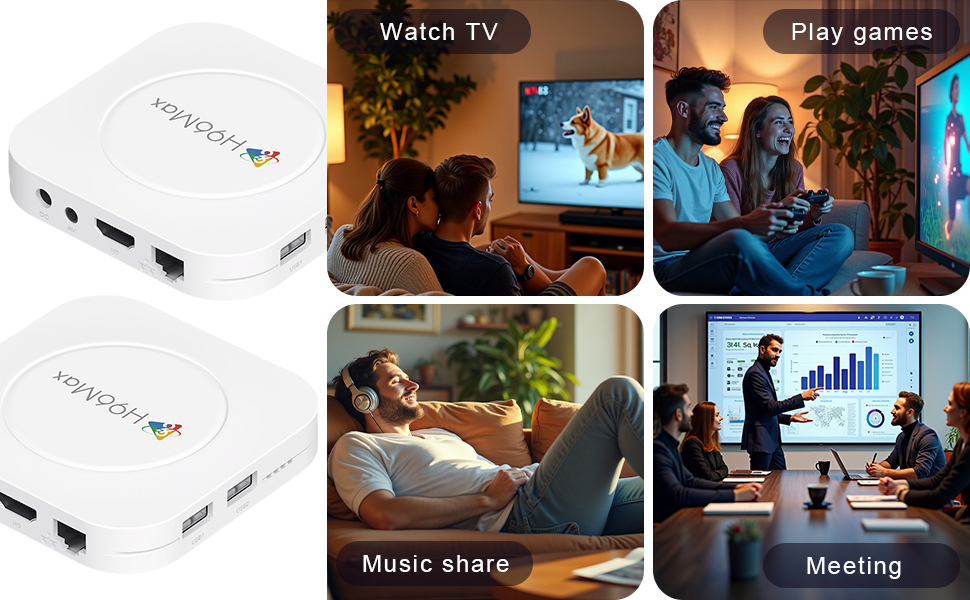
Image 6.5: The TV box can be used for watching TV, playing games, sharing music, and even for business presentations.
7. Connectivité
7.1. Connexion Wifi
The device supports 2.4G & 5G dual-band Wi-Fi 6 for fast and stable wireless internet.
- Aller à Paramètres > Réseau et Internet.
- Allumer Wifi.
- Sélectionnez votre réseau Wi-Fi dans la liste.
- Enter the password if prompted and select Connecter.

Image 7.1: The TV box features advanced Wi-Fi 6 technology for faster and more reliable connections.
7.2. Connexion Ethernet
For a wired connection, plug an Ethernet cable into the "Ethernet" port on the TV box and the other end into your router/modem.
7.3. Connexion Bluetooth
The device supports Bluetooth 5.4 for connecting peripherals like headphones, game controllers, or speakers.
- Aller à Paramètres > Appareils connectés > Paire le nouvel appareil.
- Mettez votre appareil Bluetooth en mode d'appairage.
- Sélectionnez votre appareil dans la liste et suivez les instructions à l'écran pour l'appairer.
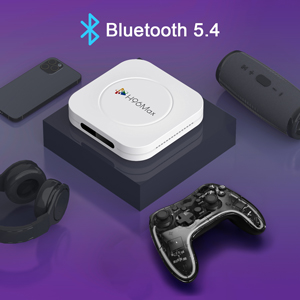
Image 7.2: The TV box supports Bluetooth 5.4 for seamless connection with various external devices.
8. Dépannage
Consultez cette section pour les problèmes courants et leurs solutions.
| Problème | Cause possible | Solution |
|---|---|---|
| Pas de courant | Adaptateur secteur non connecté ou défectueux. | Vérifiez que l'adaptateur secteur est bien branché à l'appareil et à une prise de courant fonctionnelle. Essayez une autre prise. |
| Pas de signal à la télévision | Entrée HDMI incorrecte sélectionnée sur le téléviseur ; câble HDMI mal branché ou défectueux. | Verify TV input matches the HDMI port used. Check HDMI cable connections. Try a different HDMI cable or port. |
| Problèmes de connexion Wi-Fi | Mot de passe incorrect ; routeur trop éloigné ; interférences. | Re-enter Wi-Fi password. Move device closer to router. Restart router and TV box. |
| La télécommande ne répond pas | Piles faibles ; télécommande non appariée. | Replace batteries. Re-pair the remote control if it's a Bluetooth remote (refer to device settings). |
| Applications qui plantent ou performances lentes | Trop d'applications ouvertes ; espace de stockage insuffisant ; bug logiciel. | Close background apps. Clear app caches. Restart the TV box. Consider a factory reset if issues persist (data will be lost). |
9. Spécifications
Key technical specifications of the LEFFOT M1 Plus Android TV Box:
- Système opérateur: Android 14.0
- Processeur: RK3528 Quad Core ARM Cortex-A53
- Processeur graphique : Mali-450 MP2
- BÉLIER: 4 Go
- ROM: 32 Go
- Sortie vidéo : Supports 4Kx2K@60fps, 8K*4K@23fps, HDR10
- Wifi: 2.4G & 5G Dual-band Wi-Fi 6
- Ethernet : 100 millions
- Bluetooth : BT 5.4
- Ports: HDMI, USB (x2), DC, AV, Ethernet
- Caractéristiques spéciales : Airplay, DLNA, WiFidisplay, Voice Control
- Dimensions: 3.78 x 3.78 x 0.81 pouces (96 x 96 x 20.6 mm)
- Poids: 4.3 onces (environ 122 g)
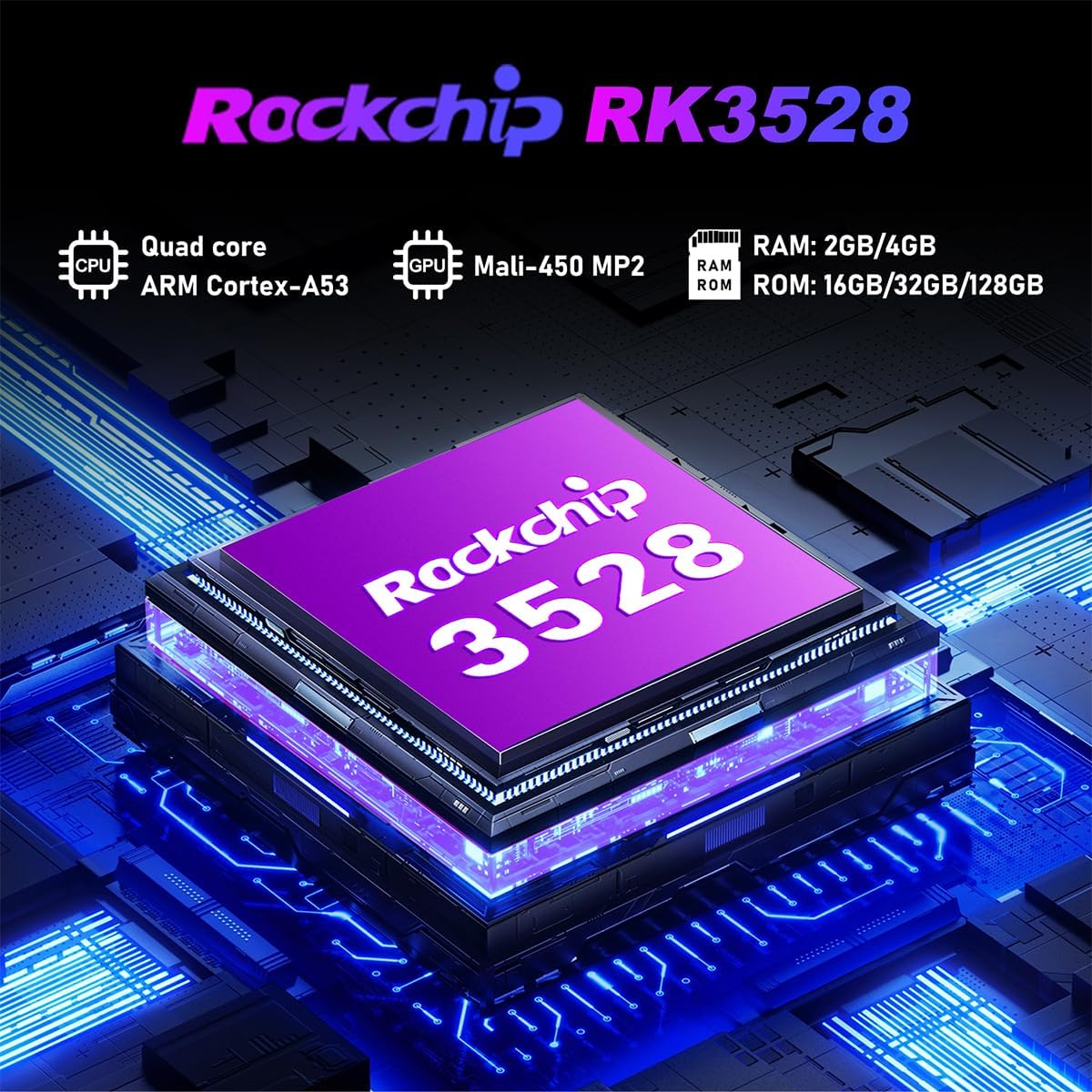
Image 9.1 : Détail view of the Rockchip RK3528 processor, highlighting its quad-core CPU, Mali-450 MP2 GPU, and memory configurations.
10. Entretien
To ensure the longevity and optimal performance of your TV box:
- Nettoyage: Utilisez un chiffon doux et sec pour nettoyer l'extérieur de l'appareil. N'utilisez pas de nettoyants liquides ni d'aérosols.
- Ventilation: Ensure the ventilation holes are not blocked. Do not place the device on soft surfaces that may obstruct airflow.
- Stockage: En cas de non-utilisation prolongée, débranchez l'adaptateur secteur et rangez l'appareil dans un endroit frais et sec.
11. Garantie et assistance
LEFFOT products are designed for reliability and performance. This product comes with a standard manufacturer's warranty. Please refer to the warranty card included in your package for specific terms and conditions.
For technical support, troubleshooting assistance, or warranty claims, please contact LEFFOT customer service through the retailer where you purchased the product or visit the official LEFFOT website pour les coordonnées.
Veuillez conserver votre preuve d'achat à des fins de garantie.