
Introduction
Welcome to the user manual for your Acer Nitro V 15 ANV15-52 Gaming Laptop. This document provides essential information for setting up, operating, maintaining, and troubleshooting your device. The Acer Nitro V 15 is designed for an immersive gaming experience, powered by an Intel Core i7-13620H processor and NVIDIA GeForce RTX 5050 graphics.
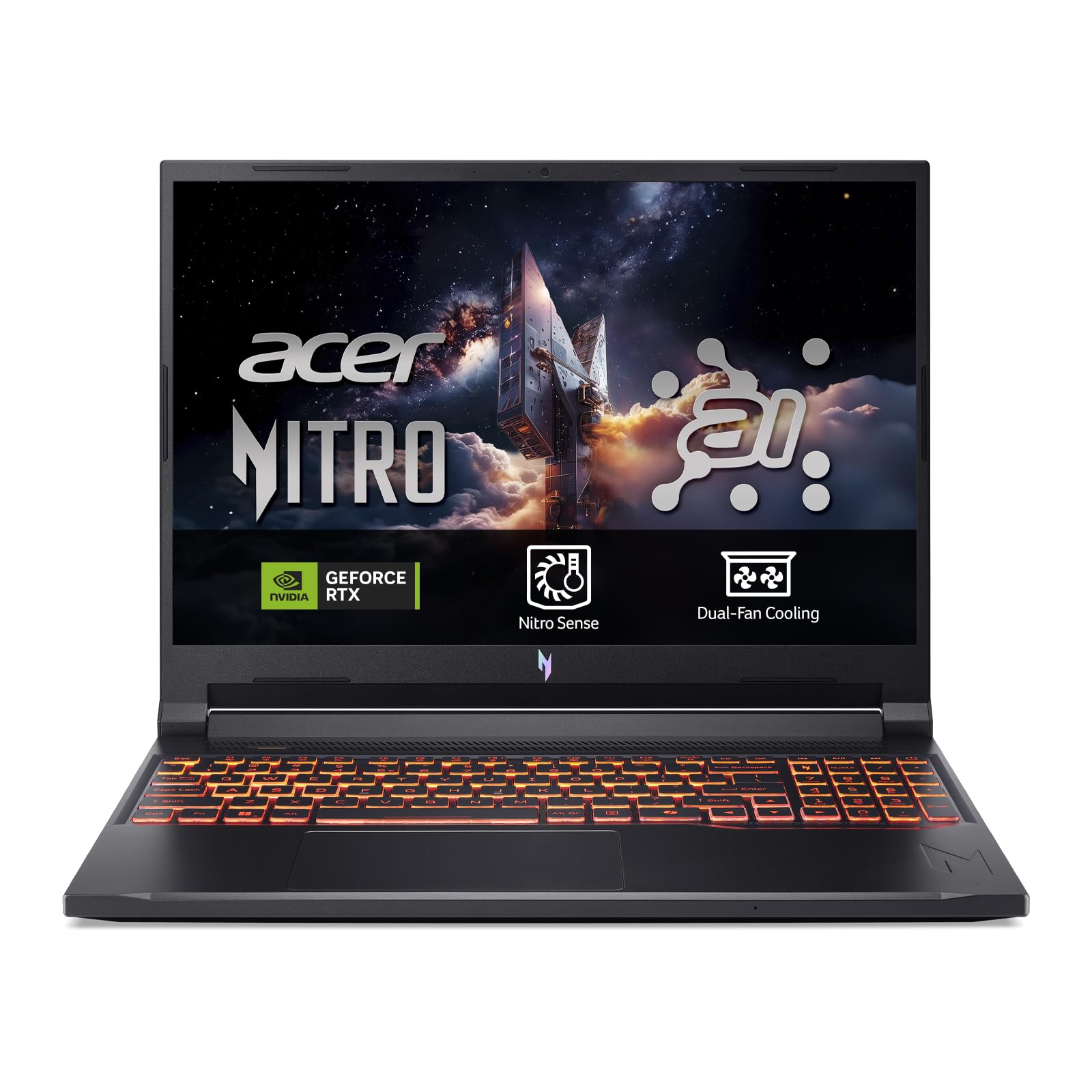
Figure 1: Acer Nitro V 15 ANV15-52 Gaming Laptop.
Installation
1. Déballage et inspection initiale
Carefully remove your laptop and all accessories from the packaging. Verify that all components, including the charger, are present and undamaged. Keep the packaging for future transport or service needs.
2. Branchement de l'adaptateur secteur
Branchez l'adaptateur secteur au port d'alimentation de l'ordinateur portable, puis branchez-le à une prise murale. Il est recommandé de charger complètement la batterie avant la première utilisation.
3. Installation du système d'exploitation
This laptop is shipped without a pre-installed operating system (DOS). You will need to install a compatible operating system, such as Windows or Linux, to use the device. Ensure you have the necessary installation media (USB drive) and drivers ready. Drivers can typically be downloaded from the Acer support website dédié à votre modèle spécifique.
4. Connexion de périphériques
Utilize the available ports to connect external devices such as a mouse, external keyboard, or monitor. The laptop features multiple USB 3.2 Type-A ports and a Thunderbolt port for versatile connectivity.

Figure 2 : Côté view of the laptop displaying connectivity ports.
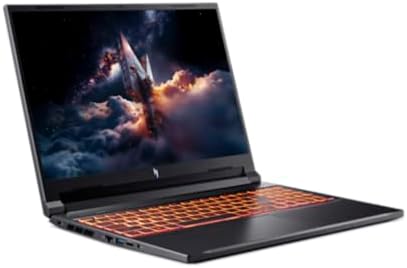
Figure 3 : Arrière view of the laptop with power and display output ports.
Utilisation de votre ordinateur portable
1. Mode marche/arrêt et veille
- To power on, press the power button located on the keyboard.
- To shut down, use the operating system's shutdown function.
- To enter sleep mode, close the lid or select 'Sleep' from the operating system's power options.
2. Clavier et pavé tactile
The laptop features a full-size QWERTY keyboard, often with backlighting for low-light conditions. The precision touchpad supports multi-touch gestures for navigation.
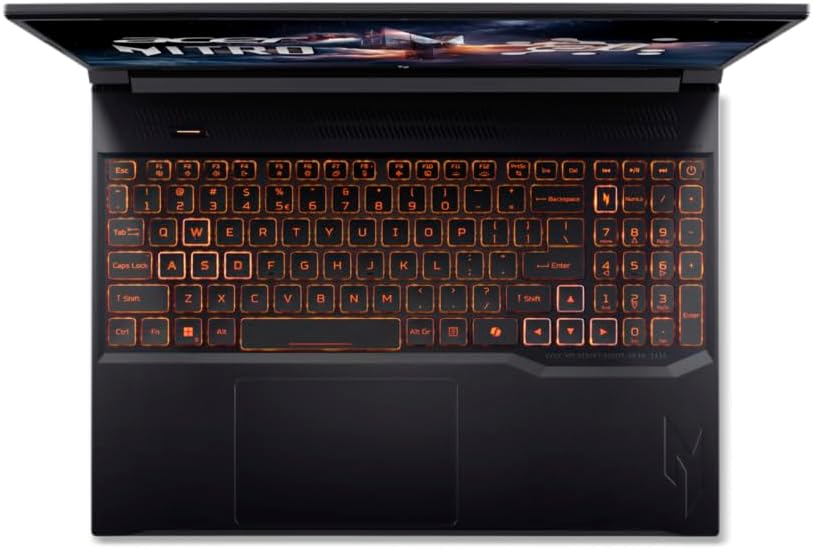
Figure 4 : Vue de dessus view of the laptop keyboard and touchpad.
3. Fonctions d'affichage
Enjoy clear visuals on the 15.6-inch Full HD (1920 x 1080) LCD display with a 165Hz refresh rate, providing smooth and responsive gaming. The narrow bezels enhance the immersive viewexpérience de travail.
4. Connectivité sans fil
The laptop supports Wi-Fi 6 (802.11ax) for high-speed wireless internet access. Connect to compatible networks for online gaming, streaming, and browsing.
Entretien
1. Nettoyage
- Utilisez un chiffon doux non pelucheux pour nettoyer l'écran et les surfaces extérieures. Évitez les produits chimiques agressifs.
- Nettoyez régulièrement le clavier et le pavé tactile pour éliminer la poussière et les débris.
2. Entretien de la batterie
- Évitez de décharger complètement la batterie fréquemment.
- Rangez l'ordinateur portable dans un endroit frais et sec s'il n'est pas utilisé pendant une période prolongée.
- Use only the original Acer power adapter.
3. Système de refroidissement
Gaming laptops generate heat. Ensure the cooling vents are not obstructed to maintain optimal performance and prevent overheating. Regular cleaning of the vents can help.

Figure 5 : Bas view of the laptop, highlighting cooling vents.
4. Mises à jour logicielles
Regularly update your operating system, drivers, and gaming software to ensure stability, security, and optimal performance.
Dépannage
If you encounter issues with your Acer Nitro V 15 laptop, refer to the following common solutions:
- Pas d'alimentation : Ensure the power adapter is securely connected to both the laptop and a working power outlet. Check the power button.
- Problèmes d'affichage : If the screen is blank, try connecting an external monitor to verify if the laptop is functioning. Adjust display settings in your operating system.
- Problèmes de performance : Close unnecessary applications, update drivers, and ensure the cooling vents are clear.
- Installation du système d'exploitation : As noted in the setup section, this laptop requires an OS installation. If you face issues during OS setup, ensure all necessary drivers (especially storage drivers) are loaded during the installation process. Refer to Acer's support website for specific driver downloads and installation guides.
- Problèmes de connectivité : For Wi-Fi problems, restart your router and laptop. Check network settings in your operating system.
For further assistance, visit the official Acer support website ou contactez leur service client.
Caractéristiques
| Fonctionnalité | Détail |
|---|---|
| Marque | Acer |
| Nom du modèle | Nitro V 15 ANV15-52 |
| Taille de l'écran | 15.6 pouces |
| Résolution d'affichage | 1920 x 1080 pixels (Full HD) |
| Technologie d'affichage | LCD, 165Hz Refresh Rate |
| Processeur | Intel Core i7-13620H (13th Gen, 10 Cores, up to 2.41 GHz) |
| Processeur graphique | NVIDIA GeForce RTX 5050 (Dédiée) |
| BÉLIER | Mémoire SDRAM DDR16 de 4 Go |
| Stockage | 512 GB PCIe 4.0 NVMe SSD |
| Système opérateur | DOS (système d'exploitation installé par l'utilisateur requis) |
| norme sans fil | Wi-Fi 6 (802.11ax) |
| Bluetooth | Non spécifié |
| Ports USB | 4 (including USB 3.2 Type-A) |
| Ports Thunderbolt | 1 |
| Clavier | QWERTY Type Keyboard |
| Composants inclus | Chargeur |
Garantie et assistance
Your Acer Nitro V 15 ANV15-52 laptop comes with a standard manufacturer's warranty. Please refer to the warranty card included with your product for specific terms, conditions, and duration. For technical support, driver downloads, and service inquiries, please visit the official Acer support website:
Ensure you have your laptop's serial number and model information ready when contacting support.