
TABWEE W90 Tablet Tabwee
Manuel d'utilisation de la tablette TABWEE W90 Android 15
Model: W90 Tablet Tabwee | Brand: TABWEE
1. Introduction
Welcome to the user manual for your new TABWEE W90 Android 15 Tablet. This guide provides essential information to help you set up, operate, maintain, and troubleshoot your device. The W90 tablet is designed for a seamless and efficient user experience, featuring advanced Android 15, a powerful T615 Octa-Core processor, and a vibrant 11-inch FHD display.

Image: The TABWEE W90 tablet, showcasing its sleek design and key features like Android 15, 24GB RAM, 256GB ROM, and 2TB expansion capabilities.
2. Mise en route
2.1 Configuration initiale
- Chargement de la tablette : Before first use, fully charge your tablet using the provided 18W fast charger and USB-C cable. Connect the USB-C cable to the tablet's Type-C port and the charger to a power outlet. The battery indicator will show charging progress.
- Mise sous/hors tension : To power on, press and hold the Power button located on the side of the tablet until the TABWEE logo appears. To power off, press and hold the Power button, then select "Power off" from the options.
- Assistant de première configuration : Upon first power-on, follow the on-screen instructions to select your language, connect to a Wi-Fi network, sign in with your Google account, and set up security features like Face Unlock.
2.2 Expanding Memory
The W90 tablet supports up to 2TB TF card expansion for additional storage. To expand memory:
- Insert a compatible TF (microSD) card into the tablet's card slot.
- Accéder à Paramètres > À propos de la tablette.
- Appuyez sur Running Memory RAM.
- Drag the expansion bar to the right to allocate desired virtual RAM.
- Restart the tablet for changes to take effect.
3. Principales caractéristiques
3.1 Affichage et audio
The TABWEE W90 features an 11-inch 1920x1200 Full HD eye-care display, providing crisp details and vibrant colors. With Widevine L1 certification, you can enjoy 1080P HD content from streaming services like Netflix and YouTube. The display offers 380 nits brightness for clear visuals in various lighting conditions and is TÜV certified to reduce harmful blue light by 45%, minimizing eye fatigue.

Image: The tablet's 11-inch FHD display, highlighting its 1920x1200 resolution, 84.9% screen-to-body ratio, 350 nits brightness, and TÜV Rheinland Low Blue Light Certification, along with support for Netflix, Prime Video, YouTube, Hulu, and HBO.
Equipped with dual Smart-K Box speakers, the tablet delivers an immersive audio experience for entertainment and calls.
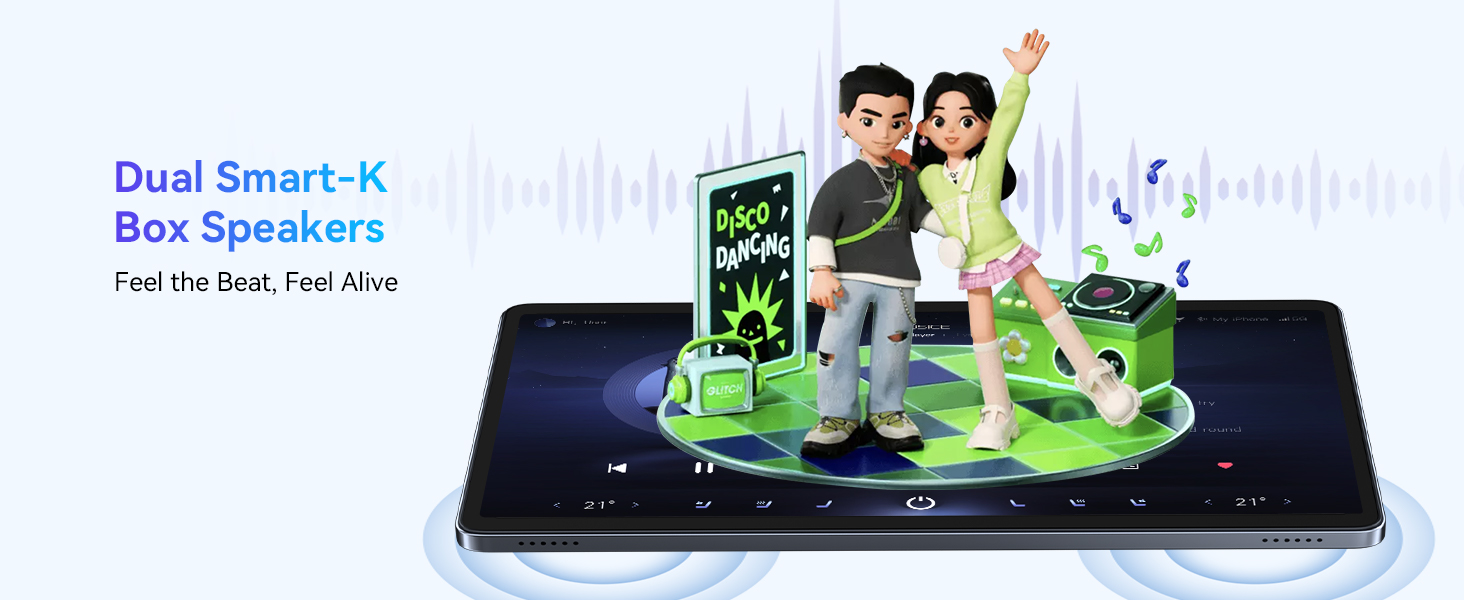
Image: Illustration of the tablet's dual Smart-K Box speakers, emphasizing their ability to provide rich and immersive sound.
3.2 Performance (Processor, RAM, Storage)
The W90 is powered by a robust Unisoc T615 Octa-Core chipset, ensuring smooth multitasking and exceptional performance. This processor offers 50% faster multi-tasking performance compared to ordinary octa-core chips.
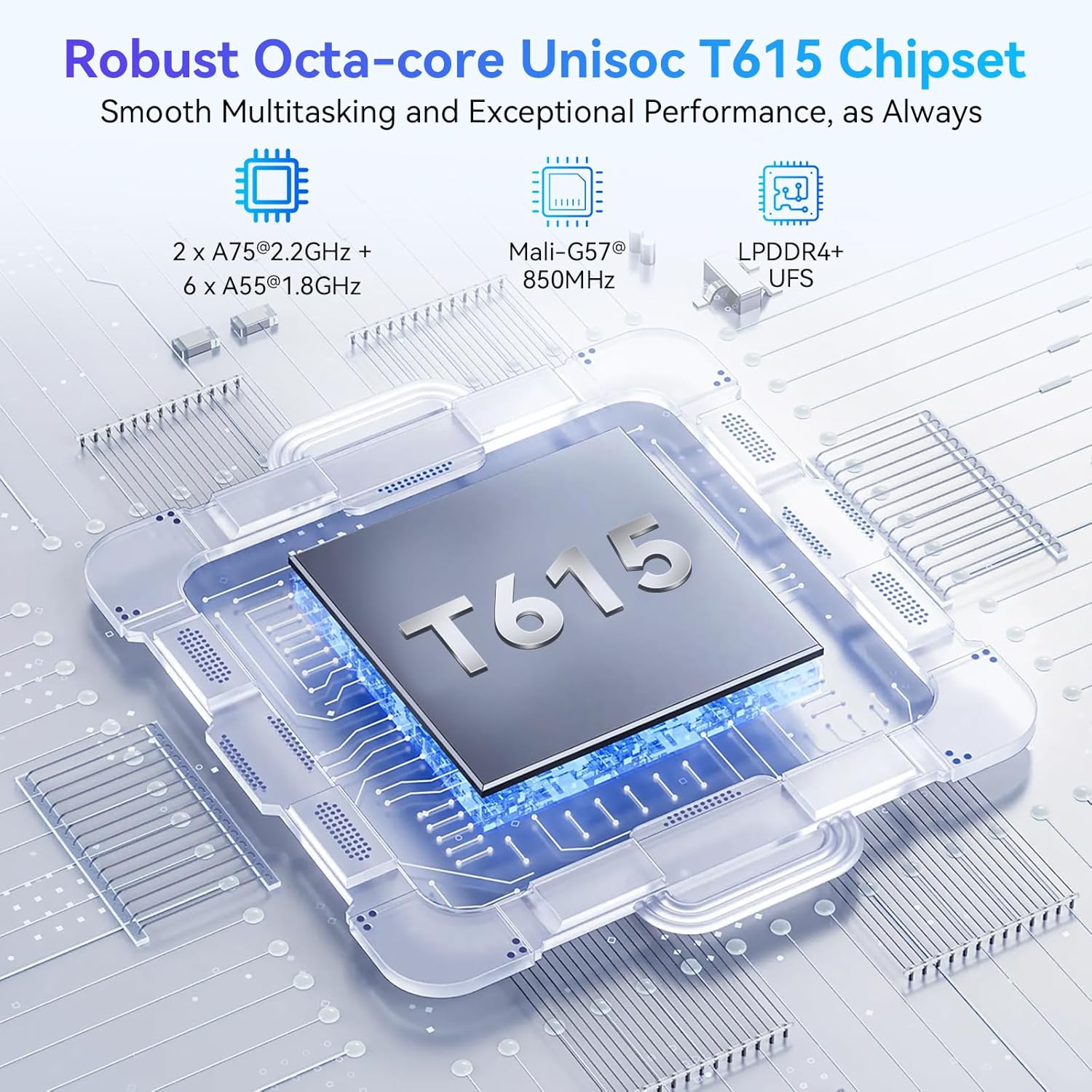
Image: A detailed diagram of the Unisoc T615 chipset, illustrating its components including 2x A75@2.2GHz + 6x A55@1.8GHz cores, Mali-G57@850MHz GPU, and LPDDR4+ UFS support.
With 24GB RAM (8GB actual + 16GB expansion) and 256GB ROM, the tablet provides ample memory for running up to 15 apps simultaneously and storing massive videos and files. Storage can be further expanded up to 2TB via a TF card.

Image: Visual representation of the tablet's memory specifications: up to 24GB RAM (8GB+16GB expansion), 256GB ROM, and 2TB TF card expansion, along with estimated storage capacity for photos, songs, and short videos.
3.3 Cameras and AI Features
Capture every moment with the 16MP rear camera and take clear selfies with the 8MP front camera. The integrated Google Lens allows for real-time recognition of objects, plants, and night mode, enhancing your photography experience.
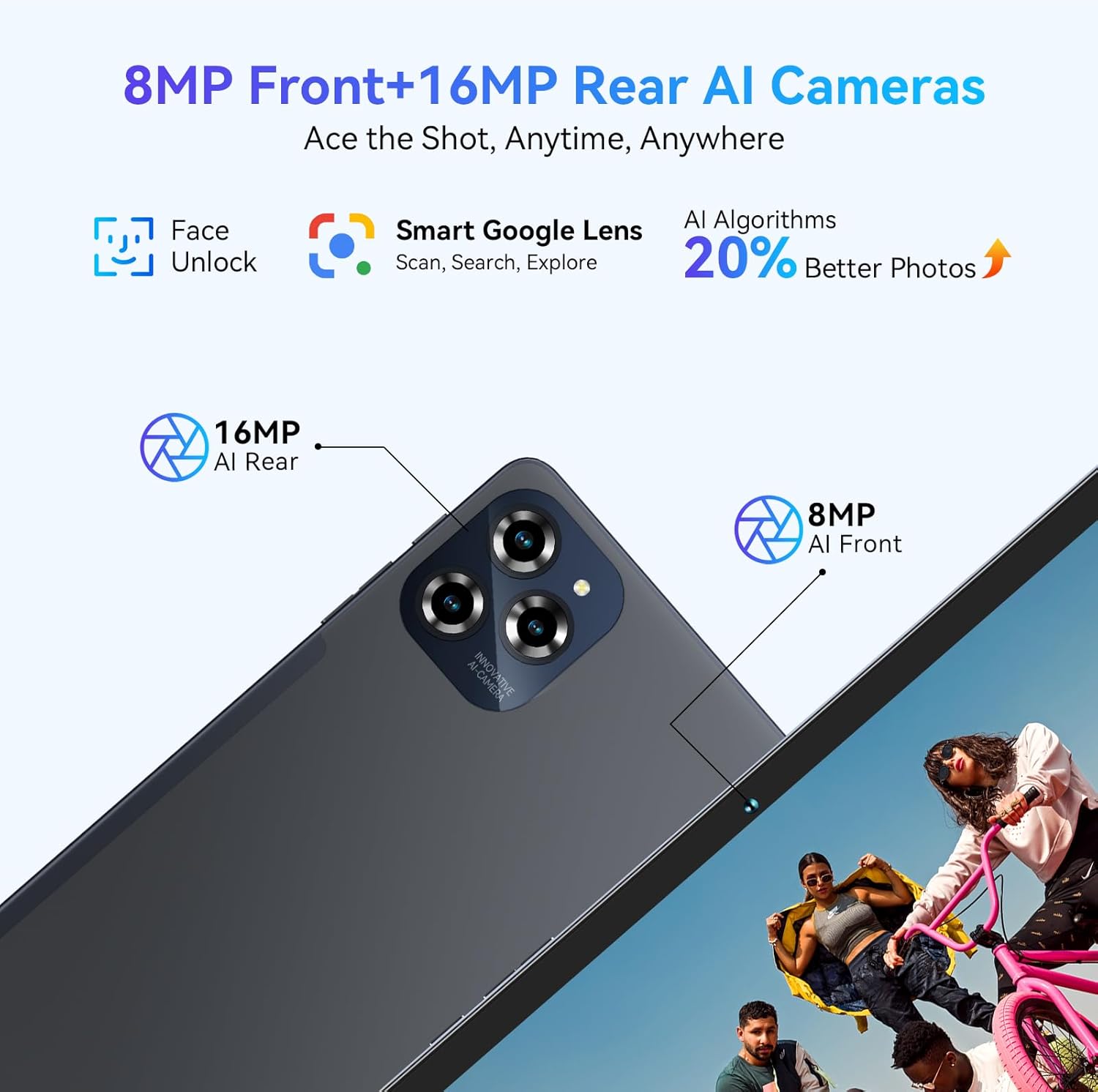
Image: Depiction of the tablet's 8MP AI Front camera and 16MP AI Rear camera, highlighting features like Face Unlock, Smart Google Lens, and 20% better photos with AI Algorithms.
The tablet's AI integration, including Google Gemini AI, allows for intelligent resource scheduling and personalized learning recommendations, improving office efficiency and providing a new experience of intelligent office.

Image: An illustration of Gemini AI, described as "Your Intelligent Partner," with features like AI Text to Image, AI Multi-Scenario Empowerment, AI Smart Control, AI Intelligent Assistance, Intelligent AI Office, and Customized Personalized Learning.
3.4 Autonomie et charge de la batterie
An 8000mAh large battery provides up to 12 hours of video playback and 8 hours of high-intensity gaming (experimental test brightness 50%). With 18W fast charging, the tablet can reach 50% charge in 40 minutes. Smart PowerLock extends standby time to 30 days.

Image: Visual representation of the 8000mAh battery, showing estimated usage times: 5.5 hours video, 5 hours game, 5 hours website, 27 hours music, and 1080 hours standby.
3.5 Connectivity (5G WiFi, Bluetooth 5.0)
Dual-band 5G WiFi ensures seamless streaming and lightning-fast downloads, with a 25% quicker download speed. Bluetooth 5.0 provides stable and fast data transfer speeds, 20% faster than previous versions.
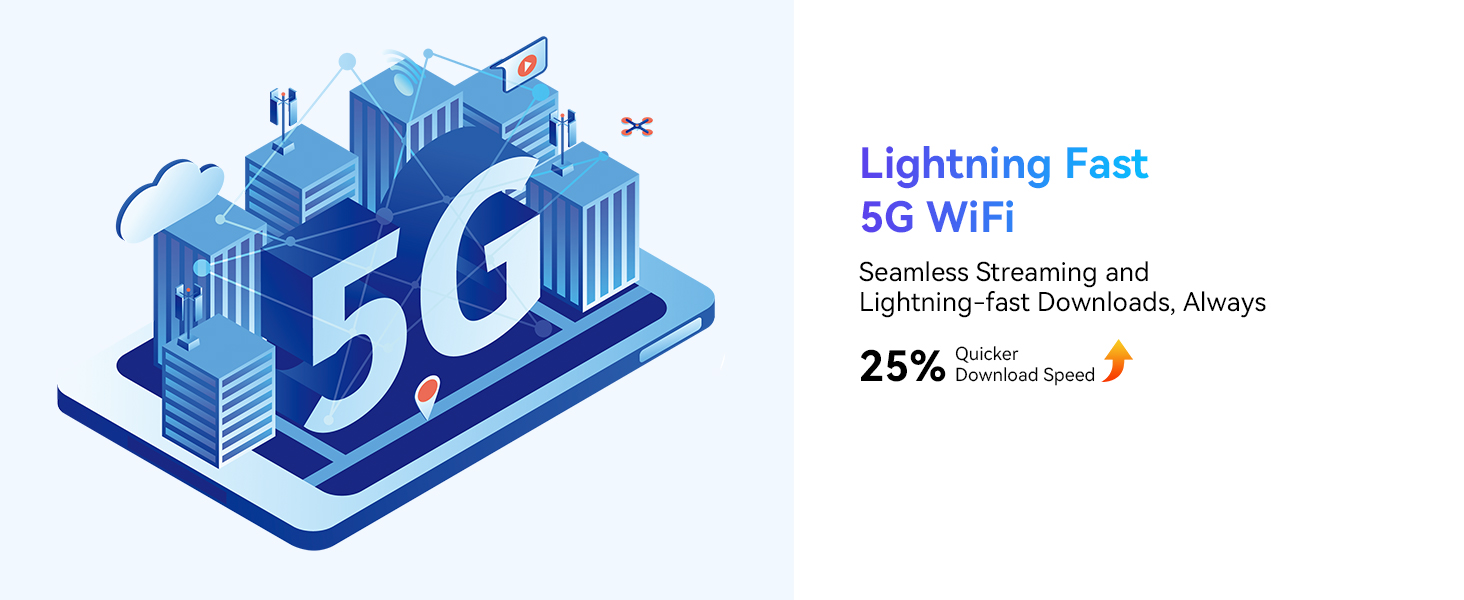
Image: An illustration depicting 5G WiFi connectivity, emphasizing seamless streaming and lightning-fast downloads with 25% quicker download speed.
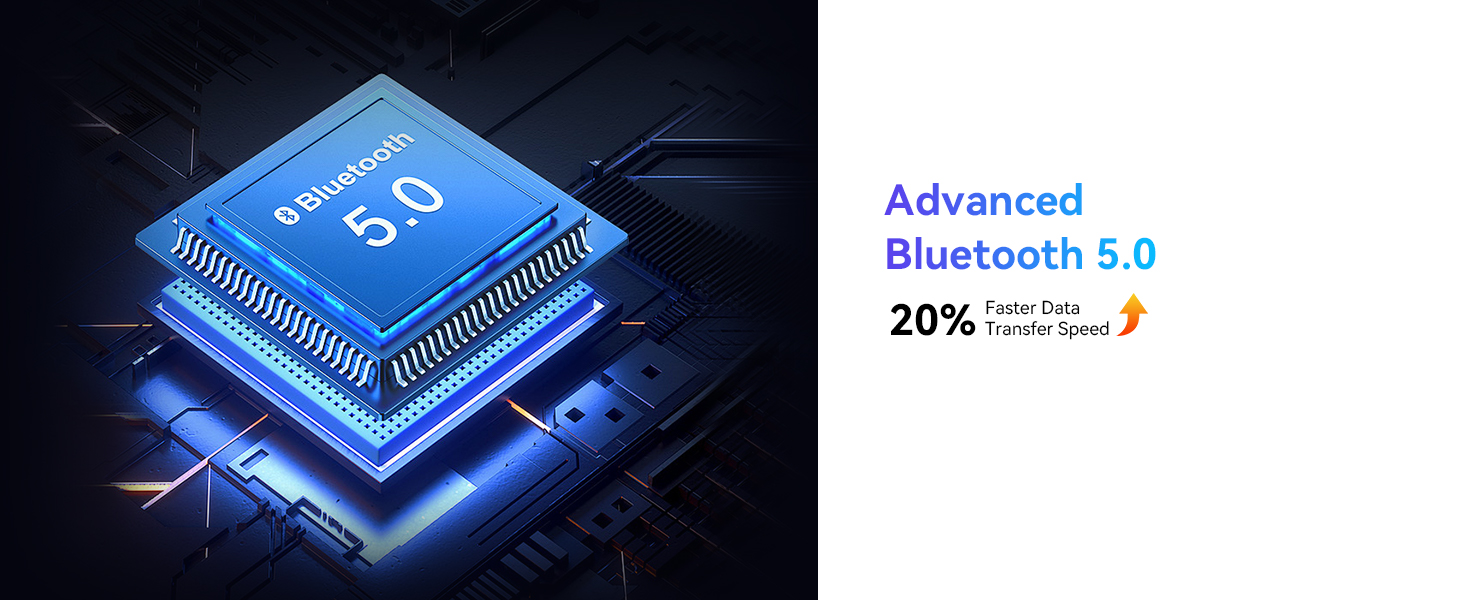
Image: A graphic representing Bluetooth 5.0 technology, indicating 20% faster data transfer speed.
3.6 Système d'exploitation Android 15
The W90 runs on the advanced Android 15 system, offering enhanced privacy, cross-device collaboration, and intelligent resource scheduling with Google Gemini AI. It provides a more tailored and secure user experience with features like Personalized Widget Previews, USB Authentication, Partial Screen Recording, Sensitive Notifications, Live Caption, and a new "Add Widget" button.

Image: Screenshots illustrating Android 15 features such as Personalized Widget Previews, USB Authentication, Partial Screen Recording, Sensitive Notifications, Live Caption, and the "Add Widget" button, emphasizing user experience, safety, and privacy.
4. Using Your Tablet
4.1 Navigation de base
Navigate your tablet using intuitive touch gestures. Swipe up from the bottom for the app drawer, swipe down from the top for quick settings and notifications. Use the on-screen navigation buttons (Back, Home, Recents) or gesture navigation as configured in settings.
4.2 Utilisation de Google Lens
The integrated Google Lens feature allows you to interact with your surroundings using the camera. Open the camera app and select the Google Lens option to:
- Identify plants, trees, and animals in real-time.
- Get step-by-step solutions to math problems.
- Offer popular recipes with specific ingredients.
- Compare prices of similar items online.
- Translate English text unknown to you.
- Provide historical facts of landmarks when traveling.
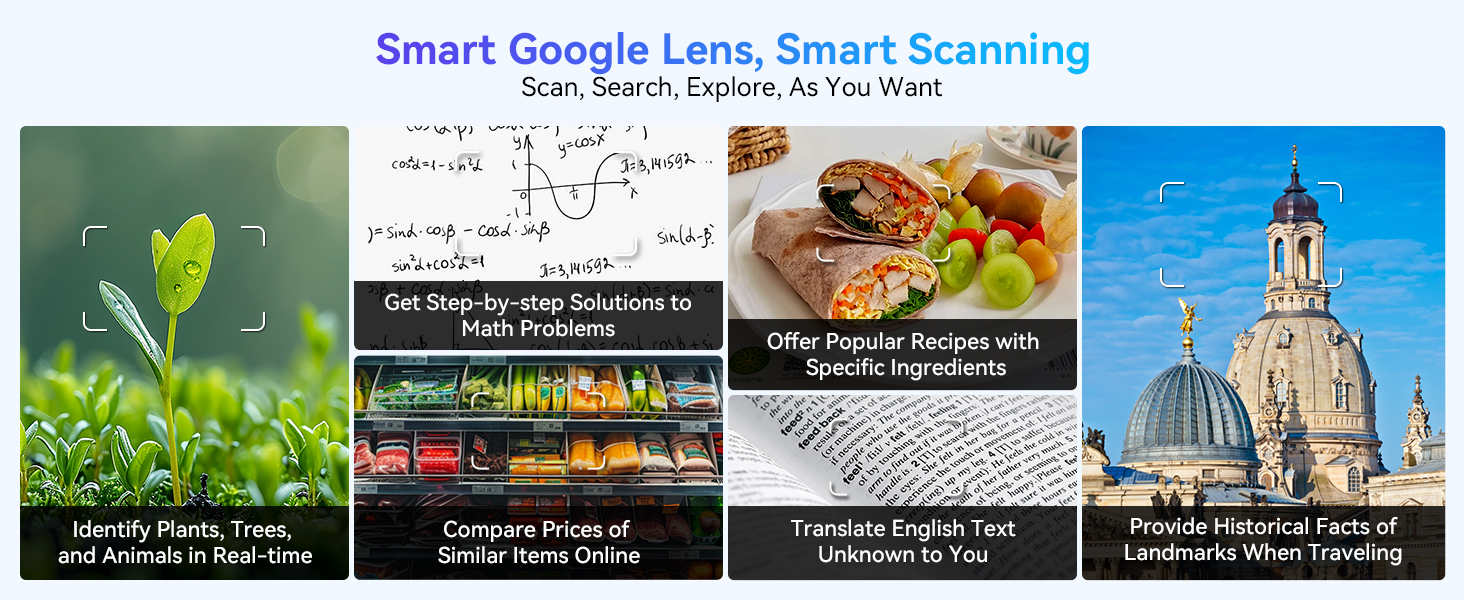
Image : Examples of Smart Google Lens capabilities, including identifying objects, solving math problems, finding recipes, comparing prices, translating text, and providing historical facts.
5. Entretien et maintenance
- Nettoyage: Utilisez un chiffon doux et non pelucheux pour nettoyer l'écran et le corps de la tablette. Évitez les produits chimiques agressifs ou abrasifs.
- Température: Ne pas exposer le comprimé à des températures extrêmes (chaudes ou froides) ni à la lumière directe du soleil pendant des périodes prolongées.
- Exposition à l'eau : The tablet is not waterproof. Avoid contact with liquids.
- Stockage: Lorsqu'elle n'est pas utilisée pendant une période prolongée, conservez la tablette dans un endroit frais et sec.
6. Dépannage
6.1 Problèmes courants et solutions
- La tablette ne s'allume pas : Assurez-vous que la tablette est chargée. Appuyez sur le bouton Marche/Arrêt et maintenez-le enfoncé pendant au moins 10 à 15 secondes pour forcer le redémarrage.
- Écran non réactif : Try restarting the tablet. If the issue persists, a factory reset might be necessary (back up your data first).
- Plantages/blocages d'applications : Close background apps. Clear app cache (Settings > Apps > [App Name] > Storage > Clear cache). Update apps to their latest versions.
- Performances lentes : Free up storage space, close unnecessary apps, and restart the tablet periodically. Consider reducing the number of widgets on your home screen.
- Problèmes de connectivité Wi-Fi : Restart your Wi-Fi router and the tablet. Forget the network and reconnect. Ensure you are within range of the Wi-Fi signal.
6.2 Réinitialisation d'usine (Attention)
A factory reset will erase all data on your tablet and restore it to its original factory settings. Only perform this if other troubleshooting steps fail and after backing up all important data.
- Aller à Paramètres > Système > Options de réinitialisation.
- Sélectionner Effacer toutes les données (réinitialisation d'usine).
- Confirmez votre décision et suivez les instructions à l'écran.
7. Spécifications techniques
| Fonctionnalité | Spécification |
|---|---|
| Nom du modèle | W90 |
| Système opérateur | Android 15 |
| Taille de l'écran | 11 pouces |
| Résolution d'affichage | 1920 x 1200 pixels |
| Processeur | Unisoc T615 Octa-Core (2.2 GHz) |
| BÉLIER | 24 GB (8GB actual + 16GB expansion) |
| Stockage interne | 256 Go |
| Stockage extensible | Carte TF jusqu'à 2 To |
| Caméra arrière | 16 MP |
| Caméra frontale | 8 MP |
| Capacité de la batterie | 8000mAh |
| norme sans fil | 802.11a/b/g/n/ac (Wi-Fi 5G) |
| Bluetooth | Bluetooth 5.0 |
| Dimensions du produit | 25.65 x 17.02 x 0.76 cm |
| Poids de l'article | 515 g |
8. Contenu de la boîte
Your TABWEE W90 Tablet package includes the following items:
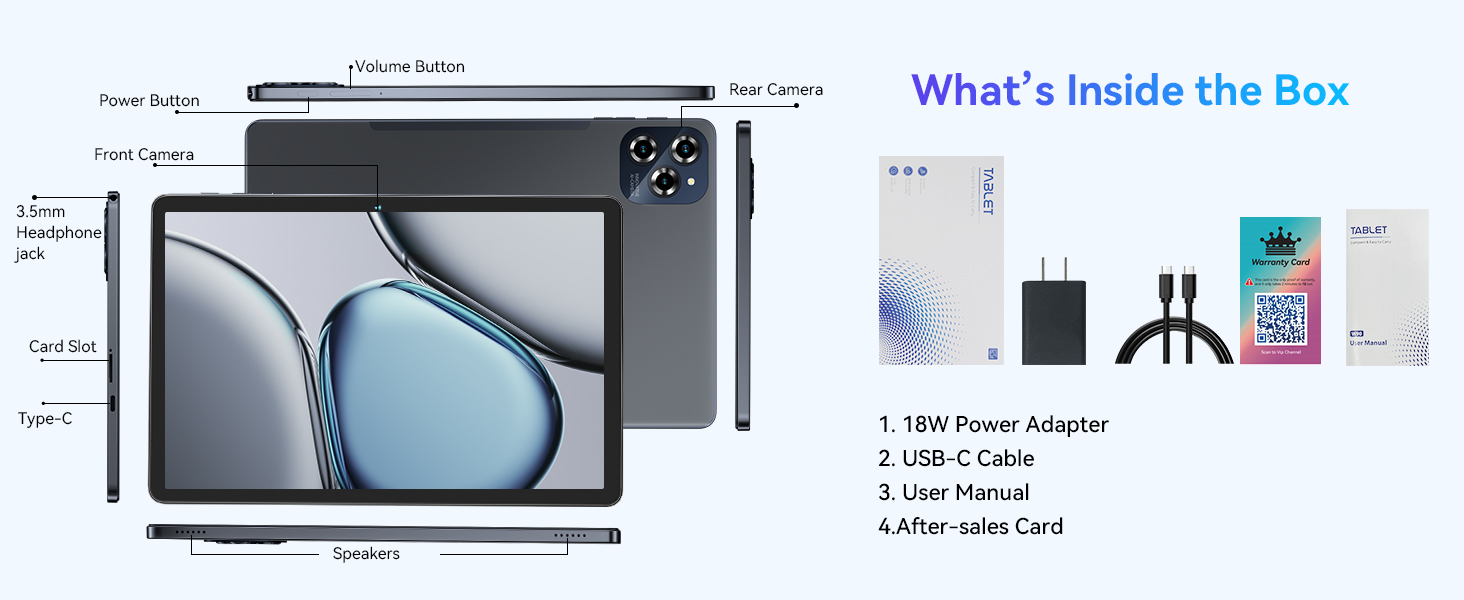
Image: A visual representation of the items included in the product box, showing the tablet and its accessories.
- Tablette TABWEE W90
- Adaptateur secteur 18W
- Câble USB-C
- Manuel d'utilisation
- Carte après-vente
9. Garantie et assistance
When you activate your TABWEE W90 Tablet after receiving it, you are eligible for a standard Garantie de 2 ans et un Politique de retour et d'échange gratuit sous 30 jours.
Image: An illustration depicting customer support representatives, indicating 24/7 Online Call Support and 2-Year Repair Support.
For any questions or support needs, please contact us through the order page or official channels. We aim to resolve your inquiries within 12 hours. You can also find more information regarding returns and refunds at the official after-sales support page: https://www.aftersales.store/refund/
Ask a question about this manual
Ask about setup, troubleshooting, compatibility, parts, safety, or missing instructions. Manuals+ will review the question and use this page’s manual context to help answer it.