
1. Introduction
The HKOORLAMULS R36S is a portable retro handheld game console designed for an immersive gaming experience. It features a professional game-specific RK3326 chip, a 3.5-inch IPS display, and runs on the ArkOS Linux system. This manual provides detailed instructions for setting up, operating, and maintaining your R36S console.

Image 1.1 : Face et côté view of the R36S Retro Handheld Game Console.
2. Contenu du colis
Veuillez vérifier que le colis contient les éléments suivants :
- 1x HKOORLAMULS R36S Gaming Console
- 1x câble de chargement USB Type-C
- 1x Manuel d'utilisation (ce document)
- 1x TF Card (64GB or 128GB, pre-installed with games)
- 1x protecteur d'écran
3. Produit terminéview
The R36S console features a compact design with intuitive controls and a vibrant display.
3.1. Console Layout and Key Functions
Familiarize yourself with the buttons, ports, and indicators on your R36S console.

Image 3.1: Diagram illustrating the key functions and ports of the R36S console.
- Bouton d'alimentation : Allume ou éteint la console.
- Bouton de réinitialisation : Restarts the console.
- TF1 (OS) Slot: MicroSD card slot for the operating system.
- TF2 (Game) Slot: MicroSD card slot for game storage.
- Touches de volume : Ajuste le niveau de sortie audio.
- Left/Right Joysticks (L3/R3): Entrée analogique pour le contrôle des mouvements et de la caméra.
- Croix directionnelle: Directional pad for precise digital input.
- Boutons A/B/X/Y : Boutons d'action pour les commandes en jeu.
- Boutons Sélectionner/Démarrer : Game menu and start functions.
- Bouton FN : Function button, often used in combination with other buttons for system shortcuts.
- R1/R2/L1/L2 Buttons: Shoulder and trigger buttons for additional in-game actions.
- Port DC: Alimentation pour la charge.
- Port OTG : USB On-The-Go port for connecting external devices.
- Interface 3.5 mm : Headphone jack for audio output.
3.2. Affichage
The R36S features a 3.5-inch IPS OCA fully-laminated high-definition MIPI screen with a resolution of 640x480 pixels, providing clear and vibrant visuals. Brightness can be adjusted.

Image 3.2 : Gros plan view of the R36S 3.5-inch IPS display.
4. Installation
4.1. Chargement de la console
Before initial use, fully charge the console. Connect the included USB Type-C cable to the DC port on the console and plug the other end into a compatible USB power adapter (not included, recommended 5V 1.5-2A). The console's 3500mAh rechargeable lithium-ion battery provides up to 8 hours of continuous gameplay on a full charge.

Image 4.1: Illustration of the R36S's 3500mAh high-capacity battery.
4.2. Installation de la carte TF
The console comes with two TF card slots:
- TF1 (OS): Contains the ArkOS operating system. Do not remove or modify this card unless performing a system reinstallation.
- TF2 (Game): This card is pre-installed with a large library of games. You can also insert an additional TF card (up to 256GB) into this slot to expand your game library.
To insert a TF card, gently push it into the designated slot until it clicks into place. To remove, push it in again until it springs out.
5. Mode d'emploi
5.1. Marche/Arrêt
- Mise sous tension : Maintenez le bouton Marche/Arrêt enfoncé jusqu'à ce que l'écran s'allume.
- Éteindre: Press and hold the Power button, then follow the on-screen prompts to shut down, or press the Reset button for a hard reset (use sparingly).
5.2. Navigation de base
Use the D-Pad or Left Joystick to navigate through menus and game lists. Use the A button to select items and the B button to go back.
5.3. In-Game Functions
The R36S supports various in-game functions using button combinations:
- Save Game: Presse Select Button + L1/R1 (specific combination may vary by emulator).
- Load Game: Presse Select Button + L1/R1 (specific combination may vary by emulator).
- Pause Game: Presse Select Button + A Button.
- Sortie du jeu : Presse Select Button + Start Button.
- Redémarrer la partie : Presse Select Button + B Button.
- Régler la luminosité : Presse Select Button + Up/Down on the D-Pad.
5.4. Connexion de périphériques externes
The OTG port allows you to connect external peripherals for an enhanced gaming experience:
- External Gamepad: Connect a compatible USB gamepad via the OTG port to play with an external controller.
- TV Screen Output: Use an appropriate OTG adapter and HDMI cable (not included) to connect the console to a TV or monitor for a larger display. This supports two-player battles when an external gamepad is also connected.

Image 5.1: Illustration of connecting external devices via the OTG port.
6. Gestion du jeu
6.1. Pre-installed Games and Emulators
Your R36S console comes with a TF2 card pre-loaded with over 15,000 (64GB version) or 20,000 (128GB version) retro classic games. It supports over 10 mainstream emulators, allowing you to play titles from various classic gaming platforms.
6.2. Adding New Games
To add more games, you can transfer game ROMs to the TF2 card. Ensure the ROMs are compatible with the supported emulators. You can also replace the TF2 card with a larger one (up to 256GB) containing your own game library.
6.3. Fonctionnalités du jeu
The ArkOS system includes features for game search, saving game progress, loading saved states, and categorizing your game library for easy access.

Image 6.1: Features like Collectible, Searchable, Archivable, and Loadable game functions.
7. Entretien
7.1. Nettoyage
Utilisez un chiffon doux et sec pour nettoyer l'extérieur de la console. Évitez d'utiliser des nettoyants liquides ou des matériaux abrasifs, car ils pourraient endommager l'écran ou la console.asing.
7.2. Entretien de la batterie
- Évitez de décharger complètement la batterie fréquemment.
- N’exposez pas la console à des températures extrêmes.
- If storing the console for an extended period, charge it to approximately 50% to prolong battery life.
8. Dépannage
- La console ne s'allume pas : Vérifiez que la batterie est chargée. Branchez la console à une source d'alimentation et réessayez.
- Games are not loading: Check if the TF2 (Game) card is properly inserted. Ensure game ROMs are in compatible formats.
- L'écran ne répond pas ou est figé : Press the Reset button to restart the console.
- Poor performance/lag: Ensure the console is not running too many background processes (if applicable). Some demanding games may naturally have lower performance.
Pour obtenir de l'aide supplémentaire, veuillez vous référer aux informations de support de la section 10.
9. Spécifications
| Fonctionnalité | Spécification |
|---|---|
| Modèle | R36S |
| Processeur | RK3326 Quad-core ARM Cortex-A35 CPU (up to 1.8GHz) |
| Système opérateur | ArkOS (Linux-based) |
| Afficher | 3.5-inch IPS OCA, 640x480 pixels |
| Stockage de mémoire | 64GB (expandable up to 256GB via TF2 slot) |
| Batterie | Batterie lithium-ion rechargeable de 3500 mAh |
| Autonomie de la batterie | Jusqu'à 8 XNUMX heures |
| Port de chargement | USB Type-C (DC) |
| Connectivité | OTG (for external gamepad/display) |
| Sortie audio | Prise casque 3.5 mm |
| Matériel | Plastique |
| Dimensions du produit | 5.1 x 3.2 x 1 pouces |
| Poids de l'article | 10.6 onces |
| Âge recommandé | 15 ans et plus |
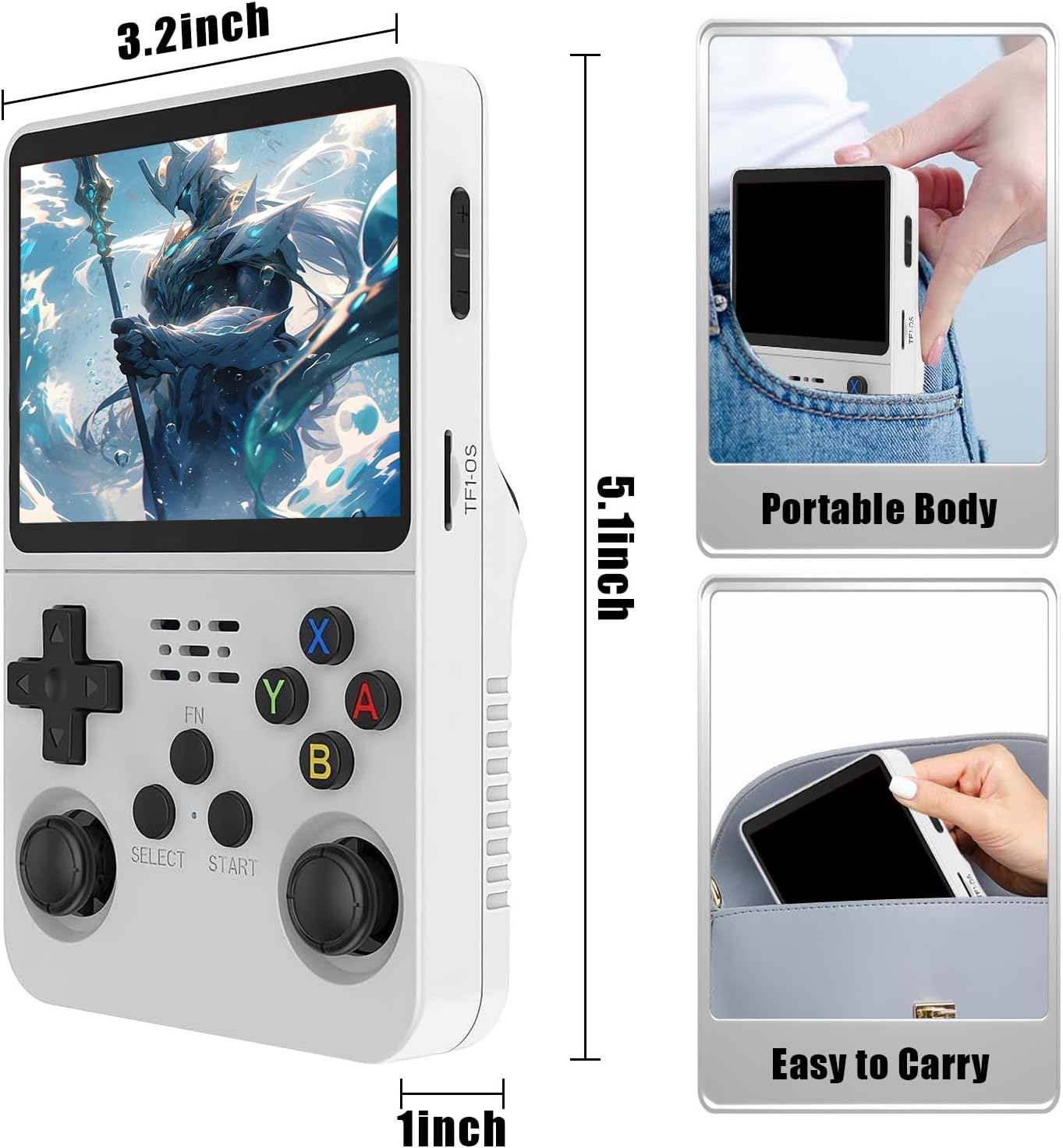
Image 9.1: R36S console dimensions and portability.
10. Garantie et assistance
HKOORLAMULS is committed to providing technical support and excellent after-sales service for your R36S gaming console. If you encounter any issues or have questions regarding your product, please contact our customer support team. Refer to the product packaging or the seller's information for contact details.


