
1. Introduction et compatibilité
This manual provides detailed instructions for the installation, operation, and maintenance of your Surakey Android 13 Car Stereo Radio. Please read this manual thoroughly before installation and use to ensure proper function and safety.
Remarque importante sur la compatibilité : This car stereo is designed for Dodge Ram 1500 and 3500 models from 2013 to 2019. Before purchasing or installing, it is crucial to verify compatibility with your specific vehicle's year and model. We recommend carefully measuring your dashboard and comparing it with the product dimensions. If uncertain, please provide a complete image of the plugs on the back of your center console and the on-board main unit to your supplier for confirmation and to determine if any additional wiring harnesses or adapters are required.

Figure 1.1 : Compatibilité du tableau de bord examples. Ensure your vehicle's dashboard matches the compatible design for proper fitment.
2. Produit terminéview et composants inclus
The Surakey Android 13 Car Stereo Radio features a 9.7-inch touch screen, offering advanced navigation, entertainment, and connectivity options for your vehicle.
2.1 fonctionnalités clés :
- 9.7-inch HD 2.5D Tempered Glass Mirror Touch Screen
- Système d'exploitation Android 13
- Apple CarPlay et Android Auto, avec et sans fil
- Navigation GPS intégrée
- Connectivité Wi-Fi intégrée
- Bluetooth with A2DP, Hands-Free Calling, and Phone Book
- Tuner radio FM/RDS
- DSP Function for High-Fidelity Audio
- Support for AHD Backup Camera Input
- Compatibilité des commandes au volant
- Double USB Interface
- Multi-language Support (up to 40 national languages)
2.2 Contenu de l'emballage :
Veuillez vérifier que tous les composants suivants sont inclus dans votre colis :
- Surakey Android Car Stereo Unit
- Câble d'alimentation
- Câbles d'entrée/sortie RCA
- Câbles USB (x2)
- Câble d'entrée de caméra
- Câble adaptateur radio
- Antenne GPS
- Manuel d'instructions
- External Microphone ('Wheat head')
- Boîte Canbus
- Boussole de voiture

Figure 2.1 : Dimensions du produit et accessoires inclus.
3. Configuration et installation
Professional installation is highly recommended for this product. Incorrect wiring or installation can damage the unit or your vehicle's electrical system. Always disconnect the vehicle's battery before beginning installation.
3.1 Vérification préalable à l'installation :
- Assurez-vous que le contact du véhicule est coupé et que la batterie est débranchée.
- Confirm dashboard compatibility and dimensions.
- Identify all existing wiring harnesses in your vehicle.
3.2 Connexions de câblage :
Refer to the wiring diagram provided in the included instruction manual for specific connections. General connections include:
- Câble d'alimentation: Raccordez-le aux fils d'alimentation, de masse et d'accessoires du véhicule.
- Entrée/sortie RCA : Pour externe ampamplificateurs, caissons de basses ou sortie vidéo.
- Câbles USB : Connect to the unit for media playback, phone charging, and CarPlay/Android Auto (wired).
- Entrée caméra : Connect your AHD backup camera here.
- Câble adaptateur radio : Connectez-vous à l'antenne du véhicule.
- Antenne GPS: Installez-le dans un endroit dégagé. view du ciel pour une réception optimale du signal.
- Micro externe : Plug in for improved hands-free call quality.
- Boîtier Canbus : Connect as per vehicle-specific instructions for steering wheel controls and other vehicle data integration.

Figure 3.1 : Arrière view of the car stereo unit with wiring connections.
3.3 Après l'installation :
- Rebranchez la batterie du véhicule.
- Turn on the ignition and power on the stereo.
- Perform initial setup and test all functions (radio, Bluetooth, GPS, etc.).
4. Mode d'emploi
This section details the primary functions and how to operate your Surakey Android 13 Car Stereo.
4.1 Power On/Off and Basic Interface:
- Appuyez sur le bouton d'alimentation pour allumer ou éteindre l'appareil.
- The 9.7-inch capacitive touch screen allows for easy navigation through the Android interface.
4.2 Apple CarPlay et Android Auto :
The unit supports both wireless and wired Apple CarPlay (for iOS devices) and Android Auto (for Android devices).
- Pour Apple CarPlay : Connect your iPhone via Bluetooth for wireless connection or via USB for wired connection. Use the ZLINK APP on the stereo. This integrates your iOS device for navigation, calls, messages, and music.
- Pour Android Auto : Connect your Android phone via Bluetooth for wireless connection or via USB for wired connection. Ensure the Android Auto APP is installed on your phone. This integrates your Android device for navigation, calls, messages, and music.

Figure 4.1: Apple CarPlay connection example.
4.3 Navigation GPS :
The unit comes with built-in offline maps. For online navigation, connect to Wi-Fi to use Google Maps or other navigation applications downloaded from the Play Store.
4.4 Wi-Fi Connectivity:
Connect the stereo to a Wi-Fi hotspot (e.g., from your smartphone) to access online features, download apps, and use online maps.
4.5 Fonctionnalités Bluetooth :
Pair your smartphone via Bluetooth for hands-free calling, Bluetooth music streaming (A2DP), and automatic phonebook loading.
Radio FM/RDS 4.6 :
Access the FM radio tuner. The RDS function displays station information where available. You can save up to 18 preset stations.
4.7 Commandes au volant :
If properly connected via the Canbus box, you can control various functions of the stereo directly from your vehicle's steering wheel controls for convenience and safety.
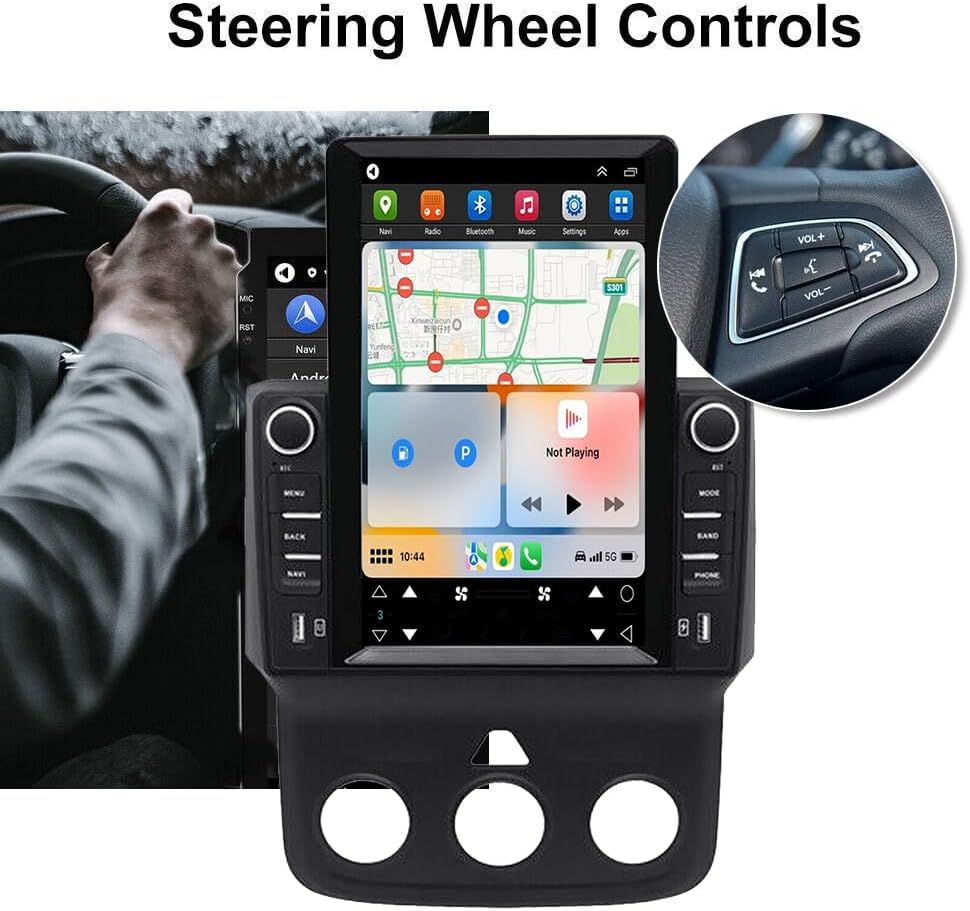
Figure 4.2 : Intégration des commandes au volant.
4.8 DSP Function:
The Digital Sound Processor (DSP) ensures high-fidelity audio reproduction, closely matching the original sound quality.
4.9 Rear Camera Input:
Connect an AHD backup camera to the CVBS input. The display will automatically switch to the camera view en marche arrière.
4.10 File Manager & Apps:
Le intégré file manager allows you to browse, download, install, and delete Android applications. You can access the Google Play Store (with Wi-Fi connected) to expand the stereo's functionality.
4.11 Réglage de l'heure :
La date et l'heure peuvent être réglées automatiquement via le réseau ou le GPS, ou ajustées manuellement via les paramètres système.
5. Entretien
Un entretien régulier garantit la longévité et les performances optimales de votre autoradio.
- Nettoyage de l'écran : Utilisez un chiffon doux non pelucheux pour essuyer délicatement l'écran tactile. Pour les traces tenaces, frottez légèrement avec un chiffon doux.ampNettoyez le chiffon avec de l'eau ou un nettoyant pour écran. Évitez les produits chimiques agressifs ou abrasifs.
- Mises à jour logicielles : Periodically check for system software updates to ensure optimal performance and access to new features. Updates can usually be found in the system settings menu.
- Température: Évitez d'exposer l'appareil à des températures extrêmes pendant des périodes prolongées. La plage de températures de fonctionnement est de -20 °C à 75 °C.
- Relations: Assurez-vous que tous les câbles sont bien branchés. Des connexions desserrées peuvent entraîner des problèmes intermittents.
6. Dépannage
Cette section aborde les problèmes courants que vous pourriez rencontrer. Si vous rencontrez des problèmes non mentionnés ici, veuillez contacter le service client.
- Pas d'alimentation :
- Vérifiez toutes les connexions électriques et les fusibles.
- Assurez-vous que la batterie du véhicule est chargée.
- Pas de son :
- Vérifiez les connexions des haut-parleurs.
- Vérifiez les niveaux de volume et les paramètres de mise en sourdine.
- Assurez-vous que la source audio correcte est sélectionnée.
- Perte du signal GPS :
- Assurez-vous que l'antenne GPS est correctement installée et qu'elle est dégagée. view du ciel.
- Check antenna cable connection.
- Problèmes de connexion Bluetooth :
- Assurez-vous que le Bluetooth est activé à la fois sur la chaîne stéréo et sur votre téléphone.
- Supprimez les associations précédentes et réessayez.
- Redémarrez les deux appareils.
- CarPlay/Android Auto ne se connecte pas :
- Pour une connexion filaire, essayez un autre câble USB.
- For wireless, ensure Bluetooth and Wi-Fi are enabled on your phone.
- Verify the correct app (ZLINK for CarPlay, Android Auto app for Android Auto) is running.
- L'appareil se bloque ou répond lentement :
- Perform a soft reset (refer to the specific reset procedure in the included manual, or hold the power button for 10 seconds).
- Fermez les applications d’arrière-plan inutiles.
Mot-clé des paramètres d'usine : If prompted for a factory setting keyword, try 8888 or 3368.
7. Spécifications
| Fonctionnalité | Spécification |
|---|---|
| Système | Android 13 |
| Jeu de puces | 8227L-DEMO |
| Taille de l'écran | 9.7 pouces |
| Résolution de l'écran | 1024x768 |
| Mémoire (RAM+ROM) | 2 Go de RAM + 32 Go de ROM |
| Puce radio | MT6625 |
| Puissance de sortie | 4x45W |
| Température de travail | -20℃ à 75℃ |
| Pouvoir Amppuce de lificateur | TDA7388 |
| Bande radio | FM/RDS |
| Sortie vidéo | Soutenu |
| Entrée inversée | CVBS |
| Microphone externe | Soutenu |
| Écran partagé | Soutenu |
| Cartes | Cartes hors ligne intégrées (connexion Internet requise pour le téléchargement des données) |
| Wifi | Soutenu |
| Interface USB | Double USB |
| Formats audio | APE/FLAC/WAV/MP3/WMA etc. |
| Formats vidéo | MKV/RMVB/AVI/MP4/MDV etc. |
| Formats d'image | PNG/JPEG/JPG/GIF/WBMP/BNP etc. |
| Mot-clé de configuration d'usine | 8888 ou 3368 |
| Langues prises en charge | Chinese/English/French/Italian/Korean/Japanese/Arabic/Spanish/Portuguese/Russian/Turkish/Vietnamese/Hebrew/Polish/German (up to 40 national languages) |
| Type de service de véhicule | Camion |
| Technologie de connectivité | USB |
| Type de carte | Amérique du Nord |
| Mode de sortie audio | Stéréo |
| Type d'écran tactile | Capacitif |
| Type d'affichage | Écran tactile |
| Entrée par interface humaine | Écran tactile |
| Méthode de contrôle | Touche |
| Système de navigation par satellite pris en charge | GPS |
| Poids de l'article | 1875 gramme |
| Numéro de modèle | JIAQI-QA1572X-WYQ-2412 |
8. Garantie et assistance
For warranty information and technical support, please refer to the specific warranty card included with your product or contact your retailer. Keep your purchase receipt as proof of purchase.