
1. Introduction
Thank you for choosing the KOORUI N07 27-inch 4K UHD Monitor. This monitor is designed to provide a superior visual experience with its 3840x2160 resolution, IPS panel, 60Hz refresh rate, HDR10 support, and Adaptive Sync technology. This manual provides essential information for setting up, operating, and maintaining your monitor to ensure optimal performance and longevity. Please read this manual thoroughly before using the product.
2. Consignes de sécurité
- Placez toujours le moniteur sur une surface stable et plane.
- Ne bloquez pas les ouvertures de ventilation.
- Utilisez uniquement l'adaptateur secteur fourni par le fabricant.
- Tenez le moniteur à l'écart de l'eau et de l'humidité excessive.
- Avoid exposing the monitor to direct sunlight or high temperatures.
- Débranchez le câble d'alimentation en cas d'orage ou lorsque l'appareil n'est pas utilisé pendant une période prolongée.
3. Contenu du colis
Veuillez vérifier le contenu du colis à l'ouverture. Si des articles sont manquants ou endommagés, contactez votre revendeur.
- KOORUI N07 27-inch 4K UHD Monitor
- Support pour écran (base et col)
- Adaptateur secteur et câble d'alimentation
- Câble HDMI
- Câble DisplayPort
- Manuel d'utilisation
4. Monitor Assembly and Setup
4.1 Fixation du support
- Placez délicatement l'écran face contre un chiffon doux et propre pour éviter les rayures.
- Fixez le pied du moniteur à l'arrière en alignant les points de fixation.
- Fixez le pied de support avec les vis fournies.
- Attach the stand base to the stand neck and tighten the thumb screw.

Figure 4.1 : Arrière view of the monitor showing VESA mount and tilt adjustment.
4.2 Câbles de connexion
The KOORUI N07 monitor offers versatile connectivity options. Ensure your computer is turned off before making any connections.
- Connexion électrique : Branchez l'adaptateur secteur au port d'entrée CC du moniteur, puis branchez le câble d'alimentation à une prise de courant.
- Connexion vidéo : Connect one end of the HDMI or DisplayPort cable to the corresponding port on your computer's graphics card and the other end to an HDMI (HDMI1 or HDMI2) or DisplayPort (DP) input on the monitor.
- Sortie audio : If desired, connect external speakers or headphones to the 3.5mm audio output port on the monitor.

Figure 4.2: Connectivity options for the KOORUI N07 monitor.
4.3 Mise sous tension
After connecting all necessary cables, press the power button on the monitor to turn it on. The monitor will automatically detect the active input source.
5. Mode d'emploi
5.1 Menu d'affichage à l'écran (OSD)
The OSD menu allows you to adjust various monitor settings. Use the buttons located on the bottom right of the monitor to navigate and select options.
- Bouton d'alimentation : Allume/éteint le moniteur.
- Bouton Menu : Ouvre le menu OSD.
- Boutons de navigation: Permet de naviguer dans les options du menu et de modifier les valeurs.
- Bouton de sortie : Quitte le menu OSD.
5.2 Paramètres OSD clés
- Paramètres d'image : Réglez la luminosité, le contraste, la netteté et la température de couleur.
- Modes de couleur : Select from various preset modes like Standard, Movie, Game, and Eye Care.
- La source d'entrée: Manually select between HDMI1, HDMI2, or DisplayPort inputs.
- Synchronisation adaptative : Activez ou désactivez la synchronisation adaptative pour une expérience de jeu plus fluide.
- HDR10 : Activate HDR10 for enhanced dynamic range with compatible content.
6. Fonctionnalités terminéesview
6.1 4K UHD Resolution (3840x2160)
Experience incredible detail and clarity with a resolution four times higher than Full HD. This monitor provides 8.3 million pixels for a sharper and more colorful image.

Figure 6.1: 4K UHD resolution detail comparison.
6.2 IPS Panel Technology
The IPS panel offers a wide 178° viewing angle and vibrant color reproduction (90% DCI-P3, 99% sRGB), ensuring consistent image quality from almost any perspective. This is ideal for graphic designers, gamers, and movie enthusiasts.

Figure 6.2: IPS panel with 99% sRGB color accuracy.
6.3 Prise en charge HDR10
Enjoy content with enhanced dynamic range. HDR10 provides brighter whites, deeper blacks, and more vivid colors, bringing your favorite movies and games to life with greater realism.

Figure 6.3: HDR10 technology for improved image quality.
6.4 Technologie de synchronisation adaptative
Adaptive Sync eliminates screen tearing and stuttering, providing a smoother and more fluid visual experience, especially during fast-paced gaming or video playback.

Figure 6.4 : Adaptive Sync en action, empêchant le déchirement de l'écran.
6.5 Technologie des soins oculaires
The monitor features a Blue Light Filter and Flicker-Free technology to reduce eye strain during prolonged use. The Eye Care mode optimizes settings to minimize blue light emission, promoting visual comfort.
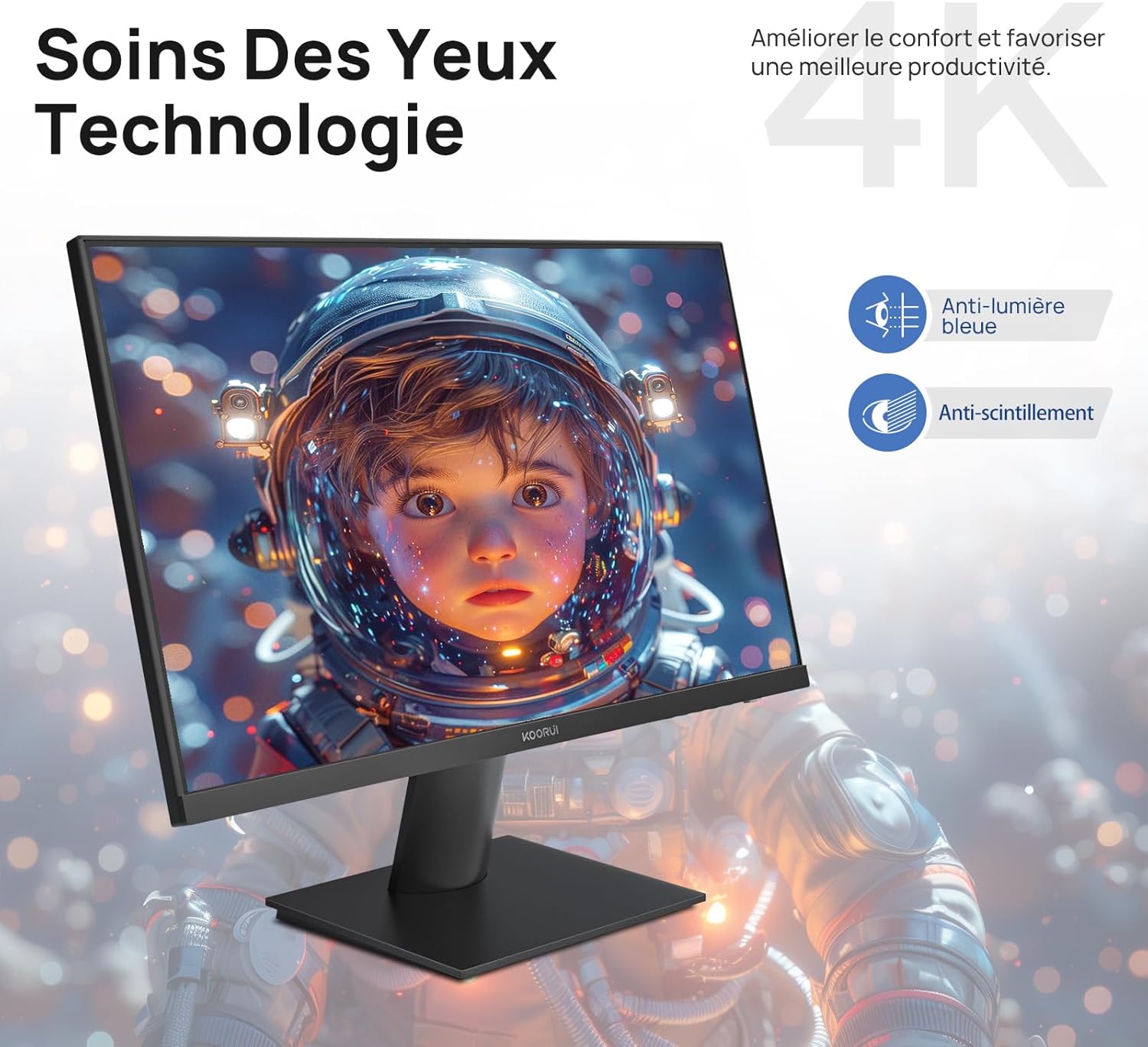
Figure 6.5: Eye Care technology for reduced eye strain.
6.6 Conception ergonomique
The monitor stand allows for tilt adjustment from -5° to 20°, enabling you to find the most comfortable viewing angle for your posture.
6.7 Compatibilité avec les supports de montage VESA
The KOORUI N07 supports 100x100mm VESA mounting, allowing you to easily attach it to a wall mount or an articulated monitor arm for a flexible and clutter-free workspace.

Figure 6.6: VESA mount compatibility for flexible setup.
7. Vidéo produitview
Vidéo 7.1 : Un overview of the KOORUI N07 27-inch 4K UHD monitor, highlighting its key features such as 4K resolution, DCI-P3 color gamut, HDR10 support, versatile usage for creation, viewing, and gaming, adjustable tilt, and VESA mounting capabilities.
8. Dépannage
Si vous rencontrez des problèmes avec votre moniteur, veuillez consulter les problèmes et solutions courants suivants :
| Problème | Solution possible |
|---|---|
| Aucune image à l'écran | Ensure power cable is securely connected. Check video cable connection (HDMI/DP) to both monitor and computer. Verify correct input source is selected in OSD. |
| L'image est floue ou déformée. | Check display resolution settings on your computer. Ensure it is set to 3840x2160. Adjust sharpness in the OSD menu. |
| Les couleurs semblent incorrectes | Adjust color temperature and color settings in the OSD menu. Try resetting picture settings to factory defaults. |
| Scintillement de l'écran | Ensure the video cable is securely connected. Disable Adaptive Sync if enabled, or update your graphics card drivers. |
9. Spécifications
| Fonctionnalité | Détail |
|---|---|
| Marque | KOORUI |
| Numéro de modèle | N07 |
| Taille de l'écran | 27 pouces |
| Résolution | 4K UHD (3840 x 2160 pixels) |
| Type de panneau | IPS |
| Taux de rafraîchissement | 60 Hz |
| Temps de réponse | 4 millisecondes |
| Rapport hauteur/largeur | 16:9 |
| Rapport de contraste | 1000:1 |
| Luminosité | 300 cd/m² |
| ViewAngle d'attaque | 178 degrés |
| Connectivité | 2 port HDMI 2.0, 1 port DisplayPort 1.4, 1 sortie audio |
| Compatibilité VESA | 100x100mm |
| Caractéristiques spéciales | Blue Light Filter, Tilt Adjustment, Frameless, Flicker-Free, Adaptive Sync, HDR10 |
| Dimensions (L x P x H) | 20.5 cm de profondeur x 61 cm de longueur x 45 cm de hauteur |
| Poids | 3 kilogrammes |
10. Entretien
To ensure the longevity and optimal performance of your KOORUI N07 monitor, follow these maintenance guidelines:
- Nettoyage de l'écran : Essuyez délicatement l'écran avec un chiffon doux non pelucheux. Pour les taches tenaces,ampHumidifiez légèrement le chiffon avec de l'eau ou un nettoyant pour écrans spécialisé. Ne vaporisez jamais de liquide directement sur l'écran.
- Nettoyage du Casing: Utilisez un chiffon doux et sec pour nettoyer le moniteur.asing. Évitez les nettoyants ou solvants abrasifs.
- Ventilation: Veillez à ce que les ouvertures de ventilation du moniteur ne soient pas obstruées afin d'éviter toute surchauffe.
- Éteindre: Éteignez le moniteur lorsqu'il n'est pas utilisé pendant une période prolongée.
11. Garantie et assistance
The KOORUI N07 monitor comes with a Garantie constructeur d'un an. This warranty covers defects in materials and workmanship under normal use. For warranty claims or technical support, please contact KOORUI customer service or your retailer with your proof of purchase.
For additional support, troubleshooting guides, and driver downloads, please visit the official KOORUI website.