
Introduction
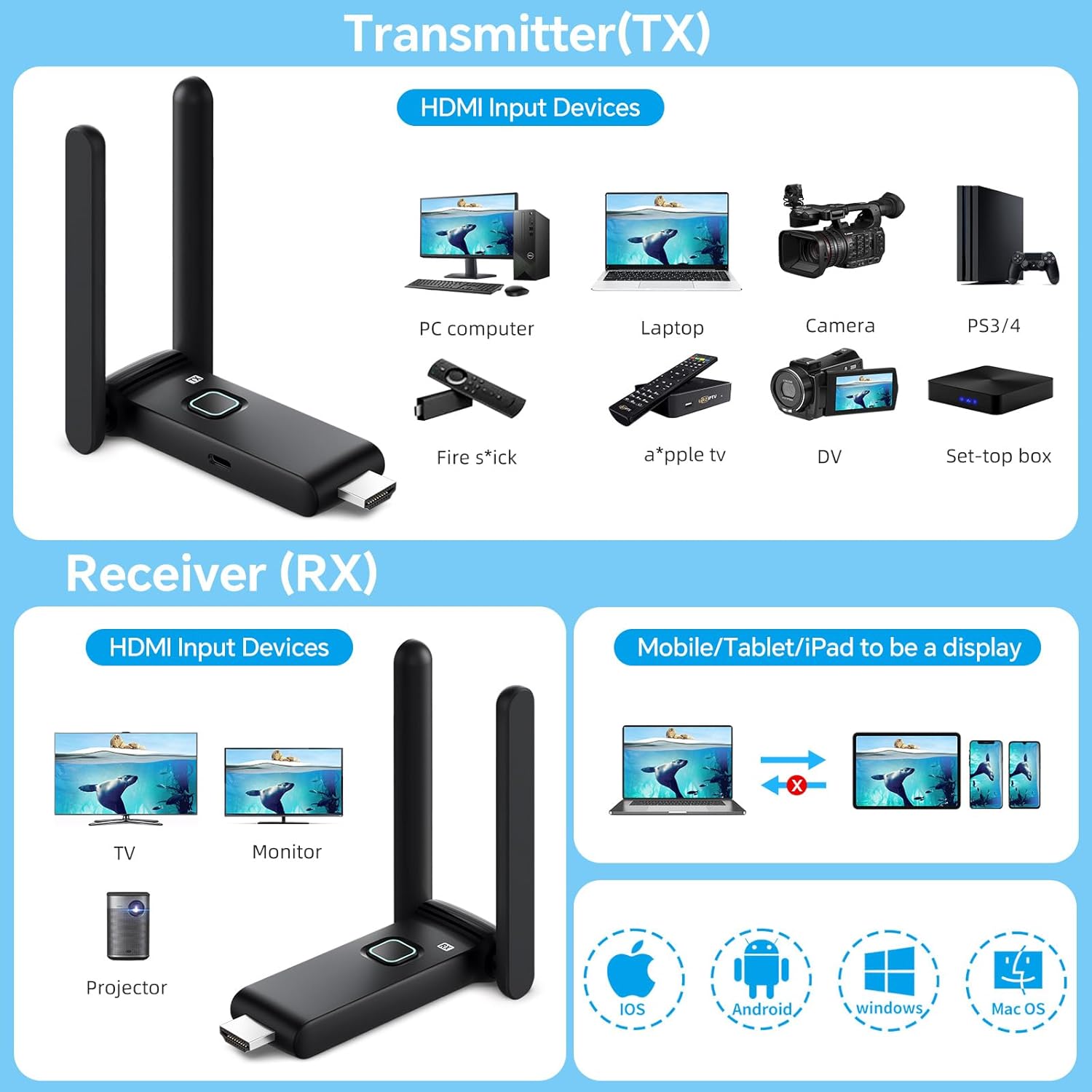
This manual provides detailed instructions for the setup, operation, maintenance, and troubleshooting of your POFAN Wireless HDMI Transmitter and Receiver (Model G58). This device is designed to wirelessly transmit 4K video and audio signals from various HDMI output devices to displays such as HDTVs, projectors, and monitors, eliminating the need for physical HDMI cables.
The system supports 2.4GHz and 5GHz dual-band transmission, offering a stable connection for streaming video, audio, and files. It is a plug-and-play solution, requiring no driver installations or complex network configurations.
Contenu du colis
Veuillez vérifier que tous les articles sont présents dans votre colis :
- 1 x émetteur HDMI (TX)
- 1 récepteurs HDMI (RX)
- 1 x Manuel d'utilisation
- 1 x USB-C to HDMI Adapter
- 1 x câble HDMI
- 2 câbles USB-C
- 1 x Mini/Micro HDMI Adapter

Instructions d'installation
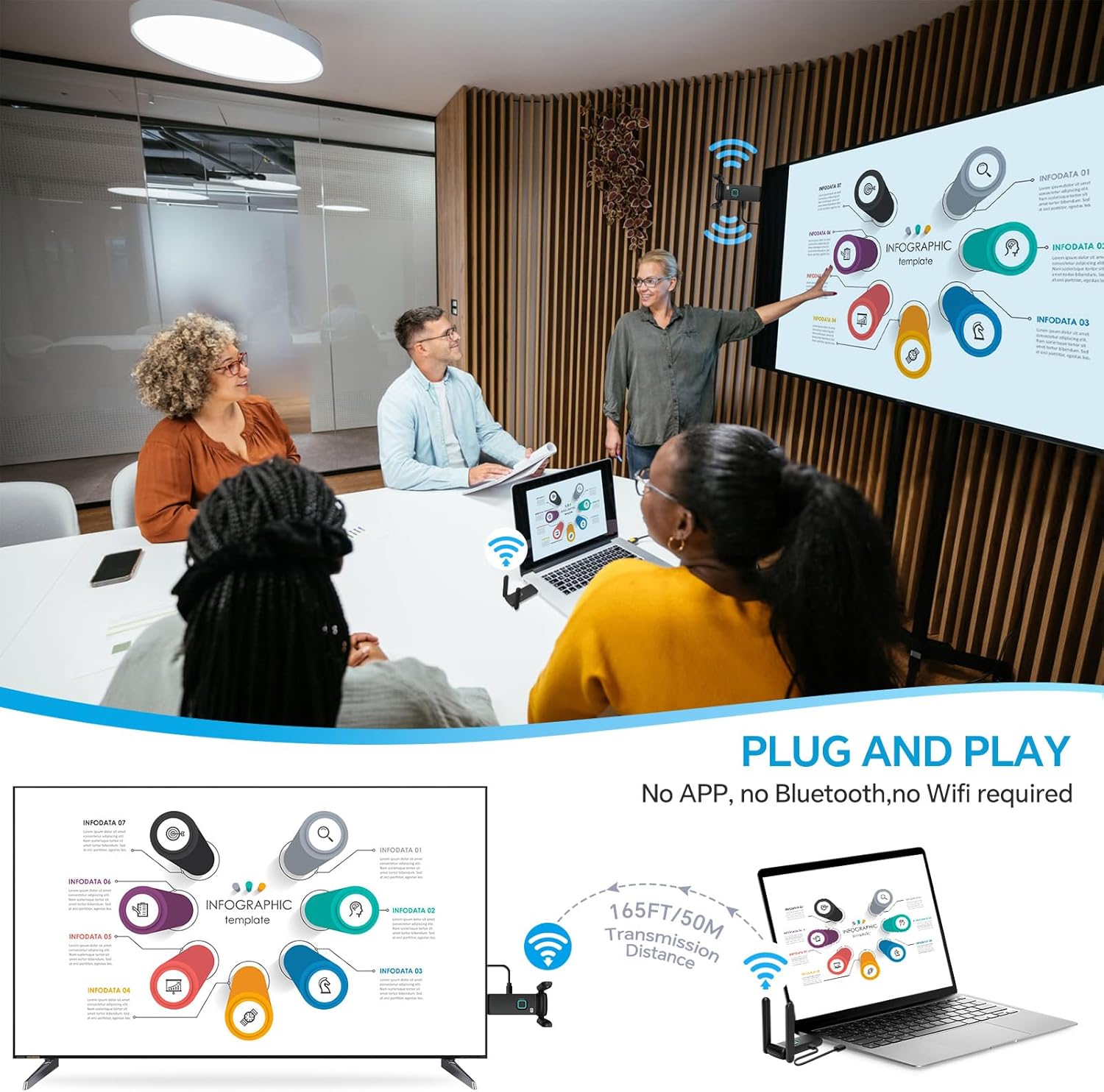
The POFAN Wireless HDMI system is designed for plug-and-play operation, requiring no software installation.
- Connectez l'émetteur (TX) : Plug the Transmitter (TX) into the HDMI output port of your source device (e.g., laptop, PC, TV box, camera). Ensure the TX unit receives power, typically via a USB-C cable connected to a power source (5V/1A recommended) or a USB port on your source device.
- Connectez le récepteur (RX) : Plug the Receiver (RX) into the HDMI input port of your display device (e.g., HDTV, projector, monitor). Ensure the RX unit receives power, typically via a USB-C cable connected to a power source (5V/1A recommended) or a USB port on your display device.
- Mise sous tension : Mettez sous tension à la fois votre périphérique source et votre périphérique d'affichage.
- Connexion automatique : The Transmitter and Receiver will automatically pair and establish a connection. The display should show the content from your source device.
Note importante concernant l'alimentation : Use a 5V/1A power supply for stable connection. Insufficient power from a device's USB port (e.g., laptop, TV) may cause interruptions or delays. It is recommended to use a dedicated charger for power.
Mode d'emploi
Portée de transmission sans fil
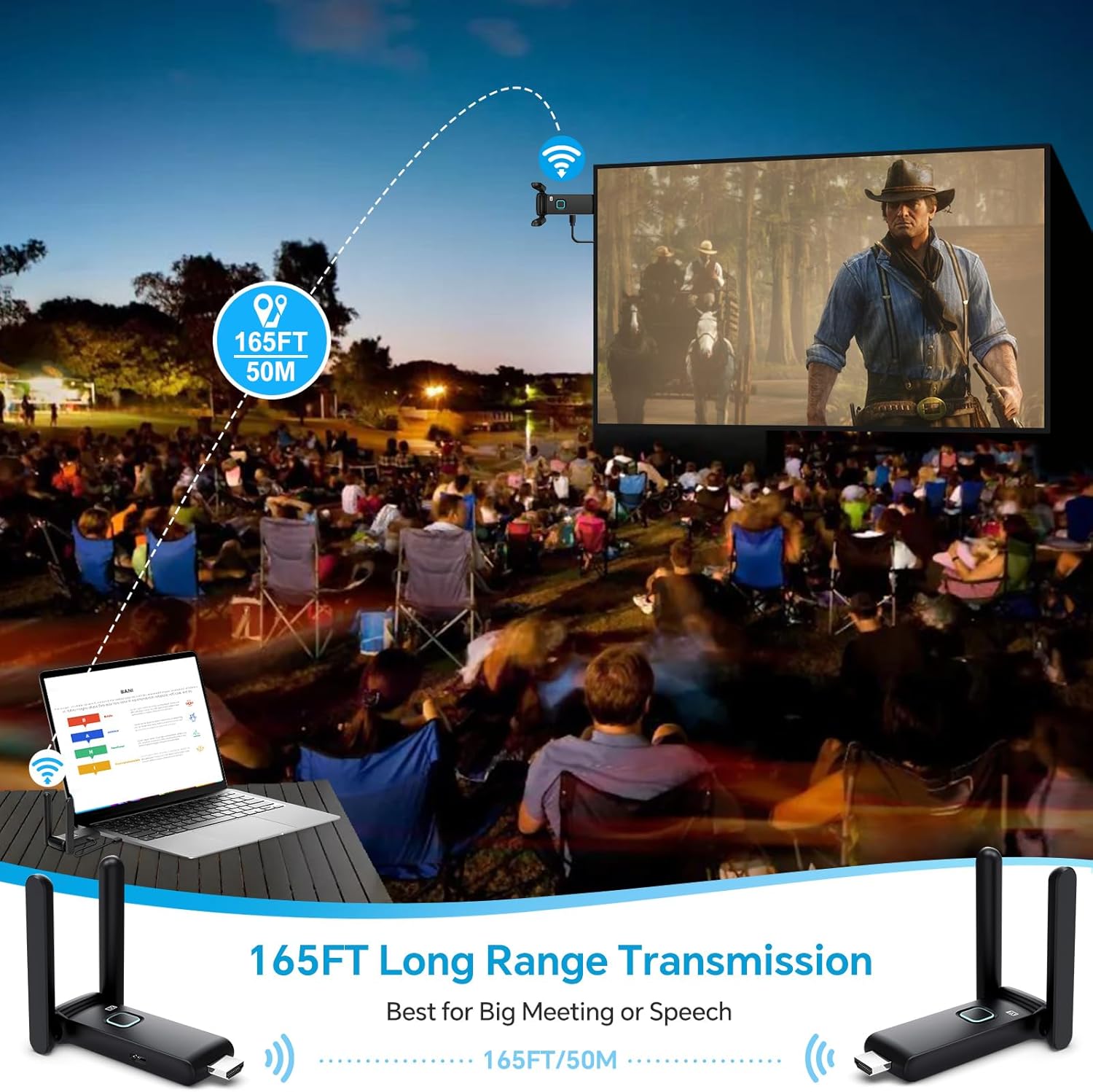
The system provides a robust and stable signal with a line-of-sight range of up to 165 feet (50 meters). When transmitting through walls or floors, the range may decrease to approximately 32 feet (10 meters).
Multi-Screen Synchronization
The wireless HDMI extender delivers seamless 4K video transmission across displays with ultra-low latency, enabling synchronized multi-screen playback. One Transmitter (TX) can be connected with up to 4 Receivers (RX) to display content on multiple screens simultaneously. The system supports up to 6 RX displays.


Using the TuTuPlay App for Mobile Device Integration
For enhanced functionality, you can use the TuTuPlay App to turn your smartphone or tablet into a second screen or for real-time monitoring.
- Connect TX to HDMI output device and power it.
- Install TuTuPlay App on your iPhone or other smartphone.
- Find "TUTULINK-xxx" in Wi-Fi settings and connect. The original password is "12345678".
- Open RScreen on iPhone/other smartphones for syncing.


Video Demonstration: Multiple Receivers
Video 1: Multiple Receivers - Up to 4 RX Can connect to 4 TVs. This video demonstrates the POFAN Wireless HDMI system's capability to connect a single transmitter to multiple receivers, allowing content to be displayed on up to four televisions simultaneously.
Entretien
- Nettoyage: Utilisez un chiffon doux et sec pour nettoyer les appareils. Évitez les nettoyants liquides et les solvants.
- Stockage: Conservez les appareils dans un endroit frais et sec, à l'abri de la lumière directe du soleil et des températures extrêmes.
- Alimentation: Always ensure a stable 5V/1A power supply for optimal performance. Avoid using underpowered USB ports from source or display devices, as this can lead to unstable connections or signal interruptions.
- Dissipation de la chaleur : The devices feature a large-area window opening design for better heat dissipation. Ensure these areas are not obstructed during use.

Dépannage
| Problème | Cause possible | Solution |
|---|---|---|
| Aucun signal affiché / Écran noir |
|
|
| Signal intermittent / Écran clignotant |
|
|
| Audio but no video / Video but no audio |
|
|
| Lag or delay in transmission |
|
|
Caractéristiques
| Fonctionnalité | Détail |
|---|---|
| Marque | POFAN |
| Numéro de modèle | G58 |
| Technologie de connectivité | Wireless (Ethernet, HDMI) |
| Fréquence sans fil | Double bande 2.4G/5.8G |
| Distance de transmission | Up to 165FT/50M (line of sight); approx. 32FT/10M (through walls/floors) |
| Taux de rafraîchissement | 60 Hz |
| Latence | Environ 0.1 s |
| Nombre maximal de récepteurs pris en charge | Up to 6 RX units |
| Appareils compatibles | Laptop, Set-top box, Television, Screen, Video camera, Blu-ray players, DVDs, Digital SLRs, Cable/Satellite TV receivers, Tablets, Apple laptops, Sony/Canon cameras. |
| Type de connecteur | HDMI |
| Alimentation électrique | 5V/1A (recommended) |
| Médias intégrés | HDMI Receiver, HDMI Transmitter |
Informations sur la garantie
This POFAN product is covered by a Garantie fabricant d'un an from the date of purchase. This warranty covers defects in materials and workmanship under normal use. It does not cover damage caused by misuse, accident, unauthorized modification, or external causes such as power surges.
Veuillez conserver votre preuve d'achat pour les réclamations au titre de la garantie.
Assistance clientèle
For technical assistance, troubleshooting, or warranty inquiries, please contact POFAN customer support through the following channels:
- Support en ligne: Visit the official POFAN store on Amazon: POFAN Amazon Store
- Fabricant: POFAN (Vendor: kebaixin)
When contacting support, please have your product model number (G58) and proof of purchase readily available.