
1. Introduction
This manual provides detailed instructions for the installation, operation, and maintenance of your Ctronics 4K 30x Optical Zoom Security Camera. Please read this manual thoroughly before using the product to ensure proper functionality and safety.

Figure 1.1: Ctronics 4K 30x Optical Zoom Security Camera (Model CTIPC-870C)
2. caractéristiques du produit
- Real 4K UHD & 30X Optical 3D Zoom: Equipped with a Sony IMX415 sensor and SSC335Q chipset, delivering 3840×2160 resolution. Features 30X optical 3D zoom for clear distant details and smooth 355° pan and 90° tilt for 360° coverage.
- 180m Infrared & 80m Full-Color Night Vision: Utilizes 4 convex lenses, 2 laser spotlights, and 4 infrared lasers for night vision up to 180 meters in black & white IR mode and 80 meters in full-color.
- Smart Detection & Auto Tracking with Zoom: AI detection for humans, vehicles, and pets. Automatically tracks detected targets with intelligent zoom. Triggers custom voice alerts, spotlights, and app notifications. Returns to original guard position after tracking.
- Dual-Band Wi-Fi & Quick Bluetooth Setup: Supports both 2.4GHz and 5GHz Wi-Fi for stable connections. Bluetooth pairing via the "Ctronics Pro" app enables quick setup.
- Privacy Masking & Flexible Storage Options: Customizable video mask for sensitive areas. Supports local storage via microSD card (up to 256GB, not included) and secure cloud storage (7-day free trial).
3. Contenu de la boîte
The package for your Ctronics 4K 30x Optical Zoom Security Camera includes:
- 1 x 4K Security Camera
Note: Additional accessories such as power adapter, mounting screws, and user manual may also be included. Please check your specific product packaging.
4. Guide de configuration
4.1 Installation physique
The camera is designed for outdoor usage and wall mounting. Ensure the mounting surface is stable and can support the camera's weight.
- Choose a suitable location for installation, ensuring clear line of sight for surveillance.
- Utilisez le gabarit de montage fourni (le cas échéant) pour marquer les trous de perçage sur le mur.
- Percez des trous et insérez des chevilles si nécessaire.
- Fixez le support de montage de la caméra au mur à l'aide des vis fournies.
- Fixez la caméra au support prévu à cet effet.
- Branchez l'adaptateur secteur à l'appareil photo et à une prise de courant.
4.2 Network Configuration (Wi-Fi & Bluetooth)
The camera supports dual-band Wi-Fi (2.4GHz and 5GHz) and features quick Bluetooth setup.
- Download the "Ctronics Pro" app from your mobile device's app store.
- Ouvrez l'application et créez un compte ou connectez-vous.
- Follow the in-app instructions to add a new device. The app will guide you through Bluetooth pairing for quick setup.
- Select your Wi-Fi network (2.4GHz or 5GHz) and enter the password when prompted.
- Once connected, the camera will be accessible via the app.

Figure 4.1: Connectivity and Storage Options
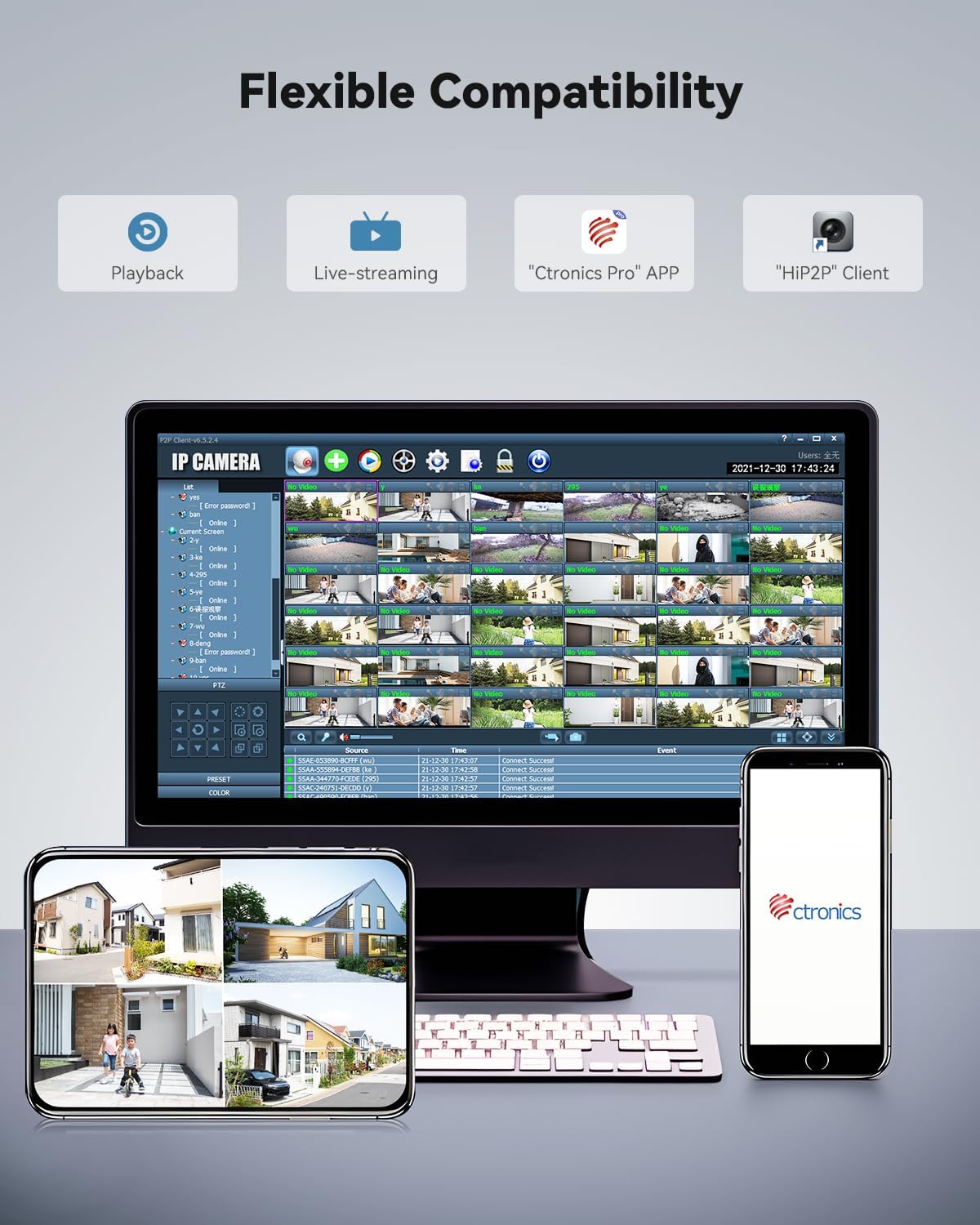
Figure 4.2: Flexible Compatibility with Ctronics Pro App and HIP2P Client
5. Mode d'emploi
5.1 En direct View et lecture
Access the "Ctronics Pro" app or "HIP2P" client on your desktop to view vivre footage ou réview événements enregistrés.
- Live-streaming: Sélectionnez l'appareil photo dans votre liste d'appareils pour view vidéo en temps réel.
- Lecture: Navigate to the playback section to access recordings stored on the microSD card or cloud.
5.2 Commande panoramique, d'inclinaison et de zoom (PTZ)
The camera offers 355° pan, 90° tilt, and 30x optical zoom capabilities.
- Use the directional controls within the app to pan (horizontal movement) and tilt (vertical movement) the camera.
- Use the zoom controls to optically zoom in or out.

Figure 5.1 : Capacité de zoom optique 30x
5.3 Modes de vision nocturne
The camera automatically switches between day and night vision modes. You can also manually adjust settings if available in the app.
- Vision nocturne infrarouge (IR) : Fournit des aliments clairs en noir et blanctage up to 180 meters in low light or total darkness.
- Vision nocturne en couleur : Provides vivid color footage up to 80 meters in low light conditions.
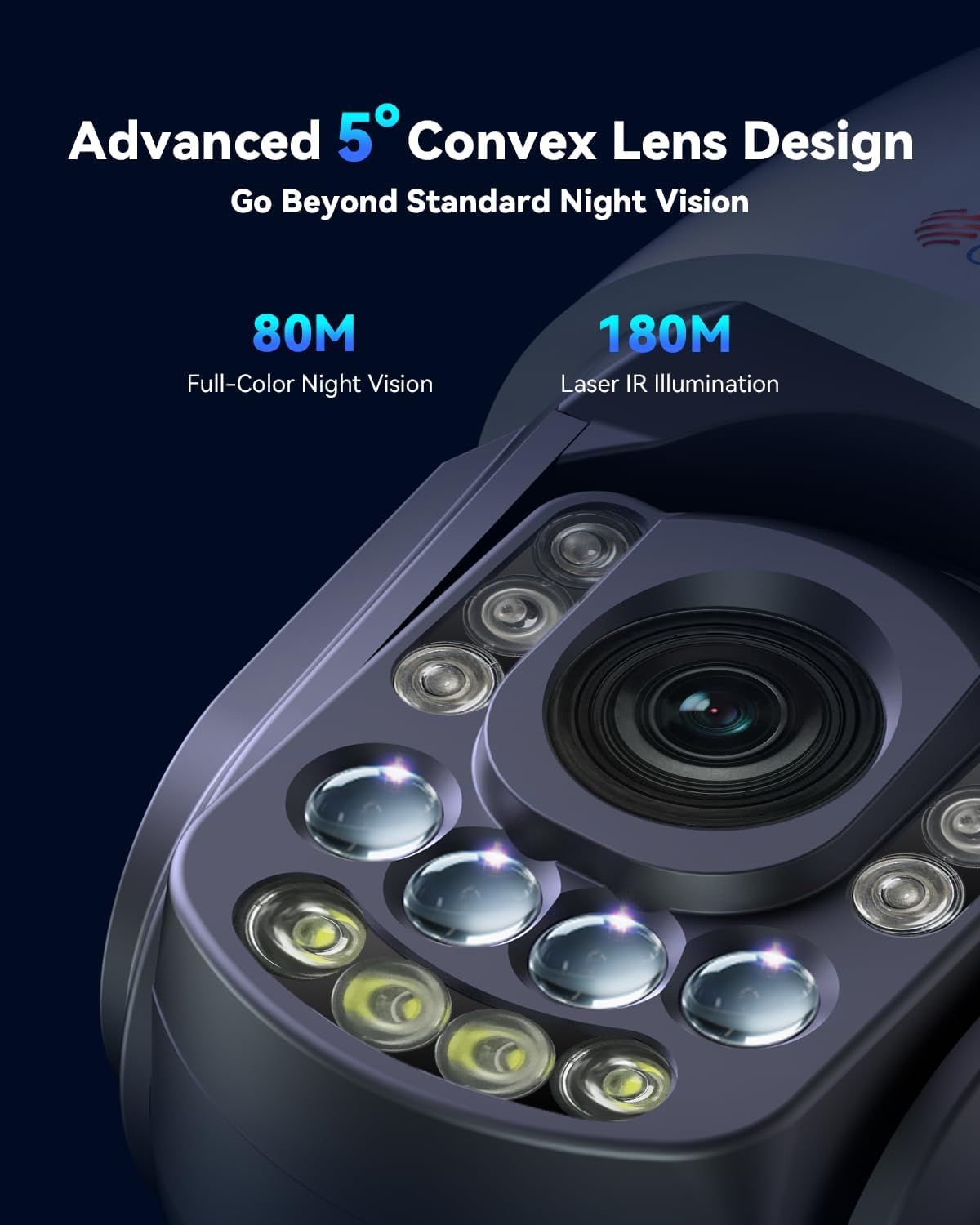
Figure 5.2: Advanced Night Vision Technology

Figure 5.3: Night Vision Range and Clarity
5.4 Détection intelligente et suivi automatique
Configure AI detection settings to receive alerts for specific events.
- In the app settings, enable AI detection for humans, vehicles, or pets.
- Activate auto-tracking. When a detected object enters the camera's view, it will automatically track the object and zoom in.
- Set up custom voice alerts and spotlight activation for detected events.
- Configure the camera to return to its original guard position after tracking is complete.
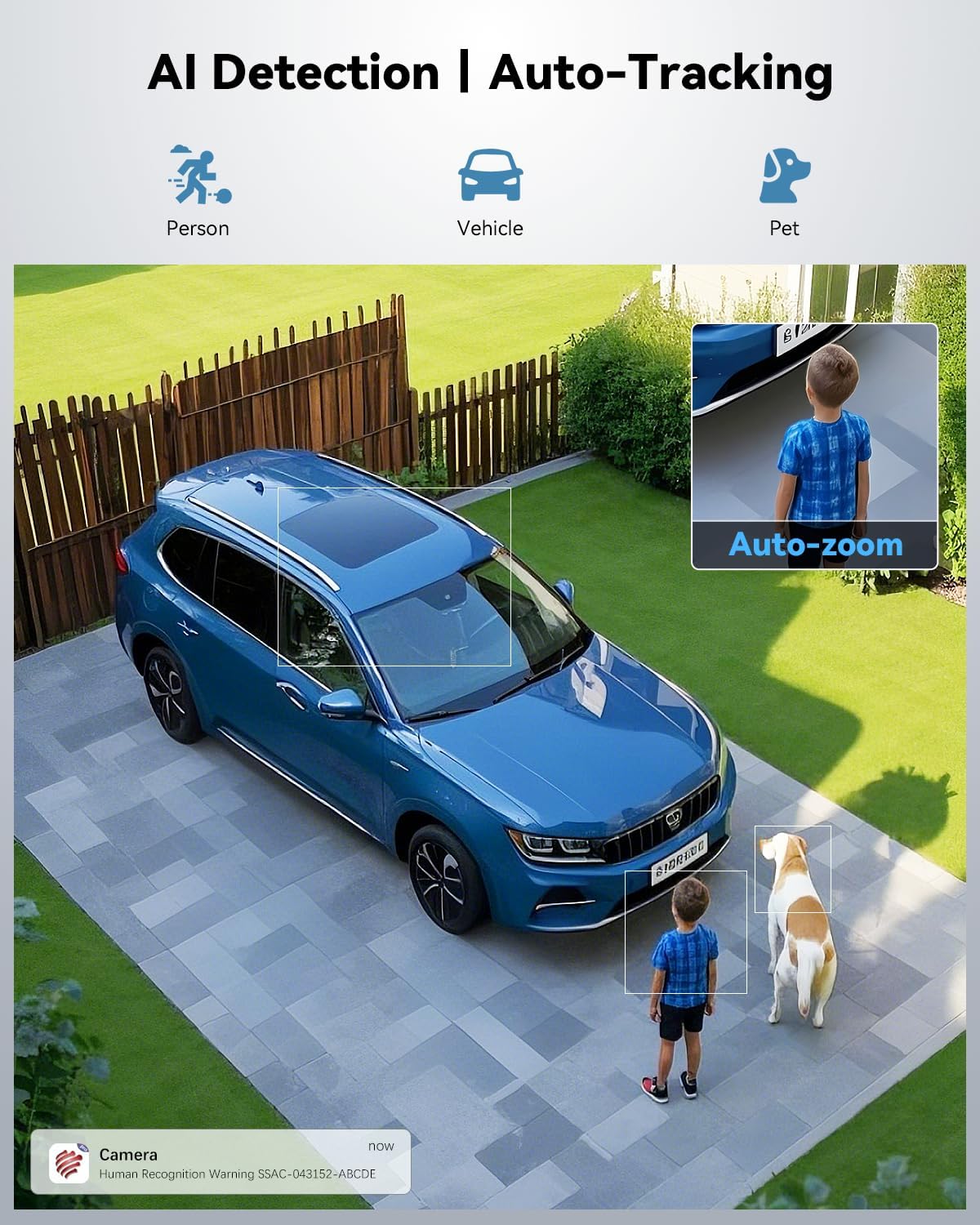
Figure 5.4: AI Detection and Auto-Tracking in Action

Figure 5.5: Powerful Sound and Light Alerts
5.5 Preset and Cruise Features
Set up specific points and patrol routes for automated surveillance.
- Points prédéfinis : Define up to 60 specific viewing angles that the camera can quickly move to.
- Patrol Lines: Create up to 2 automated patrol routes for the camera to follow, cycling through defined preset points.

Figure 5.6: Preset and Cruise Features for 360° Coverage
5.6 Options de stockage
The camera supports both local and cloud storage.
- Carte MicroSD : Insert a microSD card (up to 256GB, not included) into the designated slot for local recording.
- Stockage dans le cloud : Utilize the secure cloud storage option, which includes a 7-day free trial.
- FTP/NVR : The camera also supports FTP and NVR (Network Video Recorder) for continuous 24/7 recording.
5.7 Masquage de zones privatives
To protect sensitive areas from being recorded:
- Access the privacy masking settings in the app.
- Define custom video mask zones to block out specific areas from recording.
6. Entretien
Un entretien régulier garantit des performances optimales et une longue durée de vie à votre appareil photo.
- Nettoyage: Essuyez délicatement l'objectif et le boîtier de l'appareil photo avec un chiffon doux et sec.amp Chiffon. Évitez les nettoyants abrasifs ou les solvants.
- Mises à jour du micrologiciel : Check the "Ctronics Pro" app regularly for firmware updates. Keeping the firmware updated ensures the latest features and security patches.
- Inspection des câbles : Inspectez régulièrement les câbles d'alimentation et de réseau afin de détecter tout signe d'usure ou de dommage.
- Protection de l'environnement : Ensure the camera's waterproof rating (IP66) is maintained by ensuring all covers and seals are properly secured.
7. Dépannage
Cette section aborde les problèmes courants que vous pourriez rencontrer.
| Problème | Cause possible | Solution |
|---|---|---|
| Caméra hors ligne/Pas de connexion | Signal Wi-Fi faible, mot de passe Wi-Fi incorrect, problème d'alimentation. | Check Wi-Fi signal strength, re-enter Wi-Fi password in app, ensure power adapter is securely connected. Try restarting the camera and router. |
| Mauvaise qualité d'image | Dirty lens, low light conditions, network bandwidth. | Clean the camera lens. Ensure adequate lighting for full-color night vision. Check network speed. |
| Le suivi automatique ne fonctionne pas | Feature not enabled, object too far/small, environmental interference. | Ensure auto-tracking and AI detection are enabled in app settings. Verify the object is within detection range and size. |
| Aucun enregistrement sur carte SD | SD card full, corrupted, or not inserted correctly. Recording schedule not set. | Check SD card status in app, format or replace if necessary. Ensure recording schedule or motion detection recording is enabled. |
8. Spécifications
| Fonctionnalité | Détail |
|---|---|
| Nom du modèle | CTIPC-870C |
| Utilisation intérieure/extérieure | De plein air |
| Résolution de capture vidéo | 3840 (4K UHD) |
| Résolution fixe efficace | 8 MP |
| Zoom optique | 30x |
| Gamme de vision nocturne | 150 Meters (IR), 80 Meters (Full-Color) |
| Technologie de connectivité | Wireless (Wi-Fi 2.4/5GHz, Bluetooth) |
| Options de stockage | Micro SD (up to 256GB), Cloud, FTP, NVR |
| Source d'énergie | Électrique filaire (12 volts, 12 watts) |
| Matériel | Métal |
| Niveau de résistance à l'eau | Imperméable à l'eau (IP66) |
| Dimensions de l'article (L x l x H) | 7.48 x 5.51 x 11.02 pouces |
| Poids de l'article | 5.52 livres |
| Méthode de contrôle | App (Ctronics APP) |
9. Vidéo officielle du produit
Video 9.1: Real 4K Clarity. True 30X Precision. This video demonstrates the camera's 4K resolution and 30x optical zoom capabilities, showcasing its clarity and precision in various scenarios.
10. Garantie et assistance
Ctronics products typically come with a manufacturer's warranty. For specific warranty details, please refer to the warranty card included with your product or visit the official Ctronics website.
For technical support, troubleshooting assistance, or any inquiries regarding your camera, please contact Ctronics customer service. Contact information can usually be found on the product packaging, the official Ctronics website, or within the "Ctronics Pro" app.
Comme indiqué dans les retours clientsviews, Ctronics provides responsive customer support, often assisting with setup and feature activation.