
1. Introduction
This manual provides essential information for the proper setup, operation, and maintenance of your MAIWO Portable SSD 1TB External Solid State Drive. Please read this guide thoroughly before using the device to ensure optimal performance and longevity.
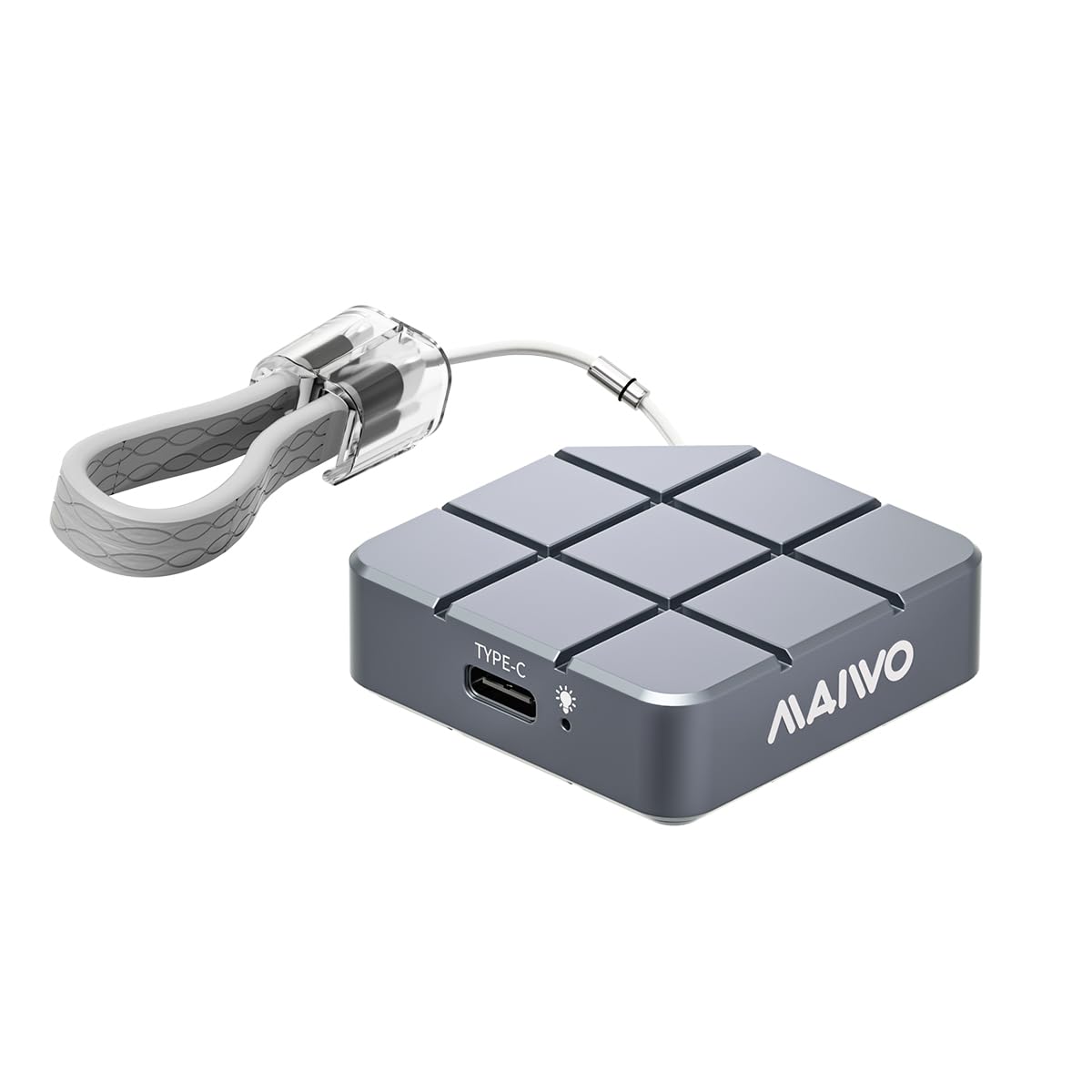
Figure 1: MAIWO Portable SSD 1TB External Solid State Drive.
2. Produit terminéview
2.1 Principales caractéristiques
- Ultra-High-Speed Transmission: Equipped with USB 3.2/USB-C interface, offering read/write speeds up to 1050MB/s.
- Léger et portable : Compact size, weighing less than 55g, designed for easy transport.
- Robuste et durable : Métal casing with shockproof, anti-drop, and dust-proof design.
- Large Capacity Options: Available in 256GB, 512GB, 1TB, and 2TB to suit various storage needs.
- Prêt à l'emploi : No additional drivers required for Windows, macOS, Android, and Linux systems.
- Large compatibilité : Compatible with Android Phones, laptops, PS5/Xbox, and other devices.
- Dissipation thermique efficace : CNC-processed aluminum alloy shell for rapid heat dissipation.
2.2 Contenu de la boîte
- MAIWO Portable SSD (1TB)
- Câble USB-C vers USB-C
- Guide de démarrage rapide

Figure 2: The MAIWO Portable SSD connected via its USB-C cable, highlighting its 10Gbps transfer rate.
Vidéo 1 : Un overview of the MAIWO USB-C External Portable SSD, demonstrating its compact size and connectivity.
3. Installation
The MAIWO Portable SSD is designed for immediate use with its plug-and-play functionality. No complex installation or driver downloads are typically required.
3.1 Connexion du SSD
- Locate the USB-C port on your device (computer, smartphone, tablet, gaming console).
- Connect one end of the provided USB-C cable to the MAIWO Portable SSD.
- Connect the other end of the USB-C cable to your device's USB-C port.
- The SSD should be automatically recognized by your operating system. A blue indicator light on the SSD will illuminate when connected and active.

Figure 3: The MAIWO Portable SSD featuring its integrated USB-C cable and a convenient lanyard loop for portability.
Video 2: An unboxing and initial setup demonstration of the MAIWO Portable SSD, showing its contents and how to connect it.
4. Mode d'emploi
4.1 Transfert de données
Once connected, the MAIWO Portable SSD will appear as an external drive on your device. You can drag and drop files, copiez et collez, ou utilisez les fonctionnalités de votre appareil file Système de gestion pour le transfert de données.
- Pour ordinateurs (Windows/macOS/Linux) : The SSD will appear in 'My Computer' or 'Finder'. Open the drive and transfer filecomme vous le feriez avec n'importe quel autre périphérique de stockage externe.
- Pour appareils mobiles (Android/iOS) : Utilisez les fonctionnalités de votre appareil file manager application (e.g., 'Files' app on iOS, 'My Files' on Android) to browse and transfer files vers et depuis le SSD.
- For Gaming Consoles (PS5/Xbox): Connect the SSD to an available USB port. Follow your console's instructions for external storage setup to store games or media.
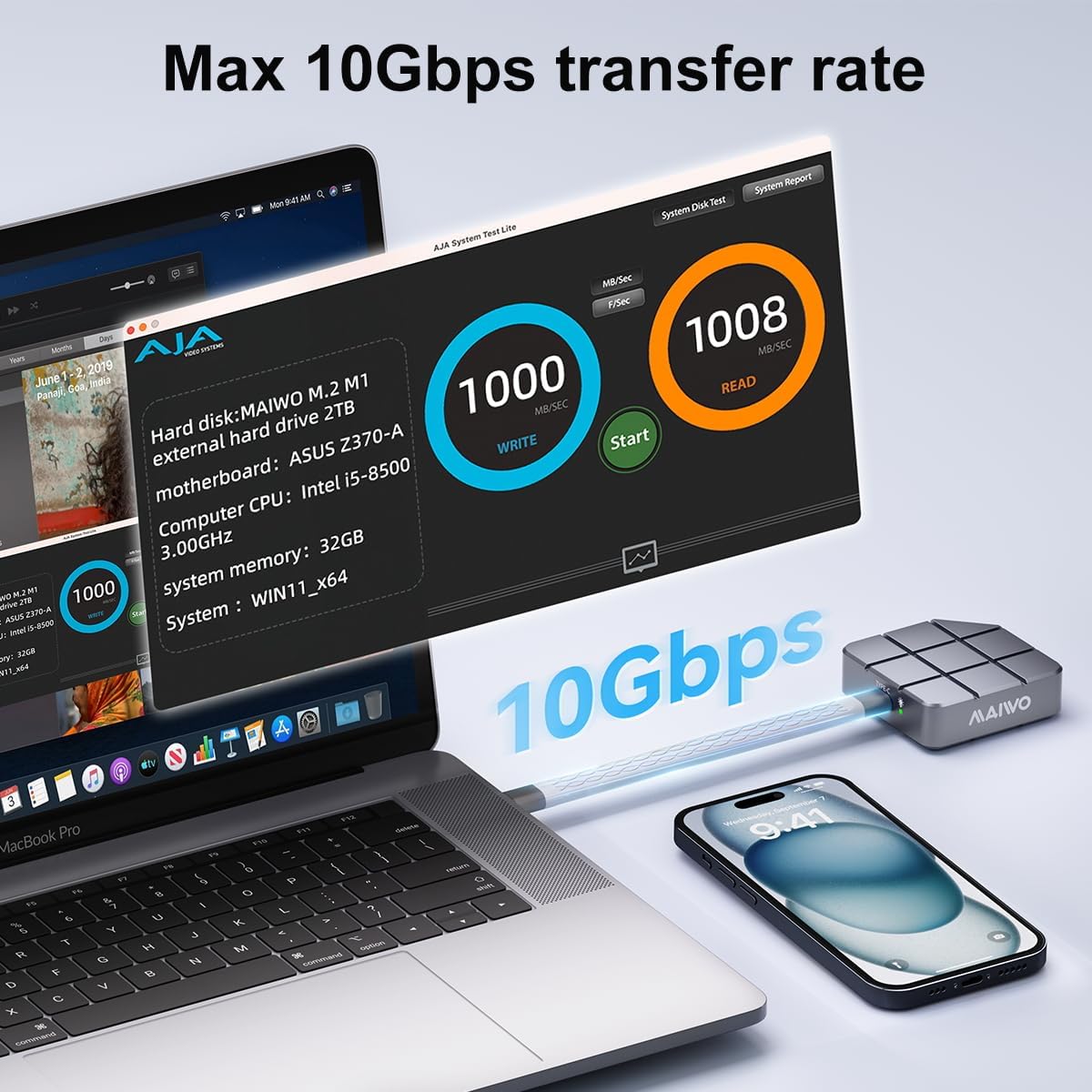
Figure 4: Speed test results on a MacBook Pro, demonstrating the MAIWO Portable SSD's high-speed data transfer capabilities.

Figure 5: The MAIWO Portable SSD connected to an iPhone, illustrating its use for expanding storage for photos and videos.
Enregistrement vidéo 4K ProRes 4.2
The MAIWO Portable SSD supports direct recording of high-definition videos, photos, and audio from compatible devices, such as iPhone 15 Pro and above. Connect the SSD to your iPhone's USB-C port and select the SSD as the storage destination within your camera application.

Figure 6: Demonstrating 4K ProRes video recording directly to the MAIWO Portable SSD using an iPhone.
5. Entretien
To ensure the longevity and optimal performance of your MAIWO Portable SSD, follow these maintenance guidelines:
- Soins physiques : L'alliage d'aluminium casing provides durability and aids in heat dissipation. Avoid dropping the device or exposing it to extreme physical shock.
- Température: While designed for efficient heat dissipation, prolonged heavy use may cause the device to warm up. This is normal. Ensure adequate airflow around the device during operation.
- Nettoyage: Utilisez un chiffon doux et sec pour nettoyer l'extérieur du SSD. Évitez les nettoyants liquides et les produits abrasifs.
- Sauvegarde des données : Regularly back up important data stored on the SSD to another location to prevent data loss.
- SSD interne : The internal SSD is not designed to be replaced, and the casing cannot be disassembled. Attempting to do so may void your warranty.

Figure 7: The MAIWO Portable SSD's aluminum alloy construction is designed for fast heat dissipation.
6. Dépannage
If you encounter issues with your MAIWO Portable SSD, refer to the following common solutions:
- SSD non reconnu :
- Assurez-vous que le câble USB-C est correctement connecté à la fois au SSD et à votre appareil.
- Try connecting the SSD to a different USB-C port on your device.
- Test the SSD with a different compatible device to rule out device-specific issues.
- Redémarrez votre ordinateur ou appareil.
- Vitesses de transfert lentes :
- Ensure your device's USB-C port supports USB 3.2 Gen 2 (10Gbps) for maximum speed. Older USB versions will result in slower speeds.
- Verify that the cable used is the original MAIWO cable or another high-quality USB 3.2 Gen 2 compatible cable.
- Fermez toutes les applications inutiles qui s'exécutent en arrière-plan et qui pourraient consommer des ressources système.
- L'appareil chauffe pendant son utilisation :
- It is normal for the SSD to become warm during high-speed data transfers or prolonged use due to its aluminum casing acting as a heatsink. This indicates efficient heat dissipation.
- If the device becomes excessively hot and performance degrades, ensure it is not covered and has adequate ventilation.
- Corruption de données ou erreurs :
- Éjectez toujours le SSD de votre appareil en toute sécurité avant de le déconnecter afin d'éviter toute corruption de données.
- If issues persist, consider reformatting the drive (note: this will erase all data). Refer to your operating system's instructions for formatting external drives.
7. Spécifications
| Fonctionnalité | Détail |
|---|---|
| Capacité de stockage numérique | 1 To |
| Interface du disque dur | USB 3.2 |
| Technologie de connectivité | USB |
| Marque | MAIWO |
| Dossier spécial | Portable, Shock Resistant, USB 3.2/USB-C interface |
| Description du disque dur | Disque SSD externe |
| Appareils compatibles | Desktop, Gaming Console, Laptop, Android Phones, iPad, MacBook, PS5 |
| Type d'installation | Disque dur externe |
| Couleur | Gris |
| Taille du disque dur | 1 To |
| Vitesse de lecture | 1050 mégaoctets par seconde |
| Taux de transfert de données | 10 gigabits par seconde |
| Facteur de forme | Portable |
| Connectivité Hardware | USB 3.2 Gen 2 |
| Poids de l'article | 0.12 livres |
| Numéro de modèle | Portable ssd-1TB |
| Matériau de l'enceinte | Aluminium |
8. Garantie et assistance
8.1 Informations sur la garantie
The MAIWO Portable SSD comes with a Garantie de 12 mois À compter de la date d'achat, cette garantie couvre les défauts de fabrication et les dysfonctionnements dans des conditions normales d'utilisation. Veuillez conserver votre preuve d'achat pour toute réclamation au titre de la garantie.
8.2 Assistance clientèle
For technical assistance, troubleshooting, or warranty inquiries, please contact MAIWO customer support through the official MAIWO website or your retailer's support channels. You may also refer to the Quick Start Guide included in your product packaging for additional contact information.
For more information about MAIWO products, visit the Boutique MAIWO sur Amazon.