
AKEEYO AKEEYO-EYES-01
AKEEYO EYES 3-Channel Dash Cam User Manual
Model: AKEEYO-EYES-01
1. Introduction
This manual provides comprehensive instructions for the installation, operation, and maintenance of your AKEEYO EYES 3-Channel Dash Cam. This device is designed to enhance driving safety and provide reliable video evidence with its advanced features, including AI driver assistance, multi-lens recording, and 24/7 parking surveillance.
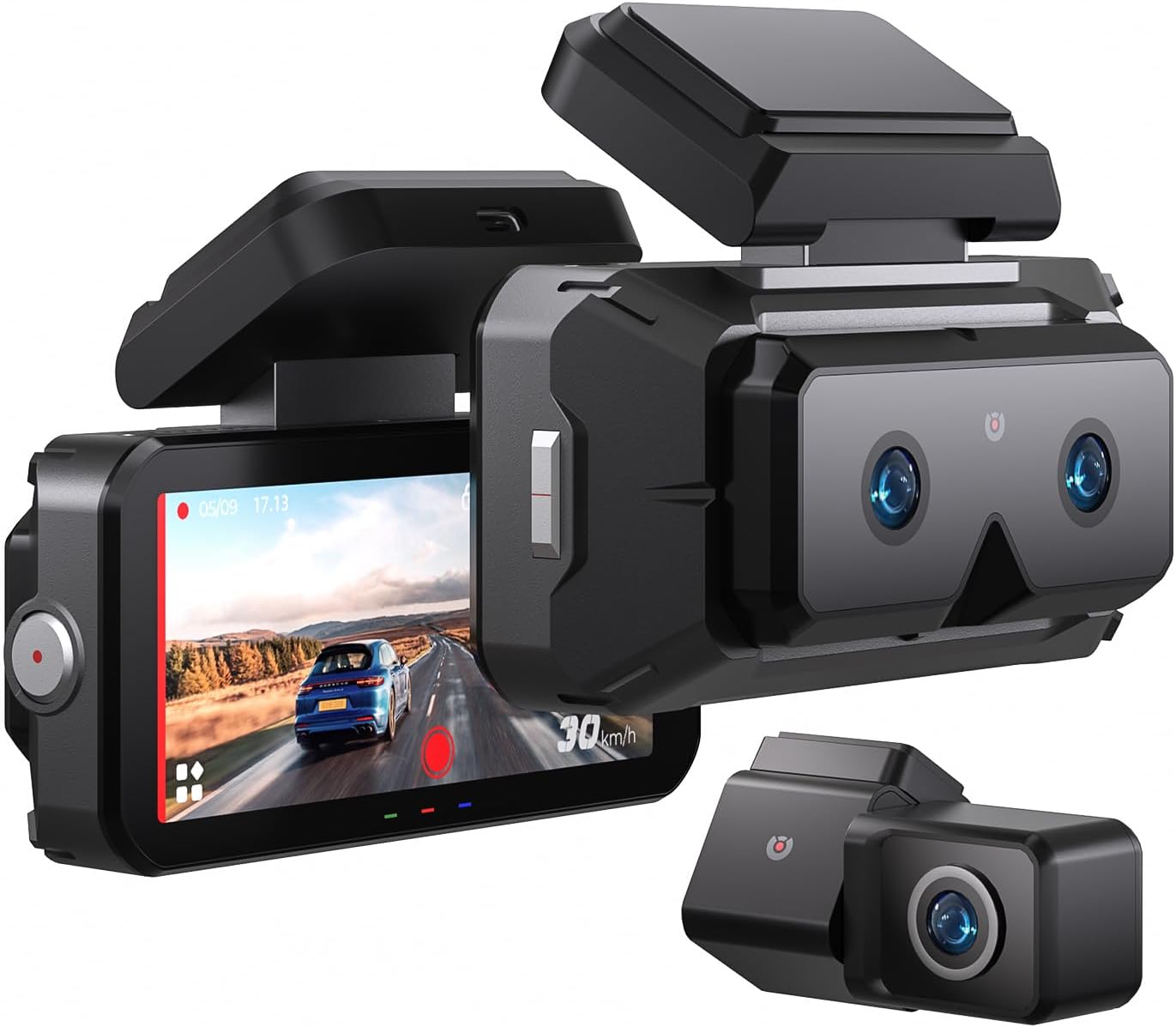
Image 1.1: The AKEEYO EYES 3-Channel Dash Cam, showing the main unit with its 4-inch IPS touchscreen and the separate rear camera.
2. caractéristiques du produit
- Enregistrement sur 3 canaux : Simultaneous recording from front (telephoto and wide-angle) and rear cameras.
- Résolution 2K : High-definition video capture for clear details.
- Écran tactile IPS de 4 pouces : Intuitive interface for live view et réglage des paramètres.
- AI Driver Assistance (ADAS & BSD): Real-time alerts for collision, lane departure, blind spot detection, pedestrian detection, and front vehicle start reminders.
- Vision nocturne WDR : Clarté améliorée en conditions de faible luminosité.
- Contrôle vocal : Fonctionnement mains libres pour les fonctions principales.
- GPS intégré : Records speed and location data.
- Connectivité Wi-Fi 5 GHz : Fast data transfer to mobile devices via app.
- Capteur G : Automatic emergency recording upon impact.
- Enregistrement en boucle : Enregistrement continu, écrasant le plus ancien. files when storage is full (emergency videos are protected).
- Mode parking 24h/24 et 7j/7 : Monitors vehicle activity when parked (requires separate hardware kit).
- Super condensateur : Provides durability and resistance to extreme temperatures.
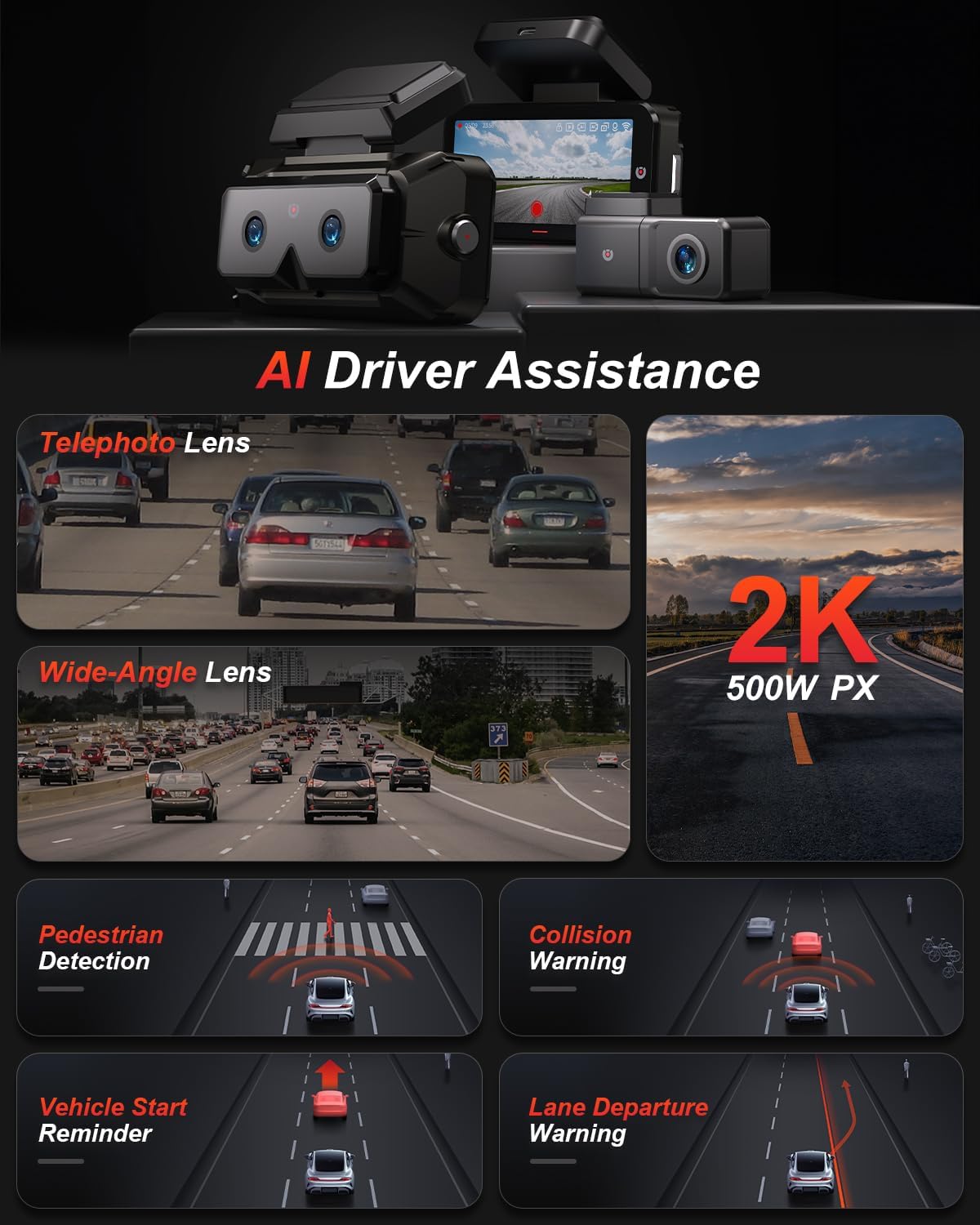
Image 2.1 : Terminéview of AI Driver Assistance features, including ADAS and BSD.

Image 2.2 : Détail view of the dash cam's main unit and rear camera, highlighting the 3.99-inch display, wide-angle and telephoto lenses, and 360-degree rotating rear camera.
3. Contenu du colis
Vérifiez que tous les éléments sont présents dans le colis :
- AKEEYO EYES Dash Cam (Main Unit)
- Caméra arrière
- Chargeur de voiture
- Câble de caméra arrière
- PC Data Transmission Wire
- Pied-de-biche (pour le passage des câbles)
- Autocollant d'électricité statique
- Support de carrosserie
- Tampons adhésifs 3M

Image 3.1: All components included in the AKEEYO EYES Dash Cam package.
4. Configuration et installation
4.1 Installation de la carte microSD
- Assurez-vous que la caméra embarquée est éteinte.
- Insert a compatible MicroSD card (Class 10 or higher, U3 V30 A2 recommended, up to 256GB) into the designated slot on the main unit until it clicks.
- Pour retirer la carte, poussez-la doucement jusqu'à ce qu'elle se détache.
4.2 Installation de la caméra de tableau de bord avant
- Nettoyez la zone du pare-brise où sera installée la caméra embarquée.
- Attach the static electricity sticker to the chosen area on the windshield.
- Affix the body mount with 3M adhesive to the static electricity sticker.
- Slide the main dash cam unit onto the body mount.
- Ajustez l'angle de la caméra de tableau de bord pour assurer une image claire view de la route devant nous.
4.3 Installation de la caméra arrière
- Choose a mounting location for the rear camera, either inside the rear window or outside near the license plate (IP67 rated for outdoor use).
- Nettoyez soigneusement la surface de montage.
- Attach the rear camera using the provided 3M adhesive.
- Route the rear camera cable to the main dash cam unit, ensuring it does not interfere with airbags or vehicle operation. Use the crowbar to tuck cables neatly.
- Connect the rear camera cable to the AV-IN port on the main unit.
- If the rear camera is installed upside down, detach it from its quick-release mount and reattach it in the correct orientation. No software adjustment is needed.
4.4 Connexion d'alimentation
- Connect the car charger to the Type-C port on the main dash cam unit.
- Branchez le chargeur de voiture sur la prise allume-cigare de votre véhicule.
- Faites passer le câble d'alimentation proprement afin d'éviter tout obstacle.

Image 4.1: Visual guide for the installation of the dash cam system.
5. Mode d'emploi
5.1 Mise sous/hors tension
- La caméra embarquée s'allumera automatiquement et commencera à enregistrer dès que le contact du véhicule sera mis.
- Il s'éteindra automatiquement lorsque le contact sera coupé.
- Pour allumer/éteindre manuellement l'appareil, maintenez le bouton d'alimentation enfoncé.
5.2 Using the 4-inch IPS Touchscreen
The touchscreen allows for easy navigation and viewment:
- En direct View: Affiche foo en temps réeltage from the cameras. You can view all three channels simultaneously or focus on a single camera.
- Paramètres: Access various settings such as resolution, loop recording duration, G-sensor sensitivity, and Wi-Fi.
- Lecture: Review Vidéos enregistrées directement sur l'écran.
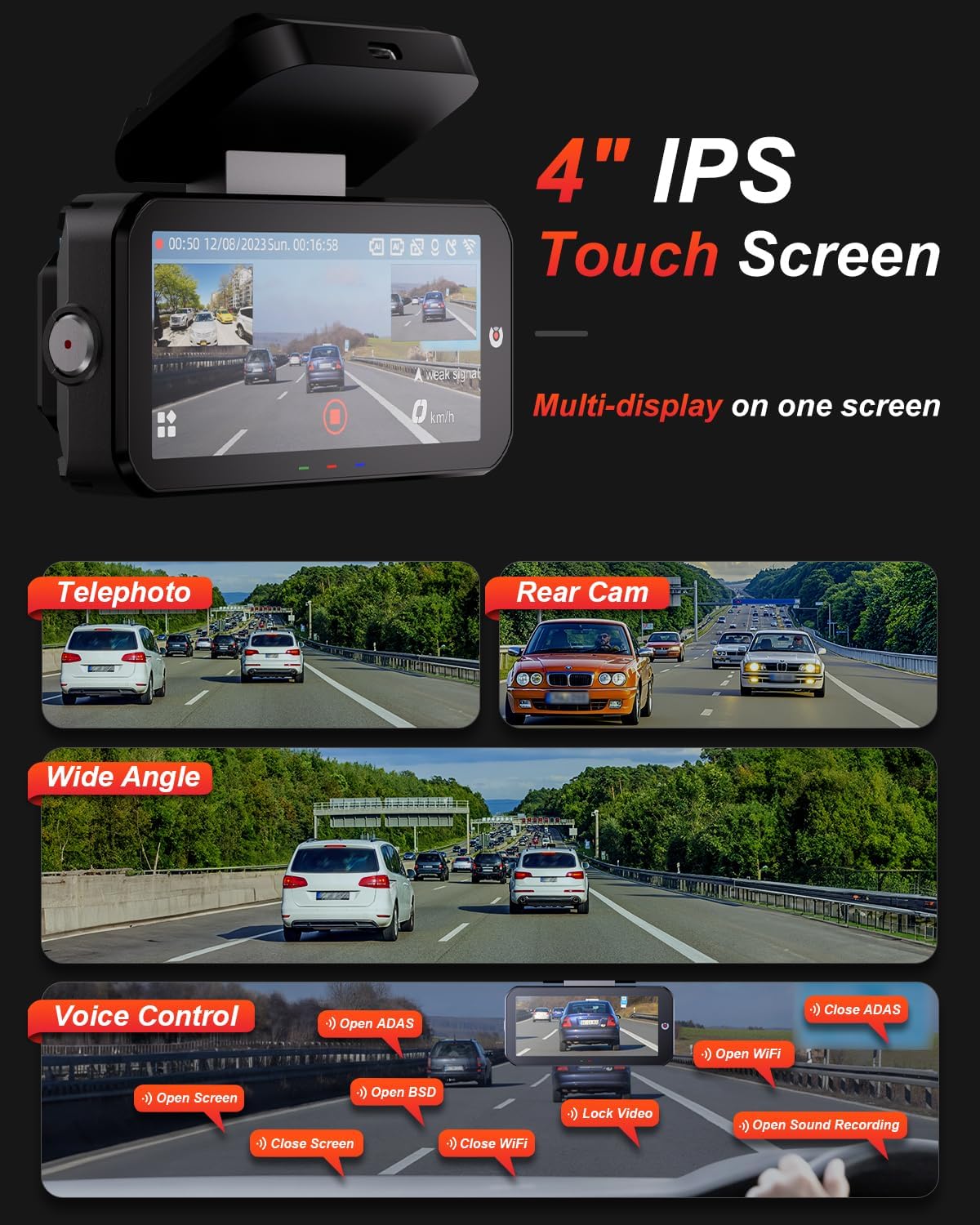
Image 5.1: The dash cam's 4-inch IPS touchscreen interface.
5.3 Commande vocale
Operate key functions hands-free using voice commands. Examples incluent :
- "Open ADAS" / "Close ADAS"
- "Open BSD" / "Close BSD"
- "Open Screen" / "Close Screen"
- "Open WiFi" / "Close WiFi"
- "Lock Video" (to protect current recording)
- "Open Sound Recording"

Image 5.2: Voice control commands for hands-free operation.
5.4 Modes d'enregistrement
- Enregistrement en boucle : The dash cam records continuously in segments. When the memory card is full, it automatically overwrites the oldest unlocked files.
- Capteur G : In the event of a sudden impact or collision, the built-in G-sensor automatically detects the event and locks the current video segment to prevent it from being overwritten.

Image 5.3: Loop Recording mechanism.
5.5 Mode stationnement 24h/24 et 7j/7
When properly configured with the optional AKEEYO hardware kit (ASIN B0DHZPR4XW, sold separately), the dash cam can monitor your vehicle 24/7. It detects vibrations and records abnormal events, providing security against theft or collisions while parked. Low framerate recording can conserve storage during parking surveillance.

Image 5.4: 24/7 Parking Monitor functionality.
5.6 GPS and Wi-Fi Connectivity
- GPS: The built-in GPS module records your vehicle's speed and location data, which can be reviewed via the mobile app or PC player.
- Wi-Fi 5G: Connect your smartphone to the dash cam via the AKEEYO app (available on App Store and Google Play) using 5G Wi-Fi for fast video download, playback, editing, and sharing.

Image 5.5: 5G Wi-Fi and Global GPS connectivity.
5.7 AI Driver Assistance (ADAS & BSD)
The dash cam provides real-time alerts to enhance driving safety:
- Avertissement de collision : Alerts you if your vehicle is too close to the vehicle ahead or if a car slows down abruptly.
- Avertissement de sortie de voie : Vous avertit si votre véhicule dévie de sa voie sans que vous ayez actionné votre clignotant.
- Détection des angles morts (BSD) : Monitors vehicles in your blind spots and provides alerts when changing lanes.
- Détection des piétons : Identifies pedestrians in front of you at low speeds and issues an alarm.
- Rappel de démarrage du véhicule avant : Reminds you when the vehicle ahead starts to move.

Image 5.6: Collision Warning system in action.

Image 5.7: Blind Spot Detection system.
6. Entretien
6.1 Nettoyage de l'appareil
- Utilisez un chiffon doux et sec pour nettoyer le boîtier et l'écran de la caméra embarquée.
- Pour les lentilles, utilisez un chiffon de nettoyage spécialisé pour éviter les rayures.
- N'utilisez pas de nettoyants abrasifs ni de solvants.
6.2 Gestion des cartes microSD
- Regularly format the MicroSD card (at least once a month) through the dash cam's settings to ensure optimal performance and prevent data corruption.
- Replace the MicroSD card periodically, as continuous overwriting can degrade its lifespan.
6.3 Considérations relatives à la température
The dash cam is designed to withstand temperatures up to 176°F (80°C). However, prolonged exposure to extreme heat can affect performance. If the device becomes excessively hot, allow it to cool down before handling or removing the SD card.
7. Dépannage
- La caméra embarquée ne s'allume pas : Check the power connection to the car charger and ensure the vehicle's cigarette lighter socket is functional.
- Problèmes d'enregistrement : Ensure a compatible MicroSD card is inserted and formatted. Check if the card is full or corrupted. Try formatting the card or using a new one.
- Camera shutting down randomly: This could be due to a faulty SD card or extreme temperatures. Try replacing the SD card. If the issue persists, contact customer support.
- Rear camera fogging/malfunctioning: Ensure the rear camera is properly sealed if mounted externally. If mounted internally, check for condensation.
- AI features (ADAS/BSD) providing false alerts or not working: Ensure the camera lenses are clean and unobstructed. Calibrate the system if an option is available in settings. Adjust sensitivity if alerts are too frequent.
- Problèmes de connexion Wi-Fi : Ensure Wi-Fi is enabled on the dash cam and your smartphone. Restart both devices and try connecting again.
- Le GPS ne fonctionne pas : Assurez-vous que la caméra embarquée dispose d'un écran clair. view du ciel.
For further assistance, please contact AKEEYO customer support.
8. Spécifications
| Fonctionnalité | Spécification |
|---|---|
| Dimensions du produit | 10.24 x 7.48 x 2.76 pouces |
| Poids de l'article | 2.34 livres |
| Numéro de modèle | AKEEYO-EYES-01 |
| Résolution de capture vidéo | 1440p (2K) |
| Afficher | Écran tactile IPS de 4 pouces |
| Technologie de connectivité | Powerline, USB, Voice, Wi-Fi (5G) |
| Caractéristiques spéciales | 3-Channel 2K+2K+2K, GPS, Night Vision, Voice Control, Touch Control, AI ADAS & BSD Assistance, Wide-Angle, Loop Recording, G-Sensor, Telephoto Lens, 24H Parking Mode |
| Type de montage | Support de pare-brise |
| Couleur | Noir |
| Domaine de View | 160 Feet (Front Telephoto) / 135° (Front Wide-Angle) / 154° (Rear) |
| Prise en charge du stockage | Up to 256GB MicroSD (Class 10, U3 V30 A2 recommended) |
| Température de fonctionnement | Jusqu'à 176 ° F (80 ° C) |
9. Garantie et assistance
- Garantie: The AKEEYO EYES Dash Cam comes with an 18-month warranty.
- Retours : You are eligible for returns within 30 days of purchase.
- Service client: AKEEYO provides 24-hour customer service. For support, please visit the official AKEEYO webconsultez leur site ou contactez directement leur service client.
Ask a question about this manual
Ask about setup, troubleshooting, compatibility, parts, safety, or missing instructions. Manuals+ will review the question and use this page’s manual context to help answer it.