
1. Introduction
This manual provides essential instructions for the safe and efficient use of your Brother DCP-L2605DW Auto Duplex Laser Printer. This multifunction device offers print, scan, and copy capabilities, designed for home and small office environments. Please read this manual thoroughly before operating the printer and keep it for future reference.

Image: The Brother DCP-L2605DW multifunction laser printer, a compact device for printing, scanning, and copying.
2. Contenu de la boîte
Vérifiez que tous les composants sont présents dans l'emballage :
- Brother DCP-L2605DW Laser Printer Unit
- Câble d'alimentation
- Câble USB
- CD d'installation (pour pilotes et logiciels)
- Inbox Toner Cartridge (TN-2570XL, approximately 3000 pages yield)
3. Installation
3.1 Déballage et installation initiale
Carefully remove the printer from its packaging. Place the printer on a stable, flat surface with adequate ventilation. Ensure sufficient space around the printer for paper trays and cable connections.
3.2 Installation de la cartouche de toner
- Ouvrez le capot avant de l'imprimante.
- Retirez l'ensemble tambour et cartouche de toner de son sachet protecteur.
- Secouez doucement la cartouche de toner horizontalement à plusieurs reprises pour répartir le toner uniformément.
- Insérez fermement la cartouche de toner dans l'unité de tambour jusqu'à ce qu'elle se verrouille en place.
- Slide the drum unit and toner cartridge assembly back into the printer.
- Fermez le capot avant.
3.3 Chargement du papier
- Pull out the paper tray completely from the printer.
- Ajustez les guides papier en fonction du format du papier que vous chargez.
- Load up to 250 sheets of paper (up to 163 GSM) into the tray. Ensure the paper is flat and not curléd.
- Repoussez délicatement le bac à papier dans l'imprimante jusqu'à ce qu'il s'enclenche.
3.4 Connexion d'alimentation
Connect the power cable to the printer and then to a grounded electrical outlet. Turn on the printer using the power button.
3.5 Options de connectivité
Your printer supports multiple connectivity methods:
- USB 2.0 : Connectez l'imprimante directement à votre ordinateur à l'aide du câble USB fourni.
- Ethernet (LAN) : Connect the printer to your network router or switch using an Ethernet cable for wired network access.
- Wi-Fi (Wireless LAN): Connect the printer to your wireless network. Follow the on-screen instructions on the printer's LCD display to configure Wi-Fi settings.
- Wi-Fi Direct : Allows direct connection from mobile devices without a router. Refer to the printer's LCD menu for Wi-Fi Direct setup.
3.6 Installation des pilotes et des logiciels
Insert the included Installation CD into your computer's CD-ROM drive and follow the on-screen instructions to install the necessary drivers and software. Alternatively, download the latest drivers from the official Brother support website.
Vidéo : Un court métrageview of the Brother DCP-L2605DW printer, highlighting its features and specifications. This video provides a visual summary of the product's capabilities and design.
4. Mode d'emploi
4.1 Impression de documents
To print from your computer or mobile device:
- Ensure the printer is powered on and connected to your device or network.
- Ouvrez le document ou l'image que vous souhaitez imprimer.
- Sélectionner Imprimer depuis le menu de l'application.
- Choisir Brother DCP-L2605DW as your printer.
- Ajustez les paramètres d'impression tels que le format du papier, l'orientation et le nombre de copies.
- Pour Automatic Duplex Printing (2-sided printing), select the duplex option in your printer settings.
- Cliquez Imprimer.

Image: Icon representing automatic duplex printing, a feature that allows printing on both sides of the paper automatically.
4.2 Numérisation de documents
You can scan documents using the flatbed scanner:
- Placez le document face vers le bas sur la vitre du scanner.
- From your computer, open the Brother ControlCenter software or a compatible scanning application.
- Sélectionner Balayage and choose your desired scan settings (e.g., resolution, color mode, destination).
- Initiate the scan. The scanned image will be saved to your specified location.
4.3 Copie de documents
To make copies directly from the printer:
- Placez le document face vers le bas sur la vitre du scanner.
- Use the control panel on the printer to select Copie.
- Adjust settings such as number of copies, enlarge/reduce, and quality.
- Appuyez sur le Commencer bouton pour commencer la copie.
4.3.1 2-in-1 (ID) Copy Function
This feature allows you to copy both sides of an ID card onto a single sheet of paper.
- Place the ID card on the scanner glass, aligning it with the indicated marks.
- Appuyez sur le Copie 2 en 1 (ID) bouton sur le panneau de commande.
- Follow the prompts on the LCD display to scan the first side, then flip the card and scan the second side.
- The printer will print both sides onto one page.

Image: Close-up of the printer's control panel, highlighting the '2 in 1 (ID) Copy' button for convenient ID card copying.
5. Entretien
5.1 Remplacement de la cartouche de toner
When the 'Toner Low' or 'Replace Toner' message appears on the LCD, it's time to replace the toner cartridge.
- Ouvrez le capot avant de l'imprimante.
- Remove the drum unit and old toner cartridge assembly.
- Press the release lever on the drum unit and remove the old toner cartridge.
- Unpack the new TN-2570XL toner cartridge and gently shake it.
- Insert the new toner cartridge into the drum unit until it clicks.
- Réinsérez l'ensemble tambour et nouvelle cartouche de toner dans l'imprimante.
- Fermez le capot avant.
5.2 Nettoyage de l'imprimante
Un nettoyage régulier permet de maintenir la qualité d'impression et de prolonger la durée de vie de l'imprimante.
- Extérieur: Essuyez l'extérieur de l'imprimante avec un chiffon doux non pelucheux.
- Vitre du scanner : Clean the scanner glass with a soft, dry cloth. For stubborn marks, use a small amount of glass cleaner applied to the cloth (not directly to the glass).
- Fil Corona : Periodically clean the corona wire inside the drum unit by sliding the green tab from left to right several times. Return the tab to its home position.
5.3 Déblocage du papier
If a paper jam occurs, the printer's LCD will display an error message. Follow the on-screen instructions or refer to the full user guide for detailed steps to clear the jam from various locations (e.g., paper tray, fuser unit, back cover).
6. Dépannage
This section addresses common issues you might encounter. For more detailed troubleshooting, refer to the comprehensive user manual or Brother's support website.
- L'imprimante ne répond pas : Check power connections, USB/Ethernet cables, and Wi-Fi status. Restart the printer and computer.
- Mauvaise qualité d'impression : Check toner levels. Clean the corona wire. Ensure correct paper type and quality settings.
- Bourrages papier : Follow the instructions in Section 5.3 to clear any jammed paper. Ensure paper is loaded correctly and not overfilled.
- Problèmes de connectivité réseau : Verify Wi-Fi password, network cable connection, and router status. Try restarting your router and printer.
- Problèmes de pilote : Reinstall printer drivers from the installation CD or Brother's website.
7. Spécifications
| Fonctionnalité | Description |
|---|---|
| Type d'imprimante | Laser monochrome |
| Fonctions | Imprimer, numériser, copier |
| Vitesse d'impression (monochrome) | Jusqu'à 30 ppm (pages par minute) |
| Résolution d'impression | Jusqu'à 1200 x 1200 dpi |
| Impression recto verso | Automatique (à deux faces) |
| Connectivité | Hi-Speed USB 2.0, Ethernet, Wi-Fi (IEEE 802.11a/b/g/n), Wi-Fi Direct |
| Mémoire | 256 Mo |
| Capacité d'alimentation papier | 250 feuilles (bac standard) |
| Types de médias | Papier ordinaire |
| Tailles des supports | A4, Letter, B5 (JIS), B5 (ISO), A5, A6, Executive, Legal, Folio, etc. |
| Type de scanner | Plate-forme |
| Vitesse de copie (monochrome) | Up to 30 cpm (copies per minute) |
| Dimensions (L x P x H) | 39.9 cm (P) x 41 cm (L) x 27.2 cm (H) |
| Poids | 10.1 kilogrammes |
| Systèmes d'exploitation compatibles | Windows, Mac, Linux |
| Compatibilité mobile | Android, iOS |
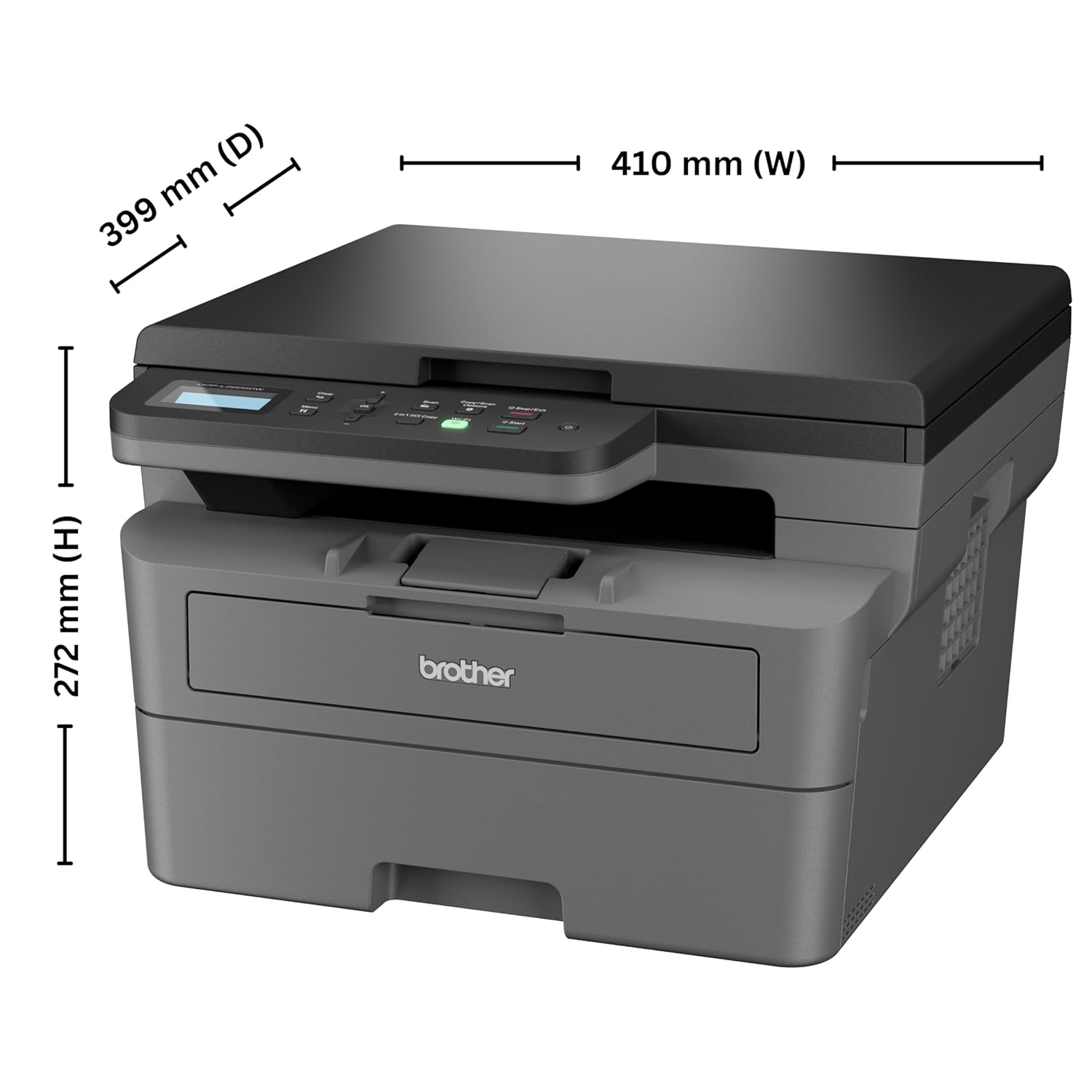
Image: Diagram showing the dimensions of the Brother DCP-L2605DW printer: 399 mm (D), 410 mm (W), 272 mm (H).
8. Informations sur la garantie
Your Brother DCP-L2605DW printer comes with a Garantie constructeur de 1 ans. Please retain your purchase receipt as proof of purchase for warranty claims. For detailed terms and conditions, refer to the warranty card included with your product or visit the official Brother website.
9. Assistance et contact
For technical assistance, product inquiries, or service requests, please contact Brother support:
- Numéros sans frais :
- 1-800-222-422 (For MTNL and BSNL users)
- 1-800-209-8904 (For Others and all Mobiles)
Operating Hours: Monday to Friday - 8:30 AM - 6:30 PM | Saturday - 9:00 AM - 6:00 PM
- Assistance par e-mail : customercare@brother.in
- Prise en charge de WhatsApp : 7045 450 450
- Officiel Website: www.brother.in

Image: Graphic displaying Brother's customer support contact details, including toll-free numbers, email, WhatsApp, and website.