
Leopold FC900RBT V2
Manuel d'utilisation du clavier mécanique Bluetooth Leopold FC900RBT V2
Model: FC900RBT V2 | Brand: Leopold
Introduction
Thank you for choosing the Leopold FC900RBT V2 Bluetooth Mechanical Keyboard. This manual provides detailed instructions for setting up, operating, and maintaining your new keyboard. The FC900RBT V2 features Cherry MX2A switches, double shot PBT keycaps, and advanced sound-absorbing technology for a superior typing experience. It supports both wired USB-C and wireless Bluetooth 5.1 connectivity.

Figure 1: Leopold FC900RBT V2 Bluetooth Mechanical Keyboard (Cherry MX2A Brown)
This image displays the full layout of the Leopold FC900RBT V2 keyboard from a top-down perspective. It highlights the standard 104-key layout, including the numeric keypad, function row, and navigation cluster. The keycaps are a combination of dark grey for most alphanumeric keys and a distinct blue for modifier keys and the escape key, providing a clear visual contrast. The overall design is clean and functional, emphasizing the mechanical nature of the keyboard.
Installation
Contenu du colis
- Leopold FC900RBT V2 Mechanical Keyboard
- Câble USB-C vers USB-A
- 3 piles AAA (préinstallées ou fournies séparément)
- Manuel de l'utilisateur (ce document)
Installation de la batterie
The FC900RBT V2 is powered by three (3) AAA batteries for wireless operation. The battery compartment is located on the underside of the keyboard.
- Carefully flip the keyboard over to access the bottom panel.
- Repérez le couvercle du compartiment à piles.
- Faites glisser ou soulevez le couvercle pour ouvrir le compartiment.
- Insérez trois piles AAA en veillant à respecter la polarité (+/-) indiquée à l'intérieur du compartiment.
- Replacez soigneusement le couvercle du compartiment à piles.
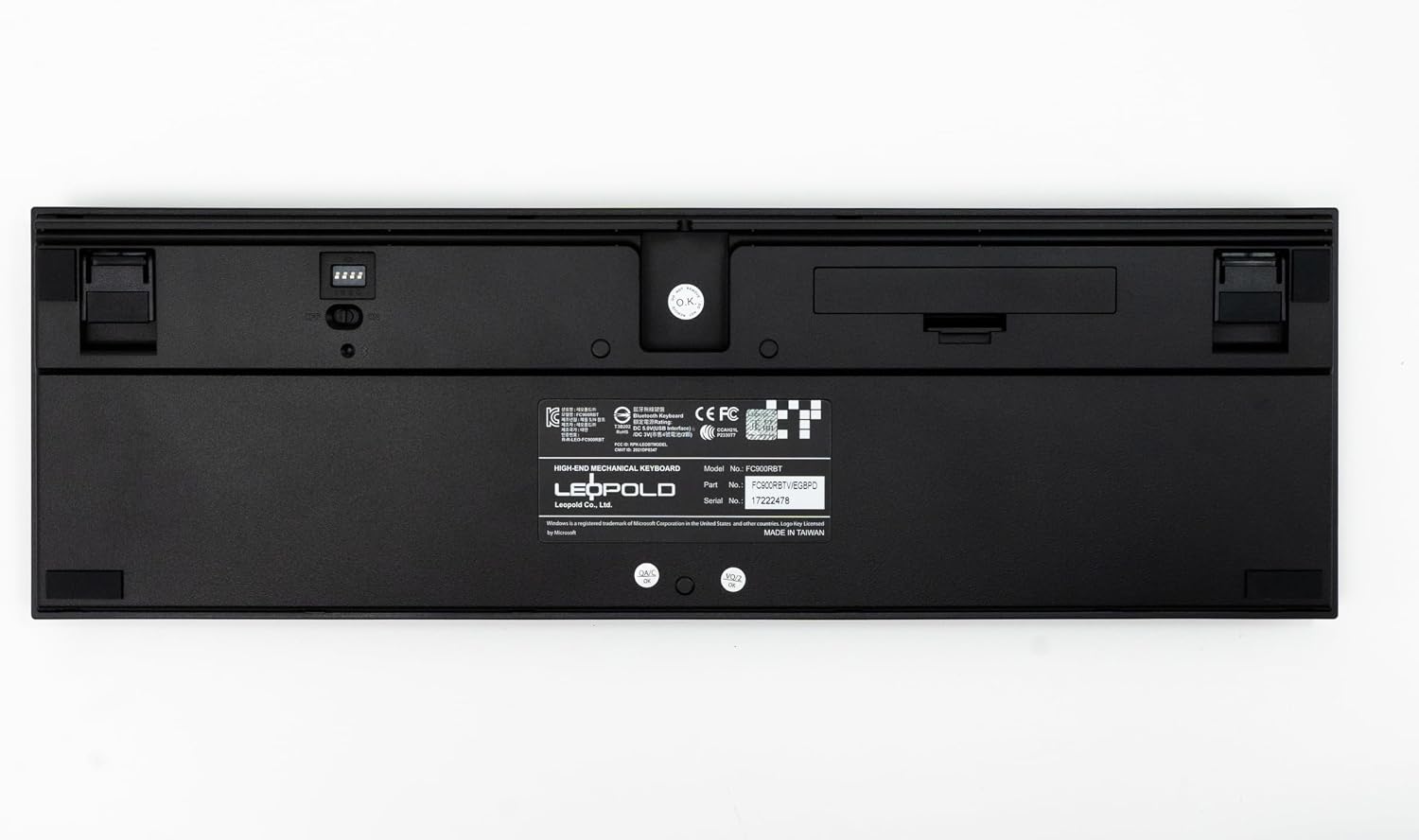
Figure 2: Underside of the Keyboard with Battery Compartment and DIP Switches
This image shows the bottom of the Leopold FC900RBT V2 keyboard. Prominently visible are the battery compartment, which houses three AAA batteries, and a set of DIP switches. These switches allow for hardware-level configuration changes, such as modifying key functions or operating modes. The overall design of the underside is clean, with rubber feet for stability and channels for cable management if used in wired mode.
Options de connectivité
The keyboard supports two primary connection methods:
- Connexion filaire (USB-C) : Connect the provided USB-C cable to the keyboard's USB-C port and the other end to an available USB-A port on your computer. The keyboard will be recognized automatically.
- Wireless Connection (Bluetooth 5.1): For wireless use, ensure batteries are installed and the keyboard's power switch (located on the underside, near the battery compartment) is turned ON.
Mode d'emploi
Appariement Bluetooth
The FC900RBT V2 can store up to four Bluetooth profiles, permettant de passer rapidement d'un appareil à l'autre.
- Ensure the keyboard is powered on (switch on the underside).
- Appuyez et maintenez enfoncé le Fn key + one of the Bluetooth profile clés (F1, F2, F3, ou F4) for approximately 3 seconds until the LED indicator above the numeric keypad starts blinking rapidly. This indicates pairing mode.
- On your device (computer, laptop, etc.), navigate to Bluetooth settings.
- Rechercher new devices. The keyboard should appear as "Leopold FC900RBT V2" or similar.
- Select the keyboard and follow any on-screen prompts to complete the pairing process. You may be asked to type a code on the keyboard and press Enter.
- Once successfully paired, the LED indicator will stop blinking and remain solid for a few seconds before turning off.
Pour basculer entre les appareils appairés, appuyez simplement sur Fn + the corresponding Bluetooth profile clé (F1-F4) briefly. The keyboard will connect to the last paired device on that profile.
Principales caractéristiques et fonctions
- Cherry MX2A Brown Switches: Provides a tactile bump without an audible click, ideal for typing and gaming.
- Double Shot PBT Keycaps: Durable keycaps with legends that will not fade over time, offering a premium feel.
- Sound Absorbing Pads and Foam: Enhances acoustics by reducing typing noise and improving sound profile.
- FR4 Dual-Layer PCB Design: Ensures stability and longevity of the keyboard's internal components.
- Compatibilité Windows : Fully compatible with Windows operating systems.

Figure 3 : Angulaire View du clavier
Cette image présente une vue en angle view of the Leopold FC900RBT V2 keyboard, showcasing its ergonomic profile and the texture of the PBT keycaps. The contrast between the dark grey and blue keycaps is clearly visible, emphasizing the aesthetic design. The image also provides a good perspective on the overall build quality and the slight incline of the key rows, designed for comfortable typing.

Figure 4 : Profil latéralfile with Leopold Branding
This close-up side view of the Leopold FC900RBT V2 keyboard highlights the subtle yet distinct Leopold brand engraving on the side of the keyboard casing. The image also provides a clear look at the profile of the keycaps and the robust construction of the keyboard's frame, demonstrating attention to detail in its design.
Entretien
Nettoyer votre clavier
Un nettoyage régulier permet de préserver les performances et l'apparence de votre clavier.
- Disconnect the keyboard from your computer (if wired) or turn off the power (if wireless).
- Utilisez une bombe d'air comprimé pour souffler la poussière et les débris entre les touches.
- Wipe the surface of the keycaps and casing avec un son doux, légèrement damp, chiffon non pelucheux. Éviter l'humidité excessive.
- Pour les taches tenaces, on peut utiliser une petite quantité d'alcool isopropylique sur un chiffon, mais il faut éviter de l'appliquer directement sur le clavier.
- N’utilisez pas de produits chimiques agressifs, de nettoyants abrasifs et n’immergez pas le clavier dans un liquide.
Retrait des touches (facultatif)
If you need to clean under the keycaps or replace them, use a keycap puller (not included) to gently remove them. Pull straight up to avoid damaging the switch stem. When reattaching, align the keycap with the switch stem and press down gently until it clicks into place.
Dépannage
| Problème | Cause possible | Solution |
|---|---|---|
| Clavier ne répond pas (filaire) | Connexion du câble desserrée, port USB défectueux, problème de pilote. |
|
| Le clavier ne se connecte pas (Bluetooth) | Keyboard off, low batteries, not in pairing mode, device Bluetooth off, interference. |
|
| Certaines touches ne fonctionnent pas | Débris sous la touche, interrupteur défectueux. |
|
Réinitialisation du clavier
If you experience persistent issues, a factory reset may resolve them. Consult the official Leopold website or support for specific reset procedures, as these can vary.
Caractéristiques
| Fonctionnalité | Détail |
|---|---|
| Modèle | FC900RBT V2 |
| Marque | Leopold |
| Technologie de connectivité | USB-C (Wired), Bluetooth 5.1 (Wireless) |
| Description du clavier | Mécanique |
| Type de commutateur | Cherry MX2A Brown |
| Matériau du capuchon | Double Shot PBT (Polybutylene Terephthalate) |
| Source d'énergie | 3 x AAA Batteries (for Bluetooth), USB-C (for Wired) |
| Appareils compatibles | Laptop, PC (Windows compatible) |
| Caractéristiques spéciales | Bluetooth, Sound Absorbing Pad and Foam, FR4 Dual-Layer PCB |
| Couleur | Blue/Grey (Cherry MX2A Brown variant) |
Garantie et assistance
Informations sur la garantie
Leopold products are manufactured to high quality standards. For specific warranty terms and conditions, please refer to the warranty card included with your product or visit the official Leopold webConsultez le site. Conservez votre preuve d'achat pour toute réclamation au titre de la garantie.
Assistance clientèle
If you encounter any issues not covered in this manual or require further assistance, please contact Leopold customer support. You can find contact information on the official Leopold websur le site ou auprès de votre détaillant.
Official Leopold Store: Leopold Store on Amazon
Ask a question about this manual
Ask about setup, troubleshooting, compatibility, parts, safety, or missing instructions. Manuals+ will review the question and use this page’s manual context to help answer it.