
1. Introduction
This manual provides detailed instructions for the OMOTON Magnetic Keyboard Case, Model KC011. This accessory is designed to enhance the functionality of your iPad Pro 13-inch (M4) 2024, offering a keyboard, multi-touch trackpad, and protective case. Please read this manual thoroughly before use to ensure proper operation and maintenance.
2. Contenu du colis
Vérifiez que tous les éléments énumérés ci-dessous sont présents dans votre colis :
- OMOTON Magnetic Keyboard Case
- Câble de chargement USB-C (1 mètre)
- Manuel d'instructions
3. Compatibilité
This keyboard case is specifically designed for the Apple iPad Pro 13-inch (M4) 2024 model. It is compatible with iPad models A2925, A2926, and A3007.

Figure 3.1 : iPad Pro 13-inch (M4) 2024 compatibility. This image illustrates the 13-inch screen size and lists the compatible iPad model numbers (A2925, A2926, A3007) found on the back of the device.
To confirm your iPad model number:
- Aller à Paramètres sur votre iPad.
- Sélectionner Général, alors À propos, and look for Nom du modèle.
- Alternatively, locate the model number printed on the back of your iPad.
4. Installation
4.1 Fixation de l'iPad
The keyboard case features strong magnets for secure attachment of your iPad. Align your iPad with the magnetic panel on the case until it snaps into place.

Figure 4.1 : Magnetic attachment. This image demonstrates how the iPad magnetically connects to the keyboard case, highlighting the strong magnetic attraction for secure placement.
4.2 Couplage Bluetooth
Follow these steps to pair your keyboard case with your iPad via Bluetooth:
- Assurez-vous que le clavier est chargé (reportez-vous à la section 5.4 pour les instructions de chargement).
- Turn on the keyboard by pressing the power button. The Bluetooth indicator light will flash.
- Sur votre iPad, accédez à Paramètres > Bluetooth.
- Activez le Bluetooth. Votre iPad recherchera les appareils disponibles.
- Sélectionnez « Clavier OMOTON » (ou un nom similaire) dans la liste des périphériques.
- Si vous y êtes invité, saisissez le code d'appairage affiché sur votre iPad et appuyez sur Entrer sur le clavier.
- Une fois l'appairage effectué, le voyant Bluetooth du clavier s'éteindra et votre iPad affichera le clavier comme « Connecté ».
5. Fonctionnement
5.1 Fonctions du clavier
The keyboard features a standard QWERTY layout with additional function keys and backlighting.
- Rétroéclairage : The keyboard offers 12 backlight modes and 4 brightness levels. Use the dedicated backlight key (often represented by a light bulb icon) to cycle through modes and adjust brightness. This feature provides visibility in low-light conditions.
- Touches multimédia A row of 14 function keys provides quick access to iPadOS features such as screen brightness adjustment, volume control, media playback, and more.
- Clés de la structure en ciseaux : The 1-millimeter keystroke scissor structure is designed for a quiet and responsive typing experience.
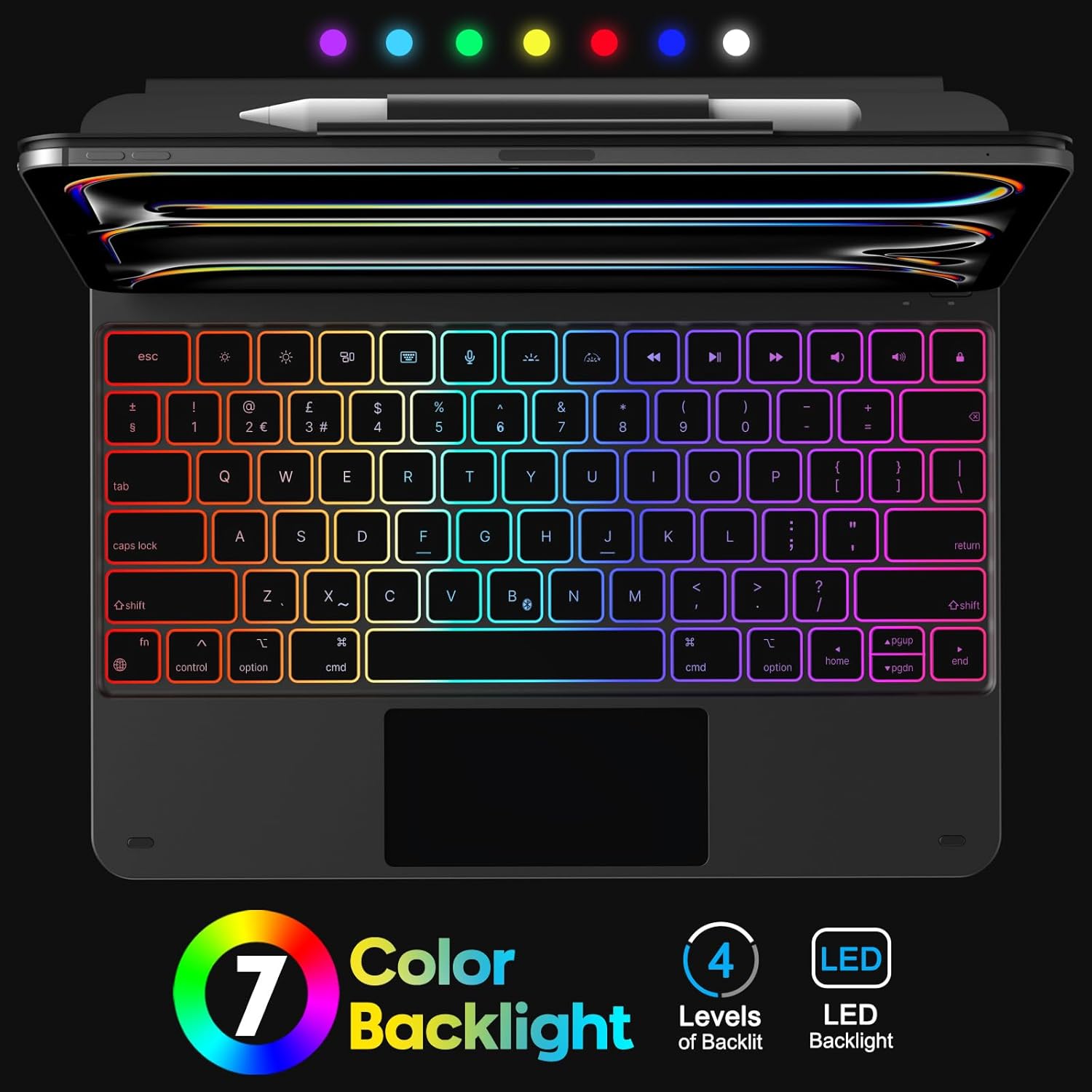
Figure 5.1 : Keyboard Backlight. This image displays the keyboard with its customizable 7-color backlight options and indicates the 4 available brightness levels, enhancing typing visibility.

Figure 5.2 : Key Mechanism. A close-up view of a keyboard key, illustrating the internal scissor-switch mechanism designed for comfortable and quiet typing.
5.2 Utilisation du pavé tactile
The integrated multi-touch trackpad supports various iPadOS gestures for navigation and interaction.
- Doigt unique : Tap to click, drag to move cursor.
- Deux doigts : Scroll up/down/left/right, pinch to zoom.
- Trois doigts : Balayez vers le haut pour accéder à l'écran d'accueil, balayez vers le haut et maintenez pour view app switcher, swipe left/right to switch between open apps.
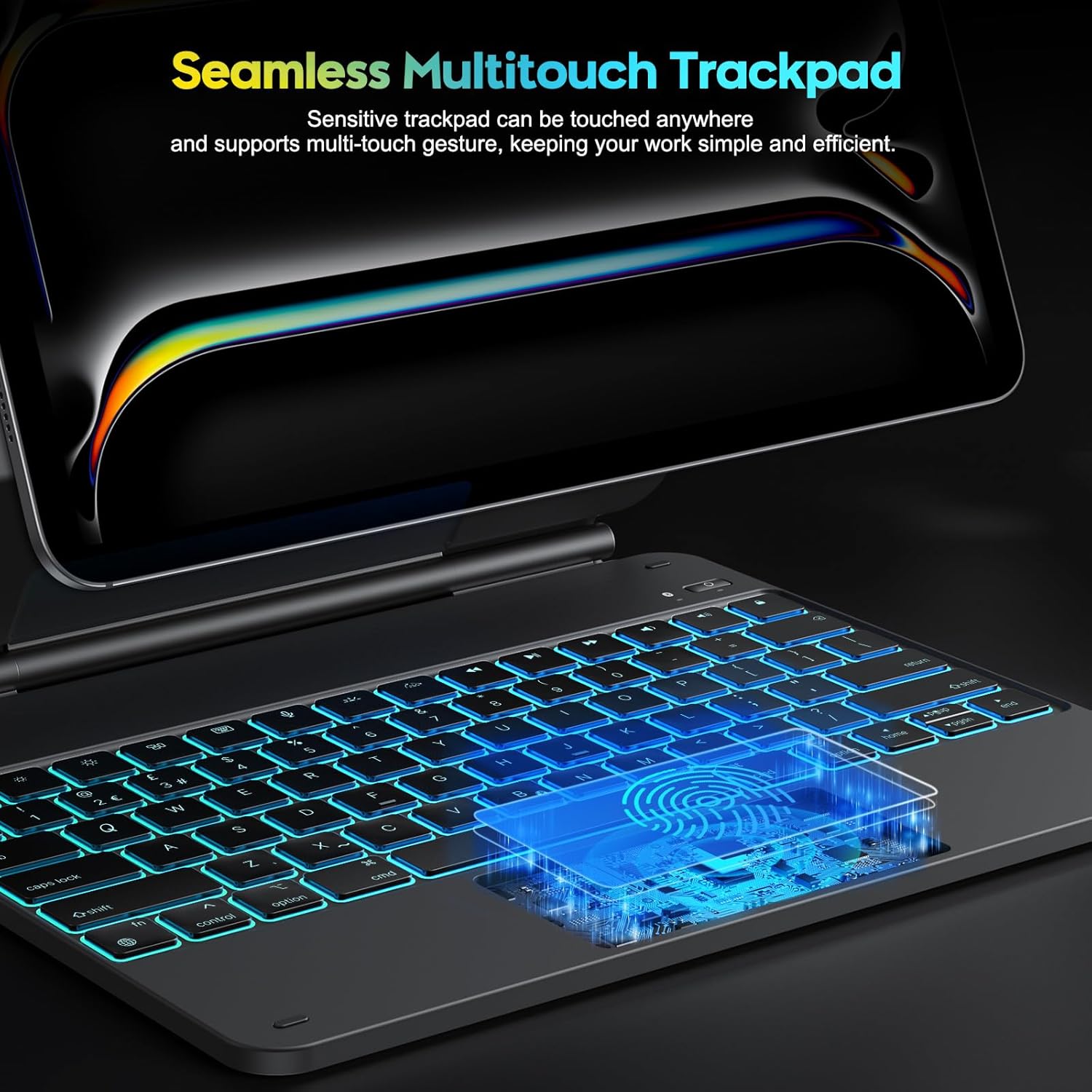
Figure 5.3 : Multi-Touch Trackpad. This image highlights the sensitive multi-touch trackpad, indicating its capability to register various gestures for efficient iPadOS interaction.
5.3 Réglage du support
The floating stand design allows for flexible viewing angles. Gently adjust the iPad's position on the magnetic stand to achieve your desired angle.

Figure 5.4 : Floating Stand Design. This image illustrates the adjustable floating stand, demonstrating how the iPad's viewing angle can be smoothly set to various positions, up to 120 degrees.
5.4 Chargement du clavier
The keyboard case is equipped with a built-in rechargeable battery. Use the provided USB-C cable to charge the device.
- Connect the USB-C end of the cable to the charging port on the keyboard.
- Connectez l'autre extrémité du câble à un adaptateur secteur USB (non inclus) ou au port USB d'un ordinateur.
- Le voyant de charge s'allumera pendant la charge et s'éteindra une fois la charge complète.
- A full charge takes approximately 3 hours. The battery provides up to 260 hours of use without backlight and 9 hours with backlight.

Figure 5.5 : Charging and Battery Life. This image highlights the Type-C charging port on the keyboard and provides information on battery life, including 3 hours fast charging, 800mAh lithium battery, and over 1000 hours standby time.
6. Entretien
Pour garantir la longévité et les performances optimales de votre étui de clavier, suivez ces consignes d'entretien :
- Tenez l'appareil éloigné des liquides et des températures extrêmes.
- Clean the keyboard and trackpad surfaces with a soft, dry, lint-free cloth. Avoid abrasive cleaners.
- Do not attempt to disassemble the keyboard case, as this may void the warranty and cause damage.
- Store the keyboard case in a clean, dry environment when not in use.
7. Dépannage
If you encounter issues with your keyboard case, refer to the following common solutions:
- Le clavier ne se connecte pas : Ensure Bluetooth is enabled on your iPad and the keyboard is powered on and charged. Try re-pairing the keyboard (Section 4.2).
- Les touches ne répondent pas : Check if the keyboard is charged. Restart both the keyboard and your iPad.
- Le pavé tactile ne fonctionne pas : Ensure the keyboard is connected via Bluetooth. Check iPadOS settings for trackpad functionality. Restart the keyboard and iPad.
- Le rétroéclairage ne fonctionne pas : Ensure the keyboard is charged. Press the backlight key to cycle through modes and brightness levels.
- Lag in keyboard response: Ensure the keyboard is fully charged. Minimize interference from other Bluetooth devices.
If the problem persists after trying these steps, please contact OMOTON customer support.
8. Spécifications
| Fonctionnalité | Spécification |
|---|---|
| Marque | OMOTON |
| Nom du modèle | KC011 |
| Appareils compatibles | iPad Pro 13 pouces (M4) 2024 (Modèles A2925, A2926, A3007) |
| Technologie de connectivité | Bluetooth |
| Disposition du clavier | QWERTY (UK-Layout) |
| Nombre de clés | 78 |
| Caractéristiques spéciales | Backlit (12 modes, 4 brightness levels), Hotkeys, Media Keys, Portable, Rechargeable, Multi-Touch Trackpad, Floating Stand Design |
| Capacité de la batterie | Lithium-ion 800mAh |
| Battery Life (No Backlight) | Jusqu'à 260 XNUMX heures |
| Battery Life (With Backlight) | Jusqu'à 9 XNUMX heures |
| Port de chargement | USB-C |
| Couleur | Noir |
9. Garantie et assistance
OMOTON products are designed for reliability and performance. For warranty information or technical support, please refer to the contact details provided with your purchase or visit the official OMOTON webVeuillez conserver votre preuve d'achat pour toute réclamation au titre de la garantie.