
1. Introduction
This manual provides detailed instructions for setting up, operating, maintaining, and troubleshooting your NIMO Mini PC N100. Please read this manual thoroughly before using the device to ensure proper functionality and to maximize its lifespan. The NIMO Mini PC N100 is a compact and powerful desktop computer designed for various applications, from home entertainment to office productivity.
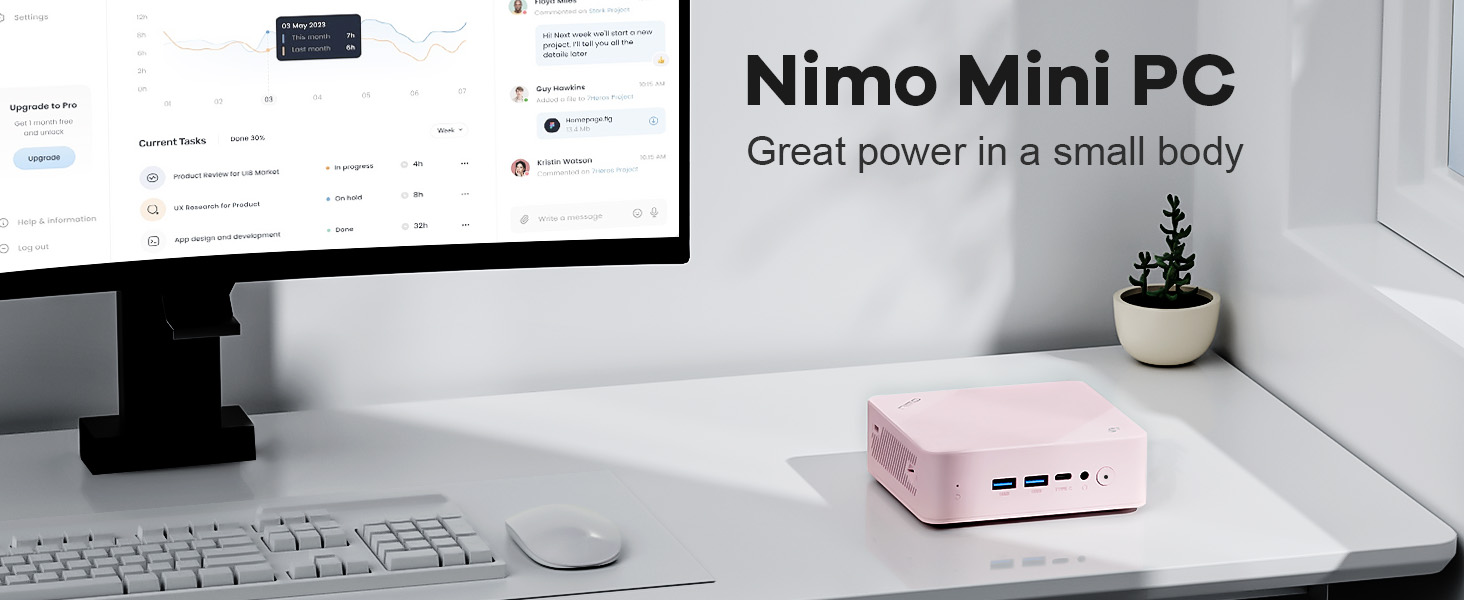
Image: The NIMO Mini PC N100, a compact computing solution for various environments.
2. Produit terminéview
The NIMO Mini PC N100 is engineered for efficiency and versatility. It features a compact design with a comprehensive array of ports for seamless connectivity.
2.1. Caractéristiques physiques et ports
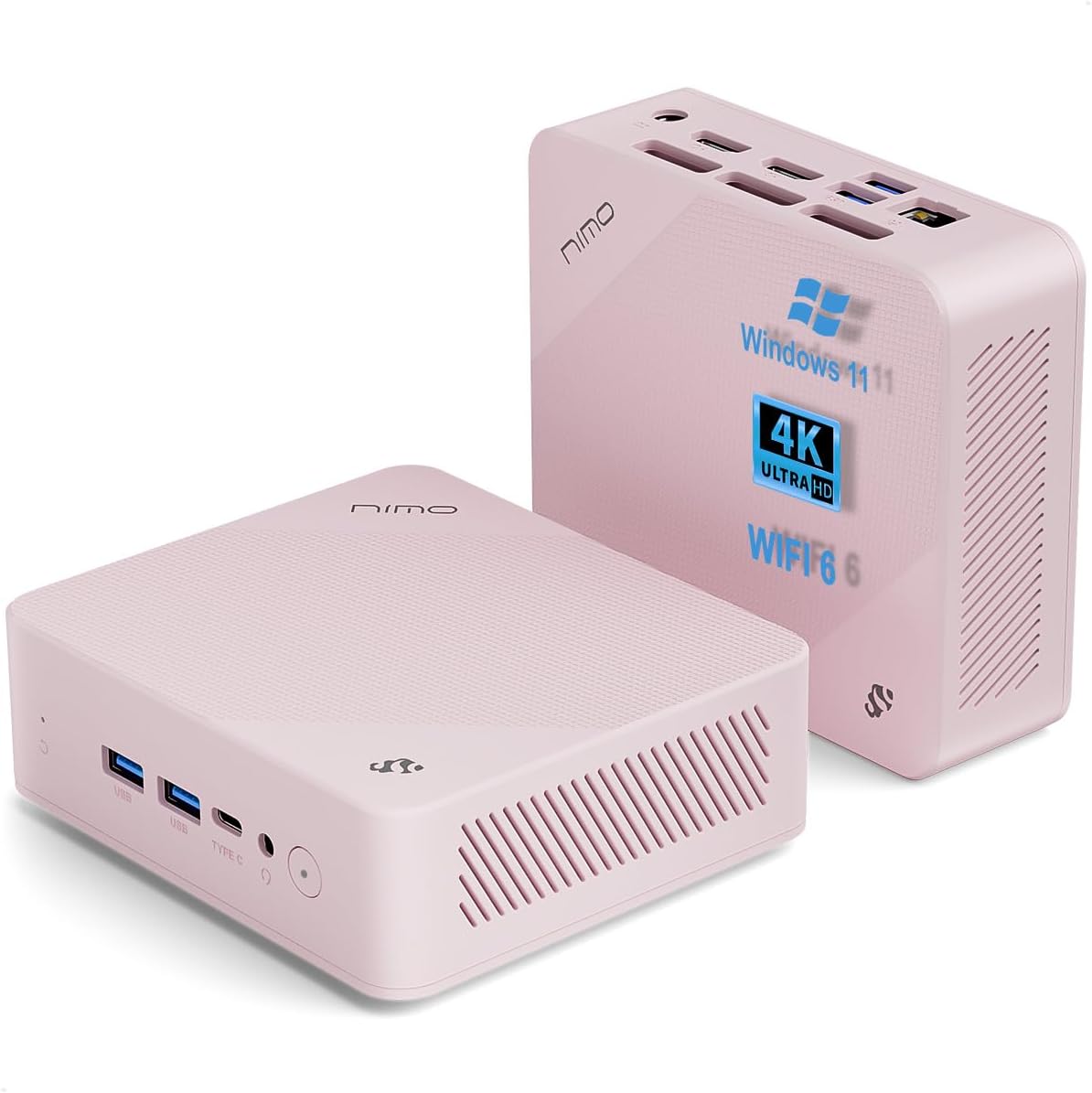
Image : Avant et arrière views of the NIMO Mini PC N100, showcasing its compact form factor and port layout.

Image: A detailed diagram illustrating the various ports available on the NIMO Mini PC N100, including USB, HDMI, LAN, and Type-C.
- Panneau avant : Power Button, 2x USB Type-A Ports, 1x Type-C Port (multifunction), 1x Audio Port, 1x Reset Button.
- Panneau arrière: 1x Giga LAN Port, 2x HDMI 2.0 Ports, 2x USB Type-A Ports, 1x DC-IN Port, Security Slot, SD Card Reader.
2.2. Principales caractéristiques

Image: A visual summary of the NIMO Mini PC N100's core features, such as Windows 11, WiFi 6, and 4K display support.
- Système opérateur: Windows 11 Famille
- Processeur: 12th Gen Intel N100 Processor
- Mémoire: 8 Go de RAM DDR4
- Stockage: Disque SSD PCIe 1 To
- Connectivité : WiFi 6, Bluetooth 5.2, Gigabit LAN
- Affichage de sortie : Dual HDMI 2.0 and Type-C for up to 4K triple-monitor display
- Refroidissement: 15W Efficient Cooling System

Image: The NIMO Mini PC N100 in a desktop setup, emphasizing its Intel N100 processor, WiFi 6, Bluetooth 5.2, and efficient cooling capabilities.
3. Installation
Follow these steps to set up your NIMO Mini PC N100.
3.1. Contenu du colis
Vérifiez que tous les éléments sont présents dans le colis :

Image: The NIMO Mini PC N100 package contents, including the Mini PC unit, mounting bracket, power adapter, and instruction manual.
- 1x NIMO Mini PC N100 Unit
- 1x support de montage
- 1x Adaptateur secteur
- 1x Manuel d'instructions
3.2. Connexion initiale
- Connecter l'écran : Connect your monitor(s) to the HDMI 2.0 ports or the Type-C port on the Mini PC using appropriate cables.
- Connectez les périphériques : Branchez votre clavier, votre souris et tout autre périphérique USB sur les ports USB Type-A disponibles.
- Connecter l'alimentation : Insérez l'adaptateur secteur dans le port DC-IN du Mini PC, puis branchez l'adaptateur dans une prise de courant.
- Connexion réseau: For a wired connection, connect an Ethernet cable to the Giga LAN port. For wireless, ensure your WiFi network is available.
3.3. Options de placement
The NIMO Mini PC N100 offers flexible placement options:

Image: A visual comparison of VESA mounting and traditional desktop placement for the NIMO Mini PC N100.
- Emplacement sur le bureau : Place the Mini PC on a flat, stable surface with adequate ventilation.
- Installation VESA : Use the included mounting bracket to attach the Mini PC to the back of a VESA-compatible monitor or TV. This helps create a clutter-free workspace.

Image: The NIMO Mini PC N100 discreetly mounted behind a monitor, illustrating its space-saving VESA capability.
4. Mode d'emploi
Learn how to operate your NIMO Mini PC N100 effectively.
4.1. Mise sous/hors tension
- Mise sous tension : Press the Power Button on the front panel. The power indicator light will illuminate.
- Éteindre: In Windows, click the Start button, then select Power > Shut down. Alternatively, you can press and hold the Power Button for a few seconds to force a shutdown (not recommended for regular use).
- Redémarrage: In Windows, click the Start button, then select Power > Restart.
4.2. Configuration de l'affichage
The NIMO Mini PC N100 supports up to three displays simultaneously.

Image: The NIMO Mini PC N100 demonstrating its capability to support a triple display setup for enhanced multitasking.
- Connexion de plusieurs moniteurs : Use the two HDMI 2.0 ports and the Type-C port to connect up to three 4K displays.
- Paramètres d'affichage Windows : Right-click on the desktop and select 'Display settings' to configure display resolution, orientation, and arrangement (extend, duplicate, or show only on one display).
4.3. Extension du stockage
The Mini PC includes an SD card reader for additional storage expansion.

Image: The NIMO Mini PC N100 featuring an SD card slot, allowing for easy storage expansion up to 512GB.
- Insert an SD card into the dedicated slot on the rear panel to expand storage capacity for files et applications.
4.4. Scénarios d'utilisation

Image: The NIMO Mini PC N100 being used in different environments: home entertainment, office work, and classroom learning.
- Divertissements à domicile: Connect to a TV for streaming, media playback, or light gaming.
- Travail de bureau : Ideal for productivity tasks, document editing, and video conferencing.
- Classroom Learning: Suitable for educational applications and online courses.
5. Entretien
Proper maintenance ensures the longevity and optimal performance of your NIMO Mini PC N100.
- Nettoyage: Regularly clean the exterior of the Mini PC with a soft, dry cloth. Use compressed air to clear dust from ventilation grilles. Do not use liquid cleaners directly on the device.
- Ventilation: Ensure the Mini PC is placed in a well-ventilated area. Do not block the air vents.
- Mises à jour logicielles : Maintenez votre système d'exploitation Windows 11 et vos pilotes à jour pour garantir la sécurité et les performances.
- Sauvegarde des données : Sauvegardez régulièrement vos données importantes sur un disque dur externe ou un espace de stockage cloud afin d'éviter toute perte de données.
- Évitez les conditions extrêmes : N’exposez pas le Mini PC à des températures extrêmes, à l’humidité ou à la lumière directe du soleil.
6. Dépannage
This section addresses common issues you might encounter with your NIMO Mini PC N100.
| Problème | Cause possible | Solution |
|---|---|---|
| Pas de courant | Adaptateur secteur non connecté ; problème de prise électrique ; adaptateur défectueux. | Check power cable connection; try a different outlet; ensure adapter is working. |
| Aucun affichage sur le moniteur | Monitor off or incorrect input; display cable loose or faulty. | Ensure monitor is on and set to correct input (HDMI/Type-C); check display cable connections; try a different cable or monitor. |
| Aucune connexion internet (Wi-Fi) | Wi-Fi disabled; incorrect password; router issue. | Ensure Wi-Fi is enabled in Windows settings; verify Wi-Fi password; restart router. |
| No internet connection (LAN) | Ethernet cable loose or faulty; router issue. | Check Ethernet cable connection; try a different cable; restart router. |
| Les périphériques (clavier/souris) ne fonctionnent pas. | Connexion USB défectueuse ; problème de pilote. | Reconnect USB device; try a different USB port; check device manager for driver issues. |
| Système lent ou ne répondant pas | Trop d'applications en cours d'exécution ; espace disque insuffisant ; logiciels malveillants. | Close unnecessary applications; free up disk space; run antivirus scan; restart the PC. |
7. Spécifications
Detailed technical specifications for the NIMO Mini PC N100.

Image: Diagram highlighting the Intel 12th Gen N100 Processor, the core of the NIMO Mini PC N100's performance.
| Fonctionnalité | Spécification |
|---|---|
| Numéro de modèle | N100 |
| Système opérateur | Windows 11 Famille |
| Processeur | Intel 12th Gen N100 (3.4 GHz Intel_Mobile_CPU, 4 Cores) |
| BÉLIER | Mémoire SDRAM DDR8 de 4 Go |
| Stockage | 1 TB Solid State Drive (PCIe SSD) |
| Résolution d'écran maximale | 3840 x 2160 pixels (4K) |
| Graphique | Carte graphique Intel UHD (intégrée) |
| Connectivité | WiFi 6, Bluetooth 5.2, Gigabit LAN |
| Ports | 2x HDMI 2.0, 4x USB Type-A (USB3.2), 1x Type-C (multifunction), 1x Giga LAN, 1x DC-IN, 1x Audio, 1x SD Card Reader, 1x Security Slot |
| Dimensions (L x l x H) | 4.8 x 4.4 x 1.53 pouces |
| Plateforme matérielle | PC |
| Première date disponible | 1 novembre 2024 |
8. Garantie et assistance
NIMO is committed to providing excellent after-sales service and support for your Mini PC N100.

Image : Un surview of NIMO's commitment to after-sales excellence, including support, returns, and customer service.
8.1. Informations sur la garantie
- Période de garantie : The NIMO Mini PC N100 is covered by a garantie de deux ans à compter de la date d'achat.
- Politique de retour: Vous pouvez retourner tout produit NIMO pour quelque raison que ce soit dans le 90 jours d'achat.
8.2. Assistance clientèle
NIMO provides professional and high-quality customer service. If you have any product-related questions or require assistance, please contact us:
- E-mail: service@nimopc.com
- En ligne: Visitez le site officiel de NIMO website or product page for contact options and support resources.
Our team of professional technicians is ready to help resolve any issues you may encounter. We aim to reply to all inquiries promptly.