
Docooler Transparent Wireless Dual-Mode Mouse
Docooler Transparent Wireless Dual-Mode Mouse User Manual
Model: Transparent Wireless Dual-Mode Mouse
Introduction
This user manual provides comprehensive instructions for the Docooler Transparent Wireless Dual-Mode Mouse. It covers product features, setup, operation, maintenance, and troubleshooting to ensure optimal performance and user experience. Please read this manual carefully before using the product.
Contenu du colis
À l'ouverture du colis, veuillez vérifier que tous les éléments suivants sont inclus :
- 1 x Docooler Transparent Wireless Dual-Mode Mouse
- 1 x câble de chargement de type C
- 1 x USB Dongle (2.4G Receiver)
- 1 x Manuel d'utilisation (ce document)
Caractéristiques du produit
The Docooler Transparent Wireless Dual-Mode Mouse offers advanced features for enhanced productivity and gaming:
- Connectivité bimode : Supports both 2.4G wireless and Bluetooth 5.0 for versatile connection options.
- Conception transparente : Unique transparent casing with visible internal components and RGB lighting.
- DPI réglable : Three-level DPI settings (800/1200/1600) for precise cursor control.
- RGB Water-Cooled Lights: Dynamic RGB lighting effects for aesthetic appeal.
- Magnetic PC Cover: Easy access to the USB dongle and secure closure.
- Batterie rechargeable : Batterie intégrée de 400 mAh avec chargement par port USB-C.
- Affichage du niveau de batterie: Integrated indicator for real-time power monitoring.
- Commutation par simple pression d'un bouton : Seamless transition between connected devices.

Image: The Docooler Transparent Wireless Mouse showcasing its vibrant RGB water-cooled lighting. The transparent design allows visibility of the internal components, enhancing its unique aesthetic.
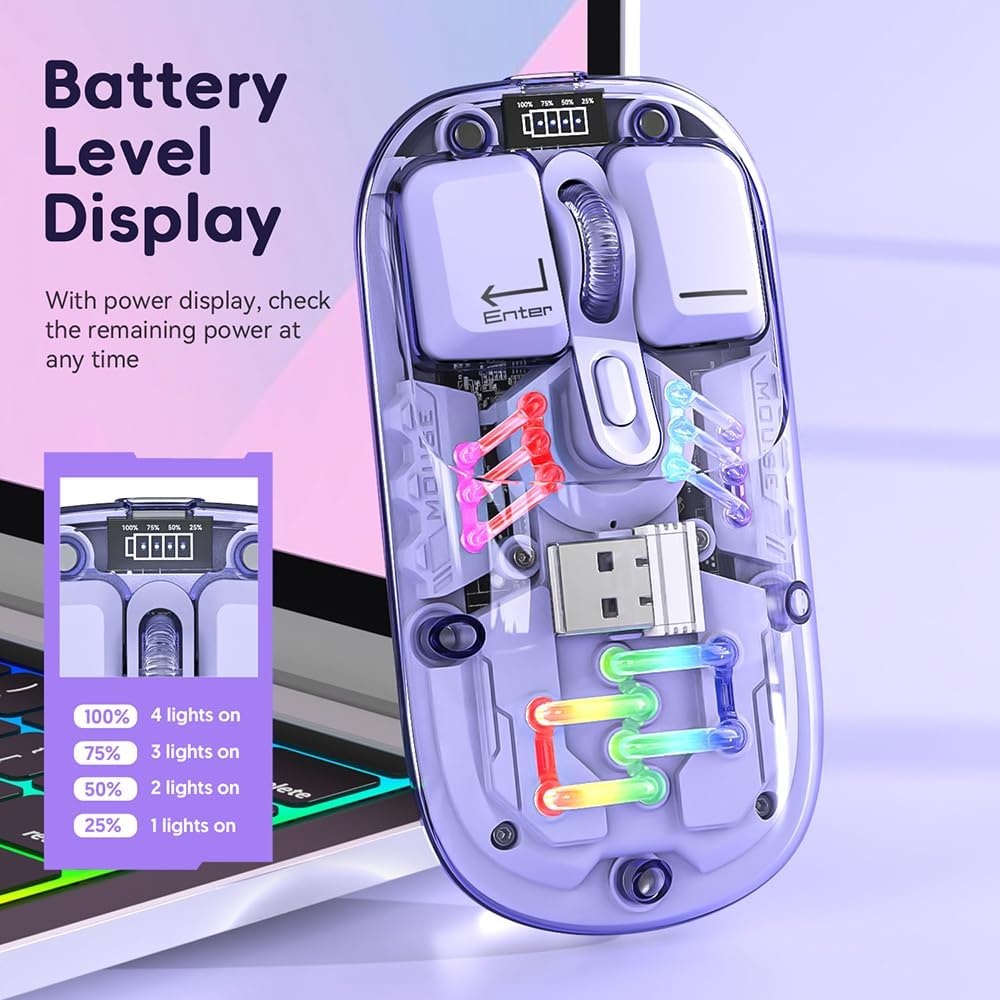
Image: Un gros plan view of the Docooler Transparent Wireless Mouse highlighting its battery level display. The display shows the remaining power with four indicator lights representing 100%, 75%, 50%, and 25% charge levels.

Image: The Docooler Transparent Wireless Mouse demonstrating its strong magnetic adsorption design. The top cover can be easily removed and reattached, ensuring the USB dongle is securely stored and accessible.
Installation
Chargement de la souris
Before first use, it is recommended to fully charge the mouse. Use the provided Type-C charging cable.
- Connect the Type-C end of the charging cable to the mouse's charging port.
- Connectez l'extrémité USB-A du câble de chargement à une source d'alimentation USB (par exemple, un port USB d'ordinateur, un adaptateur mural USB).
- Les voyants de la batterie indiqueront la progression de la charge. Une charge complète prend généralement entre 2 et 3 heures.

Image: The Docooler Transparent Wireless Mouse connected via its Type-C charging port, illustrating the charging process. The image highlights the convenience of Type-C charging and indicates a typical charging time of 2-3 hours.
Connexion de la souris
The mouse supports two connection modes: 2.4G Wireless and Bluetooth (BT).
Mode sans fil 2.4G
- Locate the USB dongle inside the mouse, under the magnetic cover.
- Remove the USB dongle and plug it into an available USB port on your computer.
- Faites glisser le commutateur de mode situé sous la souris sur la position « 2.4G ».
- La souris devrait se connecter automatiquement à votre ordinateur.
System Requirements for 2.4G: Windows XP, Windows 7, Windows 8, Windows 10 and above, Android 4.4 and above, iOS 13 or later, MacOS X 10.5 or later, Linux Kernel 2.6+2, Chrome OS.
Mode Bluetooth (BT)
- Faites glisser le commutateur de mode situé sous la souris sur la position « BT ».
- Press and hold the left, middle (scroll wheel), and right buttons simultaneously for 3 seconds to enter Bluetooth pairing mode. The mouse's lights may flash to indicate pairing mode.
- Sur votre appareil (ordinateur, tablette, smartphone), ouvrez les paramètres Bluetooth et recherchez de nouveaux appareils.
- Select "BT5.0" from the list of available devices to pair.
- Once paired, the mouse's lights will stabilize, and it will be ready for use.
System Requirements for Bluetooth: Windows 8, Windows 10, Android 5.0 and above, iOS 13 and above, macOS X 10.10 and above. Requires BT 4.0 or later BT adapter.
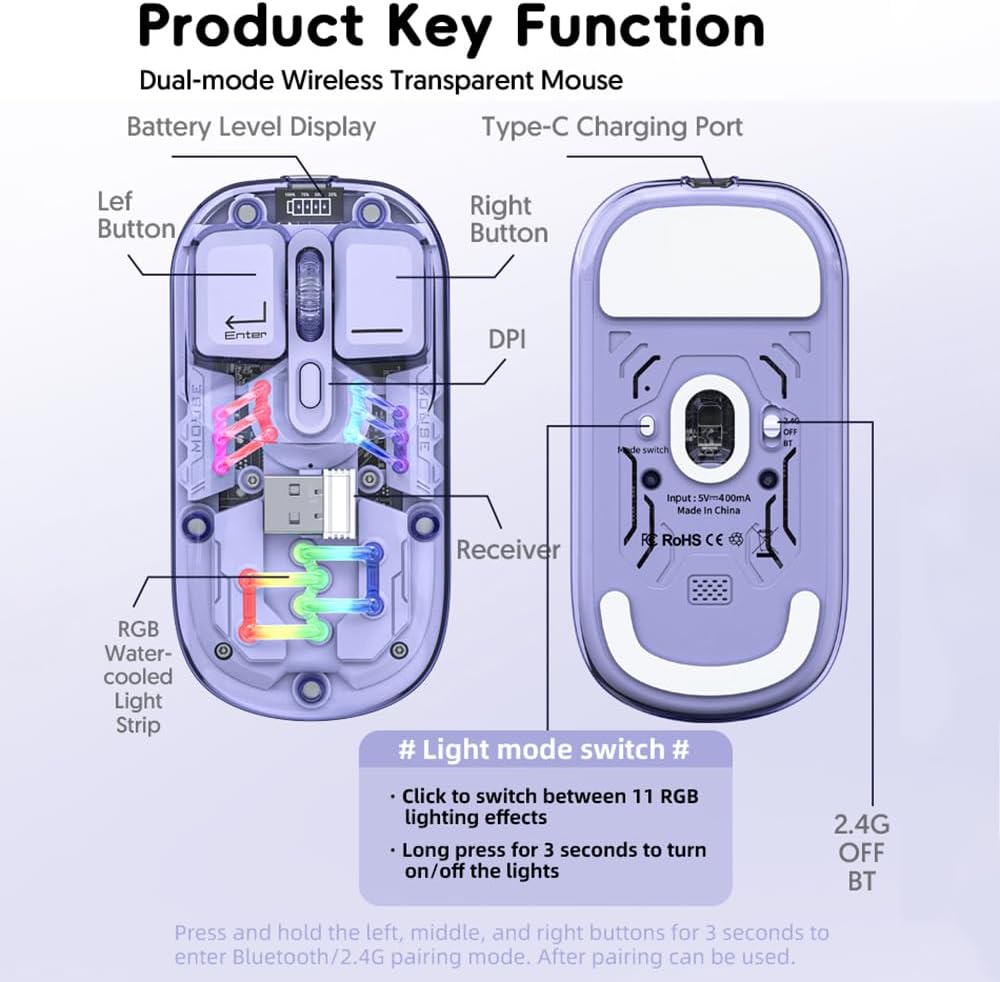
Image: A detailed diagram illustrating the key functions and connection points of the Docooler Transparent Wireless Mouse. It shows the left and right buttons, DPI button, Type-C charging port, receiver storage, RGB light strip, and the mode switch (2.4G/OFF/BT) on the bottom. Instructions for light mode switching and pairing are also visible.
Mode d'emploi
Réglage DPI
The mouse features three adjustable DPI levels: 800, 1200 (default), and 1600. To cycle through DPI settings, press the DPI button located on the top of the mouse, near the scroll wheel. Each press will switch to the next DPI level.
Contrôle d'éclairage RVB
The mouse is equipped with RGB water-cooled lights. To control the lighting effects:
- Effets lumineux de commutation : Click the dedicated light mode switch button (as indicated in the "Product Key Function" diagram) to cycle through 11 different RGB lighting effects.
- Allumer/éteindre les lumières : Long press the light mode switch button for 3 seconds to turn the RGB lights on or off.
Mode d'économie d'énergie
To conserve battery life, the mouse enters different sleep states when inactive:
- Sommeil léger : Après 60 secondes d'inactivité, la souris passe en mode veille légère.
- Sommeil profond: Après 10 minutes d'inactivité, la souris entre en état de veille profonde.
- Se réveiller: To wake the mouse from any sleep state, simply move the mouse or press any button.
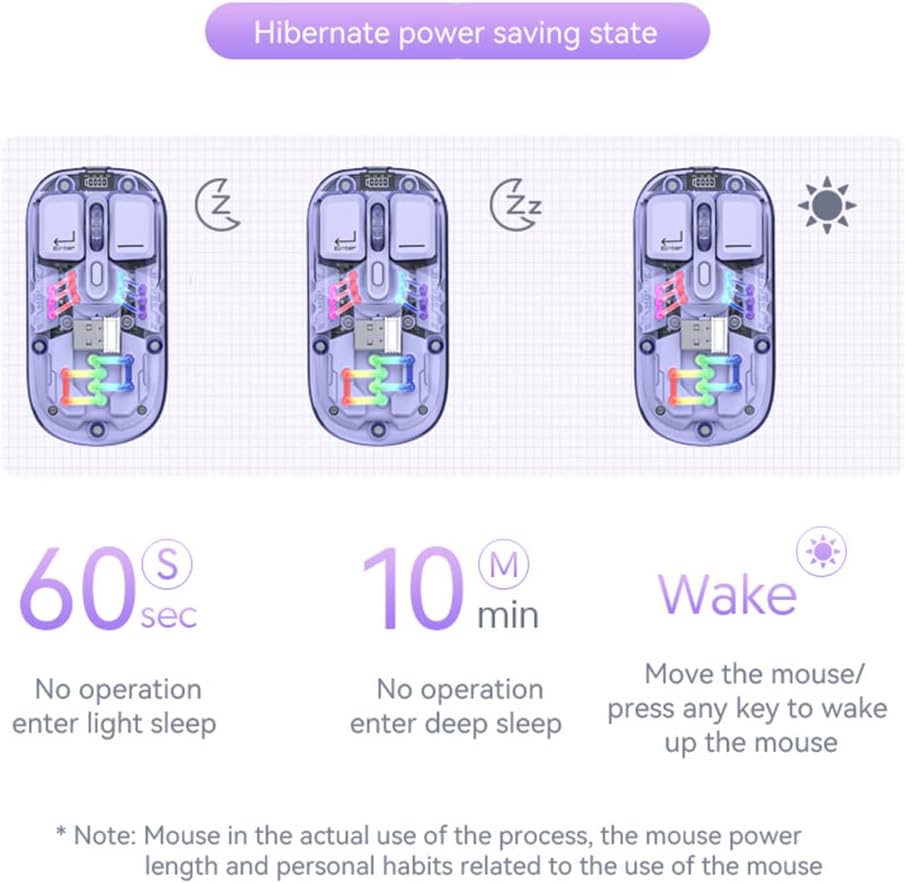
Image: A visual representation of the Docooler Transparent Wireless Mouse's hibernate power saving states. It illustrates that the mouse enters light sleep after 60 seconds of inactivity, deep sleep after 10 minutes, and can be woken by moving the mouse or pressing any key.
Caractéristiques
Detailed technical specifications for the Docooler Transparent Wireless Dual-Mode Mouse:
| Fonctionnalité | Spécification |
|---|---|
| Couleurs optionnelles | Purple, Yellow, White, Black, Pink |
| Niveaux de PPP | 800 / 1200 (par défaut) / 1600 |
| Vol de chargetage/Courant | DC 5V / ≤400mA |
| Capacité de la batterie | 400mAh |
| Mode de charge | Type C |
| Mode de transmission | Wireless 2.4G / Bluetooth (BT) |
| Version Bluetooth | 5.0 |
| Nom Bluetooth | BT5.0 |
| Vol de travailtage | 3.3 V - 4.2 V |
| Working Current (Light On) | ≤25mA |
| Working Current (Light Off) | ≤8mA |
| Dimensions du produit | 113.5 x 58 x 25 ±2mm (4.47 x 2.28 x 0.1 inches) |
| Poids du produit | Approx. 70g (including 2g receiver) / 2.47 ounces |
| Système d'exploitation compatible (2.4 GHz) | Windows XP/7/8/10+, Android 4.4+, iOS 13+, MacOS X 10.5+, Linux Kernel 2.6+, Chrome OS |
| Compatible OS (BT) | Windows 8/10, Android 5.0+, iOS 13+, macOS X 10.10+ (BT 4.0+ adapter required) |

Image: A summary table of the Docooler Transparent Wireless Mouse's key product parameters, including BT version, connection method, DPI range, mouse size, product weight, battery capacity, voltage, system support, available colors, and version type.

Image: A technical drawing illustrating the precise dimensions of the Docooler Transparent Wireless Mouse, showing its length (113mm), width (58mm), and height (25mm).
Dépannage
If you encounter issues with your Docooler Transparent Wireless Dual-Mode Mouse, please refer to the following common solutions:
- Souris ne répondant pas :
- Ensure the mouse is charged. Connect it to a power source using the Type-C cable.
- Check the mode switch on the bottom of the mouse. Make sure it's set to the correct mode (2.4G or BT) for your connection.
- For 2.4G mode, ensure the USB dongle is securely plugged into your computer's USB port. Try a different USB port.
- For Bluetooth mode, ensure Bluetooth is enabled on your device and the mouse is paired. Try re-pairing the mouse (hold left, middle, right buttons for 3 seconds).
- Redémarrez votre ordinateur/appareil.
- Le mouvement du curseur est erratique ou lent :
- Adjust the DPI setting by pressing the DPI button on the mouse.
- Veillez à utiliser la souris sur une surface propre et non réfléchissante.
- Check for low battery. Charge the mouse if necessary.
- RGB lights are off or not changing:
- Long press the light mode switch button for 3 seconds to toggle the lights on/off.
- Click the light mode switch button to cycle through different lighting effects.
- Assurez-vous que la batterie de la souris est suffisamment chargée.
- Échec du jumelage Bluetooth :
- Assurez-vous que le Bluetooth de votre appareil est activé et détectable.
- Make sure the mouse is in Bluetooth pairing mode (lights flashing after holding left, middle, right buttons).
- Check if your device meets the Bluetooth system requirements (BT 4.0 or later adapter).
- Remove any previous pairings of "BT5.0" from your device's Bluetooth list and try pairing again.
Entretien
To ensure the longevity and optimal performance of your Docooler Transparent Wireless Dual-Mode Mouse, follow these maintenance guidelines:
- Nettoyage: Utilisez un chiffon doux et sec pour essuyer la surface de la souris. Pour les saletés tenaces, frottez légèrement.ampHumidifiez le chiffon avec de l'eau. Évitez d'utiliser des produits chimiques agressifs, des nettoyants abrasifs ou des solvants.
- Stockage: When not in use for extended periods, store the mouse in a cool, dry place. Ensure the USB dongle is securely stored within the mouse's magnetic compartment.
- Entretien de la batterie: Avoid fully discharging the battery frequently. Charge the mouse regularly to maintain battery health. Do not expose the mouse to extreme temperatures.
- Manutention: Évitez de laisser tomber la souris ou de la soumettre à des chocs violents, car cela pourrait endommager ses composants internes.
Garantie et assistance
Docooler products are designed for reliability and performance. This product comes with a standard manufacturer's warranty against defects in materials and workmanship. For specific warranty terms and conditions, please refer to the warranty card included in your product packaging or visit the official Docooler website.
If you require technical support or have questions not covered in this manual, please contact Docooler customer service through the retailer where you purchased the product or via the contact information provided on the official Docooler website.
Ask a question about this manual
Ask about setup, troubleshooting, compatibility, parts, safety, or missing instructions. Manuals+ will review the question and use this page’s manual context to help answer it.