
VGN N75BLUE
Manuel d'utilisation du clavier de jeu VGN N75
Model: N75BLUE | Brand: VGN
1. Introduction
Welcome to the user manual for your VGN N75 Gaming Keyboard. This manual provides essential information on setting up, operating, maintaining, and troubleshooting your new keyboard. The VGN N75 is a compact, numeric keyless mechanical keyboard designed for an optimal gaming and typing experience.

Figure 1.1: VGN N75 Gaming Keyboard with RGB lighting enabled.

Figure 1.2 : Angulaire view of the VGN N75 keyboard, highlighting its compact form factor.
2. Consignes de sécurité
Please read the following safety guidelines carefully before using your VGN N75 keyboard:
- Pour éviter tout dommage, tenez le clavier à l'écart des liquides et de l'humidité excessive.
- Évitez d'exposer le clavier à des températures extrêmes (chaudes ou froides).
- Ne tentez pas de démonter ou de modifier le clavier. Cela pourrait annuler votre garantie et l'endommager.
- Use only the provided USB-C cable for connection.
- Manipuler avec précaution pour éviter tout dommage physique dû aux chutes ou aux chocs.
3. caractéristiques du produit
The VGN N75 keyboard is engineered with several features to enhance your typing and gaming experience:
- Disposition compacte à 75 % : The US82 key numeric keyless design offers a space-saving solution compared to full-size keyboards, providing more desk space for mouse movement.
- Advanced Internal Construction: Features multiple buffer layers and specially tuned stabilizers for a smooth, quiet, and consistent typing experience.
- VGN "Dynamic Silver" Mechanical Switches: Equipped with VGN's original linear mechanical switches, offering a responsive feel and vibrant RGB illumination.
- Design distinctif : The "Caribbean Blue" model features striking keycap colors, adding a unique aesthetic to your setup.
- Integrated Metal Volume Knob: A conveniently located metal rotary knob allows for quick and precise volume adjustments, useful for both work and gaming.
- Éclairage RVB personnalisable : Enjoy dynamic and customizable RGB backlight options to personalize your keyboard's appearance.

Figure 3.1: The compact 75% layout of the VGN N75, demonstrating its space-saving advantage over a traditional full-size keyboard.

Figure 3.2: Detail of the VGN N75's unique "Dynamic Silver" mechanical switches, known for their linear feel and RGB compatibility.

Figure 3.3: An exploded diagram illustrating the multiple buffer layers and components within the VGN N75 keyboard, contributing to its smooth and quiet operation.

Figure 3.4: Close-up of the metal volume knob, providing convenient audio control.
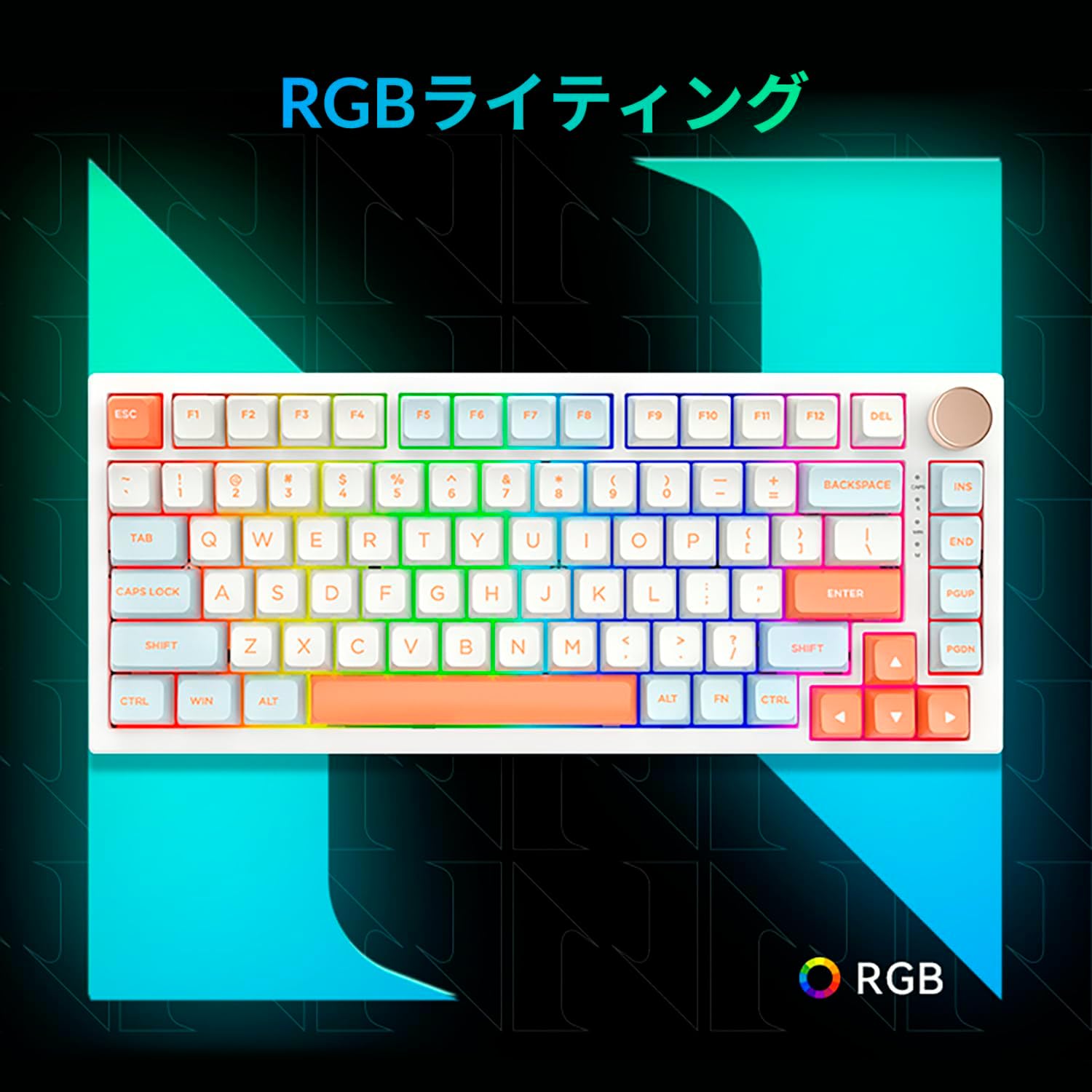
Figure 3.5: The VGN N75 keyboard displaying its customizable RGB lighting, enhancing the visual appeal.
4. Guide de configuration
Follow these steps to set up your VGN N75 keyboard:
- Déballer le clavier : Carefully remove the keyboard and all included accessories (USB cable, keycap puller, replacement key) from the packaging.
- Connectez le câble USB-C : Insert one end of the provided USB-C cable into the USB-C port on the keyboard.
- Connectez-vous à votre appareil : Plug the other end of the USB-C cable into an available USB port on your computer or laptop.
- Installation du pilote (automatique) : Le clavier est prêt à l'emploi. Votre système d'exploitation devrait détecter et installer automatiquement les pilotes nécessaires. Aucune installation manuelle de pilote n'est généralement requise.
- Test initial : Open a text editor or any application to test the keys and ensure all functions are working correctly.
5. Mode d'emploi
This section details the basic operation of your VGN N75 keyboard:
5.1. Fonctions clés de base
The VGN N75 features a standard US82 key layout. All keys function as labeled. For specific key combinations or software-defined macros, refer to any accompanying software documentation (if applicable, not included in this manual).
5.2. Using the Rotary Knob
- Contrôle du volume : Rotate the knob clockwise to increase volume and counter-clockwise to decrease volume.
- Désactiver/activer le son : Appuyez sur le bouton pour couper ou rétablir le son.
5.3. Contrôle de l'éclairage RVB
The VGN N75 supports RGB lighting. While specific key combinations for lighting modes are not provided in the product description, most RGB keyboards allow cycling through effects using function key combinations (e.g., Fn + F-keys or dedicated lighting keys). Experiment with the 'Fn' key in combination with other keys (like arrow keys or Ins/Del/Home/End/PgUp/PgDn) to discover lighting controls.
6. Entretien
Un entretien adéquat prolongera la durée de vie de votre clavier :
- Nettoyage:
- Débranchez le clavier de votre ordinateur avant de le nettoyer.
- Utilisez un chiffon doux et non pelucheux légèrement dampTerminer par un rinçage à l'eau ou avec une solution nettoyante douce pour essuyer les touches et le cadre.
- Pour la poussière et les débris entre les touches, utilisez de l'air comprimé.
- Do not spray liquid directly onto the keyboard.
- Remplacement des touches et des interrupteurs :
- The keyboard comes with a keycap puller and a replacement key.
- To remove a keycap, gently use the keycap puller to grip the keycap and pull upwards.
- To replace a keycap, align it with the switch stem and press down firmly until it clicks into place.
- Note: The VGN N75 features hot-swappable switches, allowing for easy replacement without soldering. To remove a switch, use a switch puller (not explicitly listed as included, but implied by "hot-swappable") to gently pry it out. Align the new switch's pins with the sockets and press firmly until it seats correctly.
7. Dépannage
If you encounter issues with your VGN N75 keyboard, try the following solutions:
- Le clavier ne répond pas :
- Assurez-vous que le câble USB-C est correctement connecté à la fois au clavier et à votre ordinateur.
- Essayez de brancher le clavier sur un autre port USB de votre ordinateur.
- Redémarrez votre ordinateur.
- Testez le clavier sur un autre ordinateur pour exclure un problème lié au système.
- Clés non enregistrées :
- Vérifiez qu'aucun obstacle physique ne se trouve sous la touche.
- If a specific key is not working, consider replacing its switch if you have a switch puller and replacement switches.
- Problèmes d'éclairage RVB :
- Vérifiez que le clavier est correctement alimenté.
- Try cycling through lighting modes using the keyboard's function key combinations.
- Rotary Knob Not Working:
- Check for any physical obstructions around the knob.
- Vérifiez que le clavier est correctement connecté.
8. Spécifications
| Attribut | Détail |
|---|---|
| Marque | VGN |
| Numéro de modèle | N75BLUE |
| Série | N75 |
| Couleur | Bleu |
| Description du clavier | Mécanique |
| Nombre de clés | 82 |
| Technologie de connectivité | USB-C |
| Type de source d'alimentation | Alimentation USB |
| Appareils compatibles | Ordinateur portable |
| Utilisations recommandées du produit | Jeux |
| Keyboard Backlight Colour Support | RVB |
| Matériel | Plastique |
| Composants inclus | Keycap Puller, Replacement Key, USB Cable |
| Dimensions du colis | 42.1 x 18.8 x 6.5 cm ; 1.1 kg |
| Date de première disponibilité | 22 mars 2024 |
9. Garantie et assistance
The VGN N75 Gaming Keyboard comes with a 1-year warranty from the date of purchase, as indicated in the product listing. This warranty covers manufacturing defects under normal use.
For warranty claims, technical support, or further inquiries, please contact your point of purchase or the official VGN support channels. Keep your proof of purchase for warranty validation.
Note: Le démontage ou la modification non autorisés du produit peuvent annuler la garantie.