
Introduction
This manual provides essential information for the safe and efficient use of your HP 15 Professional Slim High-Performance Laptop. Please read these instructions carefully before using your device. Keep this manual for future reference.
1. Configuration initiale
1.1 Déballage et branchement de l'alimentation
Carefully remove the laptop and all accessories from the packaging. Connect the provided AC adapter to the laptop's power port and then to a power outlet. It is recommended to fully charge the battery before first use.

Image: The HP 15 laptop shown from the front, with the power adapter connected to the side. This illustrates the initial connection for charging.
1.2 Premier démarrage et configuration du système d'exploitation
Press the power button to turn on the laptop. Follow the on-screen instructions to complete the Windows 11 Home operating system setup. This includes selecting your region, connecting to a Wi-Fi network, and creating a user account.

Image: The HP 15 laptop open, displaying the Windows 11 desktop interface, indicating successful operating system initialization.
2. Utilisation de votre ordinateur portable
2.1 Mode marche/arrêt et veille
- Mise sous tension : Appuyez sur le bouton d'alimentation situé sur le clavier.
- Éteindre: Cliquez sur le bouton Démarrer, puis sur Marche/Arrêt, et sélectionnez « Arrêter ».
- Mode veille: Fermez le couvercle ou cliquez sur le bouton Démarrer, puis sur Marche/Arrêt, et sélectionnez « Veille ».
2.2 Clavier et pavé tactile
The laptop features a full-size island-style QWERTY keyboard and a multi-touch touchpad. Use the touchpad for navigation and gestures. Refer to Windows 11 settings for touchpad customization.
2.3 Connectivité
Your HP 15 laptop offers various connectivity options:
- Wifi: Supports Realtek Killer Wi-Fi 6 (802.11ax) for high-speed wireless internet access.
- Bluetooth : Integrated Bluetooth 5.3 for connecting wireless peripherals like headphones and mice.
- Ports USB :
- Two (2) USB 3.2 Gen 1.0 Type-A ports (5 Gbps signaling rate).
- One (1) USB 3.2 Gen 1.0 Type-C port (5 Gbps signaling rate, data transfer only; charging or external monitors not supported).
- HDMI: One (1) HDMI v1.4b output port for connecting to external displays.
- Prise audio: One (1) headphone/microphone combo port.
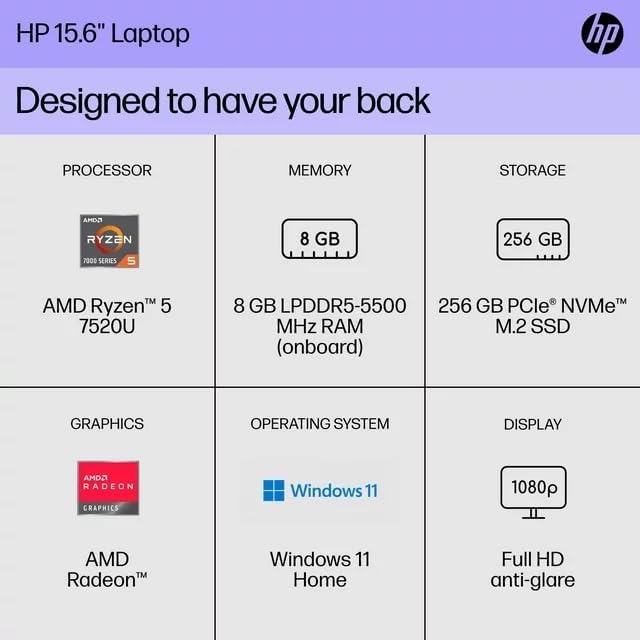
Image : Un côté view of the HP 15 laptop, highlighting the various input/output ports for external device connectivity.
2.4 Audio et caméra
- Audio: Equipped with dual speakers for audio output and HD Audio support.
- Caméra: Features an HP True Vision 720p HD camera with integrated dual array digital microphones, suitable for video calls and online meetings.

Image: The HP 15 laptop displaying a video conference call, demonstrating the use of the integrated camera and microphone.
3. Maintenance et entretien
3.1 Nettoyage de votre ordinateur portable
- Écran: Utilisez légèrement un chiffon doux et non pelucheux.ampTerminer avec de l'eau ou un nettoyant pour écrans. Ne pas vaporiser de liquide directement sur l'écran.
- Clavier et châssis : Utilisez un chiffon doux et sec. Pour les taches tenaces, un chiffon légèrement plus sec peut être utile.amp On peut utiliser un tissu pour éviter que l'humidité ne pénètre dans les ouvertures.
- Vents: Periodically check and gently clean the ventilation openings to prevent dust buildup, which can affect cooling.
3.2 Entretien de la batterie
To maximize battery lifespan, avoid extreme temperatures and prolonged full discharge or full charge states. For long-term storage, charge the battery to approximately 50%.
3.3 Mises à jour logicielles
Regularly check for and install Windows updates and HP driver updates to ensure optimal performance, security, and compatibility. Access Windows Update via Settings > Windows Update.
3.4 Considérations environnementales
This laptop is built with recycled materials, including ocean-bound plastic. Please dispose of the device and its components responsibly at the end of its life cycle, following local regulations for electronic waste.
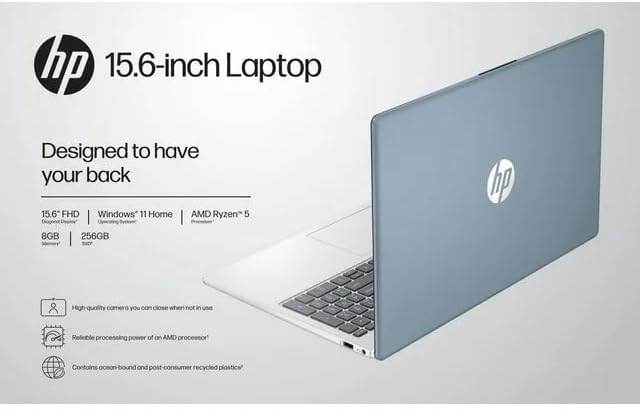
Image: The HP 15 laptop shown from the rear, illustrating its design and potential ventilation areas for maintenance.
4. Dépannage des problèmes courants
This section addresses common problems you might encounter. For more complex issues, refer to the HP support website.
4.1 Pas d'alimentation ou ordinateur portable ne s'allume pas
- Assurez-vous que l'adaptateur secteur est correctement connecté à la fois à l'ordinateur portable et à une prise de courant fonctionnelle.
- Vérifiez le bon fonctionnement de la prise de courant en y branchant un autre appareil.
- Essayez une autre prise de courant.
- Si la batterie est complètement déchargée, laissez-la se recharger pendant au moins 30 minutes avant de tenter de l'allumer.
4.2 Problèmes d'affichage
- Écran blanc: Connect an external monitor via HDMI to check if the issue is with the laptop's display or the graphics output.
- Affichage faible: Adjust screen brightness using the function keys (usually F2/F3 or similar icons) or through Windows display settings.
- Résolution incorrecte : Adjust the display resolution in Windows Settings > System > Display.
4.3 Problèmes de connectivité Wi-Fi ou Bluetooth
- Ensure Wi-Fi and Bluetooth are enabled in Windows Settings > Network & internet or Devices > Bluetooth & devices.
- Redémarrez votre routeur/modem en cas de problème de Wi-Fi.
- Update wireless drivers through HP Support Assistant or Device Manager.
- Forget and reconnect to the Wi-Fi network or re-pair the Bluetooth device.
4.4 Problème audio
- Check volume levels in Windows and ensure speakers are not muted.
- Verify that the correct audio output device is selected in Windows Sound settings.
- Mettez à jour les pilotes audio.
- Test with headphones to determine if the issue is with the internal speakers or the audio output.
5. Spécifications du produit
The following are the technical specifications for the HP 15 Professional Slim High-Performance Laptop (Model 15):
| Fonctionnalité | Détail |
|---|---|
| Nom du modèle | CV 15 |
| Processeur | AMD Ryzen 5 7520U (up to 4.3 GHz max boost, 4 cores, 8 threads) |
| Graphique | Carte graphique AMD Radeon (intégrée) |
| Mémoire (RAM) | Mémoire SDRAM DDR8 de 4 Go |
| Stockage | SSD PCIe NVMe M.2 de 256 Go |
| Afficher | 15.6-inch diagonal, Full HD (1920 x 1080), micro-edge, anti-glare, 250 nits, 45% NTSC |
| Système opérateur | Windows 11 Famille |
| Connectivité sans fil | Realtek Killer Wi-Fi 6 (2x2), Bluetooth 5.3 |
| Ports |
|
| Caméra | Caméra HP True Vision 720p HD avec microphones numériques à double matrice intégrés |
| Audio | Dual speakers, HD Audio |
| Clavier | Full-size island-style QWERTY keyboard |
| Périphérique d'alimentation | Adaptateur secteur |
| Code UPC | 196337455771 |
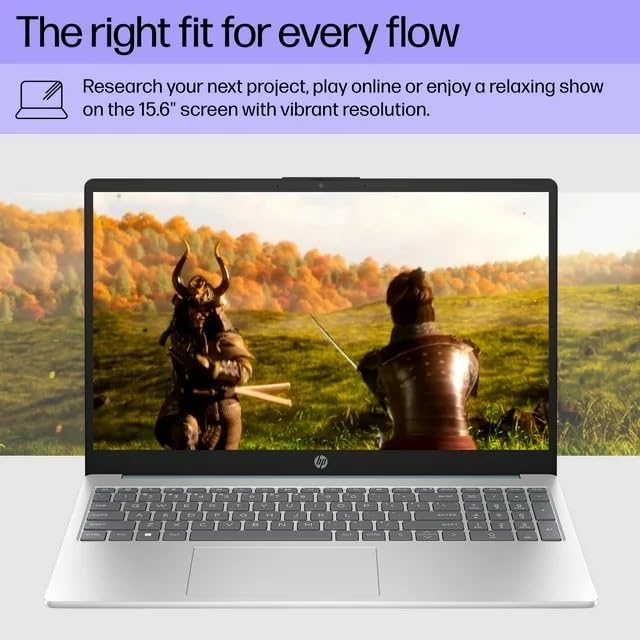
Image: A visual representation of the HP 15 laptop, complementing the detailed specifications listed.
6. Informations sur la garantie
This HP 15 laptop is a renewed product and comes with a Garantie limitée de 90 jours. This warranty covers defects in materials and workmanship under normal use. For specific terms and conditions, please refer to the warranty documentation included with your product or contact HP support.
7. Assistance clientèle
For further assistance, technical support, or to download updated drivers and software, please visit the official HP support website. You can typically find support resources by searching for "HP Support" and your specific model number (HP 15) on their website.
Ressources en ligne : https://support.hp.com