
Maxview TVSL/22
Maxview Manuel d'utilisation du téléviseur intelligent Alphatronics SL Line+ avec lecteur DVD
Model: TVSL/22 | Brand: Maxview
1. Introduction et plusview
This manual provides comprehensive instructions for the setup, operation, and maintenance of your Maxview Alphatronics SL Line+ Smart TV. Designed for mobile use, this versatile television operates on both 12v and 240v power, making it ideal for motorhomes, caravans, trucks, and boats. It features a Full HD LED display, integrated DVD player, Wi-Fi, Bluetooth, and access to popular streaming services via WebSystème d'exploitation.

Image : Avant view of the Maxview Alphatronics SL Line+ Smart TV, highlighting its smart features and integrated DVD player.
Les principales caractéristiques comprennent :
- Full HD LED Smart TV with Freeview.
- WebOS for access to Netflix, Amazon Prime, Disney+, iPlayer, ITVX, Sky Store, YouTube, and more.
- Dual power compatibility (12v or 240v).
- Built-in DVD Player, Bluetooth, Wi-Fi, and Ethernet.
- Multiple connectivity options: 2 HDMI ports, USB Port, and AV connections.
2. Contenu de la boîte
Veuillez vérifier le contenu de votre colis par rapport à la liste ci-dessous :
- Alphatronics TV (TVSL/22)
- Télécommande
- 240v Mains Lead
- Adaptateur secteur 12v
- Manuel de l'utilisateur (ce document)

Image: The included remote control for the Maxview Alphatronics Smart TV.
3. Installation
3.1. Placement et montage
Choose a stable and flat surface for your TV. Ensure adequate ventilation around the unit. If mounting, refer to your specific wall mount instructions and ensure the mount is compatible with VESA standards for your TV size.

Image : Example of the TV installed within a caravan interior.
3.2. Connexion électrique
The TV can be powered by either 12v DC or 240v AC.
- For 240v AC: Connect the supplied 240v Mains Lead to the TV's AC input and then to a standard wall socket.
- For 12v DC: Connect the supplied 12v Power Adapter to the TV's DC input and then to a 12v power source (e.g., vehicle's 12v socket).
Ensure the correct power source is used to prevent damage.
3.3. Connexion de périphériques externes
Le téléviseur comporte différents ports pour connecter des appareils externes :
- Ports HDMI (x2) : For high-definition audio and video devices like satellite receivers, game consoles, or laptops.
- Port USB : Pour connecter des périphériques de stockage USB afin de lire des médias files.
- AV Connections: Pour les appareils plus anciens utilisant la vidéo composite et l'audio stéréo.
- Entrée antenne/satellite : Connect your terrestrial antenna or satellite dish cable for Freeview or satellite TV reception.

Image: Rear panel of the TV displaying available connection ports.
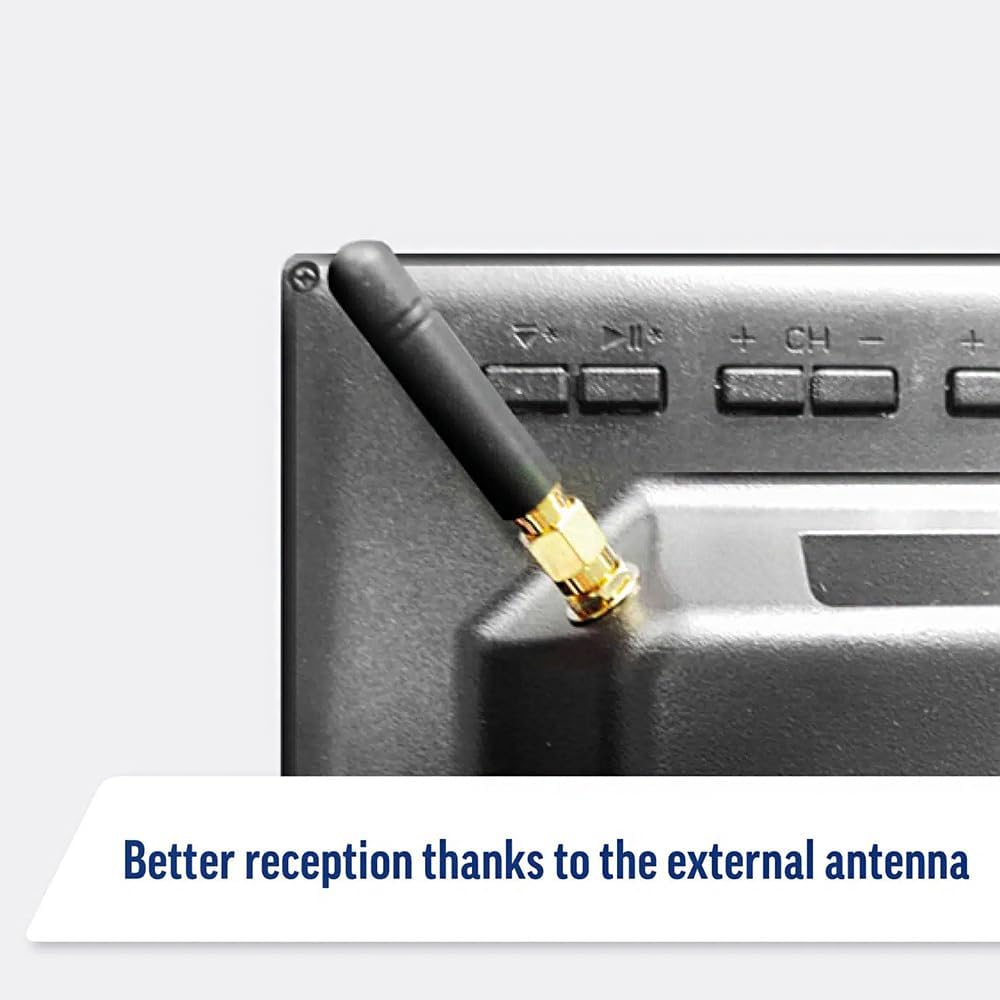
Image: Detail of the external antenna connection for improved signal reception.
3.4. Assistant de configuration initiale
Lors de la première mise en marche, le téléviseur vous guidera à travers un assistant de configuration initiale. Cela comprend :
- Sélection de la langue : Choisissez votre langue préférée.
- Connexion réseau: Connect to your Wi-Fi network or via Ethernet for internet access. This is crucial for Smart TV features.
- Balayage des chaînes : Scan for available Freeview or satellite channels.
- Paramètres de l'heure et de la date : Configurez le fuseau horaire et la date corrects.
4. Utilisation du téléviseur
4.1. Contrôles de base
Use the supplied remote control to navigate the TV. Common functions include:
- Bouton d'alimentation : Allume/éteint le téléviseur ou le met en veille.
- Volume haut/bas : Régle le niveau audio.
- Canal haut/bas : Change de chaîne de télévision.
- Source/Entrée : Selects the input source (HDMI, AV, TV, DVD).
- Boutons de navigation (touches fléchées, OK) : Naviguez dans les menus et sélectionnez les options.
- Bouton d'accueil: Accède à la WebÉcran d'accueil du téléviseur intelligent OS.
- Boutons d'accès rapide : Dedicated buttons for Netflix and Amazon Prime Video for direct access.
4.2. Fonctionnalités de la Smart TV (WebSystème d'exploitation)
Your Maxview Alphatronics TV runs on WebOS, providing a user-friendly interface for accessing a wide range of applications and content.
- Tableau de bord d'accueil : Appuyez sur le Maison button to access the main dashboard, where you can find installed apps, input sources, and settings.
- App Store : Téléchargez et installez des applications supplémentaires depuis la boutique d'applications intégrée.
- Services de diffusion en continu : Easily access popular services like Netflix, Amazon Prime Video, Disney+, BBC iPlayer, ITVX, and YouTube.
- Partage d'écran : Share content from your smartphone or tablet to the TV screen.
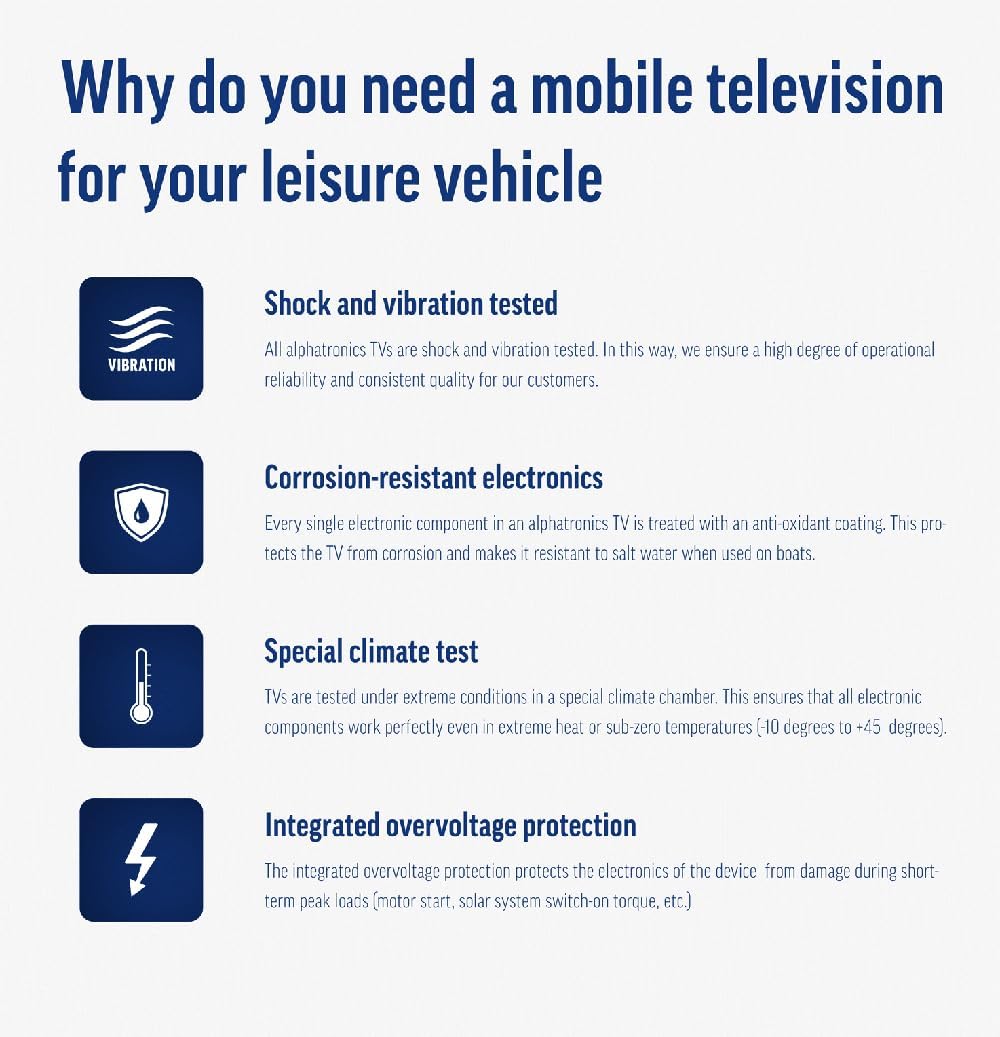
Image: Using a smartphone as a remote control for the TV.
4.3. Fonctionnement du lecteur DVD
The integrated DVD player allows you to enjoy your movie collection on the go.
- Insérez un disque DVD dans la fente située sur le côté du téléviseur.
- Le téléviseur devrait basculer automatiquement sur l'entrée DVD. Si ce n'est pas le cas, appuyez sur le bouton. Source/Entrée button on your remote and select "DVD".
- Use the remote control's playback buttons (Play, Pause, Stop, Fast Forward, Rewind) to control the DVD.
- To eject the disc, press the Eject button on the remote or the TV.
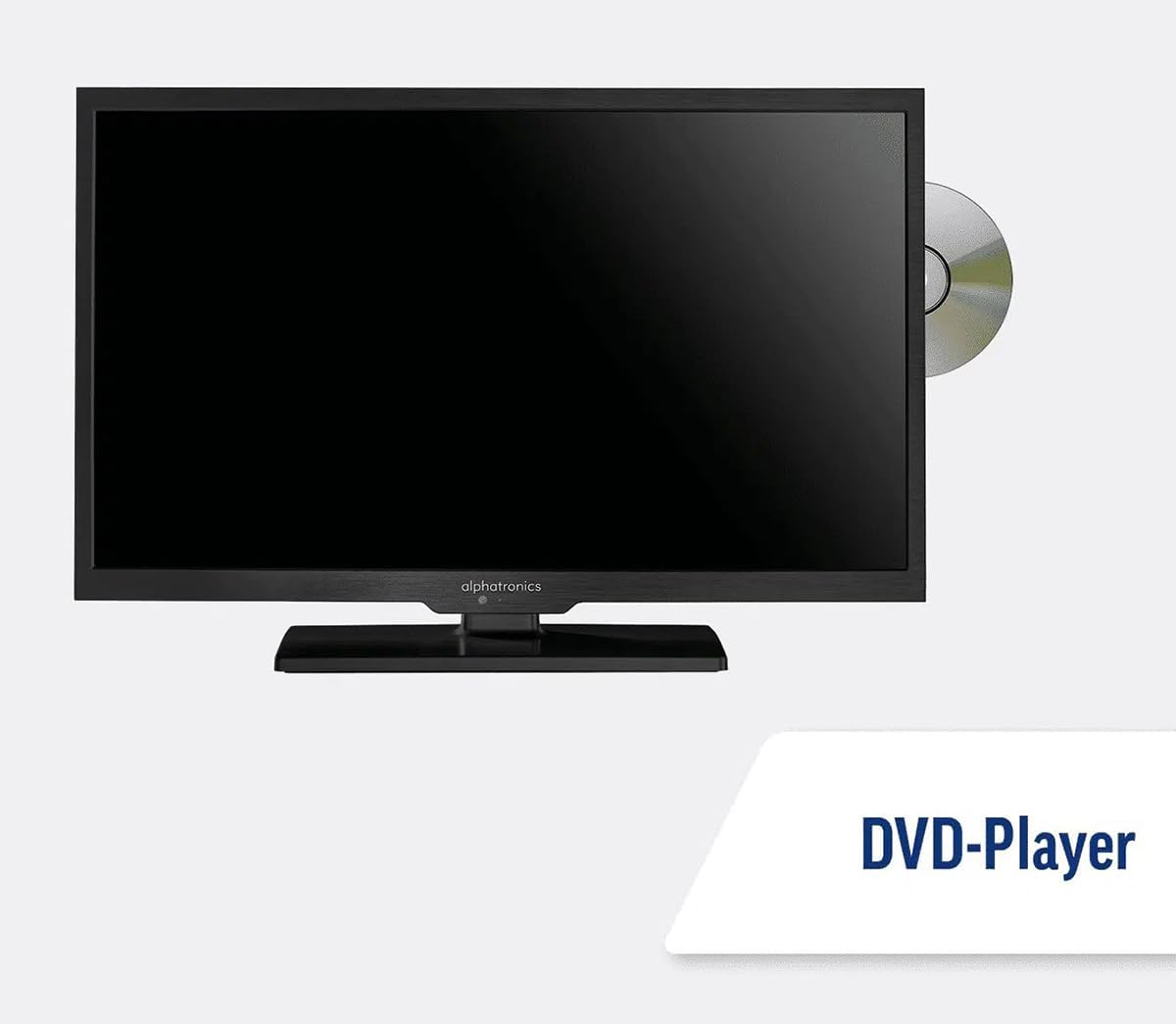
Image: The TV with a DVD disc being inserted into its built-in player.
5. Entretien
5.1. Nettoyage
To clean the TV screen, gently wipe it with a soft, lint-free cloth. For stubborn marks, dampHumidifiez légèrement le chiffon avec de l'eau ou une solution de nettoyage pour écrans. Ne vaporisez pas de liquide directement sur l'écran. Nettoyez le téléviseur.asing avec un chiffon doux et sec.
Prudence: Débranchez toujours le téléviseur de la source d'alimentation avant de le nettoyer.
5.2. Mises à jour logicielles
Your Maxview Alphatronics Smart TV supports automatic software updates via the internet. Ensure your TV is connected to a stable Wi-Fi or Ethernet network to receive the latest firmware and feature enhancements.
- To check for updates manually, navigate to the Paramètres menu on your TV, then look for Mise à jour du logiciel or Informations système.
- Follow the on-screen prompts to download and install any available updates. Do not power off the TV during an update process.

Image: The TV screen indicating a software update in progress.
6. Dépannage
If you encounter issues with your TV, please refer to the following common problems and solutions before contacting support.
| Problème | Cause possible | Solution |
|---|---|---|
| Pas de courant | Power cable disconnected; no power from outlet/source. | Check power connections. Ensure outlet/source is active. Try a different outlet. |
| Pas de signal | Incorrect input selected; antenna/cable disconnected or faulty. | Presse Source/Entrée to select correct input. Check antenna/cable connections. Perform a channel scan. |
| Pas de connexion Internet | Wi-Fi password incorrect; router issue; TV too far from router. | Re-enter Wi-Fi password. Restart your router. Move TV closer to router or use Ethernet. |
| Le DVD ne fonctionne pas. | Disc dirty or scratched; incorrect input selected; region code mismatch. | Clean the disc. Ensure "DVD" input is selected. Check disc region compatibility. |
| La télécommande ne fonctionne pas | Batteries low/dead; obstruction between remote and TV; remote not paired (if Bluetooth). | Remplacez les piles. Retirez les obstructions. Réappairez la télécommande si nécessaire (reportez-vous aux paramètres du téléviseur). |
If the problem persists after trying these solutions, please contact Maxview support client.
7. Spécifications
| Fonctionnalité | Détail |
|---|---|
| Numéro de modèle | TVSL/22 |
| Taille de l'écran | 22 pouces (56 cm en diagonale visible) |
| Technologie d'affichage | DIRIGÉ |
| Résolution | 1080p (Full HD) |
| Dimensions du produit (P x L x H) | 12D x 58L x 38H centimètres |
| Puissance d'entrée | 12v DC / 240v AC |
| Connectivité | Wi-Fi, Bluetooth, Ethernet |
| Ports | 2x HDMI, 1x USB, AV connections, Antenna/Satellite input |
| Caractéristiques spéciales | Smart TV (WebOS), Built-in DVD Player |
| Rapport hauteur/largeur | 16:9 |
| Fabricant | Alphatronics |
8. Garantie et assistance
Your Maxview Alphatronics SL Line+ Smart TV comes with a Garantie d'un an, providing peace of mind regarding your purchase. This warranty covers manufacturing defects and ensures reliable operation.
For warranty claims, technical support, or further assistance, please contact Maxview customer service. You can typically find contact information on the official Maxview website ou sur les matériaux d'emballage.
Please have your model number (TVSL/22) and proof of purchase ready when contacting support.
Remarque : Aucune vidéo officielle du produit fournie par le vendeur n'a été trouvée dans les données fournies pour être intégrée à ce manuel.
Ask a question about this manual
Ask about setup, troubleshooting, compatibility, parts, safety, or missing instructions. Manuals+ will review the question and use this page’s manual context to help answer it.