
1. Introduction
Thank you for choosing the EasySMX T37 Wireless Switch Pro Controller. This manual provides detailed instructions for setting up, operating, maintaining, and troubleshooting your controller. Please read this manual carefully before use to ensure optimal performance and longevity of your device. This controller is compatible with Nintendo Switch, Switch Lite, and Switch OLED consoles.
2. Produit terminéview
The EasySMX T37 is a wireless gamepad designed for an enhanced gaming experience on Nintendo Switch systems. It features an ergonomic design, dual turbo vibration, and 6-axis gyro motion control.

Illustration 2.1 : Avant view of the EasySMX T37 Wireless Switch Pro Controller, showcasing sa forme ergonomique et la disposition de ses boutons.
3. Installation
3.1 Appairage avec la Nintendo Switch
- Allumez votre console Nintendo Switch.
- Dans le menu HOME, sélectionnez Contrôleurs > Changer la prise/l'ordre.
- On the EasySMX T37 controller, press and hold the Bouton SYNC (located on the top edge of the controller) for 3 seconds until the LED indicators start flashing rapidly.
- Once the controller is successfully paired, the player LED(s) on the bottom of the controller will light up solid.
3.2 Charger le contrôleur
Connect the provided USB-C charging cable to the USB-C port on the controller and the other end to a USB power source (e.g., Switch dock, USB wall adapter, computer USB port). The LED indicators will show charging status and turn off when fully charged.
4. Mode d'emploi
4.1 Contrôles de base
The controller features standard button layouts for Nintendo Switch compatibility:
- Boutons A/B/X/Y : Boutons d'action.
- Croix directionnelle: Entrée directionnelle.
- Joysticks analogiques gauche/droite : Contrôle des mouvements et de la caméra.
- Boutons L/R/ZL/ZR : Boutons d'épaule et gâchettes.
- Bouton d'accueil: Retour au menu HOME de la Switch.
- Bouton CAPTURE : Prend des captures d'écran.
- Boutons PLUS (+) / MOINS (-) : Fonctions de démarrage/sélection.

Image 4.1: A user holding the EasySMX T37 controller, demonstrating the comfortable grip and accessible button placement during gameplay.
4.2 Fonction Turbo
The Turbo function allows for rapid, automatic pressing of a button, useful in action or arcade games.
- Activer le mode Turbo : Press and hold the desired action button (A/B/X/Y/L/R/ZL/ZR), then press the Bouton turbo (T button). The button will now auto-fire.
- Ajuster la vitesse turbo : Tout en tenant le Bouton turbo, déplacez le Joystick analogique droit vers le haut ou vers le bas to cycle through three speeds: 5 shots/s, 12 shots/s, and 20 shots/s.
- Désactiver le mode Turbo : Repeat the activation step (hold the action button, then press the Turbo button) or press and hold the Bouton turbo for 5 seconds to clear all Turbo settings.
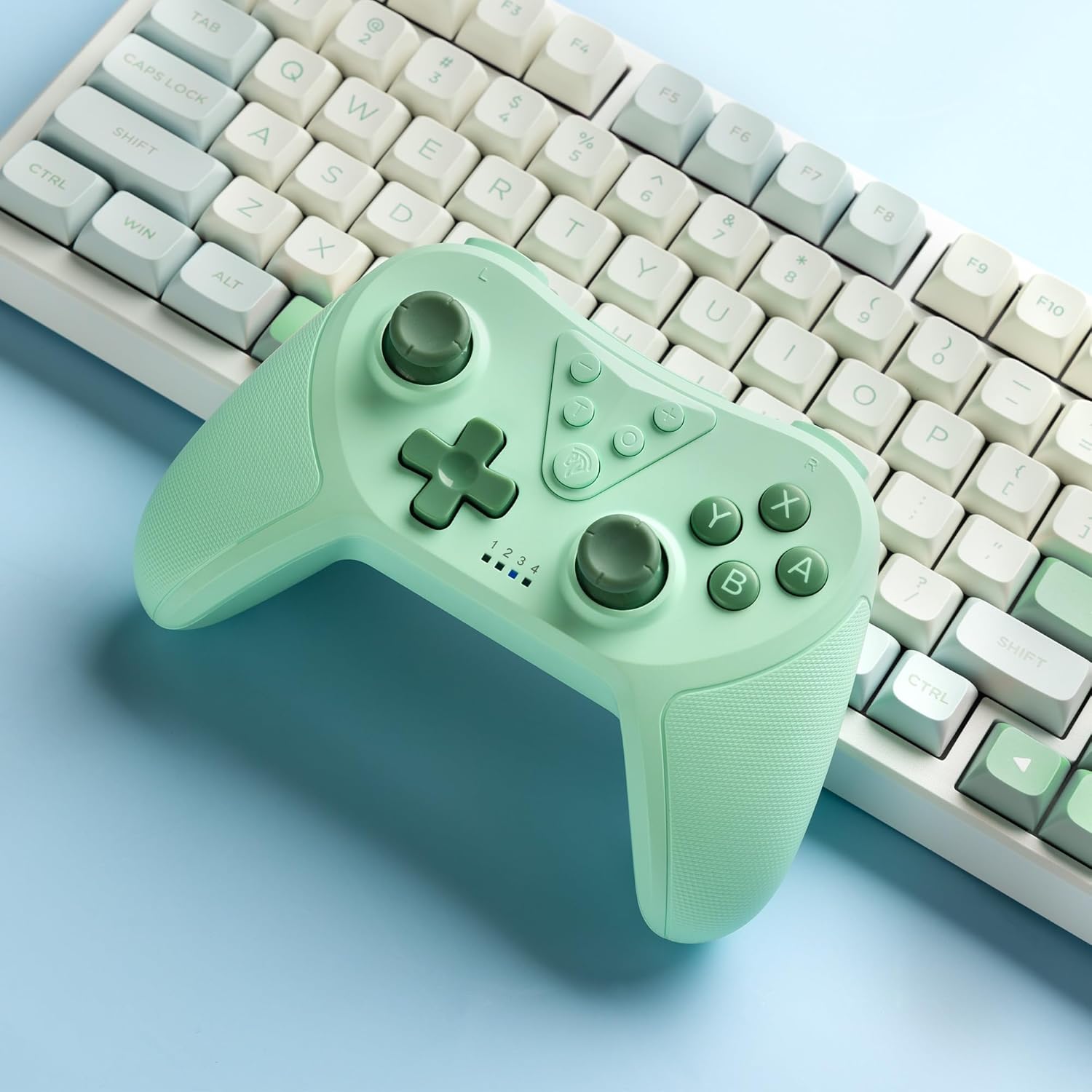
Image 4.2: Illustration of the Turbo function on the EasySMX T37 controller, showing the three adjustable speeds: 5, 12, and 20 shots per second.
4.3 Réglage des vibrations
The controller features dual motors for adjustable vibration feedback, enhancing immersion in games.
- Ajuster l'intensité des vibrations : Appuyez et maintenez enfoncé le Bouton turbo, puis déplacez le Joystick analogique gauche vers le haut ou vers le bas to cycle through four vibration levels: 0% (off), 30%, 70%, and 100%.

Image 4.3: Visual representation of the Dual Vibration feature on the EasySMX T37 controller, indicating four intensity levels from 0% to 100%.
4.4 Commande de mouvement gyroscopique à 6 axes
The built-in 6-axis gyroscope provides precise motion sensing, allowing for intuitive control in games that support motion input.

Image 4.4: Illustration depicting the 6-Axis Gyro Motion Control feature of the EasySMX T37 controller, showing how it interacts with a game on the Nintendo Switch screen.
5. Entretien
- Nettoyage: Utilisez un chiffon doux et sec pour nettoyer la manette. Évitez d'utiliser des produits chimiques agressifs ou des matériaux abrasifs.
- Stockage: Rangez la manette dans un endroit frais et sec, à l'abri de la lumière directe du soleil et des températures extrêmes.
- Entretien de la batterie: Pour prolonger la durée de vie de la batterie, évitez de décharger complètement la manette fréquemment. Rechargez-la régulièrement, même si vous ne l'utilisez pas pendant une période prolongée.
- Évitez les chutes : Protégez la manette des chutes et des chocs, qui peuvent endommager ses composants internes.
6. Dépannage
6.1 Manette non connectée
- Assurez-vous que le contrôleur est chargé.
- Vérifiez que votre console Switch est mise à jour avec la dernière version du système.
- Essayez de réappairer le contrôleur en suivant les étapes de la section 3.1.
- If issues persist, try resetting the controller by inserting a thin object into the small reset hole (if present, usually on the back) for a few seconds.
6.2 Buttons Unresponsive or Lagging
- Assurez-vous que le contrôleur est complètement chargé.
- Move closer to the Switch console to ensure a strong wireless connection.
- Vérifiez qu'aucun obstacle physique ou débris ne se trouve autour des boutons.
- Réappairez la manette.
6.3 Manette ne chargeant pas
- Assurez-vous que le câble USB-C est correctement connecté à la fois à la manette et à la source d'alimentation.
- Essayez d’utiliser un autre câble USB-C ou un autre adaptateur secteur.
- Vérifiez que la source d'alimentation est fonctionnelle.
7. Spécifications
- Modèle: T37
- Connectivité : Sans fil (Bluetooth)
- Compatibilité: Nintendo Switch, Switch Lite, Switch OLED
- Caractéristiques: Dual Turbo Function, Adjustable Vibration, 6-Axis Gyro Motion Control, Ergonomic Design
- Product Identifier (ASIN): B0CTTWN84L
8. Garantie et assistance
Pour obtenir des informations sur la garantie, une assistance technique ou toute autre aide, veuillez consulter le site officiel d'EasySMX. webConsultez leur site web ou contactez directement leur service client. Conservez votre reçu d'achat pour toute réclamation au titre de la garantie.