
1. Introduction
The Phomemo P12 Pro is a compact and versatile label printer designed for various labeling needs at home, in the office, or at school. It features Bluetooth connectivity for seamless smartphone integration and supports a wide range of label types. This manual provides detailed instructions for setting up, operating, and maintaining your P12 Pro label printer.
2. Produit terminéview et déballage
The Phomemo P12 Pro label printer comes with essential accessories to get you started. Upon unboxing, you will find the printer unit, a data cable, an instruction manual, and a sample label roll.
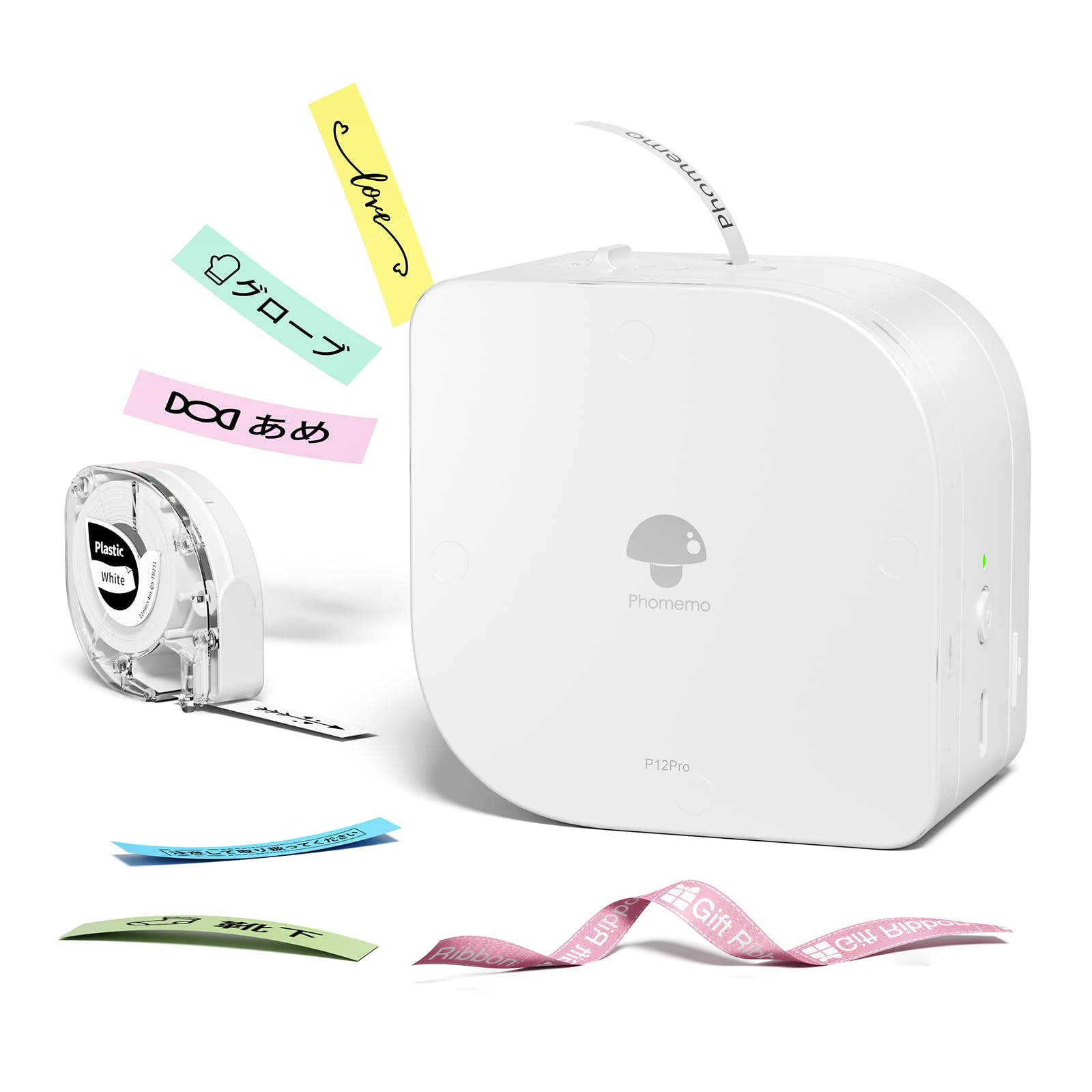
Image: The Phomemo P12 Pro label printer, its packaging, a data cable, and a sample label roll.
Video: This video demonstrates the unboxing of the Phomemo P12 Pro label printer and the installation of a label roll, showing the compact design and ease of setup.
3. Guide de configuration
3.1 Téléchargement et installation de l'application
The Phomemo P12 Pro operates via the 'Print Master' mobile application. Ensure your smartphone is connected to the internet before proceeding.
- Rechercher 'Print Master' in the Google Play Store (for Android devices) or the Apple App Store (for iOS devices).
- Téléchargez et installez l'application.
- Open the 'Print Master' app after installation.
3.2 Connexion Bluetooth
Pour connecter votre imprimante à votre smartphone :
- Ensure the Phomemo P12 Pro printer is charged and powered on. Press and hold the power button for 3 seconds to turn it on.
- Activez le Bluetooth sur votre smartphone.
- Open the 'Print Master' app. The app will automatically search for nearby Phomemo devices.
- Select your P12 Pro printer from the list of available devices to establish a connection. A successful connection will be indicated within the app.
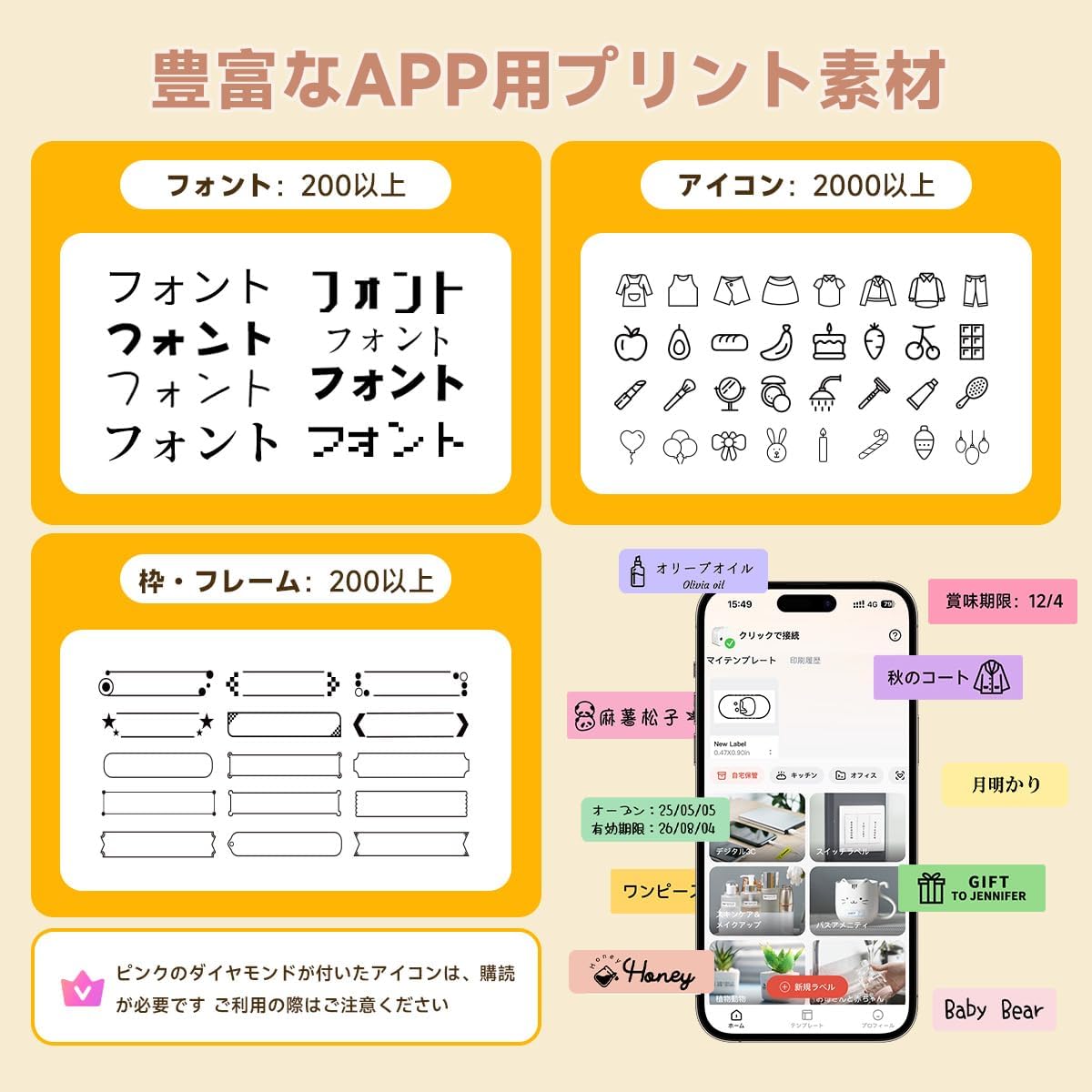
Image: A visual guide showing the four steps: downloading the 'Print Master' app, connecting to the printer via Bluetooth, editing the label content, and finally printing the label.
3.3 Chargement des rouleaux d'étiquettes
The P12 Pro supports label rolls up to 12mm wide.
- Ouvrez le capot de l'imprimante.
- Insert the label roll into the designated slot, ensuring the label feeds out correctly.
- Fermez fermement le couvercle de l'imprimante jusqu'à ce qu'il s'enclenche.

Image: A three-step visual guide demonstrating how to open the printer cover, correctly insert a new label roll, and close the cover for label replacement.
4. Mode d'emploi
4.1 Création et modification des étiquettes
The 'Print Master' app offers extensive customization options for your labels:
- Saisie de texte: Enter your desired text. The app provides over 200 fonts for selection.
- Icônes et cadres : Choose from over 2,000 icons and 200 frames to enhance your labels.
- Caractéristiques spéciales : Create barcodes, QR codes, dates, and tables directly within the app.

Image: A screenshot of the 'Print Master' app interface, highlighting the wide selection of fonts, icons, and frames available for label customization.
4.2 Impression des étiquettes
Après avoir conçu votre étiquette dans l'application :
- Review Votre étiquette s'affiche sur l'écran de l'application.
- Tap the print button in the app.
- The printer will automatically print and cut the label to the specified length.
4.3 Types d'étiquettes pris en charge
The P12 Pro is compatible with various label types, offering flexibility for different applications:
- Thermal Labels: Standard labels for general use.
- Étiquettes à transfert thermique : Durable labels suitable for long-term use.
- Ribbon Labels: Ideal for decorative purposes, such as gift wrapping.
- Fabric Iron-on Labels: For labeling clothing and textiles.
- Glow-in-the-Dark Labels: Pour une visibilité dans des conditions de faible luminosité.

Image: This image displays various label types supported by the P12 Pro, including thermal labels for general use, thermal transfer labels for durability, ribbon labels for decoration, and fabric iron-on labels for textiles.
4.4 Orientation d'impression
The printer supports both vertical and horizontal printing, allowing you to choose the best orientation for your label content.
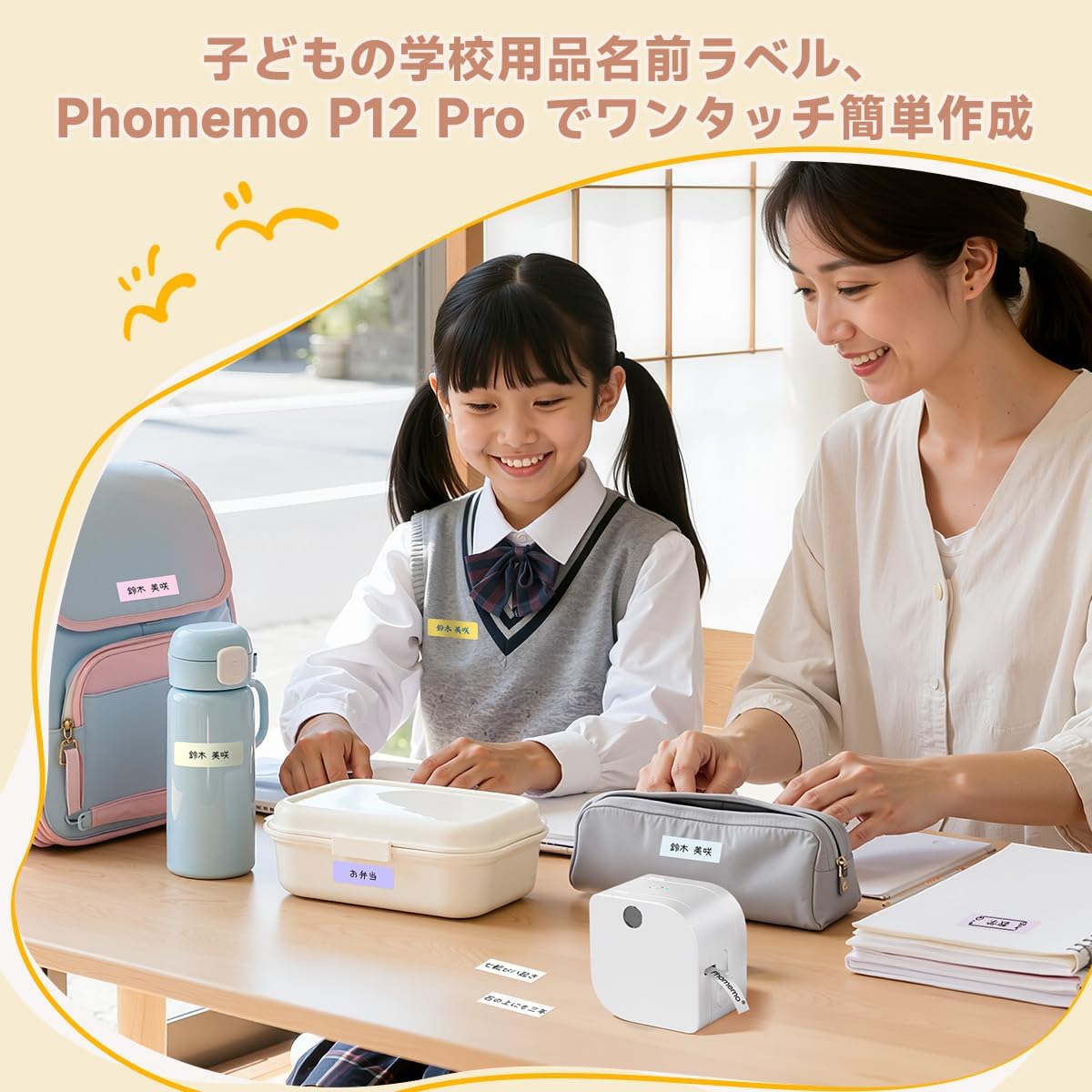
Image: A demonstration of vertical printing, showing labels applied to kitchen containers with text oriented vertically.
4.5 Ex d'applicationamples
The Phomemo P12 Pro is suitable for a wide range of uses:
- Organisation du domicile : Labeling kitchen containers, storage boxes, and managing expiration dates.
- École: Creating name tags for children's belongings.
- Bureau: Classifying documents, labeling cables, and managing assets.
- Artisanat et cadeaux : Personalizing ribbons for gift wrapping and decorative purposes.
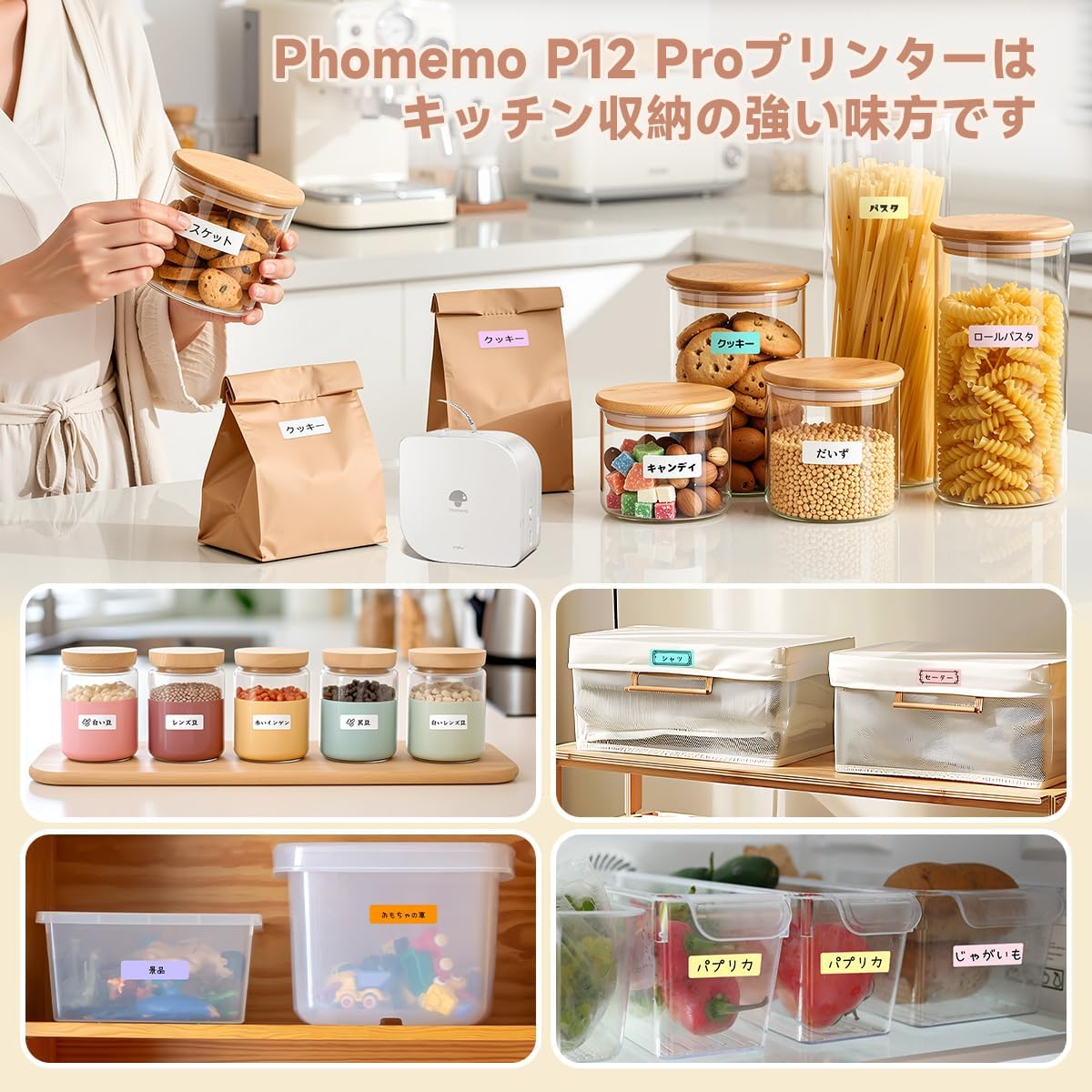
Image: The Phomemo P12 Pro label printer being used to create labels for organizing various items in a kitchen, such as food containers and pantry staples.

Image: The Phomemo P12 Pro label printer in an office setting, demonstrating its use for organizing documents, fileet autres fournitures de bureau.

Image: The Phomemo P12 Pro label printer being used to print custom messages on ribbons for gift wrapping, adding a personalized touch to presents.
Video: This video shows the Phomemo P12 Pro label printer being used to print custom text on ribbons for gift wrapping and flower arrangements, demonstrating its versatility for creative applications.
5. Entretien
5.1 Chargement de la batterie
The Phomemo P12 Pro features a built-in rechargeable battery. Connect the printer to a USB power source using the provided data cable when the battery is low. The indicator light will show charging status.
5.2 Nettoyage de la tête d'impression
To ensure optimal print quality, periodically clean the printer head with a soft, lint-free cloth lightly dampened with isopropyl alcohol. Ensure the printer is turned off before cleaning.
6. Dépannage
If you encounter issues with your Phomemo P12 Pro label printer, please refer to the following common solutions:
- L'imprimante ne se connecte pas : Ensure Bluetooth is enabled on your smartphone and the printer is powered on and within range. Restart both the printer and the app.
- Mauvaise qualité d'impression : Check if the label roll is installed correctly. Clean the printer head as described in the maintenance section. Ensure the label type is compatible with the printer.
- Étiquettes ne nourrissant pas : Verify that the label roll is properly seated and not jammed. Ensure the printer cover is securely closed.
- Problèmes d'application : Update the 'Print Master' app to the latest version. If problems persist, try reinstalling the app.
Pour obtenir de l'aide supplémentaire, veuillez contacter le service client de Phomemo.
7. Spécifications
| Fonctionnalité | Spécification |
|---|---|
| Marque | Phomémo |
| Nom du modèle | P12 Pro |
| Technologie de connectivité | Bluetooth |
| Technologie d'impression | Thermique |
| Caractéristiques spéciales | Network Ready, Portable, Thermal Transfer |
| Couleur | Blanc |
| Sortie de l'imprimante | Monochrome |
| Vitesse d'impression maximale (monochrome) | 10 mm/s |
| Poids de l'article | 198 grammes |
| Appareils compatibles | Smartphone (Android et iOS) |
| Couleur de l'encre | Noir |
| Résolution | 203 ppp |
| Format maximal du support (papier) | 12 mm |
| Dimensions du produit (P x L x H) | 8.2 x 8.2 x 6.1 cm |
8. Garantie et assistance
8.1 Garantie du fabricant
The Phomemo P12 Pro label printer comes with a Garantie constructeur d'un anVeuillez conserver votre preuve d'achat pour toute réclamation au titre de la garantie.
8.2 Assistance clientèle
For any technical issues, questions, or support needs not covered in this manual, please visit the official Phomemo webConsultez le site ou contactez directement leur service client. Les coordonnées se trouvent généralement sur l'emballage du produit ou sur le site officiel. website.