
1. Introduction
This manual provides detailed instructions for the installation, operation, and maintenance of your EZoneTronics RM-26VW93-2G32 9-inch Android 11 Car Stereo. This universal car radio is designed for various VW models including Passat, Golf MK5, Golf MK6, Jetta, T5, EOS, POLO, Touran, Seat, and Sharan. It features an Android 11 operating system, integrated CarPlay and Android Auto, Bluetooth 5.0, FM/RDS radio, and GPS navigation. Please read this manual thoroughly before using the product to ensure proper function and safety.
2. Consignes de sécurité
- Utilisez toujours l'appareil de manière responsable et conformément au code de la route. La distraction au volant peut provoquer des accidents.
- N’essayez pas d’installer ou de réparer l’appareil vous-même si vous n’êtes pas qualifié. Une installation incorrecte peut endommager le système électrique du véhicule ou l’appareil lui-même.
- Assurez-vous que tous les câbles sont correctement connectés et isolés afin d'éviter les courts-circuits.
- Tenez l'appareil à l'écart de l'eau et de l'humidité excessive.
- Évitez d'exposer l'appareil à des températures extrêmes.
3. Contenu du colis
Vérifiez que tous les éléments énumérés ci-dessous sont inclus dans votre colis :
- 1 x EZoneTronics Android Car Stereo Unit
- 1 x antenne GPS
- 1 x VW Wiring Harness
- 1 x Boîtier CANBUS
- 1 x adaptateur d'antenne radio
- 1 x adaptateur USB
- 1 x Manuel d'utilisation (ce document)
4. Produit terminéview
The EZoneTronics RM-26VW93-2G32 is a 9-inch universal car stereo designed to enhance your driving experience with advanced features and seamless integration. Key features include:
- Système Android 11 : Provides a fast, stable, and user-friendly operating environment.
- 9-inch TFT Capacitive Touchscreen: High-definition display with 1280 x 720 pixels for clear visuals.
- Integrated CarPlay & Android Auto: Connect your smartphone via USB for navigation, music, calls, and messages.
- Bluetooth 5.0: For hands-free calling, phonebook access, and audio streaming (A2DP).
- Navigation GPS: Built-in receiver compatible with various navigation apps like Waze, Navfree, and Google Maps.
- Radio FM/RDS : Automatic memory and preset scanning for your favorite stations.
- Prise en charge des commandes au volant : Retains original vehicle steering wheel control functionality via CANBUS.
- Lecteur multimédia : Prend en charge différents formats audio et vidéo.
- Entrée caméra arrière : Supports CVBS/AHD cameras for parking assistance.
- Mémoire Flash de 32 Go : Ample storage for music, map data, and videos.
- 4 x 45W Output Power: Offre un son clair et puissant.
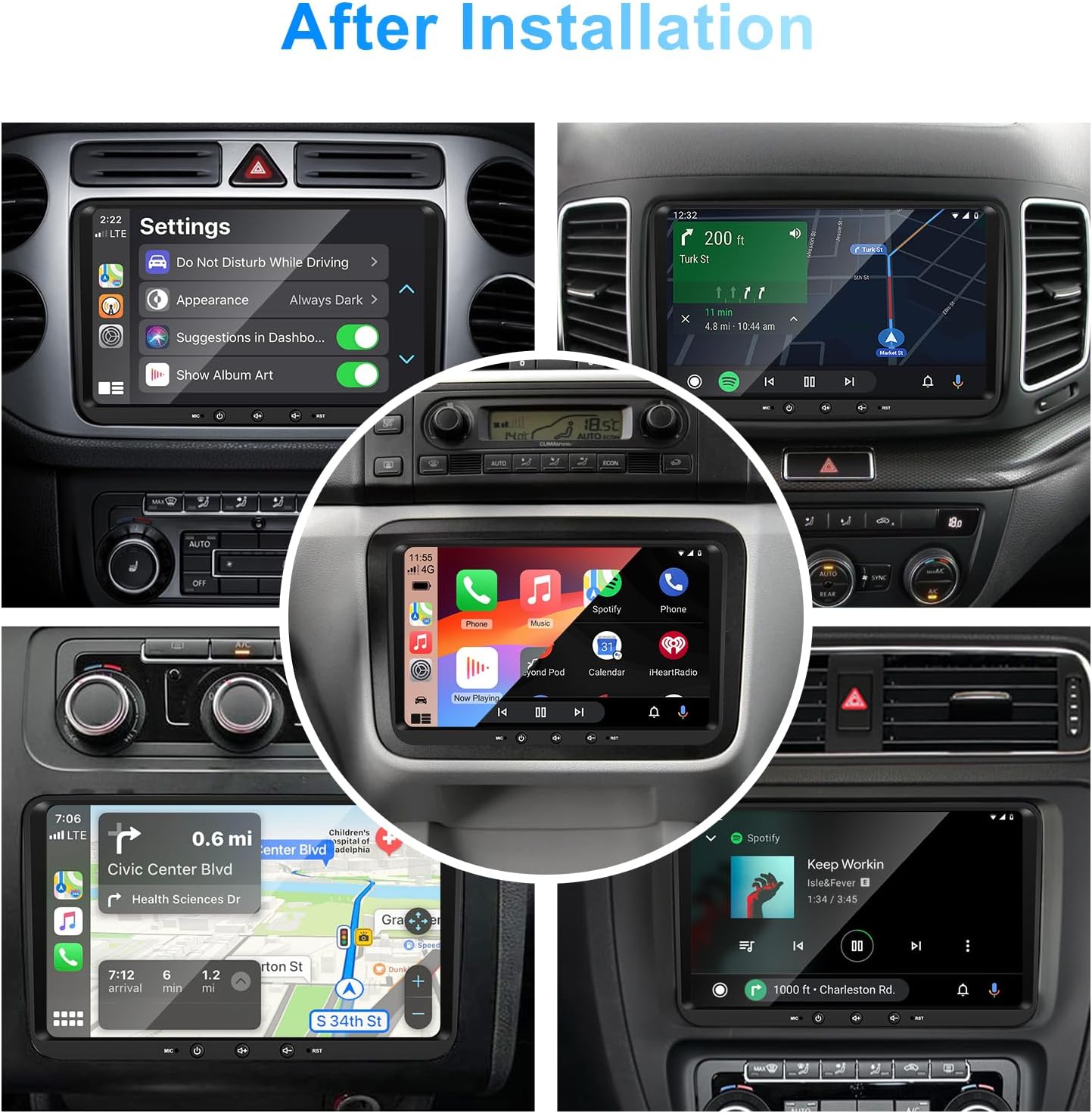
Illustration 1 : Avant view of the EZoneTronics 9-inch Android 11 Car Stereo unit, showcasing its large touchscreen display and sleek design.
5. Configuration et installation
L'installation par un professionnel est recommandée. Assurez-vous que l'alimentation du véhicule est coupée avant de commencer l'installation.
5.1 Schéma de câblage
Refer to the following diagram for proper wiring connections. Each connector is labeled for clarity.

Image 2: Detailed wiring diagram illustrating connections for the power harness, CANBUS box, USB extension, backup camera video input, radio antenna adapter, and GPS antenna.
5.2 Étapes d'installation (Généralités)
- Retirer l'unité d'origine : Retirez soigneusement l'autoradio et les panneaux de garniture existants de votre véhicule.
- Connecter le faisceau d'alimentation : Connect the provided VW wiring harness to the vehicle's wiring and then to the car stereo unit. Ensure all connections are secure.
- Connect CANBUS Box: Integrate the CANBUS box as shown in the wiring diagram. This enables steering wheel controls and other vehicle data integration.
- Connecter l'antenne GPS : Installez l'antenne GPS dans un endroit dégagé. view du ciel (par exemple, du coin du tableau de bord ou du pare-brise) et connectez-le à l'unité.
- Connecter l'antenne radio : Use the provided radio antenna adapter to connect the vehicle's radio antenna to the unit.
- Connect USB Adapters: Connect the USB extension harnesses for external USB devices.
- Connexions facultatives : Connect any optional accessories such as a backup camera (CVBS/AHD), external amplifier (RCA output), or additional video inputs/outputs.
- Fonctionnalité de test : Before fully reassembling the dashboard, temporarily connect the unit and test all functions (power, audio, radio, GPS, Bluetooth, steering wheel controls, camera).
- Unité sécurisée : Once all functions are verified, secure the car stereo unit in the dashboard and reassemble all trim panels.
6. Mode d'emploi
This section details the primary functions and operations of your EZoneTronics car stereo.
6.1 Fonctionnement de base
- Marche/Arrêt : Maintenez le bouton d'alimentation (généralement situé sur le panneau avant) enfoncé pour allumer ou éteindre l'appareil. Une brève pression permet généralement de couper ou de rétablir le son.
- Contrôle du volume : Utilisez le bouton de volume physique ou les commandes à l'écran pour régler le niveau audio.
- Interface tactile : Naviguez dans les menus et les applications en tapotant, en faisant glisser et en pinçant l'écran tactile capacitif de 9 pouces.
6.2 Système Android 11
The unit runs on Android 11, providing a familiar smartphone-like experience. You can download and install various applications from the Google Play Store.

Image 3: Screenshot of the Android 11 system interface, showing various applications and media options available on the car stereo.
6.3 CarPlay et Android Auto
Connect your iPhone or Android smartphone via USB to access CarPlay or Android Auto. This allows for safe and convenient use of phone features while driving.
- Connexion: Connect your smartphone to one of the unit's USB ports using a certified USB cable.
- Activation : The unit should automatically detect and prompt you to launch CarPlay or Android Auto. Follow on-screen instructions.
- Caractéristiques: Access navigation, make calls, send/receive messages, and play music using voice commands (Siri or Google Assistant) or the touchscreen.

Image 4: Display showing the CarPlay interface with Siri voice commands and the Android Auto interface with Google Assistant commands, demonstrating smartphone integration.
6.4 Navigation GPS
The unit includes a built-in GPS receiver and supports various navigation applications.
- Pre-installed Maps: Sygic Maps are typically pre-installed. For offline use, download regional map data as needed.
- Navigation en ligne : Connect to Wi-Fi or use a mobile hotspot to access real-time traffic information and online map services like Google Maps.
- Antenne GPS externe : Ensure the external GPS antenna is properly connected and positioned for optimal signal reception.

Image 5: The car stereo displaying an online navigation map, showing a route and real-time traffic conditions within a vehicle dashboard.
6.5Bluetooth 5.0
Connectez votre smartphone via Bluetooth pour une communication mains libres et la diffusion audio.
- Jumelage : Enable Bluetooth on your smartphone and search for the car stereo (e.g., "EZoneTronics"). Select the device and confirm the pairing code.
- Appels mains libres : Make and receive calls directly from the car stereo. Access your phonebook and recent call history.
- Diffusion audio (A2DP) : Play music from your smartphone through the car stereo's speakers.

Image 6: The car stereo displaying music playback via Bluetooth 5.0, with a smartphone shown next to it also playing music, illustrating the wireless audio connection.
Radio FM/RDS 6.6 GHz
Accédez aux stations de radio locales grâce au tuner FM/RDS intégré.
- Tuning: Use the on-screen controls to manually tune to frequencies or perform an automatic scan for available stations.
- Présélections: Enregistrez vos stations préférées sur des boutons prédéfinis pour y accéder rapidement.
- RDS (système de données radio) : Displays station information such as song title, artist, or program type where available.
6.7 Commande au volant
The unit supports your vehicle's original steering wheel controls through the CANBUS box, allowing you to manage audio and other functions without taking your hands off the wheel.
- Fonctionnalité: Control volume, change tracks, answer calls, and switch modes directly from your steering wheel.
- Configuration: In some cases, steering wheel controls may require initial configuration in the unit's settings menu.

Image 7: Illustration showing a steering wheel with control buttons and corresponding icons on the car stereo display, indicating seamless integration of steering wheel controls.
6.8 Audio Settings (32-Band EQ)
Customize your audio experience with the built-in 32-band equalizer and other sound controls.
- Equalizer: Ajustez les bandes de fréquences pour optimiser le rendu sonore selon vos préférences.
- Modes d'égalisation prédéfinis : Select from various preset equalizer modes (e.g., Pop, Rock, Jazz, Classic).
- Fader / Balance: Adjust the audio distribution between front/rear and left/right speakers.
- Intensité: Améliorer les basses et les aigus à faible volume.

Image 8: Screenshot of the car stereo's 32-band equalizer interface, showing adjustable frequency sliders and preset sound modes, along with a visual representation of sound distribution in a car cabin.
6.9 After Installation Overview
Once installed, the unit provides a comprehensive interface for various functions, including system settings, navigation, media playback, and vehicle information.
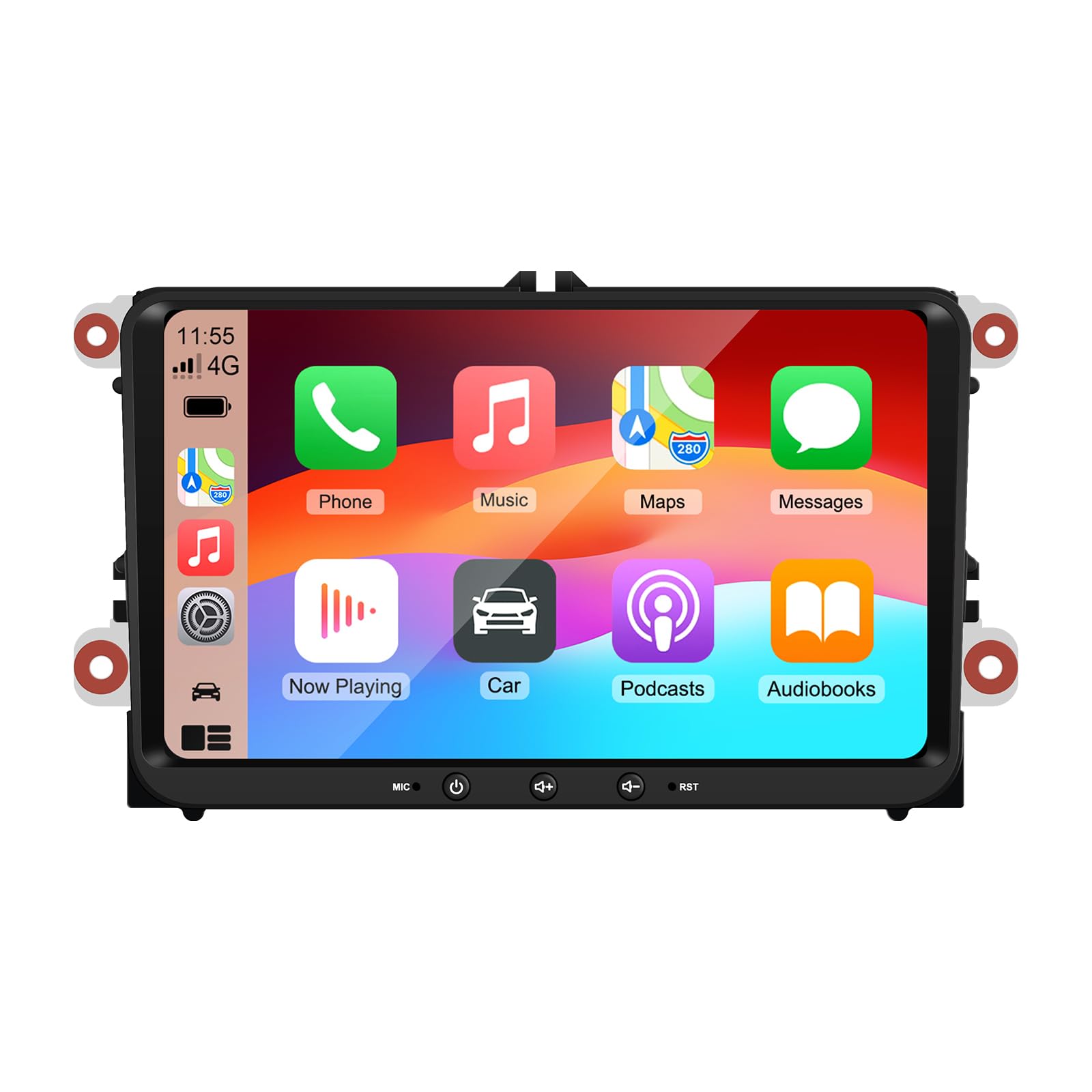
Image 9: A collage of various screen displays from the car stereo after installation, showing settings, navigation, CarPlay, Spotify, and vehicle information screens.
7. Entretien
- Nettoyage de l'écran : Utilisez un chiffon doux non pelucheux pour essuyer délicatement l'écran tactile. Pour les traces tenaces, frottez légèrement.ampNettoyez le chiffon avec de l'eau ou un nettoyant adapté aux écrans. Évitez les produits chimiques agressifs.
- Mises à jour logicielles : Vérifiez régulièrement les mises à jour logicielles via le menu des paramètres de l'appareil ou le site web du fabricant. website pour garantir des performances optimales et l'accès aux nouvelles fonctionnalités.
- Réinitialisation du système : En cas de problème persistant, une option de réinitialisation d'usine est disponible dans les paramètres. Attention : cette opération effacera toutes les données et tous les paramètres utilisateur.
8. Dépannage
If you encounter problems with your EZoneTronics car stereo, refer to the following common issues and solutions:
| Problème | Cause possible | Solution |
|---|---|---|
| L'unité ne s'allume pas. | Câblage incorrect ; fusible grillé ; problème d'alimentation électrique du véhicule. | Vérifiez les branchements électriques et les fusibles. Consultez un installateur professionnel. |
| Pas de son. | Volume muted; Speaker wiring incorrect; Ampproblème de lifier. | Check volume and mute settings. Verify speaker connections. |
| Signal GPS perdu ou imprécis. | Antenne GPS mal positionnée ou déconnectée. | Assurez-vous que l'antenne GPS a un signal clair. view du ciel et est connecté en toute sécurité. |
| L'appairage Bluetooth échoue. | Bluetooth non activé sur le téléphone/l'appareil ; procédure d'appairage incorrecte. | Ensure Bluetooth is active on both devices. Restart pairing process. |
| Les commandes au volant ne fonctionnent pas. | CANBUS box not connected; Incorrect configuration. | Verify CANBUS box connection. Check steering wheel control settings in the unit. |
9. Spécifications
Technical specifications for the EZoneTronics RM-26VW93-2G32 car stereo:
| Fonctionnalité | Spécification |
|---|---|
| Numéro de modèle | RM-26VW93-2G32 |
| Système opérateur | Android 11 |
| Taille de l'écran | 9 pouces |
| Résolution d'affichage | 1280 x 720 pixels |
| Processeur | Quad Core 1.5G |
| BÉLIER | 2 Go DDR4 |
| Stockage interne | Mémoire flash de 32 Go |
| Version Bluetooth | 5.0 |
| Puissance de sortie | 4 x 45W (180 Watts total) |
| Nombre de canaux | 2 |
| Récepteur GPS | Built-in, with external antenna |
| Wifi | Intégré |
| Entrée USB | 2 ports USB arrière |
| Entrée de la caméra | CVBS/AHD compatible |
| Fabricant | Rhythm Electronics Limited |
10. Garantie et assistance
10.1 Informations sur la garantie
The EZoneTronics RM-26VW93-2G32 car stereo comes with a Garantie de 1 ans À compter de la date d'achat, cette garantie couvre les défauts de fabrication et les dysfonctionnements liés à une utilisation normale. Elle ne couvre pas les dommages causés par une installation incorrecte, une mauvaise utilisation, un accident ou des modifications non autorisées.
10.2 Assistance clientèle
For technical assistance, warranty claims, or any questions regarding your product, please contact our customer support team:
- E-mail: support@ezonetronics.com
When contacting support, please provide your product model number (RM-26VW93-2G32) and a detailed description of the issue.