
TECHDASH V88R 4GB
TECHDASH® V88R 4K Android Mini PC Box User Manual
Model: V88R 4GB
1. Introduction
The TECHDASH® V88R 4K Android Mini PC Box is a high-performance streaming device designed to transform your television into a smart entertainment hub. Featuring Android 10.0, a powerful H616 processor, 4GB RAM, and 32GB ROM, it delivers a smooth and responsive user experience for streaming 4K content, playing games, and running various Android applications. Its dual-band Wi-Fi connectivity ensures stable and fast internet access for all your multimedia needs.

Figure 1.1: TECHDASH V88R 4K Android Mini PC Box and its accompanying remote control. The box is compact and black, with "V88R 4K" prominently displayed. The remote is also black with various navigation and media control buttons.
2. Principales caractéristiques
- Advanced Android 10.0 System: Experience a modern and intuitive user interface with improved performance and compatibility with a wide range of Android applications.
- Powerful H616 Processor: Equipped with the latest H616 chip, providing strong performance for smooth multitasking and application execution.
- Ampla mémoire et le stockage : Features 4GB RAM and 32GB ROM, offering sufficient memory for seamless operation and ample space for apps, games, and media files.
- Stunning 4K HDR Visuals: Supports 4K video decoding and HDR (High Dynamic Range) for higher definition, more realistic image effects, brighter colors, and deeper blacks, delivering a cinematic viewexpérience de travail.
- High Reaction Speed: Powered by a Quad Core Cortex-A53 64-bit CPU up to 2GHz, ensuring ultra-fast running speed and professional graphic processing capabilities.
- Wi-Fi double bande : Integrated 2.4/5 Ghz Dual WiFi for stable and high-speed wireless connectivity.
- Rich Connectivity Options: Multiple USB ports (including USB 3.0), SD/MMC card slot, HDMI, AV, and Ethernet for versatile peripheral and display connections.

Figure 2.1: The TECHDASH V88R 4K Android Mini PC Box is capable of delivering an ultra-exciting 3D game experience on a large screen, enhancing visual and auditory immersion.

Figure 2.2: This image illustrates the visual difference between Standard Dynamic Range (SDR) and High Dynamic Range (HDR) content. The HDR display, powered by the V88R box, shows significantly brighter highlights, deeper shadows, and a wider range of colors, creating a more vivid and realistic viewexpérience de travail.
3. Contenu du colis
Veuillez cocher la case correspondant aux éléments suivants :
- TECHDASH® V88R 4K Android Mini PC Box
- Télécommande
- Adaptateur secteur
- Câble HDMI
- Manuel d'utilisation
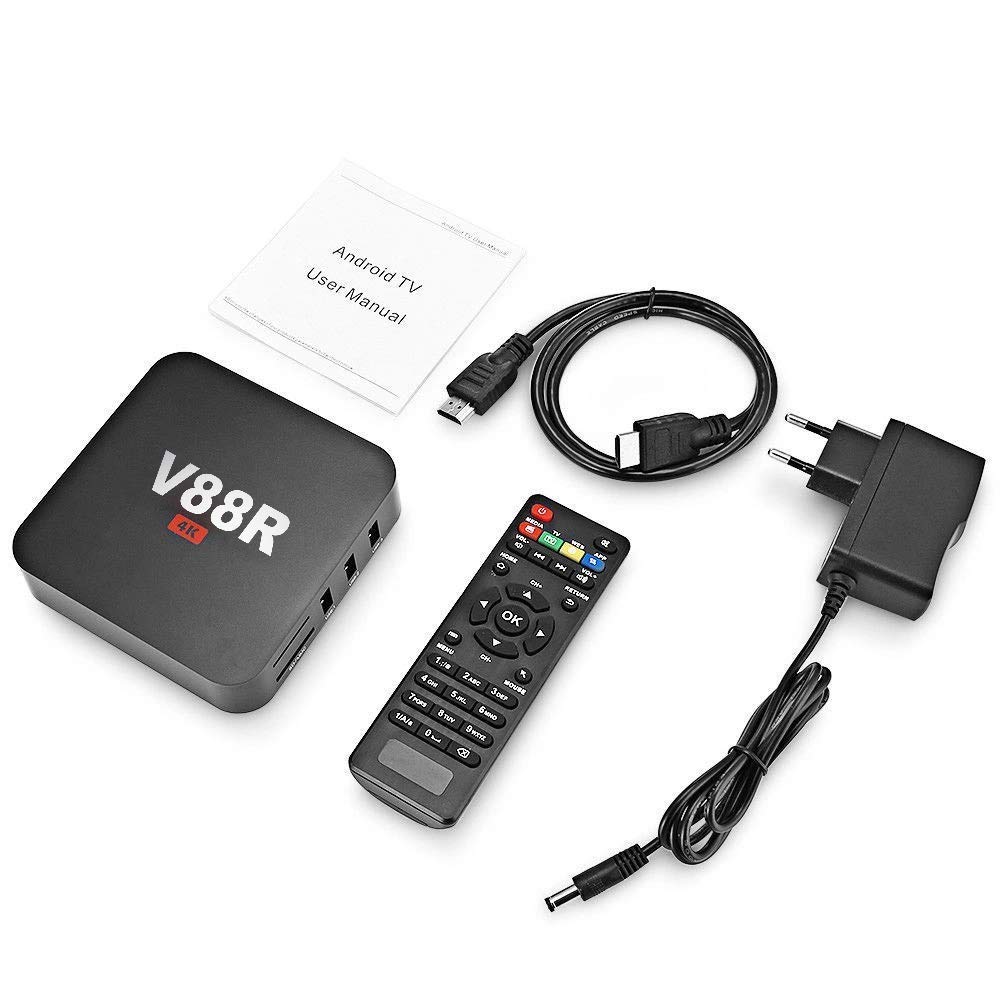
Figure 3.1: The complete package contents laid out, including the V88R box, remote control, power adapter, HDMI cable, and a user manual.
4. Guide de configuration
4.1 Connexion de l'appareil
- Connexion à l'alimentation : Insert the DC power adapter into the "DC 5V" port on the back of the V88R box, then plug the adapter into a wall outlet.
- Connexion à la télévision/à l'écran :
- For HD displays (LCDTV, Computer Monitor): Use the provided HDMI cable to connect the "HD" port on the V88R box to the HDMI input on your TV or monitor.
- For older TVs: If your TV has an AV input, use an AV cable (not included) to connect the "AV" port on the V88R box to your TV's AV input.
- Connexion au réseau (facultatif) :
- Wifi: Once powered on, navigate to the network settings to connect to your wireless network. The device supports dual-band 2.4/5 Ghz Wi-Fi.
- Ethernet : For a wired connection, connect an Ethernet cable from your router to the "ETHERNET" port on the V88R box.
- Connecter les périphériques (facultatif) : Plug in USB devices such as a keyboard, mouse, or external hard drive into the available USB ports. The device supports USB 2.0 and USB 3.0.

Figure 4.1: This diagram illustrates the various connectivity options for the V88R box, including WAN (Ethernet), WiFi, and output connections to a Computer Monitor (HDMI), LCDTV (HDMI), and Old TV (AV port).

Figure 4.2: The V88R box shown connected to a display, a wireless keyboard, a wireless mouse, and a game console, demonstrating its extended connectivity capabilities for various input and storage devices like hard disks.
5. Mode d'emploi
5.1 Mise sous/hors tension
Appuyez sur le POUVOIR button on the remote control to turn the device on or off. The device will boot up to the Android home screen.
5.2 Navigation dans l'interface
Use the directional FLÈCHE buttons on the remote to navigate through menus and select items. Press the OK bouton pour confirmer une sélection.
- ACCUEIL: Retour à l'écran d'accueil principal.
- M E N U: Accède aux options contextuelles.
- RETOUR: Retour à l'écran précédent.
- VOL+/- : Règle le volume.
- SOURIS: Toggles mouse pointer mode for easier navigation in certain applications.
5.3 Installation et gestion des applications
The V88R box comes with pre-installed applications. You can download and install more applications from the Google Play Store or other trusted sources. To manage apps, go to System Settings > Apps.
5.4 Lecture multimédia
The device supports various media formats for video, audio, and images. You can play media from connected USB drives, SD/MMC cards, or stream content from online services like Netflix (supported internet service).
5.5 Paramètres du système
Access the "Settings" icon on the home screen to configure network settings, display resolution (up to 4K), sound output, language, date & time, and other system preferences.
6. Connectivité et ports
The TECHDASH V88R box offers a comprehensive set of ports for various connections:

Figure 6.1 : Un aperçu détaillé view of the V88R box's interfaces, including standard USB ports, 5V DC power input, Ethernet port, HDMI port, and TF Card (SD/MMC) slot. The image also shows AV and SPDIF ports.
- Ports USB : Includes multiple USB ports (USB 1, USB 2, USB 3, USB 4) for connecting external storage, keyboards, mice, gamepads, and other USB peripherals. Note that USB 3 is a USB 3.0 port, offering faster data transfer speeds.
- Emplacement pour carte SD/MMC : For memory expansion and reading files from SD or MMC cards.
- HDMI Port (HD): For connecting to high-definition televisions, monitors, or projectors. Supports 4K resolution output.
- Port AV : Pour la connexion à des téléviseurs plus anciens à l'aide d'un câble AV.
- Port Ethernet: Pour une connexion internet filaire stable.
- Port CC 5V : Alimentation électrique de l'appareil.
- SPDIF : Sortie audio numérique pour la connexion à des systèmes home cinéma ou des barres de son.
- Wifi: Built-in dual-band Wi-Fi (2.4/5 Ghz) for wireless internet connectivity.

Figure 6.2 : Gros plan view highlighting the USB ports (USB 1, USB 2, USB 3) and the SD/MMC card slot. USB 3 is identified as a USB 3.0 port, while USB 1 and USB 2 are USB 2.0 ports, allowing for memory expansion and connection of various equipment.
7. Dépannage
| Problème | Cause possible | Solution |
|---|---|---|
| Pas d'alimentation / L'appareil ne s'allume pas | Power adapter not connected properly; Power outlet issue; Faulty adapter/device. | Ensure power adapter is securely connected. Try a different power outlet. Check if the power adapter is working. |
| Pas d'affichage sur le téléviseur | Incorrect HDMI/AV connection; TV input not set correctly; Faulty cable. | Verify HDMI/AV cable is securely connected to both the box and TV. Ensure your TV's input source is set to the correct HDMI/AV port. Try a different HDMI/AV cable. |
| Problèmes de connexion Wi-Fi | Incorrect Wi-Fi password; Router too far; Router issues. | Double-check Wi-Fi password. Move the box closer to the router. Restart your router. Try a wired Ethernet connection if possible. |
| Applications qui se bloquent ou plantent | Too many apps running; Low storage; App compatibility issues. | Close background applications. Clear app cache/data. Uninstall unused apps to free up storage. Update the app or system firmware. |
| La télécommande ne fonctionne pas | Low batteries; Obstruction; Remote not paired (if applicable). | Replace batteries. Ensure no obstructions between remote and box. Point remote directly at the box. |
8. Spécifications
| Fonctionnalité | Détail |
|---|---|
| Nom du modèle | V88R 4GB |
| Système opérateur | Android 10.0 |
| Processeur | H616 Quad Core Cortex-A53 64-bit, up to 2GHz |
| BÉLIER | Mémoire SDRAM DDR4 de 3 Go |
| Stockage interne | 32 Go |
| Prise en charge de la résolution | 4K, 720p |
| Connectivité | Dual Wi-Fi (2.4/5 Ghz), Ethernet |
| Ports | HDMI, AV, USB 2.0 (multiple), USB 3.0, SD/MMC Card Slot, DC 5V, SPDIF |
| Caractéristiques spéciales | Chromecast, HDR Support |
| Appareils compatibles | Personal Computer, TV |
| Poids de l'article | 400 g |
| Dimensions | 35 x 30 x 25 cm (Dimensions de l'emballage) |
9. Entretien
- Nettoyage: Utilisez un chiffon doux et sec pour nettoyer l'appareil. N'utilisez pas de nettoyants liquides ni d'aérosols.
- Ventilation: Veillez à placer l'appareil dans un endroit bien ventilé afin d'éviter toute surchauffe. Ne bloquez aucune ouverture de ventilation.
- Stockage: En cas de non-utilisation prolongée de l'appareil, rangez-le dans un endroit frais et sec, à l'abri de la lumière directe du soleil et des températures extrêmes.
- Mises à jour logicielles : Vérifiez régulièrement les mises à jour système dans le menu des paramètres afin de garantir des performances et une sécurité optimales.
10. Garantie et assistance
For product support, warranty information, or any inquiries, please contact the manufacturer:
Fabricant: AUSHA EXPORTS P LTD
Adresse: 140, Sector 27, Gurugram-122009
Assistance clientèle : 08048977694
Veuillez conserver votre reçu d'achat pour toute réclamation au titre de la garantie.
Ask a question about this manual
Ask about setup, troubleshooting, compatibility, parts, safety, or missing instructions. Manuals+ will review the question and use this page’s manual context to help answer it.