1. Introduction
This manual provides essential information for the setup, operation, and maintenance of your TCL 43S310R 43" Class S Class (1080p) FHD LED Smart TV with Roku TV. This television features a 1080p Full HD resolution display, a FullView metal bezel-less design, and Direct LED Backlight technology for an enhanced viewing experience. Integrated with Roku TV Smart OS, it offers seamless access to a wide range of streaming services and smart features.
Key features include Dynamic Contrast, Game Mode for optimized gaming, and multiple HDMI inputs (including one with ARC). The TV supports screen mirroring and Airplay2, and is compatible with popular voice assistants such as Amazon Alexa, Google Assistant, and Apple HomeKit, allowing for convenient voice control via a mobile app. Dual-Band 802.11 Wi-Fi and a USB input provide versatile connectivity options.
2. Contenu de la boîte
Upon unboxing your TCL 43S310R TV, please ensure all components are present:
- TCL 43S310R 43" Class S Class (1080p) FHD LED Smart TV
- Télécommande Roku TV
- TV Stand/Legs (if applicable)
- Câble d'alimentation
- Guide de démarrage rapide (ce manuel contient des informations détaillées)
- Vis pour le montage du support (le cas échéant)
3. Installation
3.1 Déballage et placement
Carefully remove the TV from its packaging. It is recommended to have two people for safe handling. Place the TV on a stable, flat surface or mount it on a wall using a compatible VESA mount (sold separately). Ensure adequate ventilation around the TV.

Image: The TCL 43S310R TV displaying the Roku TV home screen with various streaming app icons.
3.2 Connexion de l'alimentation et des appareils
- Branchez le câble d'alimentation à l'entrée d'alimentation du téléviseur, puis à une prise murale.
- Connect your external devices (e.g., cable box, Blu-ray player, gaming console) to the HDMI inputs on the back of the TV. This model includes 3 HDMI inputs, with one supporting ARC (Audio Return Channel).
- For USB devices, use the dedicated USB input.
3.3 Configuration initiale de Roku TV
Lors de la première mise en marche, le téléviseur vous guidera tout au long du processus de configuration initiale :
- Sélection de la langue : Choisissez votre langue préférée.
- Connexion réseau: Connect to your home Wi-Fi network using the Dual-Band 802.11 Wi-Fi.
- Compte Roku : You will be prompted to link or create a Roku account. This is necessary to access streaming channels and features.
- Balayage des chaînes : If connecting an antenna, the TV will scan for available over-the-air channels.
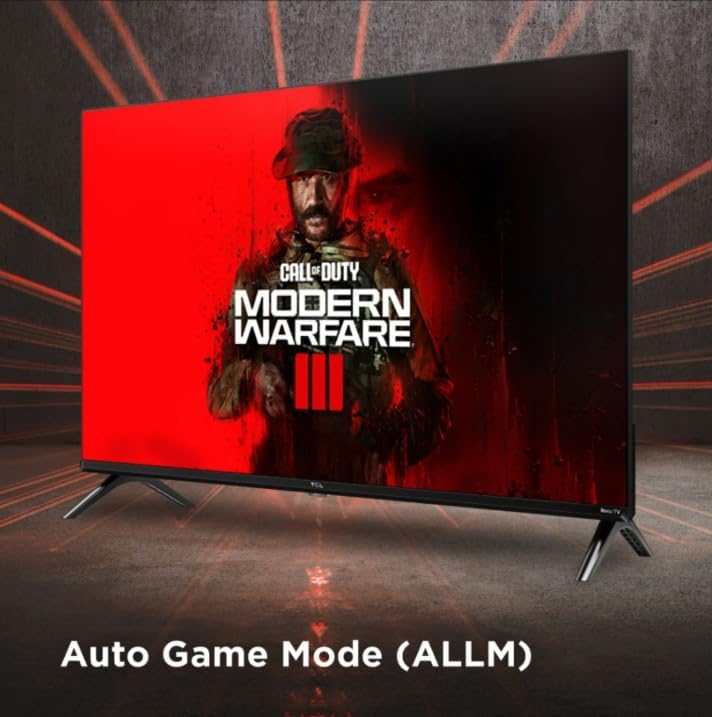
Image: A close-up of the sleek, black Roku TV remote control, featuring a purple directional pad and dedicated streaming service buttons.
4. Utilisation de votre téléviseur TCL Roku
4.1 Navigation dans l'interface Roku TV
Use the Roku TV remote control to navigate the intuitive home screen. The left-hand menu provides quick access to Home, Live TV, Featured Free content, Sports, What to Watch, Daily Trivia, and the Streaming Store. The main screen displays your installed apps and inputs.
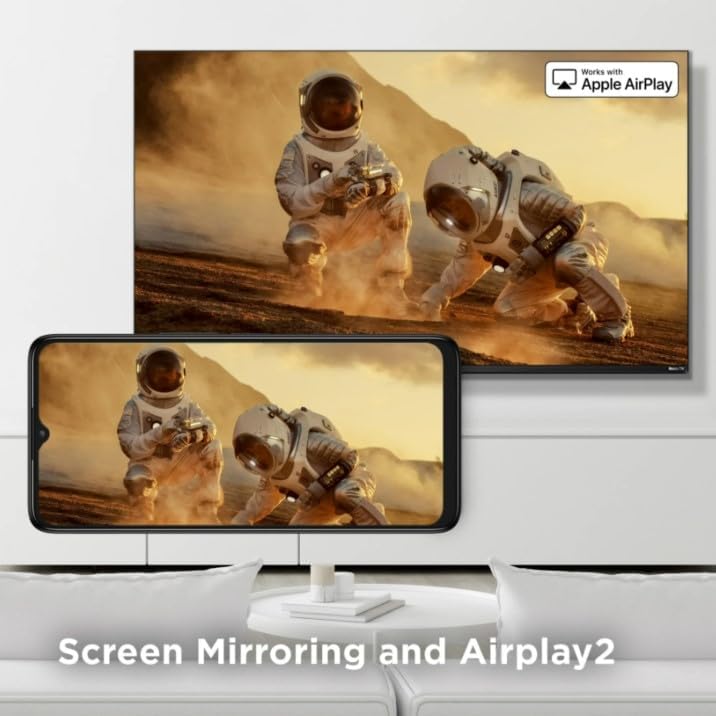
Image: The TCL Roku TV home screen, showing a grid of popular streaming applications like Netflix, Disney+, Apple TV, and Hulu, alongside input options.
4.2 Services de diffusion en continu
Your TCL Roku TV provides access to a vast library of streaming services including Prime Video, Netflix, Hulu, Disney+, HBO Max, YouTube, Vudu, Spotify, iHeartRadio, and many more. Simply select the desired app from the home screen and log in with your account credentials.
4.3 Screen Mirroring and Airplay2
Easily share content from your compatible mobile devices or computers to your TV using Screen Mirroring or Apple Airplay2. This feature allows you to display photos, videos, and presentations directly on the large screen.

Image: A smartphone screen mirroring its content, featuring astronauts on a desert landscape, to a larger TCL TV screen, illustrating the Screen Mirroring and Airplay2 functionality.
4.4 modes de jeu
Activate Game Mode for a fast and smooth gaming experience. This mode optimizes display settings to reduce input lag, providing a more responsive gaming session.

Image: A TCL TV displaying a scene from the video game "Call of Duty: Modern Warfare III," with text indicating "Auto Game Mode (ALLM)" at the bottom, showcasing the TV's gaming optimization.
4.5 Commande vocale
The TCL 43S310R is voice control capable via a mobile app and works with Amazon Alexa, Google Assistant, and Apple HomeKit. This allows for convenient control of your TV using voice commands.

Image: A smartphone displaying the Roku TV remote application, highlighting its voice control capabilities and integration with popular voice assistants like Amazon Alexa, Google Assistant, and Apple HomeKit.
5. Entretien
5.1 Nettoyer votre téléviseur
- Débranchez toujours le téléviseur avant de le nettoyer.
- Utilisez un chiffon doux non pelucheux pour essuyer délicatement l'écran et le boîtier.
- Pour les marques tenaces, frottez légèrementampNettoyez le chiffon avec de l'eau ou un nettoyant pour écrans doux et non abrasif. Ne vaporisez jamais de nettoyant directement sur l'écran.
- Évitez d'utiliser des nettoyants abrasifs, des cires ou des solvants, car ils peuvent endommager la finition.
5.2 Mises à jour logicielles
Your Roku TV will automatically check for and install software updates when connected to the internet. Ensure your TV remains connected to the internet to receive the latest features and performance improvements.
6. Dépannage
Si vous rencontrez des problèmes avec votre téléviseur TCL Roku, consultez les solutions courantes suivantes :
- Pas d'alimentation : Vérifiez que le câble d'alimentation est bien branché à la fois au téléviseur et à une prise électrique fonctionnelle. Essayez une autre prise.
- Pas d'image/de son : Verify that the correct input source is selected. Check all cable connections (HDMI, etc.) are secure.
- Problèmes de connexion réseau : Restart your Wi-Fi router. Go to the TV's network settings and try reconnecting to your Wi-Fi. Ensure your Wi-Fi password is correct.
- La télécommande ne répond pas : Remplacez les piles de la télécommande. Assurez-vous qu'aucun obstacle ne se trouve entre la télécommande et le téléviseur.
- Plantage/blocage de l'application : Try restarting the app. If the issue persists, restart the TV by unplugging it from the power outlet for a few minutes, then plugging it back in.
For more detailed troubleshooting or persistent issues, visit the official TCL support website ou la page d'assistance Roku.
7. Spécifications
Below are the technical specifications for the TCL 43S310R TV:
| Fonctionnalité | Détail |
|---|---|
| Marque | TCL |
| Numéro de modèle | 43S310R |
| Taille de l'écran | 43 pouces |
| Technologie d'affichage | DIRIGÉ |
| Résolution | 1080p Full HD |
| Taux de rafraîchissement | 60 Hz |
| Dimensions du produit | 37.6"P x 23.9"L x 7.3"H |
| Poids de l'article | 18.46 livres (8.39 kilogramme) |
| Rapport hauteur/largeur | 16:9 |
| Technologie de connectivité | Wi-Fi (Dual-Band 802.11), USB, HDMI (3 inputs, one with ARC) |
| Caractéristiques spéciales | Parental Controls, Mobile App, FullView Metal Bezel-less Design, Direct LED Backlight, Dynamic Contrast, Game Mode, Screen Mirroring, Airplay2, Voice Control (Alexa, Google Assistant, Apple HomeKit compatible) |
| Composants inclus | Roku TV (main unit) |
| Voltage | 110 volts |
| Quoitage | 16 watts |

Image: The Energy Guide label for the TCL 43S310R television, indicating an estimated yearly energy cost of $20 based on 16 cents per kWh and 5 hours use per day.
8. Garantie et assistance
8.1 Informations sur la garantie
As a renewed product, the TCL 43S310R typically comes with a specific return policy. For this product, a Politique de retour avec remboursement/échange sous 90 jours is offered. Please refer to your purchase documentation for exact warranty terms and conditions provided by the seller.
8.2 Assistance clientèle
For technical assistance, troubleshooting, or service inquiries, please contact TCL customer support or refer to the Roku support resources online. You may also contact the seller, Exclusive Bulbs, for support related to your renewed product purchase.
- Assistance TCL : Visitez le site officiel de TCL webSite d'assistance produit, FAQ et informations de contact.
- Assistance Roku : Access the Roku support website for assistance with the Roku TV operating system and streaming services.
- Assistance aux vendeurs : For issues specific to your renewed purchase, contact "Exclusive Bulbs" via your Amazon order details.