
1. Introduction
Thank you for choosing the Gigaset Pure 100 Cordless Phone. This manual provides essential information for setting up, operating, and maintaining your new phone. Please read these instructions carefully to ensure optimal performance and longevity of your device.
The Gigaset Pure 100 is designed for ease of use, featuring a call blocking button, a 50-contact address book, hearing aid compatibility, and programmable function keys to enhance your communication experience.

Image: The Gigaset Pure 100 cordless phone positioned in a home environment, showcasinson design élégant.
2. Contenu de la boîte
Before you begin, please check the contents of your package. Ensure all items listed below are present:
- 1 Combiné
- 1 station de base
- 2 piles rechargeables AAA
- 1 Couvercle de la batterie
- Adaptateur d'alimentation 1
- 1 Telephone Connection Cable
- 1 guide rapide
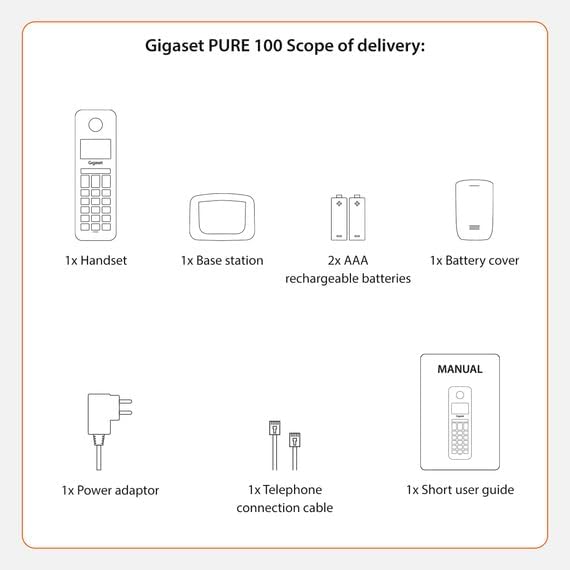
Image: A visual representation of the Gigaset Pure 100's scope of delivery, including handset, base, batteries, and cables.
3. Installation
3.1. Installation de la batterie
- Remove the battery cover from the back of the handset.
- Insérez les deux piles rechargeables AAA fournies, en respectant la polarité (+/-).
- Remettez le couvercle de la batterie en place jusqu'à ce qu'il s'enclenche.

Image: The rear side of the Gigaset Pure 100 handset, illustrating where the battery cover is located for installation.
3.2. Connexion à la station de base
- Branchez l'adaptateur secteur à la station de base et branchez-la à une prise murale.
- Connect the telephone connection cable to the base station and plug the other end into your telephone wall socket.
- Placez la station de base sur une surface plane et stable.
3.3. Enregistrement du combiné
The handset is usually pre-registered to the base station. If not, or if you are registering an additional handset:
- Placez le combiné sur la base.
- Press and hold the registration/paging button on the base station for approximately 3 seconds. The base station will enter registration mode.
- Follow the on-screen prompts on the handset to complete the registration process. You may need to enter a PIN (default is 0000).

Image: The Gigaset Pure 100 handset securely placed in its charging and communication base station.
4. Mode d'emploi
4.1. Passer des appels
- Décrochez le combiné ou appuyez sur la Clé d'appel vert.
- Composez le numéro de téléphone souhaité.
- Appuyez sur le Clé d'appel vert à nouveau pour lancer l'appel.
- Pour mettre fin à un appel, appuyez sur la Clé d'appel rouge or place the handset back in the base station.
4.2. Réception d'appels
Lorsque le téléphone sonne, appuyez sur la touche Clé d'appel vert pour répondre à l'appel.
4.3. Address Book
The Gigaset Pure 100 can store up to 50 contacts in its address book.
- To access the address book, press the Clé d'annuaire (usually an icon resembling an open book or person).
- Use the navigation keys to scroll through your contacts.
- To dial a contact, select their entry and press the Clé d'appel vert.
- To add a new contact, navigate to an empty entry or select the 'New Entry' option and follow the on-screen instructions to enter the name and number.
4.4. Blocage des appels
The Gigaset Pure 100 features a dedicated call blocking button to help manage unwanted calls.
- Lors d'un appel entrant provenant d'un numéro indésirable, appuyez sur la touche Call Blocking Button (often marked with a shield or 'Block' icon).
- The number will be added to your block list, and subsequent calls from this number will be rejected.
- Refer to the quick guide for detailed instructions on managing your block list.

Image: The Gigaset Pure 100 handset screen showing a 'Blocked Number' notification, highlighting its call blocking feature.
4.5. Touches de fonction programmables
The phone includes programmable function keys that can be assigned to frequently used numbers or features. Consult your quick guide for instructions on how to program these keys to suit your needs.

Image: An illustration demonstrating the Gigaset Pure 100's effective range, allowing calls from various locations within a property.
5. Entretien
5.1. Nettoyage
Essuyez le combiné et la station de base avec un chiffon doux et sec.amp Nettoyer avec un chiffon. Ne pas utiliser de nettoyants abrasifs ni de solvants. S'assurer qu'aucun liquide ne pénètre dans les ouvertures de l'appareil.
5.2. Entretien de la batterie
Use only the recommended rechargeable AAA batteries. If the phone will not be used for an extended period, remove the batteries to prevent leakage. Replace batteries when their performance significantly degrades.
6. Dépannage
- Pas de tonalité :
Check if the power adapter and telephone connection cable are securely plugged into the base station and wall outlets. Ensure the handset is registered to the base. - Impossible de passer/recevoir des appels :
Verify that the telephone line is active. Check if the handset batteries are charged. Ensure the handset is within range of the base station. - Mauvaise qualité sonore :
Move closer to the base station. Check for interference from other electronic devices. - L'écran du combiné est vide :
Place the handset in the base station to charge the batteries. If the issue persists, replace the batteries.
7. Spécifications
| Fonctionnalité | Description |
|---|---|
| Marque | Gigaset |
| Numéro de modèle | PURE 100 |
| Couleur | Noir |
| Écran | 1.5 pouces |
| Type d'alimentation | Batterie |
| Type de cadran | Clavier unique |
| Identification de l'appelant | Oui |
| Matériel | Plastique |
| Type de système | Numérique |
8. Garantie et assistance
For warranty information and technical support, please refer to the quick guide included in your package or visit the official Gigaset webConsultez le site. Conservez votre preuve d'achat pour toute réclamation au titre de la garantie.