
1. Introduction
Thank you for choosing the Maxfree P1S 12-inch FHD Portable Monitor. This manual provides essential information for setting up, operating, and maintaining your new portable display. Designed for versatility and portability, the P1S monitor enhances your productivity and entertainment experience across various devices.
The Maxfree P1S features a 12-inch FHD IPS panel, offering a clear and vibrant visual experience with wide viewing angles. Its lightweight and slim design, coupled with a smart cover, makes it an ideal companion for travel, remote work, or expanding your desktop workspace. Enjoy seamless connectivity with USB-C and Mini HDMI ports, supporting a wide range of devices including laptops, smartphones, gaming consoles, and more.

Image: Maxfree P1S Portable Monitor demonstrating multiple applications, such as extending a laptop display, connecting to a smartphone, and enhancing a gaming setup.
2. Contenu du colis
Veuillez vérifier que tous les articles sont présents dans votre colis :
- Maxfree P1S 12-inch Portable Monitor
- Étui de protection intelligent
- Câble USB-C vers USB-C (complet)
- Câble mini HDMI vers HDMI
- Câble d'alimentation USB-A vers USB-C
- Manuel de l'utilisateur (ce document)
3. Produit terminéview
Familiarize yourself with the ports and buttons on your Maxfree P1S portable monitor:

Image : détaillée view of the Maxfree P1S monitor's side, highlighting two USB-C ports, one Mini HDMI port, and control buttons (Menu -, Menu +, Power).
- Ports USB-C (x2) : For power and video signal transmission. One port is typically full-featured (power, video, data), while the other might be for power only or specific functions. Refer to your device's compatibility.
- Port mini-HDMI : Pour l'entrée de signal vidéo provenant d'appareils prenant en charge la sortie HDMI.
- Menu - Button: Navigates down in the OSD menu or decreases values.
- Menu + Button: Navigates up in the OSD menu or increases values.
- Bouton d'alimentation : Turns the monitor on/off and confirms selections in the OSD menu.
4. Configuration et connectivité
The Maxfree P1S monitor offers flexible connectivity options. Ensure your device has the necessary ports for optimal performance.
4.1 Connecting via USB-C (Full-featured)
If your laptop, smartphone, or tablet has a full-featured USB-C port (which supports DisplayPort Alternate Mode and power delivery), you can connect the monitor with a single USB-C to USB-C cable for both power and video signal.
- Connectez une extrémité du câble USB-C à USB-C au port USB-C complet de votre appareil.
- Connect the other end to one of the USB-C ports on the Maxfree P1S monitor.
- Le moniteur devrait détecter automatiquement le signal et s'allumer.

Image: A Maxfree P1S monitor connected to a laptop using a single USB-C cable, demonstrating a streamlined setup.
4.2 Connecting via Mini HDMI and USB-A (for power)
If your device does not have a full-featured USB-C port, or if you prefer to use HDMI, you will need two cables: one for video and one for power.
- Connectez une extrémité du câble Mini HDMI vers HDMI au port Mini HDMI du moniteur.
- Connectez l'autre extrémité du câble HDMI au port HDMI de votre appareil.
- Connect the USB-C end of the USB-A to USB-C power cable to a USB-C port on the monitor.
- Connect the USB-A end of the power cable to a USB-A port on your device or a compatible power adapter (5V/2A or higher, not included).
- The monitor should power on and display the signal.

Image: A Maxfree P1S monitor connected to a laptop using separate HDMI and USB-A cables for video and power, respectively.
4.3 Connecting to Gaming Consoles (Xbox, PlayStation, Switch)
The Maxfree P1S is compatible with various gaming consoles. Use the Mini HDMI to HDMI cable for video and the USB-A to USB-C power cable for power.
- Connect the Mini HDMI to HDMI cable from the monitor to your gaming console.
- Connect the USB-A to USB-C power cable from the monitor to a USB port on your console or a power adapter.
- Ensure the console is powered on and configured to output video via HDMI.

Image: The Maxfree P1S monitor set up for gaming, showcasing compatibility with Xbox, PlayStation, and Nintendo Switch consoles.
4.4 Connecting to Smartphones
For smartphones with full-featured USB-C ports, a single USB-C to USB-C cable can provide both power and video. For other phones, an adapter (not included) may be required.
- Connect your smartphone to the monitor using a full-featured USB-C to USB-C cable.
- The phone's display should mirror or extend to the monitor.
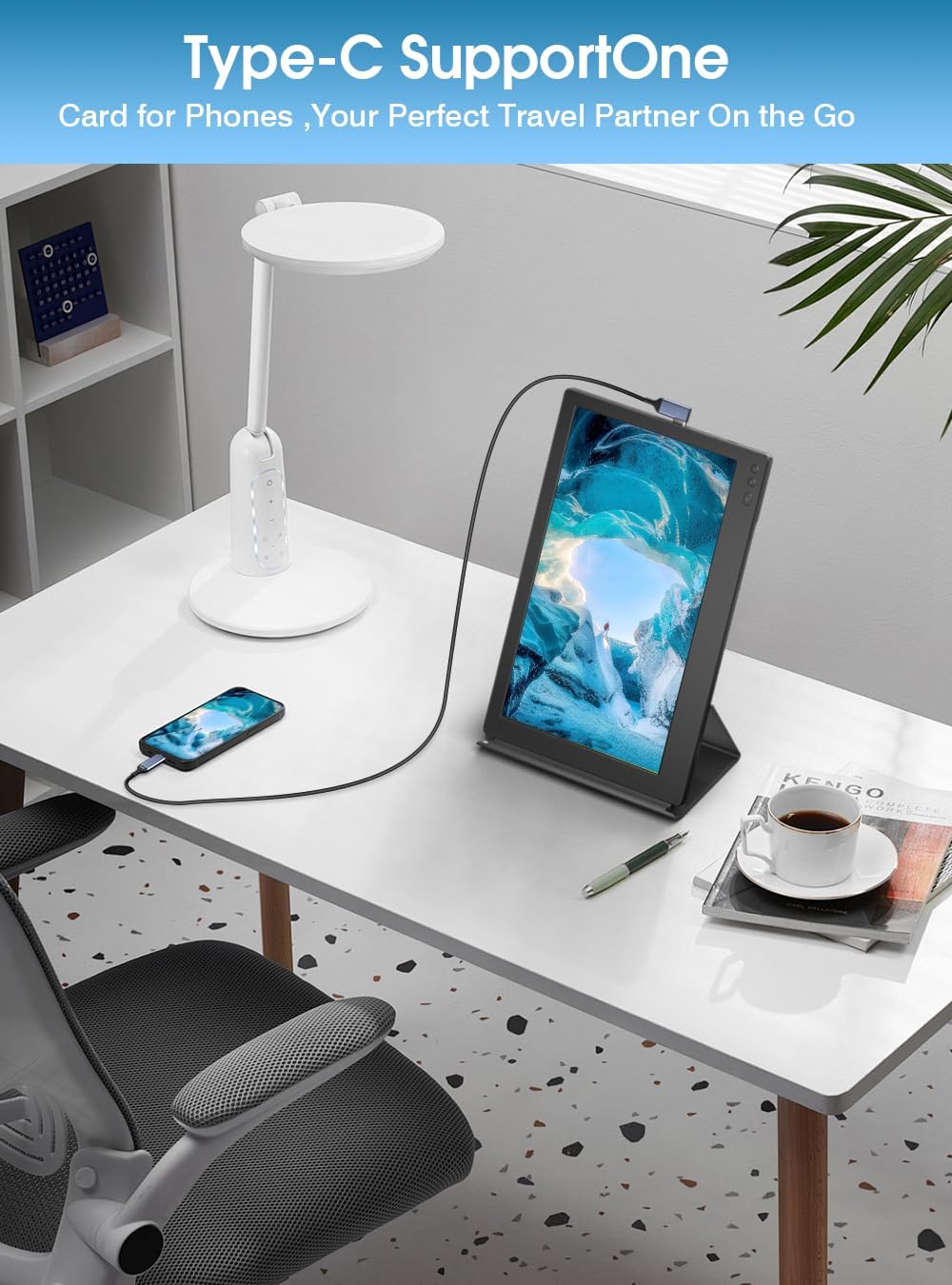
Image: A Maxfree P1S monitor connected to a smartphone via a USB-C cable, demonstrating its use as an extended display for mobile devices.
5. Mode d'emploi
5.1 Mise sous/hors tension
- To power on: Press the Power button.
- Pour éteindre : appuyez sur le bouton d'alimentation et maintenez-le enfoncé pendant 3 secondes.
5.2 Modes d'affichage (Windows/macOS)
Once connected, you can configure the display mode on your operating system:
- Mode étendu : Allows you to have separate applications open on each screen, increasing votre espace de travail.
- Mode miroir : Duplique le contenu de votre écran principal sur le moniteur portable, idéal pour les présentations ou le partage de contenu.
- Mode portrait : The smart cover allows the monitor to be used in portrait orientation, which can be configured in your device's display settings.

Image: The Maxfree P1S monitor used in a business setting for screen sharing, displaying charts and data alongside a laptop.

Image: The Maxfree P1S monitor positioned vertically next to a laptop, demonstrating its flexible orientation capabilities.
5.3 Menu d'affichage à l'écran (OSD)
Use the Menu -, Menu +, and Power buttons to navigate and adjust settings in the OSD menu.
- To enter OSD: Press the Power button briefly when the monitor is on.
- Navigation: Use Menu - and Menu + to move through options.
- Sélection/Confirmation : Press the Power button to select an option or confirm a setting.
- Exit OSD: Navigate to the 'Exit' option or wait for the menu to time out.
Les paramètres OSD courants incluent :
- Le contraste de luminosité: Ajustez la luminance et le contraste de l'écran.
- Paramètres de couleur : Modifier la température de couleur, la teinte et la saturation.
- La source d'entrée: Sélectionnez manuellement entre les entrées USB-C et Mini HDMI.
- Filtre de lumière bleue : Activate the blue light protection technology to reduce eye strain during prolonged use.
- Rapport hauteur/largeur : Ajustez le format d'image de l'affichage (par exemple, 16:9).
6. Entretien
6.1 Nettoyage du moniteur
- Éteignez toujours le moniteur et débranchez tous les câbles avant de le nettoyer.
- Utilisez légèrement un chiffon doux et non pelucheux.ampterminer avec de l'eau ou un nettoyant pour écrans non abrasif.
- Ne pas vaporiser de liquide directement sur l'écran ou le cadre.
- Évitez d'utiliser de l'alcool, de l'ammoniaque ou des nettoyants abrasifs, car ils peuvent endommager la surface de l'écran.
6.2 Stockage et manipulation
- When not in use, keep the monitor protected by its smart cover.
- Conserver dans un endroit frais et sec, à l'abri de la lumière directe du soleil et des températures extrêmes.
- Évitez de placer des objets lourds sur le moniteur.
- Manipuler avec précaution pour éviter les chutes ou les chocs.
7. Dépannage
If you encounter issues with your Maxfree P1S monitor, please refer to the following common solutions:
- Pas de signal:
- Assurez-vous que tous les câbles sont correctement connectés à la fois au moniteur et à votre appareil.
- Verify that your device's output settings are configured correctly (e.g., extended or duplicate display).
- Si vous utilisez un port USB-C, vérifiez que ce port prend en charge la sortie vidéo (mode alternatif DisplayPort).
- Essayez de sélectionner manuellement la source d'entrée via le menu OSD.
- Pas d'alimentation :
- Ensure the power cable is connected and receiving power from a sufficient source (laptop USB port or power adapter).
- If using a single USB-C cable, ensure your device can provide enough power. Some devices may require an external power source for the monitor.
- Try a different USB-C port or power adapter.
- Affichage d'une image instable ou qui clignote :
- Vérifiez que les connexions des câbles ne sont pas desserrées ou endommagées.
- Assurez-vous que les pilotes graphiques de votre appareil sont à jour.
- Reduce the display resolution or refresh rate on your device if necessary.
- Incorrect Color or Brightness:
- Réglez la luminosité, le contraste et les paramètres de couleur via le menu OSD.
- Reset display settings to factory defaults in the OSD menu.
For further assistance, please contact Maxfree customer support.
8. Spécifications
| Fonctionnalité | Spécification |
|---|---|
| Numéro de modèle | P1S |
| Taille de l'écran | 12 pouces |
| Résolution d'affichage | 1366 768 x XNUMX XNUMX (Full HD) |
| Type de panneau | IPS |
| Taux de rafraîchissement | 60 Hz |
| Temps de réponse | 1 milliseconde |
| Luminosité | 300 nit |
| Rapport de contraste | 1000:1 |
| ViewAngle d'attaque | 178 degrés |
| Rapport hauteur/largeur | 16:9 |
| Surface de l'écran | Brillant |
| Connectivité | 2 ports USB Type-C, 1 port Mini HDMI |
| Caractéristiques spéciales | Blue Light Protection, Height Adjustment (via smart cover) |
| Dimensions (L x l x H) | 29.3 x 18.3 x 1.3 cm (environ) |
| Poids | 0.6 kg (1.3 livres) |
9. Garantie et assistance
The Maxfree P1S Portable Monitor comes with a Garantie d'un an à compter de la date d'achat. De plus, nous offrons un Politique de retour sans tracas de 30 jours.
Should you encounter any issues related to connectivity, compatibility, or product quality, our dedicated customer support team is available to provide prompt and efficient technical assistance.
For warranty claims, technical support, or general inquiries, please contact Maxfree customer service through the platform where you purchased the product or visit our official website pour les coordonnées.