
1. Introduction
This manual provides detailed instructions for the installation, operation, and maintenance of your Taffio Android Navigation GPS CarPlay Screen. This advanced in-car entertainment and navigation system is specifically designed for Audi Q2 GA MIB vehicles manufactured between 2016 and 2020, offering a seamless upgrade to your vehicle's multimedia capabilities.
2. caractéristiques du produit
The Taffio Android Navigation GPS CarPlay Screen integrates modern technology with your vehicle's existing systems. Key features include:
- Système opérateur: Android 13
- Processeur: Qualcomm Snapdragon 665 (4x 2 GHz + 4x 1.8 GHz)
- Afficher: 10.25-inch Full HD (1920x720) Capacitive Touchscreen
- Mémoire: 8 Go de RAM LPDDR4
- Stockage: Mémoire interne de 128 Go
- Graphique: Processeur graphique Adreno 610
- Connectivité : Integrated Wi-Fi, Bluetooth, 4G LTE (via SIM card slot), USB
- Navigation: Integrated GPS receiver with 3D navigation and free map updates
- Intégration Smartphone : CarPlay et Android Auto sans fil intégrés
- Intégration du véhicule : Supports original radio functions, i-Drive, steering wheel controls, and vehicle settings.
- Prise en charge de la caméra: Automatic switching for rearview camera and parking assistance.
- Installation: Plug and Play design, requiring no modification or coding of the original system.
3. Contenu du colis
Veuillez vérifier que tous les éléments énumérés ci-dessous sont inclus dans votre colis :
- 1 x Taffio Android Navigation Multimedia Screen
- 1 x antenne GPS
- 1 x USB Cable (with 2 USB ports)
- 1 x Connection Cable Harness
- 1 x PDF User Manual (this document)
- 1 x Invoice with VAT (for warranty purposes)
4. Configuration et installation
The Taffio system is designed for a straightforward Plug and Play installation. While the process is simplified, professional installation is recommended if you are unfamiliar with car electronics.
4.1. Schéma d'installation
Refer to the diagram below for a visual guide to connecting the components.

Image : Terminéview of the system's connections, illustrating where to connect the WiFi antenna, SIM card, GPS antenna, USB ports, rearview camera, LVDS display plug, and the main power/radio harness.
4.2. Étapes de connexion
- Débranchez la batterie du véhicule : Avant de commencer, débranchez la borne négative de la batterie de votre véhicule afin d'éviter les courts-circuits.
- Supprimer l'écran d'origine : Carefully remove your vehicle's original display unit following your Audi Q2's service manual.
- Connect Display LVDS Plug: Locate the LVDS cable from the new screen and connect it to the corresponding port, typically found behind the original screen's location.
- Connect to Original Radio & Power Plug: Use the provided connection cable harness to integrate the new system with your vehicle's original radio and power supply. This harness is designed for direct compatibility.
- Connecter l'antenne GPS : Installez l'antenne GPS dans un endroit dégagé. view of the sky (e.g., dashboard, under the windshield) and connect it to the designated port on the new unit.
- Connecter l'antenne WiFi : Attach the WiFi antenna to improve wireless connectivity.
- Insérer la carte SIM (facultatif) : If you plan to use 4G data, insert a compatible micro SIM card into the provided slot.
- Connectez les câbles USB : Route the USB cables to an accessible location (e.g., glove compartment) for connecting external devices.
- Connexion de l'entrée caméra arrière (en option) : Si vous installez un amortisseur arrière de rechangeview camera, connect its video output to the designated input on the system.
- Secure Wiring and Reinstall: Neatly arrange all cables, secure them to prevent rattling, and reinstall the new screen into the dashboard.
- Rebranchez la batterie : Reconnect the vehicle battery and power on the system for initial setup.
5. Mode d'emploi
5.1. Fonctionnement de base
The system features an intuitive touchscreen interface. You can also utilize your vehicle's original i-Drive controller and steering wheel buttons for navigation within the Android system.
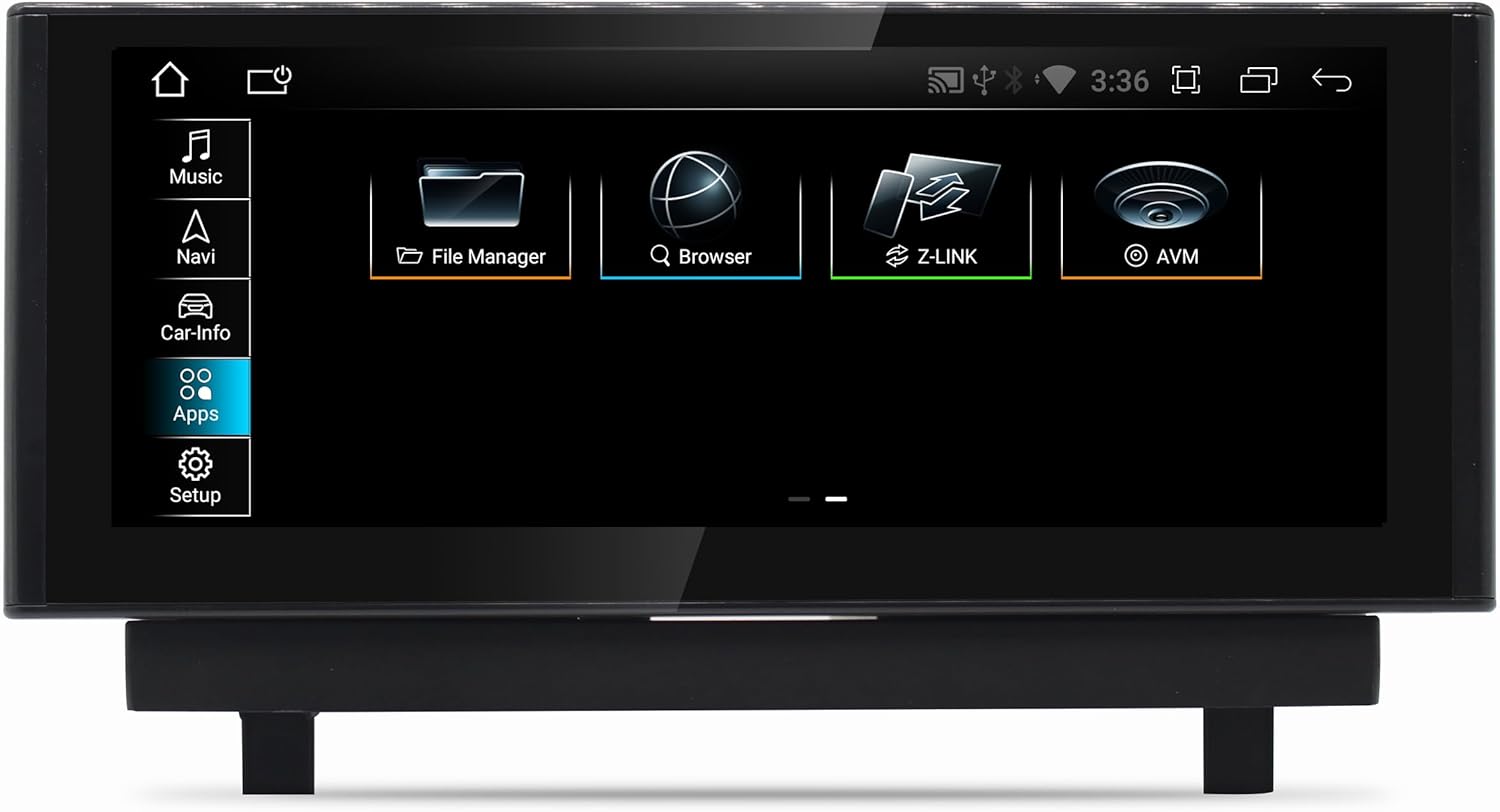
Image: The main Android interface, displaying core functions such as Music, Navigation, Vehicle Information, Applications, and System Setup.
5.2. Basculement entre les systèmes
Easily switch between the original Audi MIB system and the Android system. This allows you to retain all original vehicle functionalities while gaining access to the Android features.
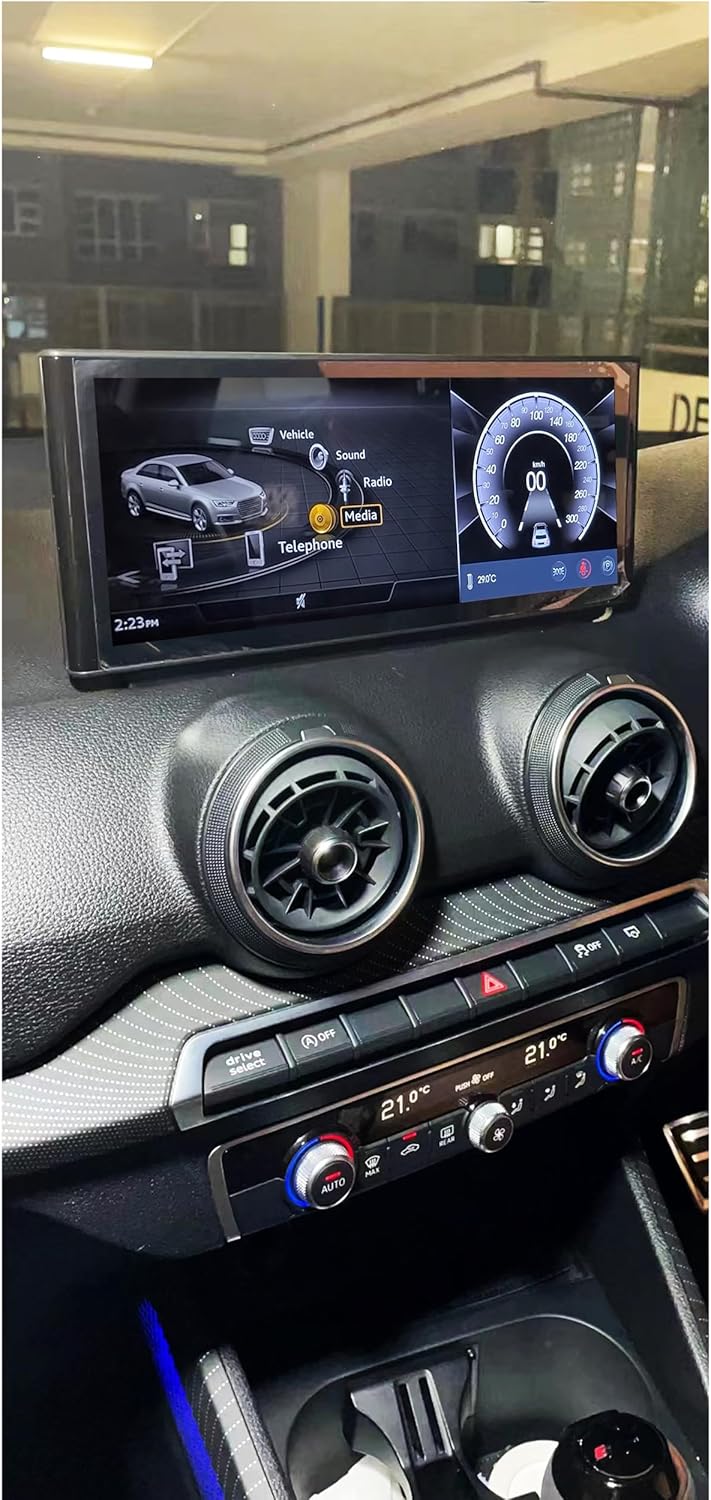
Image: The screen displaying the vehicle's original Audi MMI interface, demonstrating seamless integration and the ability to switch between systems.
5.3. Navigation
The integrated GPS receiver provides accurate positioning. Utilize pre-installed navigation applications or download your preferred navigation apps from the Google Play Store. The system supports 3D navigation and offers free map updates.
5.4. CarPlay sans fil et Android Auto
Connect your smartphone wirelessly to access CarPlay or Android Auto. This allows for seamless integration of your phone's navigation, music, calls, and messaging directly on the car's display.

Image: The Wireless CarPlay interface, showing navigation, media playback, and communication features accessible from your iPhone.

Image: The Android Auto interface, providing access to Google Maps, Spotify, and other Android applications from your compatible smartphone.
5.5. Lecture multimédia
The system supports various audio and video formats including 1080p, H264, AVI, RMVB, FLV, MKV for video, and MP3, WMA, FLAC, APE, AAC for audio. Play media from USB drives or stream via Bluetooth.

Image: A selection of Android applications available on the system, including web browsers, media players, and productivity tools.
5.6. Connectivité
- Wifi: Connect to Wi-Fi hotspots or your smartphone's hotspot for internet access.
- 4G LTE : Insert a micro SIM card to enable 4G data connectivity for faster browsing and streaming.
- Bluetooth : Pair your phone for hands-free calling and audio streaming. The system also supports the vehicle's original Bluetooth.
5.7. Arrièreview Camera and Parking Assistance
The system supports original and aftermarket rearview cameras. It automatically switches to the camera view when reversing and integrates with parking assistance features.
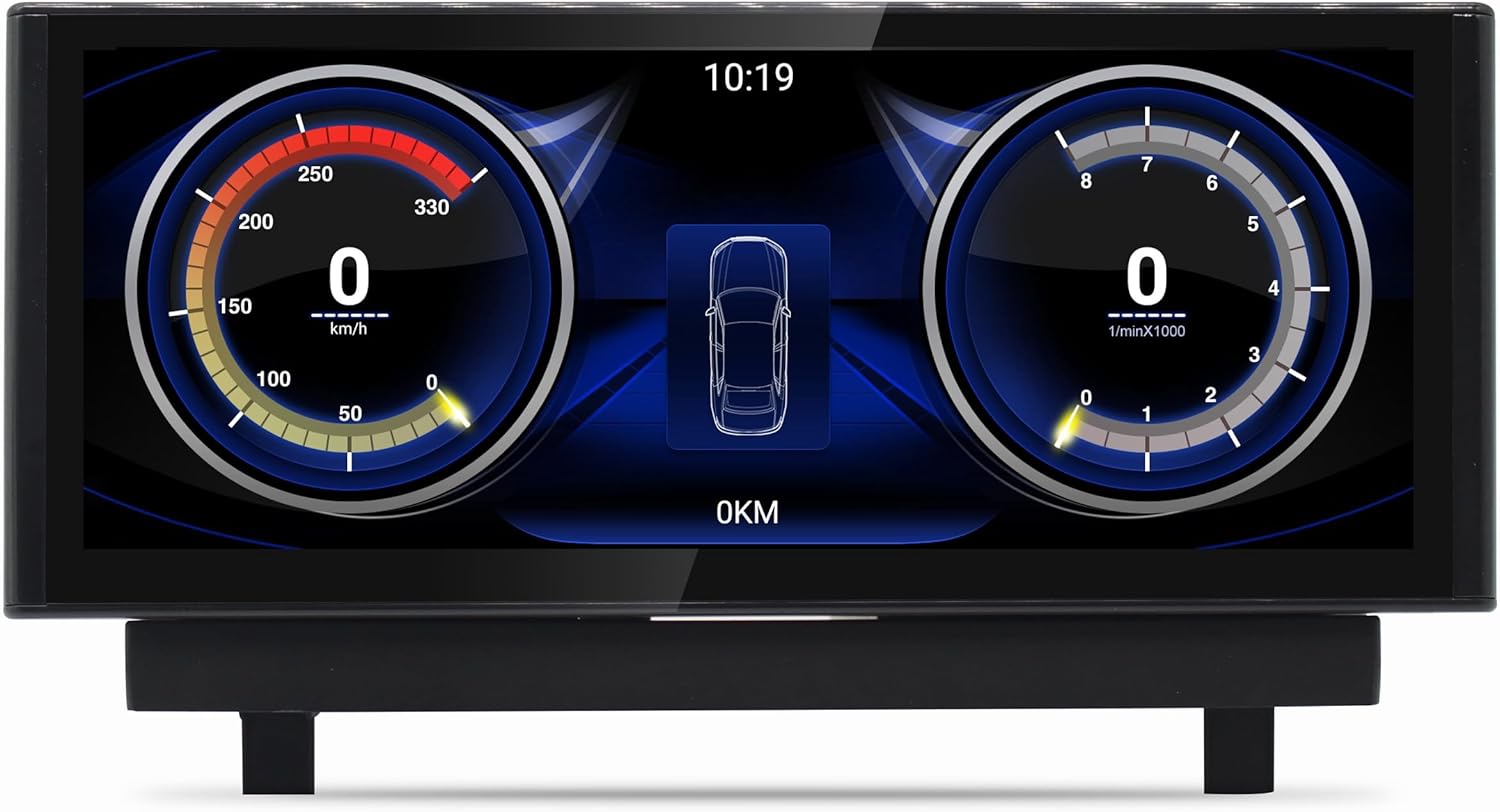
Image: The vehicle information display, showing digital gauges for speed and RPM, providing real-time data from the car's systems.
6. Entretien
- Nettoyage de l'écran : Utilisez un chiffon doux et non pelucheux légèrement dampTerminez avec un nettoyant pour écrans ou de l'eau. Évitez les produits chimiques agressifs.
- Mises à jour logicielles : Vérifiez régulièrement les mises à jour système dans le menu des paramètres afin de garantir des performances optimales et l'accès aux dernières fonctionnalités.
- Soins généraux: Évitez d'exposer l'appareil à des températures extrêmes ou à la lumière directe du soleil pendant des périodes prolongées.
7. Dépannage
En cas de problème, veuillez consulter la liste des problèmes courants et leurs solutions ci-dessous :
- Pas d'alimentation : Ensure all power cables are securely connected. Check vehicle fuses.
- Pas de son : Verify volume settings on both the Android system and your vehicle's original audio system. Ensure AUX mode is correctly selected if required by your vehicle.
- Perte du signal GPS : Assurez-vous que l'antenne GPS est installée dans un endroit dégagé. view du ciel et est connecté en toute sécurité.
- Écran tactile non réactif : Try restarting the system. If the issue persists, perform a factory reset (note: this will erase all user data).
- CarPlay/Android Auto ne se connecte pas : Ensure Bluetooth and Wi-Fi are enabled on both the unit and your smartphone. Check for software updates on your phone and the unit.
- Blocages/ralentissements du système : Close unnecessary background applications. Clear cache from time to time in system settings.
Pour tout problème persistant non traité ici, veuillez contacter le service client.
8. Spécifications
| Fonctionnalité | Spécification |
|---|---|
| Numéro de modèle | JFQ022 |
| Système opérateur | Android 13 |
| Processeur | Qualcomm Snapdragon 665 (Octa-core: 4x 2 GHz + 4x 1.8 GHz) |
| Taille de l'écran | 10.25 pouces |
| Résolution d'affichage | 1920 x 720 Full HD |
| Type d'affichage | Écran tactile capacitif |
| BÉLIER | 8 Go LPDDR4 |
| Stockage interne | 128 Go |
| GPU | Adréno 610 |
| Modem LTE | X12 |
| DSP | Hexagone 686 |
| Connectivité | Wi-Fi, Bluetooth, 4G LTE (SIM slot), USB |
| Système de navigation | GPS intégré |
| Intégration de smartphones | CarPlay sans fil, Android Auto |
| Compatibilité des véhicules | Audi Q2 GA MIB (2016-2020) |
9. Garantie et assistance
Your Taffio Android Navigation GPS CarPlay Screen comes with a Garantie de 2 ans from the date of purchase. Please retain your invoice as proof of purchase for warranty claims.
For technical support, troubleshooting assistance, or warranty inquiries, please contact the seller, REALMEDIASHOP, through the platform where you purchased the product. Provide your model number (JFQ022) and a detailed description of the issue to facilitate faster service.