
1. Introduction
This manual provides detailed instructions for the TRIGKEY Green G4 Mini PC, featuring the Intel Alder Lake-N100 processor. It covers initial setup, operation, maintenance, and troubleshooting to ensure optimal performance and user experience. Please read this manual thoroughly before using your device.
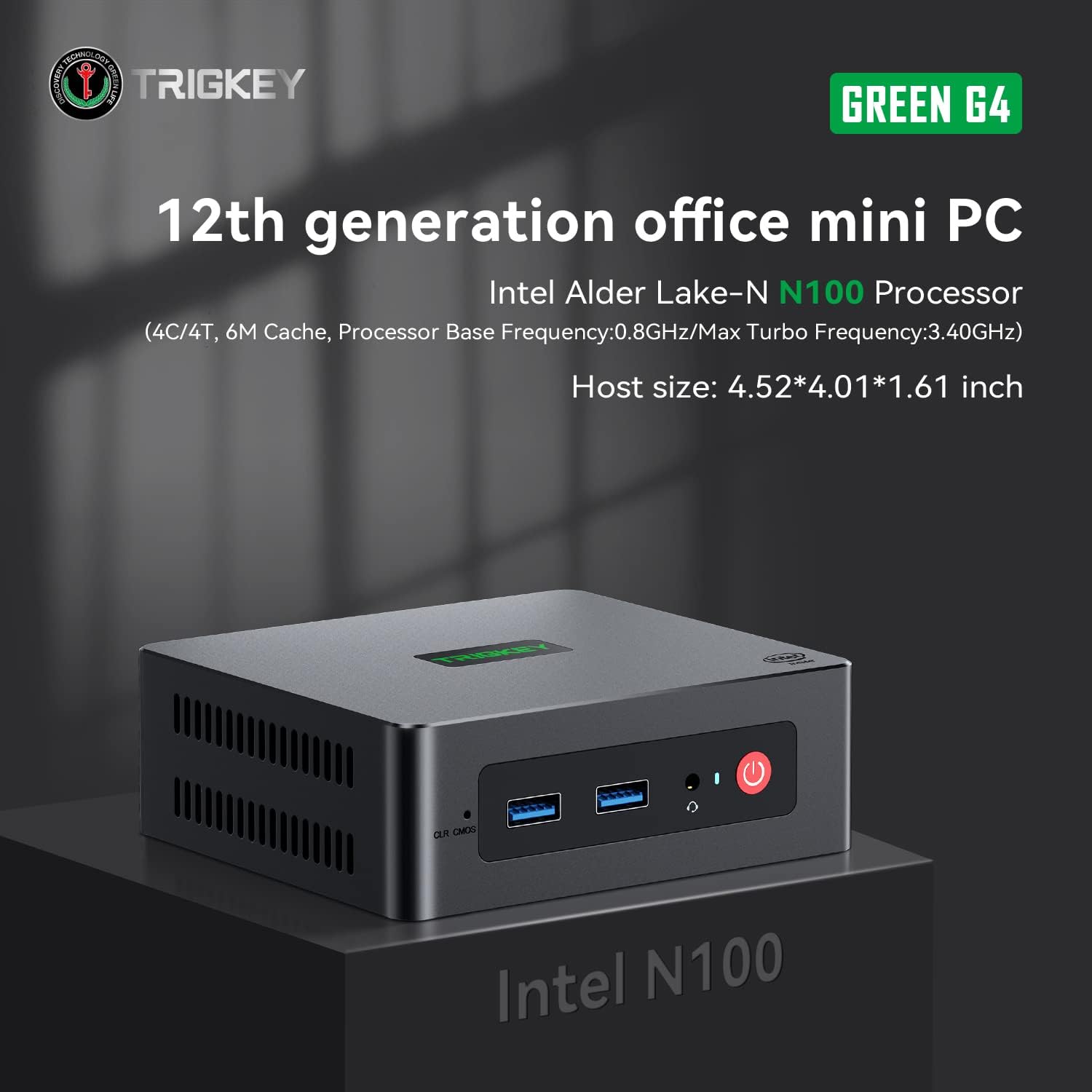
Image: TRIGKEY Green G4 Mini PC, highlighting its compact design and front panel.
2. Produit terminéview
2.1 Principales caractéristiques
- Processeur: Intel Alder Lake-N100 (4 Cores/4 Threads, up to 3.4GHz)
- Mémoire: 16 Go de RAM DDR4 (extensible)
- Stockage: SSD NVMe de 500 Go (extensible jusqu'à 2 To)
- Graphique: Carte graphique Intel UHD (24 unités d'exécution)
- Connectivité : WiFi 6, Bluetooth 5.2, 1000MB/s LAN
- Affichage de sortie : Dual 4K HDMI (60Hz)
- Conception compacte : Host size approximately 4.52 x 4.01 x 1.61 inches
2.2 Ports et interfaces

Image: Front and rear interfaces of the Mini PC.
| Port/Interface | Description |
|---|---|
| Bouton d'alimentation | Allume/éteint l'appareil. |
| Indicateur de puissance | Indique l'état de l'alimentation. |
| RTC Key (CLR CMOS) | Utilisé pour effacer les paramètres CMOS. |
| USB 3.2 Gen2 (10 Gb/s) | Ports de transfert de données à haut débit. |
| Prise pour écouteurs | Sortie audio pour casque. |
| LAN (1000M) | Port Ethernet Gigabit pour connexion réseau filaire. |
| 4K 60Hz HDMI | Dual HDMI ports for high-definition video output. |
| DC Power Adapter Port | Se connecte à l'alimentation. |
| Fente de verrouillage | Pour la serrure de sécurité. |
3. Installation
3.1 Connexion initiale
- Connect your monitor(s) to the HDMI ports on the rear of the Mini PC.
- Connectez votre clavier et votre souris aux ports USB disponibles.
- For wired internet, connect an Ethernet cable to the LAN port. For wireless, ensure the WiFi antenna is connected (if external) or that the internal WiFi is enabled.
- Connect the power adapter to the DC power port and then plug it into a power outlet.
- Appuyez sur le bouton d'alimentation situé à l'avant du Mini PC pour l'allumer.
3.2 Premier essai
Upon first boot, the system may guide you through the initial setup of the operating system (e.g., Windows 11). Follow the on-screen prompts to configure language, region, network, and user accounts.
4. Mode d'emploi
4.1 Fonctionnement de base
- Marche/Arrêt : Press the power button once to turn on. To shut down, use the operating system's shutdown option. A short press on the power button can also put the PC to sleep. A long press (5-7 seconds) will force a shutdown.
- Redémarrage: Utilisez l'option de redémarrage du système d'exploitation.
- Connexion de périphériques : Use the available USB ports for external devices like printers, external drives, or webcames.
- Connectivité réseau : Connect to a wired network via the LAN port or a wireless network using the built-in WiFi 6.
- Double affichage : Connect two monitors to the HDMI ports for an extended or duplicated desktop experience.

Image: Mini PC supporting dual screen display for enhanced productivity.
4.2 Video Playback and Productivity
The Mini PC supports 4K high-definition output, suitable for media consumption and office tasks. Its compact size and efficient performance make it suitable for various applications, from home theater setups to general office work.
Video: TRIGKEY Mini PC G4 N100 product overview, montrerasing ses caractéristiques et son design compact.
5. Maintenance et mises à niveau
5.1 Storage Expansion (2.5-inch HDD/SSD)
The TRIGKEY Green G4 Mini PC allows for additional storage expansion by installing a 2.5-inch HDD or SSD. Follow these steps carefully:
- Éteindre: Assurez-vous que le mini PC est complètement éteint et débranché de l'alimentation électrique.
- Unscrew Bottom Panel: Locate and unscrew the screws on the bottom panel of the Mini PC.
- Open Back Panel: Carefully open the back panel to reveal the internal components and the storage bay.
- Insert SSD/HDD: Align the 2.5-inch SSD or HDD with the slot in the back panel and gently insert it.
- Lecteur sécurisé : Use the provided screws to secure the SSD/HDD to the back panel.
- Reinstall Bottom Panel: Close the back panel and reinstall the bottom screws to secure it.

Image: M.2 PCIe SSD, demonstrating the internal storage component.
Video: Hard disk installation tutorial, demonstrating the steps to install an additional 2.5-inch HDD/SSD.
Mise à niveau de la RAM 5.2
The Mini PC supports single-channel DDR4 memory. While it comes with 16GB, it can be upgraded depending on the memory type. Consult the product specifications for maximum supported RAM capacity and type before attempting an upgrade.

Image: SO-DIMM DDR4 memory module.
6. Dépannage
6.1 Pas d'alimentation
- Assurez-vous que l'adaptateur secteur est correctement connecté à la fois au mini PC et à une prise de courant fonctionnelle.
- Vérifiez le bon fonctionnement de la prise de courant en y branchant un autre appareil.
- Vérifiez que l'adaptateur secteur ne présente aucun dommage visible.
6.2 Aucun affichage
- Confirm that the HDMI cable(s) are securely connected to both the Mini PC and the monitor(s).
- Assurez-vous que le moniteur est allumé et réglé sur la source d'entrée appropriée (HDMI 1, HDMI 2, etc.).
- Try connecting to a different monitor or using a different HDMI cable to rule out external issues.
6.3 Operating System Installation Issues
If you encounter difficulties installing or reinstalling an operating system, especially when using custom installation media, note that some Mini PCs may require specific tools or methods for USB boot media creation. Refer to the manufacturer's support resources for guidance on creating compatible installation media.
6.4 Bruit du ventilateur
The Mini PC features active cooling. While designed to be quiet, a slight fan whine may be noticeable under heavy load or in very quiet environments. This is generally normal operation. Ensure the vents are not obstructed to allow for proper airflow.
7. Spécifications
| Fonctionnalité | Détail |
|---|---|
| Marque | Clé de déclenchement |
| Numéro de modèle | N100 |
| Modèle de processeur | Intel Alder Lake-N100 (Celeron) |
| Vitesse du processeur | Jusqu'à 3.4 GHz |
| Nombre de processeurs | 4 |
| Taille du cache | 6 Mo |
| Taille de la mémoire RAM installée | 16 Go |
| Type de mémoire RAM | Mémoire SDRAM DDR4 |
| Vitesse de la mémoire | 3200 MHz |
| Emplacements de mémoire disponibles | 1 |
| Description du disque dur | Disque SSD NVMe de 500 Go |
| Interface du disque dur | NVMe |
| Coprocesseur graphique | Carte graphique Intel UHD |
| Interface de sortie vidéo | HDMI (2 ports) |
| Résolution d'affichage maximale | 3840 x 2160 pixels (4K) |
| Technologie sans fil | Wi-Fi 6 (802.11ax), Bluetooth 5.2 |
| Technologie de connectivité | Ethernet (1000M) |
| Nombre total de ports USB | 6 (USB 3.2 Gen2) |
| Consommation d'énergie | 6 watts (typique) |
| Couleur | Vert |
8. Garantie et assistance
TRIGKEY is committed to providing excellent customer service and support for your Mini PC.
8.1 Informations sur la garantie
- Politique de retour: 30 jours sans motif de retour.
- Remplacement: Remplacement possible dans les 12 mois suivant l'achat.
- Support technique : Service après-vente et assistance technique à vie.
8.2 Contacter l'assistance
For any inquiries, technical assistance, or warranty claims, please contact TRIGKEY customer support. Response is typically provided within 24 hours.
- Assistance par e-mail : Refer to your product packaging or the official TRIGKEY website pour l'adresse e-mail de contact.
- Consultation en ligne : Visit the TRIGKEY official website for online chat or support forms.
- Website Resources: Explore the TRIGKEY website for FAQs, drivers, and additional product information.