
1. Introduction
This manual provides detailed instructions for the setup, operation, and maintenance of your edaiser Swivel Keyboard Case. Please read this manual thoroughly before using the product to ensure proper function and longevity. This keyboard case is designed to enhance your iPad mini experience by providing a physical keyboard and trackpad, along with robust protection and versatile viewangles d'inclinaison.
2. Contenu du colis
- edaiser Swivel Keyboard Case
- Câble de chargement USB-C
- Manuel d'utilisation
3. Compatibilité
Cet étui-clavier est spécialement conçu pour les modèles d'iPad suivants :
- 2021 iPad mini 6th Generation (8.3-inch): Numéros de modèle A2567, A2568, A2569
- 2024 iPad mini 7th Generation (8.3-inch): Numéros de modèle A2993, A2995, A2996
To verify your iPad model number, check the back of your iPad or go to Settings > General > About > Model Number.

Image: Compatible iPad models and their model numbers.
4. caractéristiques du produit
4.1 Pivotement et rotation
The keyboard case features a 360-degree rotatable hinge and 180-degree fold, allowing for multiple viewing and typing modes:
- Mode ordinateur portable: Standard laptop-like setup for typing.
- Mode support: Ideal for watching videos or presentations.
- Mode tente: Suitable for touch-based interactions or drawing.
- Mode tablette: Fold the keyboard back for a traditional tablet experience.

Image: iPad mini in laptop mode, demonstrating swivel and rotation.

Image: Different usage modes of the keyboard case.
4.2 RGB Backlit Keyboard and Trackpad
The integrated keyboard features RGB backlighting for comfortable typing in low-light conditions. The precision trackpad supports multi-touch gestures for enhanced navigation within iPadOS.
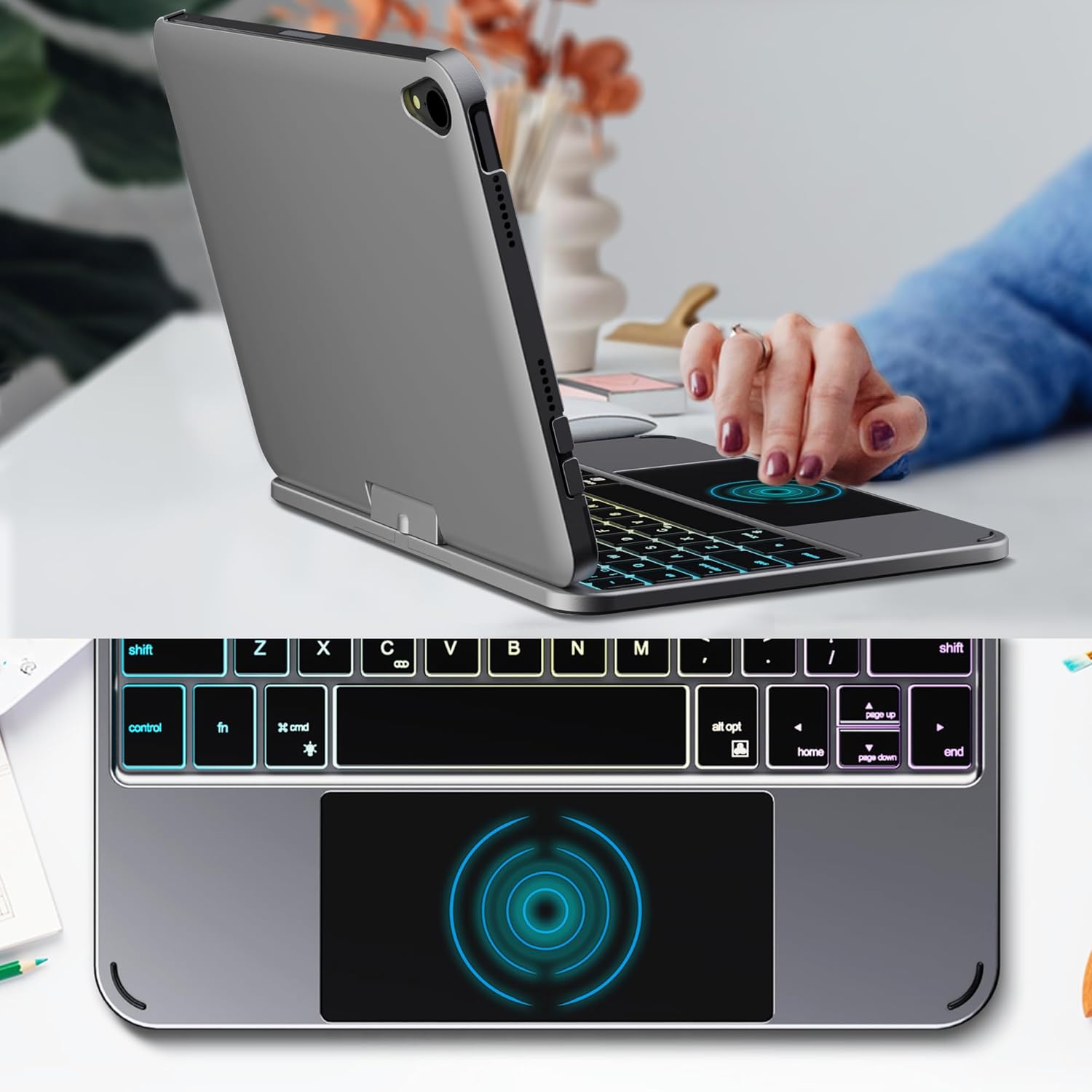
Image: Backlit keyboard and trackpad in use.

Image: Keycap and touchpad dimensions, and available colors.
4.3 Protection and Design
The case provides comprehensive protection for your iPad mini, safeguarding it from scratches and minor impacts. It features precise cutouts for the camera, charging port, and speakers.

Image: Case features and drop protection illustration.
5. Instructions de configuration
5.1 Installing Your iPad mini
- Gently align your iPad mini with the case.
- Press the iPad firmly into the case until it is securely seated. Ensure all edges are properly covered and ports/buttons are accessible.
Video: Demonstrates the installation of the iPad mini into the keyboard case, followed by usage in laptop mode, trackpad interaction, and backlight activation.
5.2 Couplage Bluetooth
- Allumez le clavier : Locate the power button on the keyboard and press it to turn on the device.
- Activate Bluetooth on the keyboard: Press the "Fn" key and the "C" key simultaneously to activate Bluetooth pairing mode. The Bluetooth indicator light will flash.
- Open iPad Settings: Sur votre iPad, accédez à Paramètres > Bluetooth.
- Connecter: In the Bluetooth device list, find "iPad keyboard" and tap to connect. A pairing request may appear; confirm it.
- The Bluetooth indicator light on the keyboard will stop flashing once successfully paired.
Video: Demonstrates the rotation of the iPad within the case, various usage modes, and the Bluetooth pairing process for the keyboard.
6. Mode d'emploi
6.1 Fonctions du clavier
The keyboard includes standard keys and function keys specific to iPadOS:
- Fn+C: Activates Bluetooth pairing mode.
- Icône Fn + Ampoule: Toggles keyboard backlight on/off and cycles through brightness levels.
- Fn + RGB icon: Changes backlight color (if multiple colors are supported).
- Touche Accueil: Returns to the iPad home screen.
- Clé de recherche: Activates iPad search.
- Touches de volume: Adjusts iPad volume.
- Touches de contrôle multimédia: Play/Pause, Previous Track, Next Track.
6.2 Gestes du pavé tactile
The trackpad supports various multi-touch gestures for efficient navigation:
- Appuyez d'un seul doigt: Left-click.
- Touche à deux doigts: Right-click (context menu).
- Défilement à deux doigts: Scroll up/down or left/right.
- Balayez vers le haut avec trois doigts: Go to the home screen.
- Three-finger swipe up and hold: Open the App Switcher.
- Glissement à trois doigts vers la gauche/droite: Switch between open apps.
- Pincer pour zoomer: Zoom in/out on content.
7. Chargement et batterie
The keyboard case is powered by a built-in rechargeable battery. Use the provided USB-C cable to charge the keyboard.
- Capacité de la batterie: 500 mAh
- Temps de veille:Jusqu'à 90 jours
- Temps de travail: Up to 180 hours (without backlight)
- Indicateur de charge: The LED indicator will show charging status.
Connect the USB-C cable to the charging port on the keyboard and the other end to a USB power adapter (not included).

Image: Battery specifications and charging port location.
8. Entretien
- Keep the keyboard case away from liquids and extreme temperatures.
- Clean the case and keyboard with a soft, damp tissu. Évitez les produits chimiques agressifs.
- N'essayez pas de démonter le produit.
9. Dépannage
9.1 Clavier non connecté via Bluetooth
- Assurez-vous que le clavier est allumé et complètement chargé.
- Assurez-vous que le Bluetooth est activé sur votre iPad.
- Press "Fn" + "C" on the keyboard to enter pairing mode.
- Oubliez l'appareil dans les réglages Bluetooth de votre iPad et essayez de le reconnecter.
- Redémarrez votre iPad et votre clavier.
9.2 Les touches ne répondent pas
- Check the battery level of the keyboard.
- Assurez-vous que le clavier est correctement connecté via Bluetooth.
- Nettoyez autour des touches pour éliminer tous les débris.
9.3 Le pavé tactile ne fonctionne pas
- Assurez-vous que le clavier est connecté via Bluetooth.
- Check iPad settings: Paramètres > Général > Pavé tactile et souris to ensure it's enabled and sensitivity is adjusted.
- Redémarrez votre iPad et votre clavier.
10. Spécifications
| Fonctionnalité | Spécification |
|---|---|
| Marque | edaiser |
| Numéro de modèle | edaiser Swivel 83ATS |
| Modèles compatibles | Apple iPad mini 6th Gen (8.3-inch), iPad mini 7th Gen (A17 Pro) |
| Connectivité | Bluetooth |
| Type de clavier | Compact with RGB Backlight |
| Pavé tactile | Integrated, Multi-touch |
| Source d'énergie | Alimenté par batterie |
| Capacité de la batterie | 500mAh |
| Temps de veille | Jusqu'à 90 jours |
| Temps de travail | Up to 180 hours (without backlight) |
| Port de chargement | USB-C |
| Nombre de clés | 64 |
| Keycap Size | 11.5 mm x 12.9 mm |
| Taille du pavé tactile | 98.4 mm x 49.7 mm |
11. Garantie et assistance
For warranty information and customer support, please refer to the official edaiser webou contactez directement leur service client. Conservez votre reçu d'achat pour toute réclamation sous garantie.