
PRISMXR P1411
Manuel d'utilisation du routeur de streaming PC-VR PRISMXR Puppis S1
Modèle : P1411
Dedicated AX3000 WiFi6 VR Router for Wireless PC-VR Streaming
1. Introduction
The PRISMXR Puppis S1 is a specialized AX3000 WiFi6 VR router designed to provide a stable and fast wireless PC-VR streaming experience for Meta Quest 3S/3/2, Quest Pro, Pico 4, and other compatible VR headsets. It aims to replace traditional link cables by offering a dedicated, low-interference connection, enhancing your virtual reality immersion.
This manual provides comprehensive instructions for setting up, operating, maintaining, and troubleshooting your Puppis S1 device.
2. Guide de configuration
2.1. Contenu du colis
Avant de commencer, assurez-vous que tous les composants sont présents dans l'emballage :
- PRISMXR Puppis S1 Device
- USB-C to Dual USB-A Cable (for power and data connection to PC)
- Guide de démarrage rapide
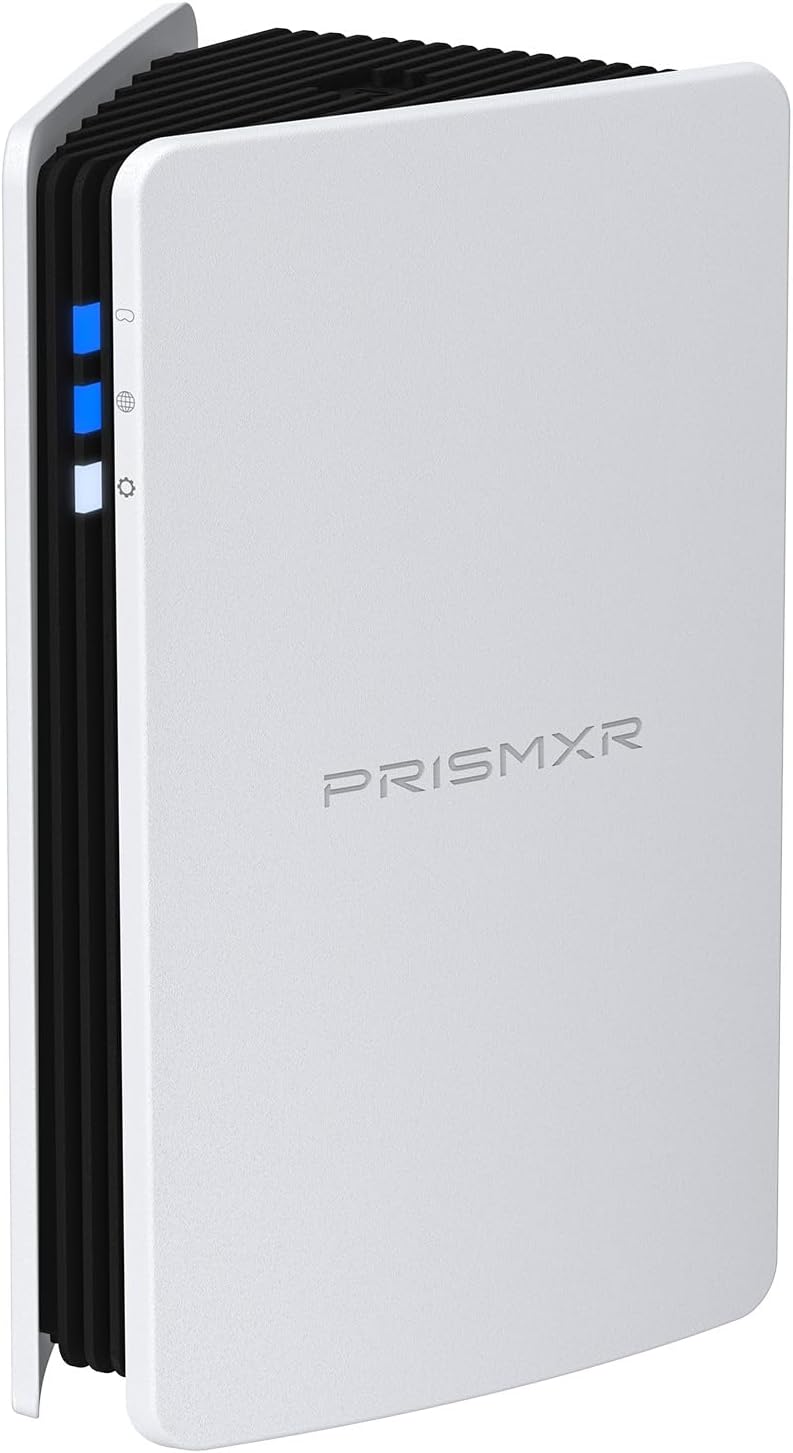
Image: The PRISMXR Puppis S1 device, a white rectangular unit with black fins and blue indicator lights.

Image: The Puppis S1 device positioned next to a VR headset, illustrating its compact size and intended use.
2.2. Connexion physique
Connect the Puppis S1 to your PC using the provided USB-C to dual USB-A cable. One USB-A connector is for data (USB 3.0 recommended) and the other for power (USB 2.0 or higher). Ensure both are securely plugged into your PC's USB ports.

Image: Diagram showing the Puppis S1 connected to a desktop PC via its USB cable, highlighting the USB 3.0 and USB 2.0 connections.
Important: The USB-C connector on the Puppis S1 has a specific orientation. Ensure the cable is inserted correctly, aligning the 'R' and 'L' indicators on the device with the corresponding sides of the cable for optimal performance.
2.3. Software Installation (PrismXR Desktop App)
For seamless PC-VR streaming and device management, install the PrismXR Desktop App on your Windows 10/11 PC. This application provides a "One-Click Scan and Fix" feature to optimize your system for VR streaming.
- Download the latest PrismXR Desktop App from the official PRISMXR website.
- Suivez les instructions à l’écran pour terminer l’installation.
- Launch the application after installation.

Image: A computer monitor displaying the PrismXR Desktop App interface, showing a scan result with items needing recovery or fixing for optimal performance.
2.4. Pairing with VR Headset and App
The Puppis S1 uses EaseLink technology for a robust and hassle-free setup. You can manage the device via the PrismXR Desktop App or a mobile app.
- Ensure your Puppis S1 is connected to your PC and powered on.
- Open the PrismXR Desktop App or mobile app.
- The app should detect the Puppis S1. If not, press the 'SET' button on top of the Puppis S1 once to put it in Bluetooth connecting mode (status indicator will flash white).
- Follow the app's instructions to pair your VR headset with the Puppis S1's dedicated Wi-Fi network (PrismPulse Wi-Fi).
Video: "PrisimXR Puppis S1 How to video" - Demonstrates the setup process and connection of the Puppis S1.
Video: "PrismXR Desktop App-How to Use One-Click Scan" - Shows how to use the desktop application's scan and fix feature.
3. Modes de fonctionnement et indicateurs
3.1. Modes de fonctionnement
The Puppis S1 supports three versatile operating modes, selectable via the 'SET' button on top of the device:
- PrismPulse Mode (Mode 1): Dedicated connection for PC-VR streaming. This is the primary mode for connecting your VR headset directly to your PC for optimal performance.
- WiFi Hotspot Mode (Mode 2): Allows you to share your PC's network as a hotspot for mobile devices (2.4GHz or 5GHz).
- WiFi Adapter Mode (Mode 3): Helps PCs without built-in Wi-Fi to establish a Wi-Fi connection.

Image: The Puppis S1 device depicted in three different orientations, representing its PrismPulse Mode, WiFi Hotspot Mode, and WiFi Adapter Mode.
3.2. Indicateurs LED
The Puppis S1 features three LED indicators on its front panel, providing status information:
- Top LED (PrismPulse Mode Indicator):
- Bleu clignotant : Pending connection to VR headset.
- Bleu uni : VR headset successfully connected.
- Orange: Connected, but PrismPulse mode is abnormal (potential issue).
- Rouge: Connection failed entirely.
- Middle LED (Internet Connection Indicator):
- Rouge: Internet déconnecté.
- Bleu: Internet connecté.
- Bottom LED (Status Indicator):
- Blanc clignotant : In Bluetooth connecting mode (for initial pairing).
- Jaune: In WiFi Hotspot Mode.
- Violet: In WiFi Adapter Mode.
- Rouge: Powered on but operating abnormally (general issue).
3.3. 'SET' Button Functions
The 'SET' button on the top of the Puppis S1 serves multiple purposes:
- Presse simple : Reconnects to PrismPulse mode or puts the device into Bluetooth connecting mode for initial pairing.
- Press and Hold (3+ seconds): Cycles through the three operating modes (PrismPulse, WiFi Hotspot, WiFi Adapter).
- Press and Hold (10+ seconds): Re-enters pairing mode for the PrismXR App.
4. Entretien
To ensure the longevity and optimal performance of your PRISMXR Puppis S1, consider the following maintenance tips:
- Garder propre: Regularly wipe the device with a soft, dry cloth to remove dust. Avoid liquid cleaners.
- Ventilation: Ensure the device's cooling fins are not obstructed to prevent overheating.
- Mises à jour du micrologiciel : Periodically check for firmware updates via the PrismXR Desktop App to ensure you have the latest features and performance improvements.
- Stockage sécurisé : En cas de non-utilisation prolongée de l'appareil, rangez-le dans un endroit frais et sec, à l'abri de la lumière directe du soleil et des températures extrêmes.
5. Dépannage
If you encounter issues with your Puppis S1, try the following troubleshooting steps:
5.1. Problèmes de connexion
- No Connection (Top LED Flashing Blue/Red):
- Ensure the USB-C cable is correctly oriented and fully inserted into the Puppis S1.
- Verify both USB-A connectors are securely plugged into your PC.
- Restart the PrismXR Desktop App and your VR headset.
- Press the 'SET' button on the Puppis S1 once to re-initiate Bluetooth connecting mode.
- Unstable Connection (Top LED Orange):
- Run the "One-Click Scan and Fix" feature in the PrismXR Desktop App to identify and resolve system-level issues.
- Ensure your PC meets the recommended specifications for PC-VR streaming.
- Minimize other Wi-Fi interference by ensuring the Puppis S1 is positioned optimally and other devices are not heavily using the same frequency band.
5.2. Internet Disconnection (Middle LED Red)
- Verify your PC's internet connection is active and stable.
- If using "WiFi Hotspot Mode" or "WiFi Adapter Mode", ensure proper configuration within the PrismXR App.
5.3. Device Not Responding / Abnormal Operation (Bottom LED Red)
- Redémarrage en douceur: Disconnect and reconnect the USB cable from your PC.
- Retour aux paramètres d'usine: If issues persist, locate the reset button on the back of the device (usually a small pinhole) and press it with a paperclip for 5-10 seconds to restore factory settings. Note that this will erase all custom configurations.
Video: "P1411 Puppis S1 PC VR Streaming Part 1" - Provides an overview of the device and its features, including connection and indicator lights.
Video: "P1411 Puppis S1 PC VR Streaming Part 2" - Continues the explanation of the device's functionality and setup.
6. Spécifications
| Fonctionnalité | Détail |
|---|---|
| Marque | PRISMXR |
| Nom du modèle | P1411011 (Puppis S1) |
| Type sans fil | 802.11ax (Wi-Fi 6) |
| Classe de bande de fréquence | Double bande (2.4 GHz et 5 GHz) |
| Total Network Speed | Jusqu'à 3000 Mbps (2402 Mbps sur 5 GHz, 575 Mbps sur 2.4 GHz) |
| Processeur | 1.3GHz Dual-core chipset |
| Prise en charge MIMO | 2x2 MIMO 160MHz bandwidth |
| QAM Support | 1024-QAM |
| Ports USB | 1x USB-C (for data & power), 1x USB 3.0, 1x USB 2.0 (via included cable) |
| Plateforme matérielle | PC |
| Compatibilité du système d'exploitation | Windows 10/11 |
| Compatible VR Headsets | Meta Quest 3S, Quest 3, Quest 2, Quest Pro, Pico 4, etc. |
| Compatible 3rd Party Software | Virtual Desktop, Steam, Steam Link |
| Dimensions | 6.69 x 4.72 x 3.54 pouces |
| Poids de l'article | 1.12 livres |
| Couleur | Blanc |
7. Garantie et assistance
For product support, warranty information, and frequently asked questions, please visit the official PRISMXR website ou contactez leur service client. Vous pouvez également consulter le Guide de l'utilisateur (PDF) available online for additional details.
PRISMXR is committed to providing high-quality products and support to enhance your VR experience.
Ask a question about this manual
Ask about setup, troubleshooting, compatibility, parts, safety, or missing instructions. Manuals+ will review the question and use this page’s manual context to help answer it.