
1. Produit terminéview
The BPXX D463B is a versatile Bluetooth thermal label printer designed for small businesses, supporting both wireless and wired connections. It is compatible with Android, iPhone, and Windows devices, and comes with 500 thermal labels and a label holder. This printer is engineered for durability and efficient label printing for various e-commerce and shipping platforms.
2. Contenu du colis
- BPXX D463B Bluetooth Thermal Label Printer
- 500 Thermal Labels (4 x 6 inches)
- Thermal Labels Holder
- Câble USB
- Adaptateur secteur
- Manuel d'utilisation
3. Guide de configuration
3.1 Configuration physique
Unpack all components from the box. Place the printer on a stable, flat surface. Connect the power adapter to the printer and plug it into a power outlet. Connect the USB cable to the printer and your computer if you plan to use a wired connection.
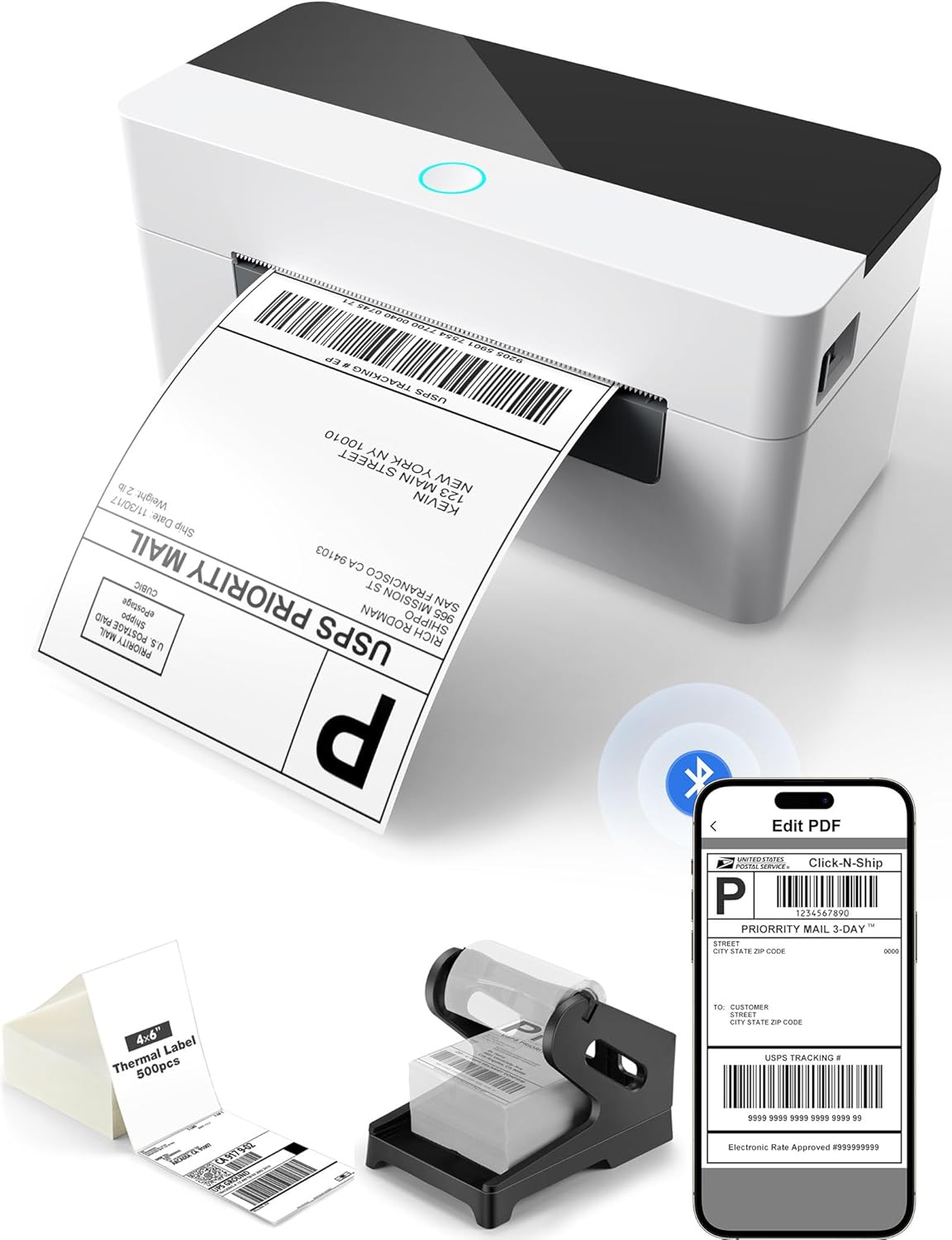
Image: The BPXX D463B printer shown with included labels and label holder, demonstrating its compact design and readiness for use.
3.2 Chargement des étiquettes
Open the printer's top cover. Adjust the label guides to match the width of your labels. Insert the labels into the feeder, ensuring the print side is facing up. Feed the labels forward past the print head until they are properly aligned. Close the top cover. The printer will automatically detect and calibrate the label size.

Image: A shipping label being printed from the BPXX D463B printer, with a smartphone displaying the 'Edit PDF' interface for label preparation.
3.3 Connectivité
The D463B printer supports both Bluetooth and USB connections.
- Connexion Bluetooth: For Android/iPhone/Windows, download the '4Barcode' app. Enable Bluetooth on your device and pair with the printer.
- Connexion USB : Connect the printer to your Windows, Mac OS, Chrome OS, or Linux computer using the provided USB cable. Install the necessary drivers as instructed in the included documentation.

Image: Visual representation of the printer's connectivity options, including Bluetooth for phones/tablets and USB for various operating systems (Windows, Chrome OS, Mac, Linux).
4. Mode d'emploi
4.1 Impression des étiquettes
Once connected and labels are loaded, you can begin printing. For mobile devices, use the '4Barcode' app to select and print your labels. For computers, ensure the printer is selected in your print settings. Download labels from your e-commerce or shipping platform, then upload them to the app or print directly from your computer's software.
4.2 Compatibilité des étiquettes
The printer supports a maximum label width of 4.33 inches. It is optimized for 4x6 inch shipping labels but can accommodate various other thermal label sizes, including 3x2, 2x1, 3x3, and circular labels. The printer features automatic label size detection for ease of use.

Image: The printer demonstrating its compatibility with various label sizes, including 4x6 inch shipping labels and smaller custom labels.
4.3 Compatibilité de la plateforme
This thermal label printer is compatible with most major shipping and e-commerce platforms, including but not limited to Amazon, eBay, Shopify, Etsy, UPS, USPS, and FedEx.

Image: Logos of various e-commerce and shipping platforms, indicating the printer's wide compatibility.
5. Entretien
5.1 Print Head Durability
The BPXX D463B features a robust aluminum alloy print head designed for extended durability and a prolonged service life. It is capable of printing up to 300 miles of labels, ensuring reliable performance for long-term business needs.
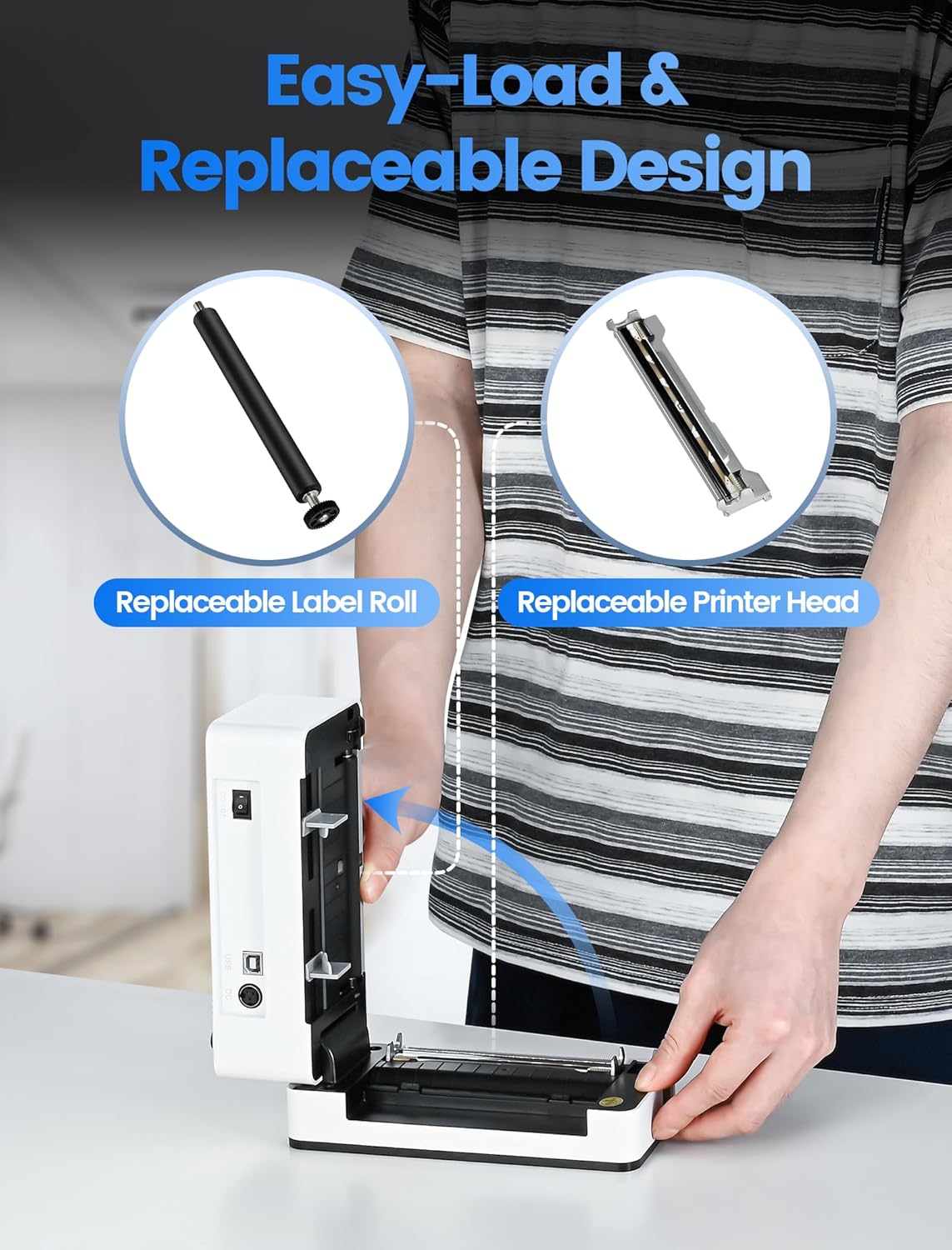
Image : Un interne view of the printer highlighting its durable aluminum alloy print head, emphasizing its long-lasting design.
5.2 Nettoyage
Regularly clean the print head with an alcohol wipe to maintain print quality. Ensure the printer is turned off and unplugged before cleaning. Refer to the detailed cleaning instructions in the full user manual (PDF) for best practices.
6. Dépannage
- L'imprimante ne répond pas : Ensure the printer is powered on and properly connected via Bluetooth or USB. Restart both the printer and your device.
- Étiquettes ne s'alimentant pas correctement : Verify that labels are loaded correctly and the label guides are adjusted to the label width. Perform a test print by holding down the feed button until the light turns purple (approximately 20 seconds) to ensure proper calibration.
- Mauvaise qualité d'impression : Clean the print head as described in the Maintenance section. Ensure you are using direct thermal labels, as this printer is not compatible with laser or inkjet labels.
- Problèmes de connexion Bluetooth : Ensure the '4Barcode' app is installed and updated. Check your device's Bluetooth settings and ensure the printer is discoverable.
7. Spécifications
| Fonctionnalité | Détail |
|---|---|
| Marque | BPXX |
| Technologie de connectivité | Bluetooth, USB |
| Technologie d'impression | Thermique |
| Dossier spécial | Prêt pour le réseau |
| Sortie de l'imprimante | Monochrome |
| Type de contrôleur | Android, iOS |
| Presse écrite | Étiquettes |
| Appareils compatibles | Smartphones, Windows, Mac OS, Chrome OS, Linux |
| Méthode de contrôle | Application |
| Largeur maximale de l'étiquette | 4.33 pouces |
| Print Head Material | Alliage d'aluminium |
| Durée de vie de la tête d'impression | Up to 300 miles of labels |
8. Garantie et assistance
For detailed warranty information and further technical support, please refer to the official documentation provided with your product or visit the BPXX support website. Additional resources, including a comprehensive User Manual and Installation Manual, are available in PDF format: