
1. Introduction
This manual provides detailed instructions for the setup, operation, and maintenance of your INPHIC M6Pro Wireless Tri-Mode Ergonomic Mouse. Please read this manual thoroughly before using the product to ensure proper functionality and longevity.
2. Produit terminéview
The INPHIC M6Pro is a versatile wireless mouse designed for comfort and efficiency. It features multiple connectivity options, customizable performance, and smart features to enhance your computing experience.
Caractéristiques principales :
- Double connectivité : Supports both 2.4G wireless and Bluetooth 5.0 connections for flexible device pairing.
- Conception ergonomique : Right-handed design with a 39mm height, wide thumb rest, and non-slip grips for enhanced comfort and stability during extended use.
- Customizable Performance: Offers 5-speed DPI adjustment ranging from 800 to 2400 DPI, allowing you to tailor cursor sensitivity. Features silent click buttons for quiet operation.
- Caractéristiques intelligentes: Includes RGB lighting effects, a stepped battery indicator, and optimized three-dimensional side buttons designed to prevent accidental clicks.
- Efficacité énergétique : Equipped with a 500mAh rechargeable battery and a convenient Type-C charging port for prolonged use.
3. Contenu du colis
- INPHIC M6Pro Wireless Mouse
- Récepteur USB (intégré à la souris)
- Câble de chargement USB-C
- Manuel d'utilisation
4. Installation
4.1 Chargement de la souris
Before first use, fully charge the mouse. Connect the provided USB-C charging cable to the Type-C port on the front of the mouse and to a USB power source.

Image: The INPHIC M6Pro mouse being charged via its Type-C port. The battery indicator lights are visible, showing charging status.
The battery indicator lights will flash in a cycle while charging. Once fully charged, all battery indicator lights will remain steadily lit.
Video: Demonstrates the mouse charging process, showing the battery indicator lights flashing during charging and remaining solid when fully charged.
4.2 Connexion sans fil 2.4 GHz
- Repérez le récepteur USB rangé dans le compartiment situé au bas de la souris.
- Branchez le récepteur USB dans un port USB disponible sur votre ordinateur.
- Turn on the mouse using the ON/OFF switch located at the bottom.
- Ensure the mode switch at the bottom is set to the '2.4G' position (red light will be on). The mouse should automatically connect to your device.
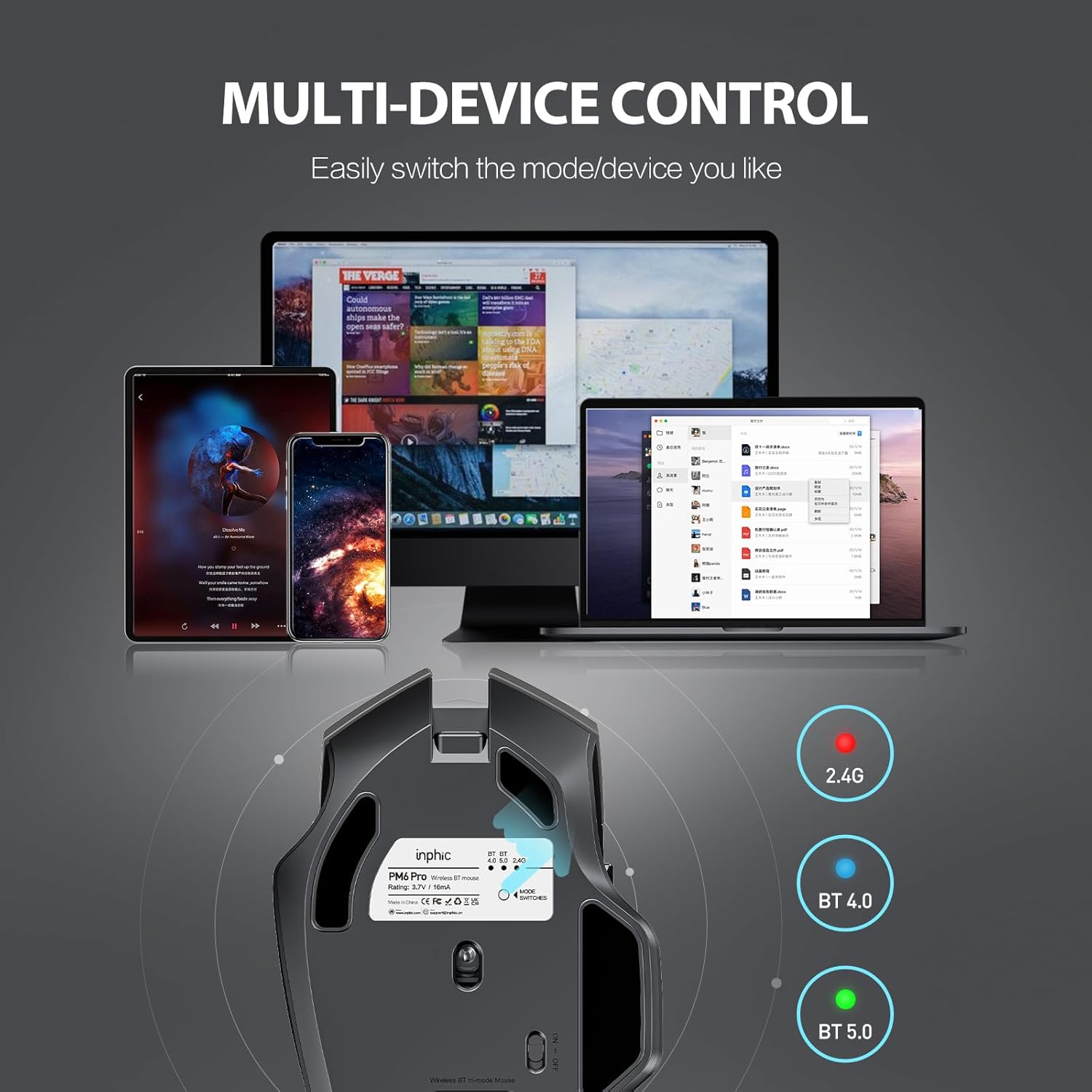
Image: The underside of the mouse, highlighting the USB receiver storage and the mode switch for 2.4G, BT 4.0, and BT 5.0 connections.
4.3 Connexion Bluetooth (BT 5.0 / BT 4.0)
- Turn on the mouse using the ON/OFF switch at the bottom.
- Short-press the 'MODE SWITCHES' button at the bottom to cycle through connection modes until the desired Bluetooth indicator (BT 5.0 or BT 4.0) lights up.
- For pairing, long-press the 'MODE SWITCHES' button until the selected Bluetooth indicator light flashes rapidly. This indicates the mouse is in pairing mode.
- On your device (computer, tablet, etc.), go to Bluetooth settings and search for new devices. Select 'INPHIC M6Pro' (or similar name) to pair.
Video: Demonstrates how to switch between 2.4G and Bluetooth modes (BT 4.0, BT 5.0) and enter pairing mode by pressing the mode switch button on the mouse's underside.
5. Mode d'emploi
5.1 Ajustement PPP
The mouse features a DPI switch button located behind the scroll wheel. Press this button to cycle through 5 DPI settings (800, 1200, 1600, 2000, 2400 DPI) to adjust cursor sensitivity to your preference.

Image: A diagram illustrating the location of the DPI switch button and other buttons on the mouse.
5.2 Fonctions des boutons
The INPHIC M6Pro mouse is equipped with 6 buttons:
- Touche gauche : Fonction standard de clic gauche.
- Touche droite : Fonction standard de clic droit.
- Molette: Permet de faire défiler vers le haut/bas et sert de bouton de clic central.
- Commutateur PPP : Ajuste la sensibilité du curseur (DPI).
- Bouton avant : Navigue vers l'avant dans web navigateurs ou file explorateurs.
- Bouton de retour : Navigue en arrière dans web navigateurs ou file explorateurs.

Image : détaillée view of the mouse's underside, showing the power switch, LED indicator, and USB receiver slot.
5.3 Conception ergonomique et fonctionnement silencieux
The mouse features a curved, skin-like material design for a comfortable grip, reducing hand strain during prolonged use. The widened thumb rest further enhances comfort and control.
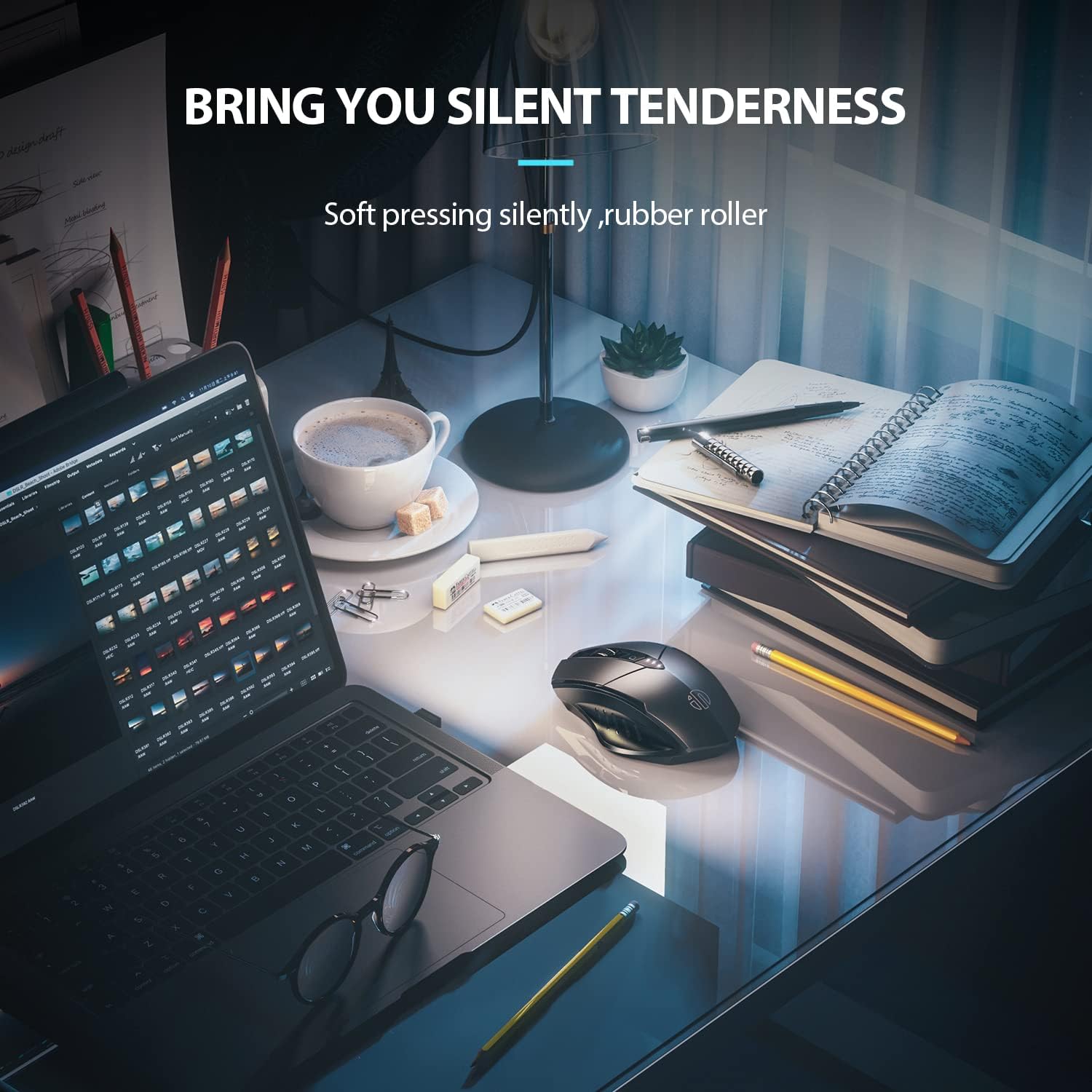
Image: The ergonomic shape of the mouse, designed for a comfortable user experience.

Image: A close-up showing the widened thumb rest for a more comfortable grip.
The left and right click buttons are designed for silent operation, allowing you to work without disturbing others.

Image: Illustrates the silent click feature of the mouse, ideal for quiet environments.
6. Entretien
To ensure the longevity and optimal performance of your INPHIC M6Pro mouse, follow these maintenance guidelines:
- Nettoyage: Utilisez un chiffon doux et sec pour essuyer la souris. Pour les saletés tenaces, frottez légèrement avec un chiffon doux et sec.ampNettoyez le chiffon avec de l'eau ou une solution nettoyante douce. Évitez les produits chimiques agressifs et les matériaux abrasifs.
- Stockage: Pour économiser la batterie, éteignez la souris lorsque vous ne l'utilisez pas pendant une période prolongée. Rangez-la dans un endroit frais et sec, à l'abri de la lumière directe du soleil et des températures extrêmes.
- Entretien de la batterie: Évitez de décharger complètement la batterie fréquemment. Rechargez la souris lorsque le témoin de batterie est faible.
- Récepteur USB : Keep the USB receiver in its designated storage slot at the bottom of the mouse when traveling to prevent loss.
7. Dépannage
If you encounter issues with your INPHIC M6Pro mouse, refer to the following common solutions:
| Problème | Cause possible | Solution |
|---|---|---|
| Souris ne répondant pas (2.4 GHz) | USB receiver not properly connected or mouse is off. | Ensure the USB receiver is securely plugged into a USB port. Turn on the mouse and ensure the mode switch is set to 2.4G. Try a different USB port. |
| Souris ne répondant pas (Bluetooth) | Not paired, out of range, or incorrect Bluetooth mode selected. | Ensure the mouse is in the correct Bluetooth mode (BT 5.0 or BT 4.0) and in pairing mode (flashing light). Re-pair the mouse with your device. Ensure the mouse is within 10 meters of your device. |
| Le mouvement du curseur est erratique ou lent. | Low battery, incorrect DPI setting, or dirty sensor. | Charge the mouse. Adjust the DPI setting using the DPI button. Clean the optical sensor at the bottom of the mouse with a soft cloth. |
| Buttons not clicking or unresponsive | Batterie faible ou problème de connexion. | Charge the mouse. Re-establish the connection (2.4G or Bluetooth). |
| La batterie ne charge pas | Câble ou source d'alimentation défectueux. | Try a different USB-C cable and a different USB power source. Ensure the cable is properly connected to the mouse's Type-C port. |
8. Spécifications
| Fonctionnalité | Détail |
|---|---|
| Numéro de modèle | M6Pro |
| Technologie de connectivité | Sans fil 2.4 GHz, Bluetooth 5.0, Bluetooth 4.0 (Tri-Mode) |
| Technologie de détection de mouvement | Optique |
| Paramètres PPP | 800, 1200, 1600, 2000, 2400 |
| Boutons | 6 (Gauche, Droite, Molette de défilement, Commutateur DPI, Avant, Arrière) |
| Type de batterie | Batterie lithium-polymère rechargeable (500 mAh) |
| Port de chargement | Type C |
| Dimensions du produit | 4.65 x 1.57 x 0.04 pouces |
| Poids de l'article | 3.35 onces |
| Systèmes d'exploitation compatibles | Windows Vista/7 and above, Mac OS X 10.10 and above, iOS 13 and above, Android 5.0 and above, Linux kernel 2.6+, Chrome OS |
9. Garantie et assistance
INPHIC products are designed for reliability and performance. For warranty information or technical support, please refer to the contact details provided with your product packaging or visit the official INPHIC webConsultez le site. Conservez votre reçu d'achat comme preuve d'achat pour toute réclamation au titre de la garantie.