
Introduction
This manual provides comprehensive instructions for the LAFVIN 10.1 inch IPS LCD Touch Screen Display. It covers product features, setup procedures, operating guidelines, maintenance tips, troubleshooting, and technical specifications. Please read this manual thoroughly before using the product to ensure proper operation and longevity.
Caractéristiques du produit
- 1024x600 HD IPS Full View Écran: Offre une large gamme viewing angle of up to 178 degrees for clear visuals.
- Large compatibilité: Supports mainstream development boards including Raspberry Pi, Banana Pi, EAIDK, Jetson Nano, BB Black, and other popular development boards.
- Plug and Play Touch Functionality: When used with Raspberry Pi (Raspbian, Kali Linux, Ubuntu) and other mainstream systems, touch support is plug and play, requiring no additional drivers.
- Rétroéclairage réglable : Features an integrated backlight adjustment button for customizable brightness levels.
- Deux haut-parleurs intégrés : Equipped with a dual speaker system and an integrated audio cavity, offering adjustable volume.
Interfaces et contrôles
Familiarize yourself with the various interfaces and controls on your LAFVIN 10.1 inch display.
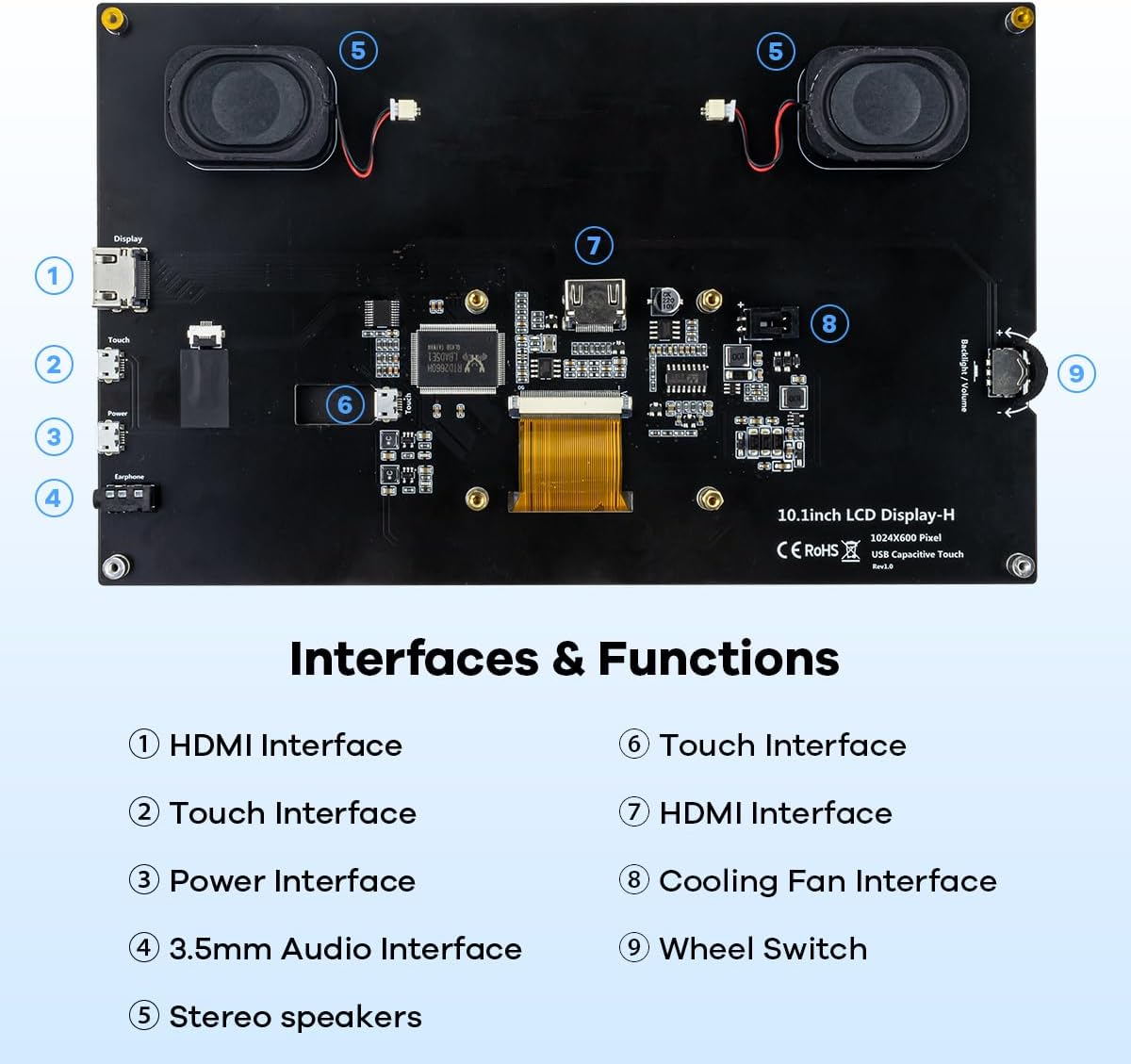
Image: Detailed diagram illustrating the various ports and controls on the back of the LAFVIN 10.1 inch display. Numbered labels indicate: (1) HDMI Interface, (2) Touch Interface, (3) Power Interface, (4) 3.5mm Audio Interface, (5) Stereo speakers, (6) Touch Interface (internal connection), (7) HDMI Interface (internal connection), (8) Cooling Fan Interface, (9) Wheel Switch for adjustments.
- Interface HDMI : Pour l'entrée vidéo.
- Touch Interface (USB): For touch data transmission.
- Power Interface (Micro USB): For power supply to the display.
- Interface audio 3.5 mm : Pour la sortie audio externe.
- Haut-parleurs stéréo: Intégré pour la sortie audio.
- Interface du ventilateur de refroidissement : For connecting an optional cooling fan.
- Commutateur à roue : Used to adjust backlight brightness and speaker volume.
Guide d'installation
Contenu du colis
Veuillez vérifier que tous les articles sont présents dans le colis :
- LAFVIN 10.1 inch IPS LCD Touch Screen Display
- Câble HDMI
- Micro USB Cable (for power and touch)
- Mounting hardware/stand (may vary)
- HDMI Adapter for Raspberry Pi 3B/4B (as shown in images)
Connexion aux appareils
The display is compatible with various devices, including Raspberry Pi, PCs, TV boxes, and game consoles.

Image: Visual guide demonstrating how to connect the display to a Computer, TV Box, Raspberry Pi, and a Games Player, highlighting the HDMI and USB connections.
- Connexion vidéo : Connect the display to your device (e.g., Raspberry Pi, PC) using the provided HDMI cable. Ensure the HDMI cable is securely connected to the HDMI input on the display and the HDMI output on your device.
- Connexion tactile : For touch functionality, connect the Micro USB cable from the display's Touch Interface to a USB port on your device.
- Connexion électrique : Connect the Micro USB power cable from the display's Power Interface to a 5V/2A power adapter (not always included) or a powered USB port on your device.
- Sortie audio : If using external speakers or headphones, connect them to the 3.5mm Audio Interface. The integrated speakers will function automatically if no external audio device is connected.
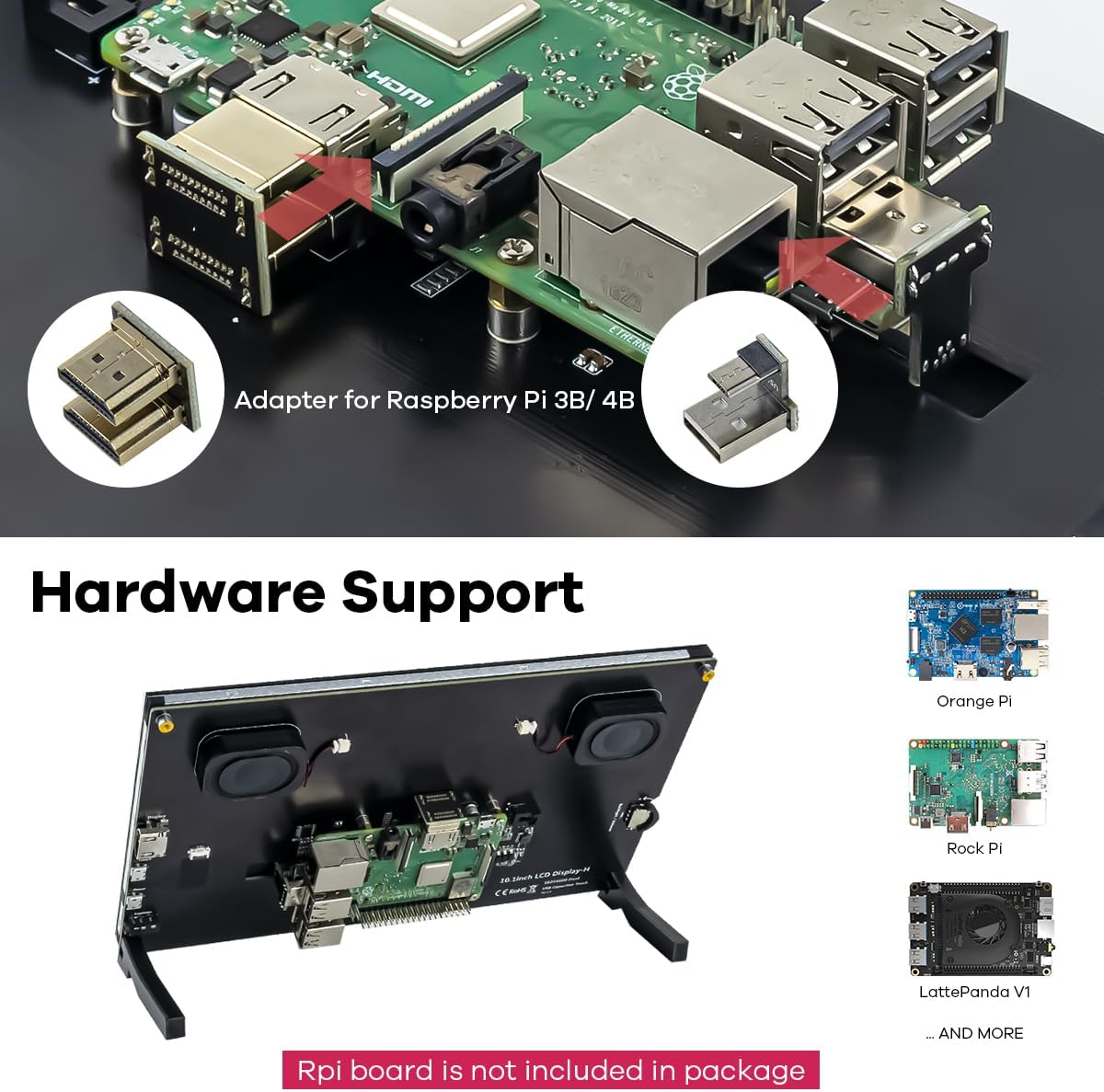
Image: The back of the LAFVIN 10.1 inch display, illustrating how a Raspberry Pi board can be mounted directly. Also shown are adapters for Raspberry Pi 3B/4B and examples of other supported development boards like Orange Pi, Rock Pi, and LattePanda V1.
Note: For Raspberry Pi 3B/4B, use the included HDMI adapter for proper connection. The Raspberry Pi board is not included with the display.
Mode d'emploi
Marche/Arrêt
Once all connections are made and power is supplied, the display should automatically power on. There is no dedicated power button; power is controlled by the Micro USB power input.
Fonctionnalité tactile
The display supports 5-point capacitive touch. For most compatible operating systems (e.g., Raspbian, Windows), touch is plug and play.

Image: A visual guide illustrating common 5-point touch gestures supported by the display, including Tap, Press, Zoom Out (pinch), Zoom In (spread), and Mouse Click (long press or single tap depending on context). Note: Mac OS only supports display, not touch.
- Robinet: Une seule touche pour sélectionner.
- Presse: Hold touch for context menus or drag actions.
- Zoom avant/arrière : Use two fingers to pinch or spread for zooming.
- Clic de souris : Functions similarly to a mouse click in supported operating systems.
Important: Mac OS only supports display output, not touch input, with this device.
Réglage de la luminosité et du volume
The wheel switch located on the back of the display (item 9 in the Interfaces and Controls diagram) controls both backlight brightness and speaker volume.
- Rotate the wheel to adjust the backlight brightness.
- Press the wheel to switch between brightness and volume control modes.
- Rotate the wheel again to adjust the volume when in volume control mode.

Image: Un gros plan view of the integrated tiny dual-speakers located on the back of the LAFVIN 10.1 inch display, designed to deliver clear sound.
Compatibilité
The LAFVIN 10.1 inch display is designed for broad compatibility with various systems and devices:
- Development Boards: Raspberry Pi (all models), Banana Pi, EAIDK, Jetson Nano, BB Black.
- Operating Systems (with touch support): Raspbian, Kali Linux, Ubuntu, Windows 10/8/7.
- Operating Systems (display only): Système d'exploitation Mac.
- Autres appareils: PCs, Laptops, Game Consoles (e.g., XBOX, PS4), TV Boxes, Cameras.
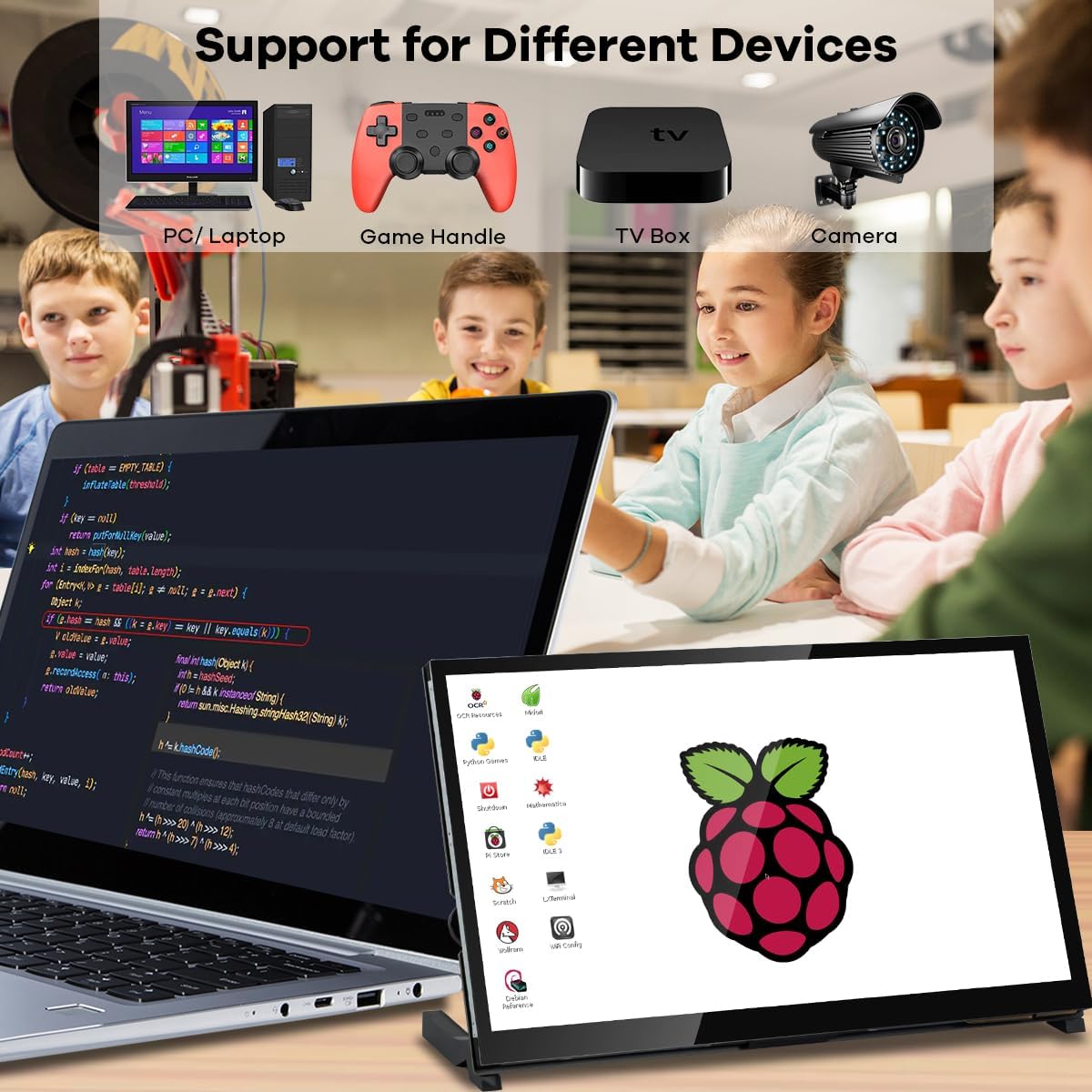
Image: The LAFVIN 10.1 inch display in use with a variety of devices, including a PC/Laptop, a game controller, a TV box, and a camera, demonstrating its versatile compatibility.
Entretien
Pour garantir la longévité et les performances optimales de votre écran, suivez ces consignes d'entretien :
- Nettoyage: Utilisez un chiffon doux non pelucheux pour essuyer délicatement l'écran. Pour les taches tenaces, frottez légèrement.ampNettoyez le chiffon avec de l'eau ou une solution nettoyante adaptée aux écrans. Évitez les produits chimiques agressifs, les matériaux abrasifs et la pulvérisation directe sur l'écran.
- Stockage: Store the display in a cool, dry place away from direct sunlight and extreme temperatures.
- Manutention: Avoid dropping or subjecting the display to strong impacts. Do not apply excessive pressure to the screen.
- Ventilation: Ensure proper airflow around the display, especially if a Raspberry Pi or other development board is mounted on the back, to prevent overheating.
Dépannage
Si vous rencontrez des problèmes avec votre écran, consultez les problèmes et solutions courants suivants :
- Aucun affichage/Écran noir :
- Ensure the HDMI cable is securely connected to both the display and the source device.
- Verify that the display is receiving power via the Micro USB power input.
- Check if the source device (e.g., Raspberry Pi, PC) is powered on and outputting video.
- Try a different HDMI cable or port if available.
- Fonctionnalité tactile non fonctionnelle :
- Ensure the Micro USB cable for touch is securely connected from the display to a USB port on your source device.
- Verify that your operating system supports touch input for this display (e.g., Mac OS does not support touch).
- For Raspberry Pi, ensure your OS (e.g., Raspbian) is up-to-date and configured for touch.
- Try connecting the touch USB cable to a different USB port on your device.
- Aucun son ne sort des haut-parleurs :
- Check the volume level using the wheel switch on the back of the display.
- Ensure no external audio device is connected to the 3.5mm audio jack, which would disable the internal speakers.
- Vérifiez les paramètres de sortie audio de votre périphérique source.
- Image instable/scintillement de l'écran :
- Ensure the display is receiving sufficient power. Use a reliable 5V/2A power adapter.
- Vérifiez que le câble HDMI n'est pas endommagé ou que les connexions ne sont pas desserrées.
- Reduce the resolution or refresh rate on your source device if it's set too high.
- Marque: LAFVIN
- Numéro de modèle : 9e70fb53-1aab-49f2-879f-c185915f12d9
- Type d'écran : Écran LCD IPS
- Taille de l'écran : 10.1 pouces
- Résolution: 1024 x 600
- Interface matérielle: HDMI
- Nombre de ports HDMI : 1
- Type de connecteur : HDMI
- Compatibilité des appareils : Raspberry Pi, Banana Pi, EAIDK, Jetson Nano, BB Black, Windows, etc.
- Dimensions de l'article (L xlxh): 23.5 x 14.5 x 1.6 cm
- Caractéristiques spéciales : Touch screen, integrated speakers
- Rapport hauteur/largeur : 1.63:1
- Description de la surface de l'écran : Mat
- Rapport de contraste d'image : 2000:1
- Taux de rafraîchissement : 60 Hz
- Couleur: Noir
Caractéristiques
Garantie et assistance
LAFVIN products are designed for reliability and performance. For specific warranty information, please refer to the documentation provided at the time of purchase or contact your retailer. For technical support, please reach out to the LAFVIN customer service team through the contact information provided on the official LAFVIN website ou votre plateforme d'achat.