
Introduction
This manual provides instructions for the setup, operation, maintenance, and troubleshooting of your AWOW AiBook 10 detachable 2-in-1 laptop. The AiBook 10 functions as both a tablet and a laptop, featuring a 10.1-inch touchscreen display and running Windows 11. It is equipped with an Intel Celeron N4120 processor, 8GB RAM, and 256GB SSD storage.
Qu'y a-t-il dans la boîte
Lors du déballage, vérifiez que tous les articles sont présents :
- AWOW AiBook 10 Detachable 2-in-1 Laptop
- Clavier détachable
- Adaptateur secteur (adaptateur secteur)
Produit terminéview
The AWOW AiBook 10 is designed for versatility, allowing seamless transition between tablet and laptop modes. Familiarize yourself with the device's components and ports.

Image: The AWOW AiBook 10 in laptop configuration, showcasing the main unit and attached keyboard.

Image : détaillée view of the AiBook 10, highlighting its dimensions and port locations.
Ports et connecteurs :
- Port USB 3.0: For connecting USB devices such as external storage, mice, or printers.
- Port micro HDMI : Pour la connexion à des écrans ou projecteurs externes.
- Emplacement pour carte TF: Pour étendre le stockage avec une carte microSD (jusqu'à 512 Go).
- Prise casque (3.5 mm) : Pour connecter des écouteurs ou des haut-parleurs externes.
- DC 12V/3A Jack: Pour connecter l'adaptateur secteur afin de charger l'appareil.
Caméras :
- Caméra frontale : 2.0MP, suitable for video calls.
- Caméra arrière : 5.0 MP, pour la capture de photos et de vidéos.

Image: Illustration of the 2MP front camera and 5MP rear camera on the AiBook 10.
Installation
1. Charge initiale
Before first use, fully charge the AiBook 10. Connect the provided power adapter to the DC 12V/3A jack on the device and plug it into a power outlet. The charging indicator will illuminate.
2. Fixation du clavier
Alignez le connecteur magnétique du clavier détachable avec le port correspondant situé sur le bord inférieur de la tablette. Le clavier se fixera magnétiquement en place.

Image: The detachable keyboard being connected to the AiBook 10 tablet.
3. Mise sous tension
Press and hold the power button located on the side of the tablet until the screen illuminates. The device will boot into Windows 11.
4. Configuration initiale de Windows
Follow the on-screen prompts to complete the Windows 11 setup process. This includes selecting your language, region, connecting to a Wi-Fi network, and creating a user account.
Opérationnel
Switching Between Tablet and Laptop Modes
The AiBook 10 automatically detects the presence of the detachable keyboard. When the keyboard is attached, it functions as a laptop. When detached, it operates as a tablet, and Windows 11 will adjust its interface accordingly.
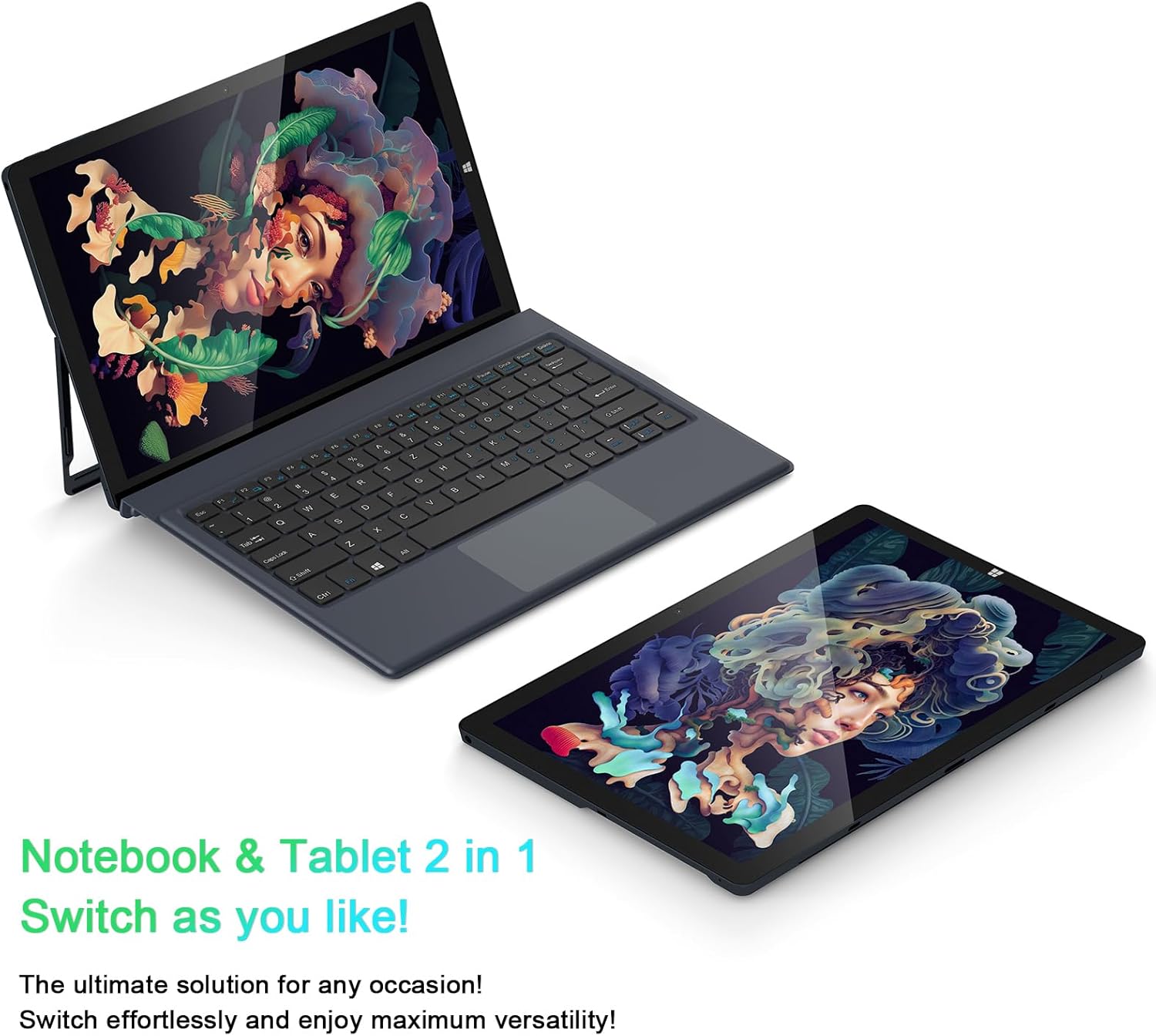
Image: The AiBook 10 displayed in both its laptop and tablet configurations.
Utilisation de l'écran tactile
The 10.1-inch IPS display supports multi-touch gestures. Use your fingers to navigate, tap, swipe, and pinch-to-zoom.
Connexion des périphériques
- Bluetooth : Enable Bluetooth in Windows settings to pair with compatible devices such as headphones, mice, or keyboards. The device supports Bluetooth 4.2.
- Périphériques USB : Plug USB devices into the USB 3.0 port.
- Affichage externe : Connect an external monitor using the Micro HDMI port. An appropriate adapter or cable may be required.
Réglage du support
The integrated stand bracket allows you to adjust the viewing angle of the tablet up to 145 degrees. Carefully extend the stand from the back of the tablet to your desired position.
Entretien
Nettoyage de l'appareil
Utilisez un chiffon doux non pelucheux pour nettoyer l'écran et les surfaces extérieures. Pour les taches tenaces, frottez légèrement.ampNettoyez le chiffon avec de l'eau ou une solution de nettoyage pour écrans. Évitez les produits chimiques agressifs et les matériaux abrasifs.
Entretien de la batterie
To prolong battery life, avoid fully discharging the battery frequently. Store the device in a cool, dry place when not in use for extended periods. The device features a 6500mAh Lithium Polymer battery.

Image : Représentation visuelle de la capacité de la batterie de 6500 mAh.
Mises à jour logicielles
Regularly check for and install Windows updates to ensure optimal performance and security. Access Windows Update through the Settings menu.
Dépannage
This section addresses common issues you might encounter with your AiBook 10.
L'appareil ne s'allume pas.
- Assurez-vous que l'appareil est chargé. Branchez l'adaptateur secteur et patientez quelques minutes avant de tenter de le rallumer.
- Maintenez le bouton d'alimentation enfoncé pendant 10 à 15 secondes pour effectuer une réinitialisation matérielle.
Screen Flickering or Display Issues
- Redémarrez l'appareil.
- Check for updated display drivers through Windows Update or the device manufacturer's website.
- If connected to an external display, ensure the cable is securely connected.
Keyboard or Touchpad Not Responding
- Ensure the detachable keyboard is securely attached to the tablet.
- Redémarrez l'appareil.
- Check Windows settings for keyboard and touchpad functionality.
Problèmes de connectivité Wi-Fi ou Bluetooth
- Assurez-vous que le Wi-Fi ou le Bluetooth est activé dans les paramètres Windows.
- Redémarrez votre routeur/modem en cas de problème de Wi-Fi.
- Pour le Bluetooth, essayez de déconnecter puis de reconnecter l'appareil.
- Check for updated network drivers.
Performances lentes
- Fermez les applications inutiles qui s'exécutent en arrière-plan.
- Assurez-vous d'avoir suffisamment d'espace de stockage libre sur le SSD.
- Run a disk cleanup and optimize drives in Windows.
- Vérifiez et installez les mises à jour Windows en attente.
Caractéristiques
| Marque | Waouh |
| Nom du modèle | AiBook 10 |
| Taille de l'écran | 10.1 pouces |
| Résolution d'affichage | 1280 x 800 pixels (Full HD IPS) |
| Système opérateur | Windows 11 |
| Modèle de processeur | Intel Celeron N4120 (jusqu'à 2.6 GHz) |
| Mémoire RAM | 8 Go LPDDR4 |
| Taille du disque dur | SSD 256 Go (eMMC) |
| Carte graphique | Carte graphique Intel UHD 600 intégrée |
| Connectivité | 2.4G+5G WiFi, Bluetooth 4.2, USB 3.0, Micro HDMI |
| Caméras | Avant 2.0 MP, arrière 5.0 MP |
| Batterie | Polymère de lithium 6500mAh |
| Poids de l'article | 1.4 Pounds (tablet only) |
| Dimensions (L x l x épaisseur) | 10.1" x 6.8" x 0.38" (tablet only) |
Garantie et assistance
Informations sur la garantie
The AWOW AiBook 10 comes with a Garantie limitée de 1 ansVeuillez conserver votre preuve d'achat pour toute réclamation au titre de la garantie. La garantie couvre les défauts de fabrication dans des conditions normales d'utilisation.
Assistance clientèle
For technical assistance, troubleshooting beyond this manual, or warranty inquiries, please contact AWOW customer support. Refer to the product packaging or the official AWOW website pour les informations de contact les plus récentes.