
1. Introduction
The ETOE Smart Projector D2 Pro is a compact and versatile home entertainment device designed to deliver a high-quality viewing experience. Featuring Android TV 10.0, built-in Chromecast, and a native 1080P resolution with 4K support, it provides access to a wide range of streaming content and connectivity options. This manual provides essential information for setting up, operating, and maintaining your projector.

Image: The ETOE Smart Projector D2 Pro, showcasing its compact design, included remote control, and a projection of the Android TV interface with Netflix and other apps.
2. Contenu de la boîte
Veuillez vérifier le contenu du colis lors du déballage pour vous assurer que tous les éléments sont présents :
- ETOE D2 Pro Projector (x1)
- Remote Control (x1, batteries not included)
- DC 19V Adapter (x1)
- Cordon d'alimentation (x1)
- User Manual + Quick Guide (x1)
3. Survie physiqueview
Familiarize yourself with the projector's ports and controls for optimal use.

Image : Arrière view of the ETOE D2 Pro Projector, highlighting the DC power input, USB port, HDMI port, and Aux audio output.
Ports et connexions :
- DC for Power: Branchez ici l'adaptateur secteur fourni.
- USB: For connecting USB drives to play media or connect compatible accessories.
- HDMI: For connecting external devices such as laptops, gaming consoles (PS5/PS4, X-Box ONE), TV boxes, or Fire TV sticks.
- Aux : For connecting external audio devices like headphones or speakers via a 3.5mm audio cable.
4. Installation
4.1 Emplacement et taille de l'écran
Position the projector on a stable, flat surface. The optimal projection distance will vary based on your desired screen size. The projector supports screen sizes from 40 inches to 120 inches, with 100 inches being the recommended size for a balanced viewexpérience de travail.
4.2 Mise sous tension
- Connect the DC 19V adapter to the projector's DC input port.
- Branchez le cordon d’alimentation sur une prise murale.
- Appuyez sur le bouton d'alimentation du projecteur ou de la télécommande pour allumer l'appareil.
4.3 Réglage de la mise au point et de la correction trapézoïdale
To ensure a clear and rectangular image, adjust the focus and keystone correction.

Image: Diagram illustrating the manual focus, digital 4D & 4P keystone correction, and digital zoom features of the ETOE D2 Pro Projector.
- Mise au point manuelle : Tournez la bague de mise au point de l'objectif du projecteur jusqu'à ce que l'image apparaisse nette et claire.
- Digital Keystone Correction (4D & 4P): If the projected image is trapezoidal or tilted, use the digital keystone correction feature to adjust it into a perfect rectangle. This can be done through the projector's settings menu.
- Digital Zoom (50% - 100%): Adjust the projection size without physically moving the projector using the digital zoom function in the settings.
5. Utilisation du projecteur
5.1 Interface Android TV 10.0
The projector runs on Android TV 10.0, providing access to over 8000 apps from Google Play, including Netflix, YouTube, Disney+, HBO Max, and Spotify. Navigate the interface using the remote control.

Image: A comparison showing the rich Android TV 10.0 interface of the ETOE D2 Pro System on the left, with numerous app icons, versus a simpler, less feature-rich interface of other projectors on the right.
- Use the directional buttons on the remote to navigate through menus and select apps.
- Appuyez sur le bouton « OK » pour confirmer vos sélections.
- Utilize the voice control feature (Google Assistant) on the remote for hands-free content search and control.
5.2 Casting with Chromecast Built-in
The built-in Chromecast allows for seamless content casting from your Android, iOS devices, or laptops.
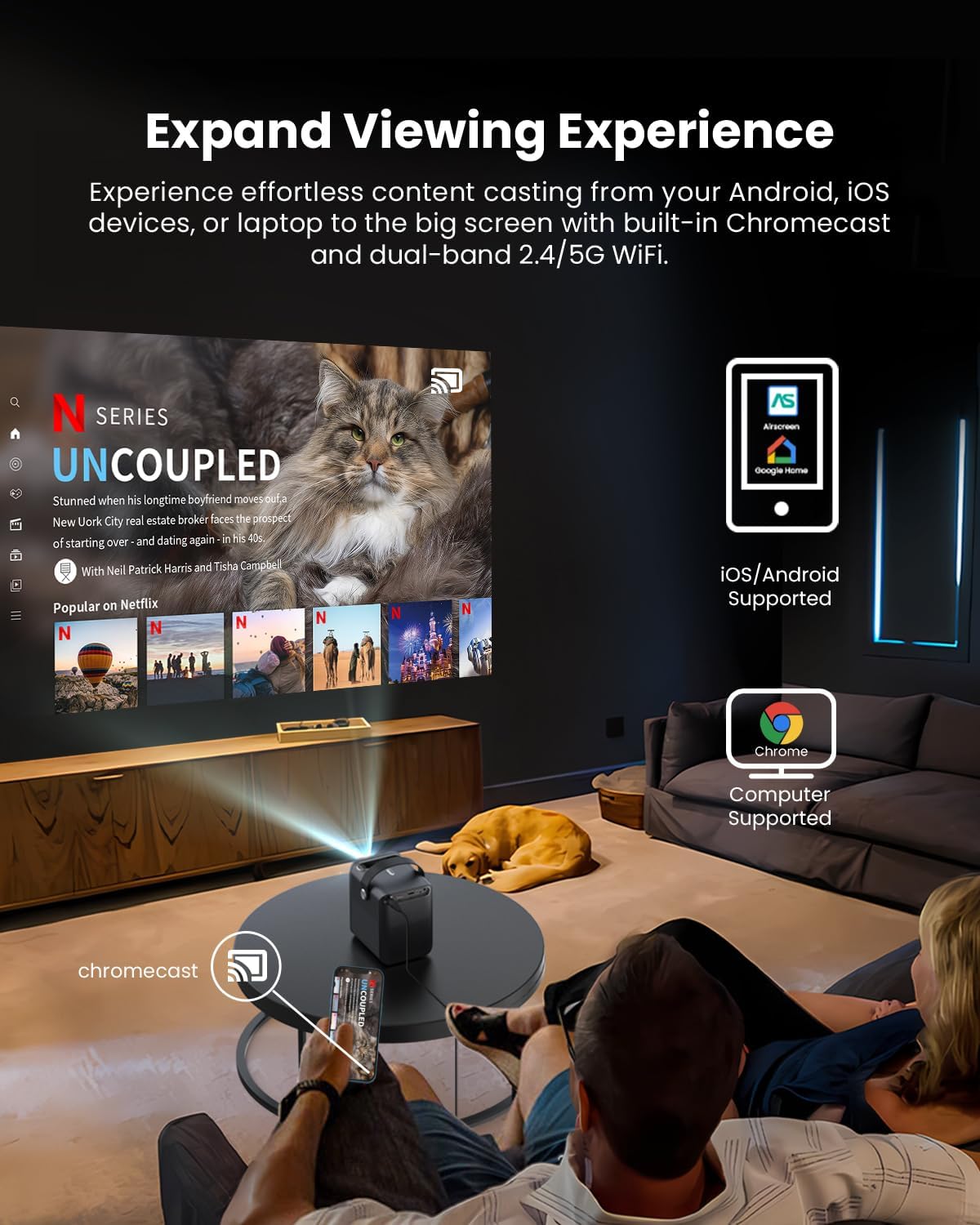
Image: A person relaxing on a couch, casting content from their smartphone to the ETOE D2 Pro Projector, demonstrating the Chromecast feature for an expanded viewexpérience de travail.
- Ensure your mobile device or computer is connected to the same Wi-Fi network as the projector.
- Ouvrez une application compatible Chromecast (par exemple, YouTube, Netflix) sur votre appareil.
- Appuyez sur l'icône Cast (généralement un rectangle avec un symbole Wi-Fi) and select your ETOE D2 Pro Projector from the list of available devices.
5.3 Connexion de périphériques externes
Le projecteur offre de multiples options de connectivité pour différents appareils.

Image: The ETOE D2 Pro Projector displayed with various compatible accessories, including a TV stick, USB stick, external speaker, and headphones, illustrating its versatile connectivity options.
- HDMI: Connect TV sticks, gaming consoles, laptops, or other HDMI-enabled devices to the HDMI port. Select the HDMI input source from the projector's menu.
- USB: Insérez une clé USB dans le port USB pour lire des fichiers multimédias locaux. files (vidéos, photos, musique).
- Bluetooth : Pair Bluetooth speakers or headphones for wireless audio output. Go to the projector's Bluetooth settings to search for and connect to devices.
- Aux : Use a 3.5mm audio cable to connect wired headphones or external speakers to the Aux port.
5.4 Paramètres d'image et audio
Ajustez les paramètres d'image et de son pour optimiser votre expérience. viewexpérience de travail.

Image: The ETOE D2 Pro Projector projecting a vibrant city scene, highlighting its native 1080P Full HD resolution, 4K support, 400 ANSI lumens brightness, and HDR 10 compatibility for stunning image quality.
- Mode d'image : Select from preset picture modes (e.g., Standard, Vivid, Movie) or customize settings like brightness, contrast, and color temperature.
- Mode sonore: Choose from various sound modes (e.g., Standard, Music, Movie) or adjust equalizer settings for the built-in dual 3W speakers or connected audio devices.
- Mode Projection : Adjust the projection mode (e.g., Front, Rear, Ceiling Front, Ceiling Rear) based on your projector's placement.
6. Entretien
6.1 Dust-Free Design
The ETOE D2 Pro features a fully-sealed optical engine designed to prevent dust from entering the lens area, ensuring long-term performance and reducing the need for frequent internal cleaning.

Image: An illustration of the ETOE D2 Pro Projector's sealed optical engine, showing how it prevents dust from entering the internal components, ensuring long-lasting performance.
6.2 Nettoyage général
- Extérieur: Wipe the exterior of the projector with a soft, dry, lint-free cloth. Do not use abrasive cleaners or solvents.
- Lentille: Gently clean the projector lens with a lens cleaning cloth or a soft brush designed for optical surfaces. Avoid touching the lens directly with your fingers.
- Assurez-vous que le projecteur est débranché avant de le nettoyer.
7. Dépannage
Si vous rencontrez des problèmes avec votre projecteur, consultez les problèmes et solutions courants suivants :
| Problème | Cause possible | Solution |
|---|---|---|
| Pas d'image | Power cable loose; Incorrect input source; Device not connected | Check power connection; Select correct HDMI/USB input; Ensure external device is properly connected and powered on. |
| Image floue | Mise au point non ajustée ; correction trapézoïdale non corrigée. | Adjust the manual focus ring; Use digital keystone correction in settings. |
| Pas de son | Volume too low; Muted; Incorrect audio output; External device audio issue | Increase volume; Unmute; Check audio output settings (internal speakers, Bluetooth, Aux); Verify audio settings on connected device. |
| La télécommande ne fonctionne pas | Piles faibles ou déchargées ; Obstruction entre la télécommande et le projecteur | Remplacez les piles ; assurez-vous d'une ligne de visée dégagée vers le récepteur infrarouge du projecteur. |
| Impossible de se connecter au Wi-Fi | Incorrect password; Router issue; Projector too far from router | Vérifiez le mot de passe Wi-Fi ; redémarrez le routeur ; rapprochez le projecteur du routeur. |
If the problem persists after trying these solutions, please contact ETOE customer support.
8. Spécifications
| Fonctionnalité | Détail |
|---|---|
| Modèle | D2 Pro |
| Système opérateur | Android TV 10.0 |
| Résolution d'affichage | Native 1920 x 1080 (1080P Full HD), 4K video supported |
| Luminosité | 400 ANSI Lumens |
| Rapport de contraste | Prise en charge HDR 10 |
| Taille de la projection | 40" - 120" (100" recommended) |
| Correction trapézoïdale | Digital 4D & 4P Keystone |
| Fonction zoom | Digital Zoom (50% - 100%) |
| Connectivité | HDMI, USB, Chromecast, 5G WiFi, Bluetooth, Aux |
| Audio | Deux haut-parleurs de 3 W |
| Moteur optique | Fully-sealed (Dust-proof) |
| Poids de l'article | 3.58 livres |
| Dimensions du produit | 5.31 x 4.45 x 5.83 pouces |
9. Garantie et assistance
ETOE provides comprehensive support for your D2 Pro projector:
- Garantie: A 12-month after-sales service is provided from the date of purchase.
- Support technique : Lifetime technical support is available for all ETOE D2 Pro users.
For any questions, technical assistance, or warranty claims, please contact ETOE customer support directly. There is no need to return the projector without prior contact.