
1. Introduction
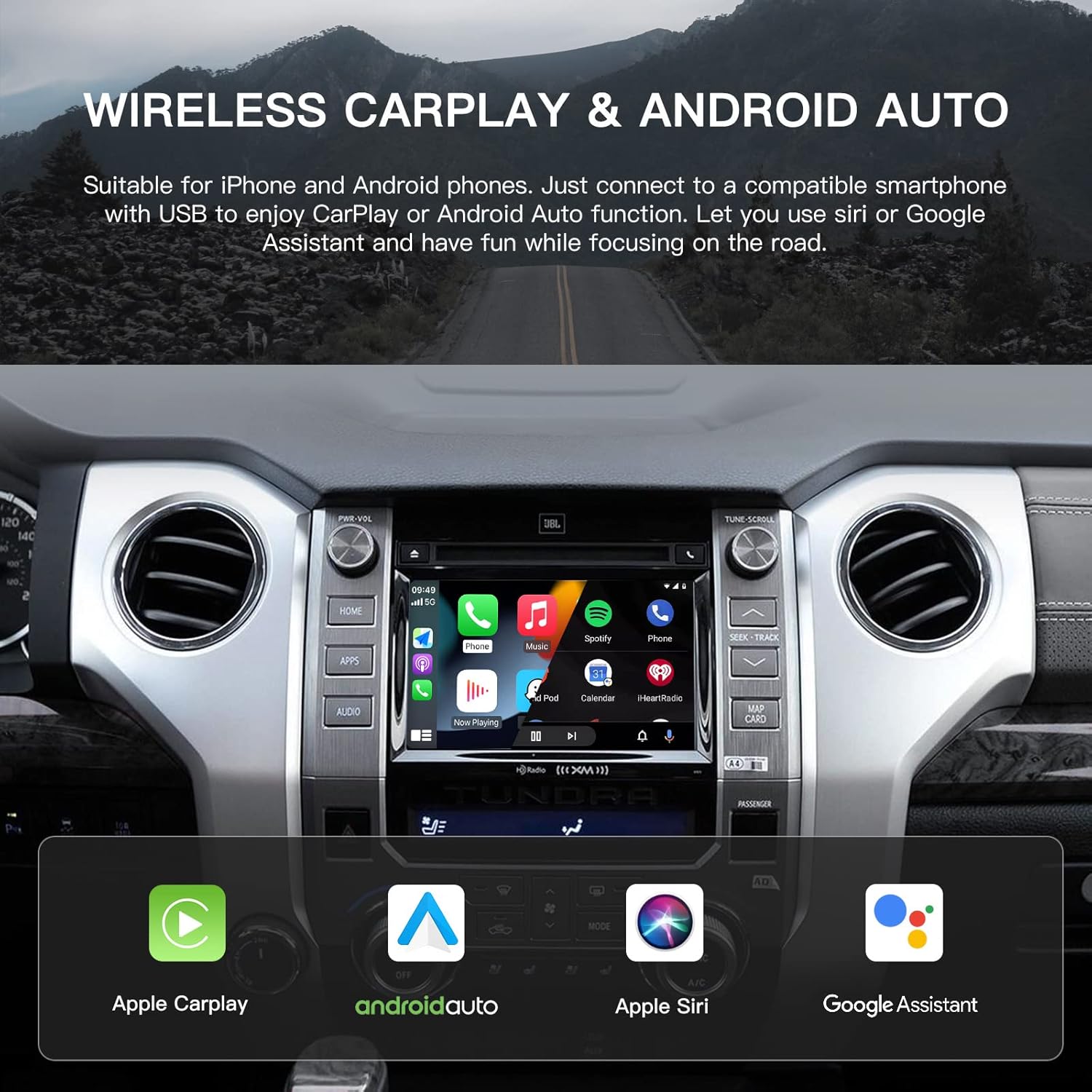
This CARabc wireless adapter is designed to integrate Apple CarPlay and Android Auto functionalities into compatible Toyota vehicles manufactured between 2014 and 2019, specifically those equipped with the Entune 2.0 or Touch2 infotainment systems. The adapter allows you to access navigation, phone contacts, music, and other smartphone features directly on your car's display, utilizing voice commands (Siri or Google Assistant) and original vehicle controls for a safer and more convenient driving experience.
2. Compatibilité
The CARabc adapter is compatible with specific Toyota models from 2014-2019 that feature the Entune 2.0 or Touch2 host system. It is crucial to verify your vehicle's infotainment system before installation.
Remarques importantes concernant la compatibilité :
- Not compatible with Corolla 86140-02540 Fujitsu with a 7-inch screen.
- Not compatible with 4Runner models equipped with a Pioneer host system.
- Not compatible with Prius models equipped with an 11.6-inch screen.
- Not compatible with RAV4 models with 86100-42241 system.
Compatible Toyota Models (2014-2019) with Touch2 & Entune 2.0 System (Must be Panasonic/Fujitsu/Pioneer):
- Toundra
- Highlander
- RAV4
- Tacoma
- Camry
- Corolle
- Avalon
- Prius
- CH-R
- Terre de sienne
- Yaris
- Alphard
- Avensis
- Fortuner
- Auris

3. Contenu du colis
Veuillez cocher la case correspondant aux éléments suivants :
- CARABC Adapter (x1)
- Antenne WiFi (x1)
- CUSB Line (x1)
- Câble d'alimentation (x1)

4. Configuration et installation
Installation of the CARabc adapter involves connecting it to your vehicle's existing infotainment system. It is recommended to consult a professional if you are unsure about any steps.
Étapes d'installation :
- Préparez le véhicule : Ensure the vehicle's ignition is off and the battery is disconnected before beginning installation to prevent electrical damage.
- Accéder à l'unité principale : Carefully remove the necessary trim panels to access the rear of your car's main head unit (radio/infotainment system).
- Connect the Main Unit Cables: Connect the provided 24-PIN, 10-PIN, and 28-PIN connectors from the CARabc wiring harness to the corresponding ports on your original car's main unit.
- Connect the Car's Plugs: Connect the original car's 28-PIN, 10-PIN, and 24-PIN plugs to the designated ports on the CARabc wiring harness.
- Connectez le câble USB : Attach the CUSB Line (USB Cable) to the adapter and route it to an accessible location, such as the glove compartment.
- Connecter l'antenne WiFi : Connect the WiFi antenna to the adapter. Position the antenna in a location that ensures good signal reception, avoiding metal obstructions.
- Connexions facultatives : If installing a forward-looking camera, connect it to the 'Forward Looking Input' port. Ensure GND (Ground) is properly connected.
- Fixez l'adaptateur : Find a secure and dry location to mount the CARabc adapter unit, ensuring it does not interfere with any moving parts or vehicle operation.
- Rebranchez la batterie : Une fois toutes les connexions sécurisées, rebranchez la batterie du véhicule.
- Fonctionnalité de test : Turn on the ignition and test the adapter's functionality as described in the Operating Instructions section.

5. Mode d'emploi
Once installed, the CARabc adapter allows you to use Apple CarPlay or Android Auto wirelessly.
Connexion de votre smartphone :
- Mise sous tension : Start your vehicle. The adapter should power on automatically.
- Activer CarPlay/Android Auto : On your car's infotainment screen, select the AUX input or the designated CarPlay/Android Auto icon (if available after installation).
- Coupler via Bluetooth: On your smartphone, enable Bluetooth and search for the adapter's Bluetooth name (refer to the adapter's packaging or on-screen instructions for the exact name). Pair your phone with the adapter.
- Confirmer la connexion : Once paired, your phone will prompt you to enable CarPlay or Android Auto. Confirm the connection. The CarPlay or Android Auto interface should now appear on your car's screen.
Utilisation de CarPlay/Android Auto :
- Navigation: Use your preferred navigation apps (e.g., Apple Maps, Google Maps, Waze) directly on the car's screen.
- Musique et médias : Play music, podcasts, and audiobooks from your smartphone apps.
- Appels et messages : Make and receive calls, and send/receive messages using voice commands or the on-screen interface.
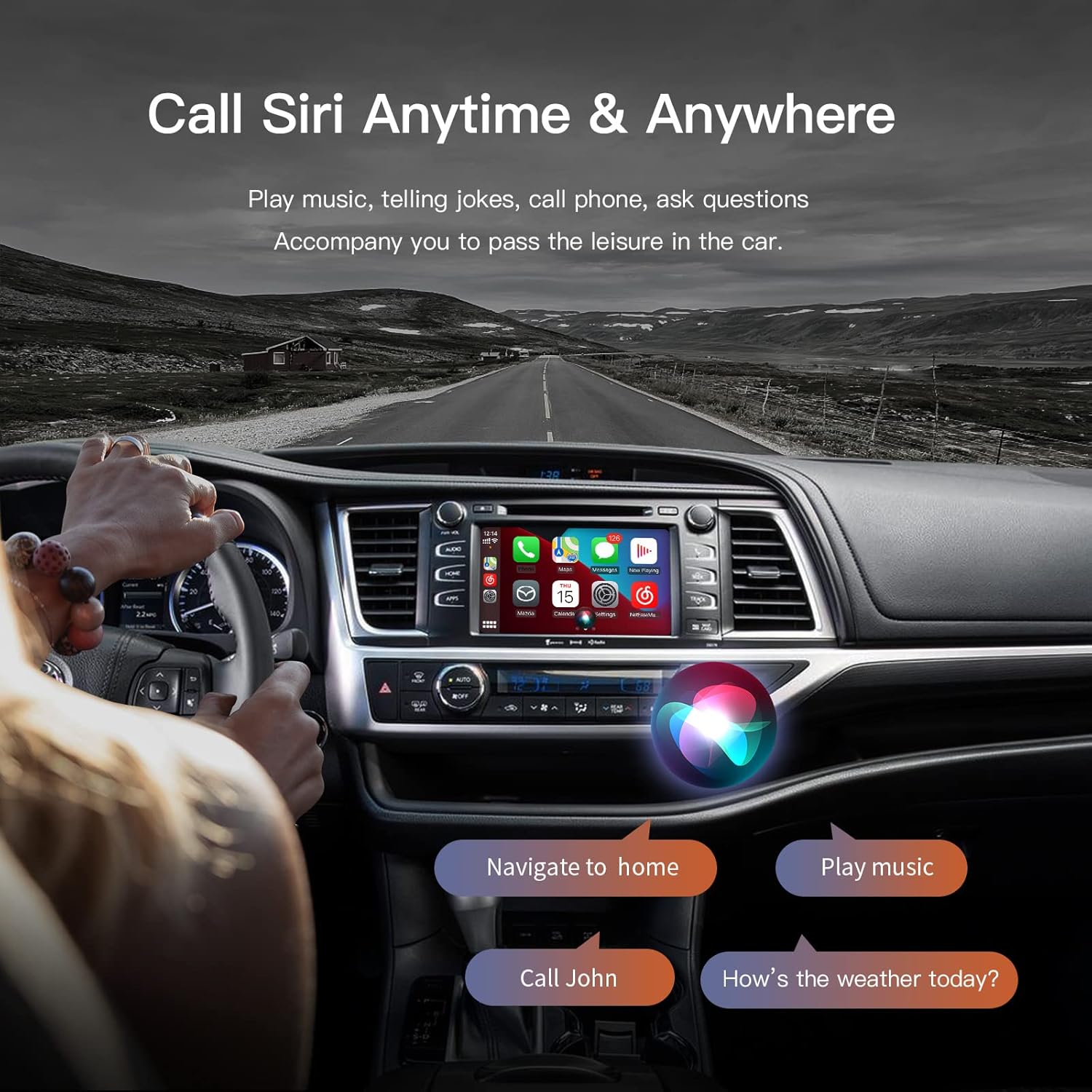
- Contrôle vocal : Activate Siri (for Apple CarPlay) or Google Assistant (for Android Auto) by pressing the voice command button on your steering wheel or by saying the wake phrase.
- Commandes d'origine du véhicule : The adapter supports operation via your car's original steering wheel buttons, rotary knob, and touch screen (if applicable).

6. Entretien
To ensure the longevity and optimal performance of your CARabc adapter, follow these maintenance guidelines:
- Garder au sec : Évitez d'exposer l'adaptateur à l'humidité ou aux liquides.
- Contrôle de la température : N’exposez pas l’appareil à des températures extrêmes (chaudes ou froides).
- Nettoyage: Clean the adapter's exterior with a soft, dry cloth. Do not use harsh chemicals or abrasive cleaners.
- Intégrité du câble : Vérifiez régulièrement tous les câbles connectés afin de déceler tout signe d'usure ou de dommage.
7. Dépannage
If you encounter issues with your CARabc adapter, refer to the following common troubleshooting steps:
- No Display/Adapter Not Activating:
- Ensure all power and video cables are securely connected.
- Verify the vehicle's battery was reconnected after installation.
- Try switching between the car's original Radio and AUX input modes multiple times.
- In some cases, a full vehicle restart (turning off and on the ignition) may resolve the issue.
- Mauvaise qualité d'image :
- The adapter utilizes the car's original screen resolution, which may be lower than modern smartphone displays. This is a limitation of the vehicle's hardware.
- Check if your car's display settings allow for adjustments to brightness, contrast, or color that might improve perceived quality.
- Audio Quality Issues/Distortion:
- Ensure your phone's volume and the car's volume are adjusted appropriately.
- Verify that the audio output from the adapter is correctly routed through the car's AUX input.
- Some users report slight differences in audio quality compared to direct Bluetooth connections. This can be influenced by the car's audio system and the adapter's processing.
- Frequent Connection Loss (CarPlay/Android Auto):
- Ensure the WiFi antenna is properly connected and positioned in an area with minimal obstruction for optimal signal.
- Confirm your smartphone's Bluetooth and Wi-Fi are enabled and functioning correctly.
- Essayez d'oublier l'appareil dans les paramètres Bluetooth de votre téléphone et de le réassocier.
- Caméra de recul non activée :
- Double-check all connections related to the reverse camera input on the adapter and the car's system.
- Ensure the adapter is receiving the correct signal to switch to the reverse camera view.
- Cannot Use Car Radio and Navigation Simultaneously:
- The adapter typically uses the car's AUX audio input. When the AUX input is active for CarPlay/Android Auto, the car's original radio tuner may be muted or inaccessible. This is a common characteristic of such integration systems.
8. Spécifications
| Marque | CARabc |
| Numéro de modèle | BZ01 |
| Dimensions du produit | 15 x 15 x 4 cm |
| Poids de l'article | 740 g |
| Appareils compatibles | Smartphones with Android (6.0 or higher) or iOS (9 or higher) operating systems |
| Utilisations spécifiques du produit | Car audio and video integration |
| Type de connecteur | USB Type A |
| Couleur | Argent |
| Code UPC | 718519930342 |
9. Garantie et assistance
CARabc is committed to providing professional technical support for its products. If you have any questions regarding the installation, operation, or troubleshooting of your adapter after reviewing this manual and any available video instructions, please do not hesitate to contact CARabc customer support. Technical assistance is typically provided within 24 hours.
For support, please refer to the contact information provided with your product or visit the official CARabc website.