
Introduction
The Solid State Logic SSL 12 is a high-performance 12-in/8-out USB audio interface designed for professional recording and mixing environments. It features studio-quality audio conversion, robust preamps, and flexible monitoring options to enhance your audio production workflow. This manual provides essential information for setting up, operating, maintaining, and troubleshooting your SSL 12 interface.

Figure 1 : Face avant view of the Solid State Logic SSL 12 USB Audio Interface.
Installation
Follow these steps to set up your SSL 12 audio interface:
- Installation du logiciel : Before connecting the hardware, download and install the latest drivers and SSL 360° software from the official Solid State Logic website. This software is essential for full control and functionality of your interface.
- Connectez-vous à l'ordinateur : Connect the SSL 12 to your computer using the provided USB cable. The interface is bus-powered via USB.
- Mise sous tension : Press the power button located on the rear panel of the unit. The power indicator LED on the front panel will illuminate.
- Connectez les microphones/instruments : Use XLR or 1/4-inch TRS cables to connect your microphones or instruments to the combo inputs (1-4) on the rear panel. For instruments, use the dedicated 1/4-inch instrument inputs (INST 1, INST 2) on the front panel for optimal impedance matching.
- Connect Monitors/Headphones: Connect your studio monitors to the 1/4-inch TRS outputs (1-4) on the rear panel. Plug your headphones into the dedicated 1/4-inch headphone outputs (A, B) on the front panel.
- ADAT and MIDI Connections (Optional): If expanding your setup, connect ADAT compatible devices to the ADAT IN port and MIDI devices to the MIDI IN/OUT ports on the rear panel.

Figure 2: SSL 12 with various cables connected for a typical studio setup.
Mode d'emploi
Understanding the controls and connections of your SSL 12 is crucial for effective operation.
Commandes du panneau avant

Figure 3 : Haut view of the SSL 12, highlighting front panel controls.
- Chaînes 1-4: Each channel features a GAIN knob to adjust input level, a +48V button for phantom power (for condenser microphones), and a LINE button to switch between microphone/instrument and line-level inputs. The LED meters provide visual feedback on input levels.
- Legacy 4K Buttons: These buttons activate the '4K' mode, which emulates the sound characteristics of the classic SSL 4000 series console, adding harmonic enhancement and a high-frequency boost.
- Niveau du moniteur: The large blue knob controls the overall output level to your main studio monitors.
- Headphone Outputs (A & B): Two independent headphone outputs with individual level controls allow for separate monitoring mixes.
- Réponse : The built-in talkback microphone allows communication with artists in a separate recording space. Use the TALK button to activate, CUT to mute, and ALT to switch between alternative monitor outputs.
Connexions du panneau arrière
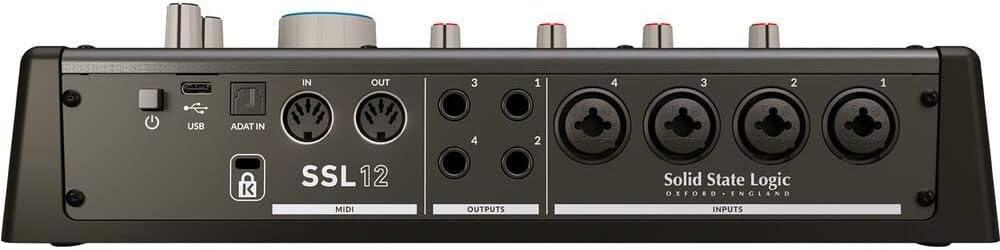
Figure 4 : Arrière view of the SSL 12, showing input and output connections.
- Entrées 1-4 : Combo XLR/TRS jacks for connecting microphones and line-level sources.
- Sorties 1-4 : 1/4-inch TRS balanced outputs for connecting studio monitors or other outboard gear.
- Entrée/sortie MIDI : Standard 5-pin DIN connectors for connecting MIDI controllers or other MIDI-enabled devices.
- ADAT In: Optical input for expanding your input count with an ADAT-compatible device, providing up to 8 additional channels.
- USB: USB-C port for connection to your computer.
- Pouvoir: Interrupteur marche/arrêt de l'appareil.
Entretien
To ensure the longevity and optimal performance of your SSL 12, follow these maintenance guidelines:
- Nettoyage: Use a soft, dry cloth to clean the exterior of the unit. Avoid abrasive cleaners or solvents. For stubborn dirt, a slightly damp Un chiffon peut être utilisé, afin d'éviter toute infiltration d'humidité dans l'appareil.
- Protection contre la poussière: Keep the unit covered when not in use to prevent dust accumulation, which can affect internal components and ventilation.
- Ventilation: Assurez une circulation d'air suffisante autour de l'appareil. Ne bloquez pas les ouvertures de ventilation.
- Gestion des câbles: Rangez soigneusement les câbles pour éviter toute tension sur les connecteurs et les déconnexions accidentelles.
- Mises à jour logicielles : Regularly check the Solid State Logic webSite de mise à jour des micrologiciels et des logiciels pour garantir la compatibilité et l'accès aux dernières fonctionnalités et corrections de bugs.
Dépannage
If you encounter issues with your SSL 12, refer to the following common problems and solutions:
- Pas d'alimentation : Ensure the USB cable is securely connected to both the interface and your computer. Verify the power button on the rear panel is in the 'On' position. Try a different USB port or cable.
- Pas de sortie audio : Check that your monitors and headphones are correctly connected and powered on. Verify the Monitor Level and Headphone Level knobs are turned up. Ensure the correct output device is selected in your computer's sound settings and your Digital Audio Workstation (DAW).
- Aucun signal d'entrée : Confirm that microphones/instruments are properly connected to the correct inputs. Check the GAIN knob for the respective channel is turned up. Ensure +48V phantom power is enabled for condenser microphones. Verify the correct input is selected in your DAW.
- Écrêtage/distorsion audio : Reduce the GAIN on the input channel. Ensure your input source is not sending an excessively hot signal. Check your DAW's input levels. The 32-bit float converters offer high dynamic range, but extreme input levels can still cause clipping.
- Problèmes de latence : Adjust the buffer size in your DAW's audio settings. Lower buffer sizes reduce latency but require more processing power. Ensure your computer meets the minimum system requirements.
- Le logiciel ne reconnaît pas l'interface : Reinstall the SSL 360° software and drivers. Try connecting the interface to a different USB port. Restart your computer.
Caractéristiques
| Fonctionnalité | Spécification |
|---|---|
| Marque | Logique à semi-conducteurs |
| Numéro de modèle | 726705X1 |
| Technologie de connectivité | USB |
| Nombre de canaux | 14 (12-in, 8-out) |
| S maximumample taux | 192 kHz |
| Profondeur de bits | 32 bits |
| Gain du micro | 62 dB |
| Appareils compatibles | Casque audio, ordinateur personnel |
| Logiciels pris en charge | SSL 360 degrees (DAW) |
| Système opérateur | Windows (and macOS, though not explicitly listed in provided data, it's standard for audio interfaces) |
| Poids de l'article | 1.43 kilogrammes |
| Code UPC | 878076001678 |
Garantie et assistance
The Solid State Logic SSL 12 USB Audio Interface comes with a Garantie de 1 ans À compter de la date d'achat, cette garantie couvre les défauts de fabrication et assure le bon fonctionnement de votre produit dans des conditions normales d'utilisation.
For technical support, warranty claims, or additional product information, please visit the official Solid State Logic webConsultez leur site web ou contactez leur service client. Conservez votre preuve d'achat pour toute question relative à la garantie.