
Introduction
This manual provides detailed instructions for the installation, operation, and maintenance of your EZoneTronics PCD001 Portable Wireless Car Stereo. Please read this manual thoroughly before using the device to ensure proper functionality and to prevent damage.
Produit terminéview
Caractéristiques principales
- Écran tactile de 7 pouces : Provides a clear and responsive interface for navigation and media control.
- Apple CarPlay et Android Auto sans fil : Seamlessly integrates with Apple and Android smartphones for navigation, music, and communication.
- Transmetteur FM: Connects to your vehicle's original radio system via AUX Out or FM Out for audio output.
- Installation prête à l'emploi : Designed for easy setup without modifying existing car equipment.
- Options de montage polyvalentes : Can be mounted on the dashboard or windshield using a suction cup holder.
- Fonctions supplémentaires : Supports Bluetooth connectivity, hands-free calling, voice control (Siri/Google Assistant), video playback, and music streaming.
- Compatibilité des médias : Supports SD card and USB devices for media playback.
Qu'y a-t-il dans la boîte
Vérifiez que tous les composants sont présents lors du déballage :
- 1 x EZoneTronics PCD001 Portable Wireless Car Stereo Unit
- 1 x Mounting Bracket (for dash or windshield)
- 1 x Car Charger (power adapter)
- 1 x Driving Recorder (if included in your package)
- 1 x SD Card (if included in your package)
- 1 x Webcam (if included in your package)
Note: The inclusion of the Driving Recorder, SD Card, and Webcam may vary by package.
Configuration et installation
Montage de l'appareil
The device can be mounted on your car's dashboard or windshield. Choose a location that does not obstruct your view ou interférer avec les commandes du véhicule.
- Nettoyer la surface : Ensure the chosen mounting surface (dashboard or windshield) is clean and dry.
- Fixer la ventouse : Press the suction cup firmly onto the surface and engage the locking mechanism to secure it.
- Ajuster l'angle : Use the adjustable arm and swivel joint to position the screen for optimal viewing. The mount allows for 360-degree rotation and 180-degree angle adjustment.
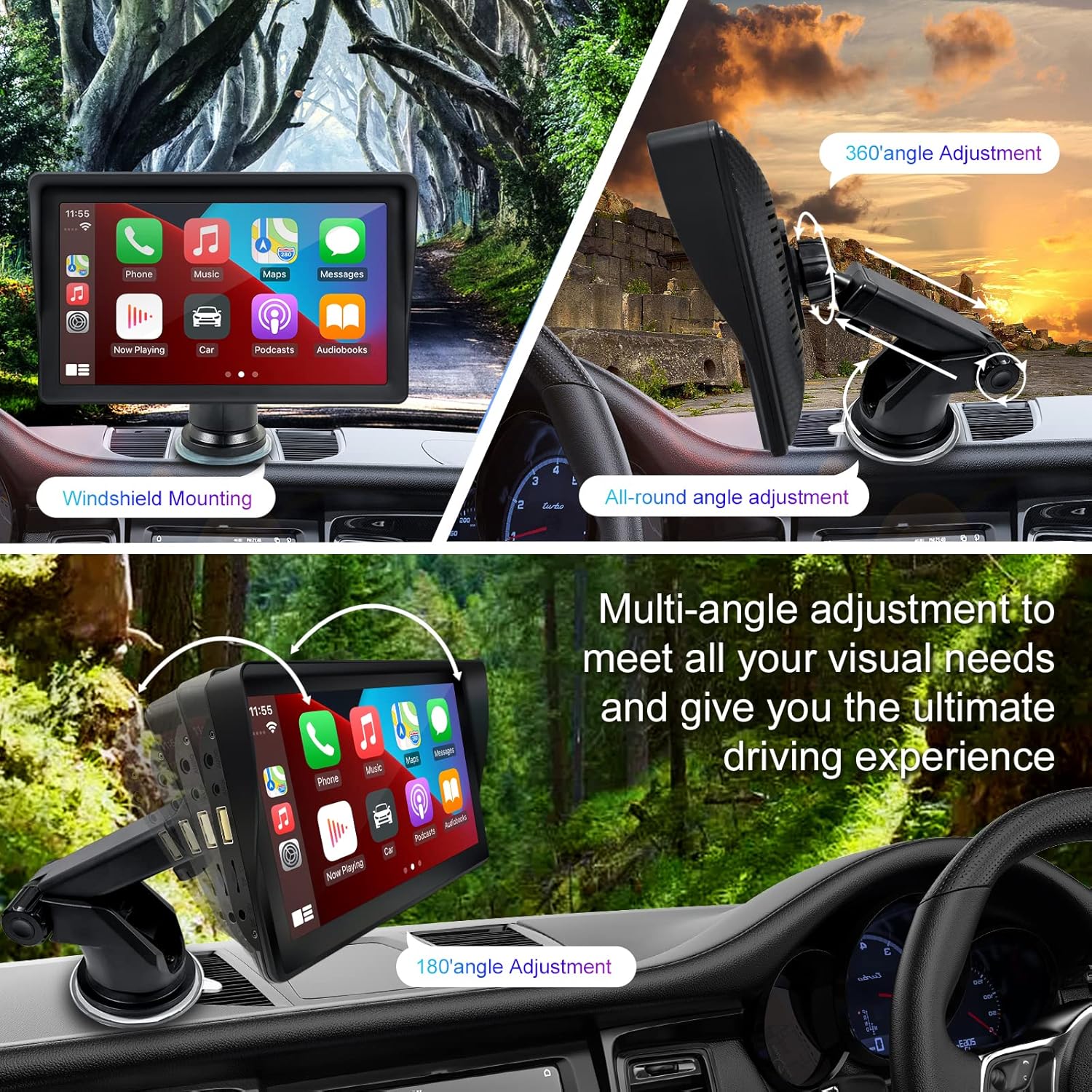
Figure 1: Mounting options and angle adjustments for the portable car stereo.
Connexion électrique
Connect the provided car charger to the device's power input port and then into your vehicle's 12V power outlet (cigarette lighter socket). The device supports 12-24V power input.
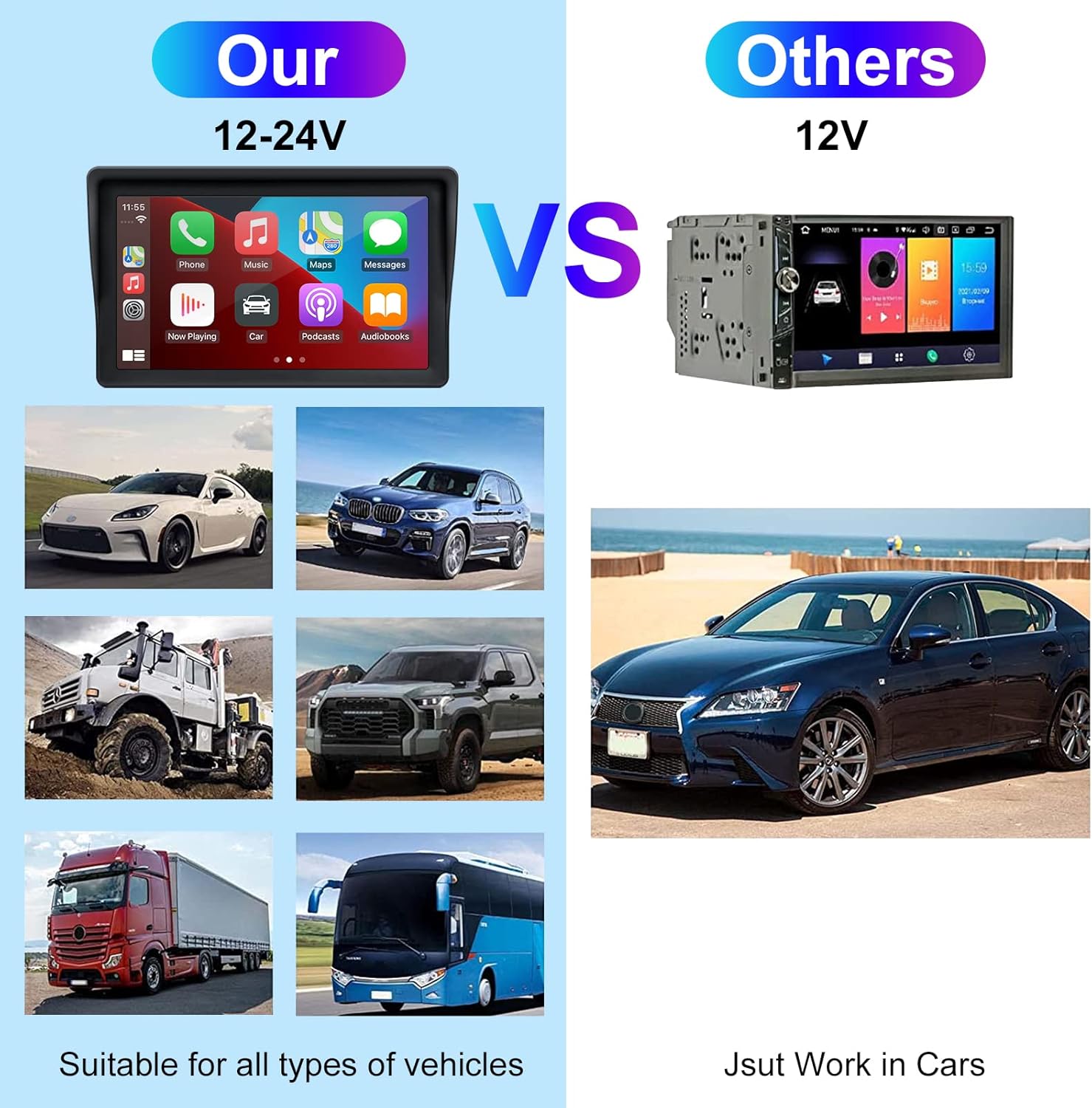
Figure 2: The EZoneTronics unit is compatible with 12-24V vehicle power systems.
Mode d'emploi
Initial Power On and Interface
Once powered, the device will boot up and display the main interface. This interface provides access to Apple CarPlay, Android Auto, and other functions.

Figure 3: Main interface displaying Apple CarPlay.
Connecting to Apple CarPlay or Android Auto
The device supports wireless connection for both Apple CarPlay and Android Auto.
- Activez le Bluetooth et le Wi-Fi : Sur votre smartphone, assurez-vous que le Bluetooth et le Wi-Fi sont activés.
- Associer l'appareil : On the car stereo, navigate to the Bluetooth settings and pair with your smartphone.
- Connexion automatique : Once paired, the device should automatically prompt you to connect to Apple CarPlay or Android Auto. Follow the on-screen instructions on both the car stereo and your phone to complete the setup.
- Lien miroir : For devices not supporting CarPlay or Android Auto, or if you prefer, you can use the Mirror Link function to display your phone's screen on the unit.

Figure 4: Wireless connection for Apple CarPlay and Android Auto.
Audio Output (FM Transmitter / AUX Out)
To output audio from the car stereo to your vehicle's sound system, you have two primary options:
- Transmetteur FM:
- On the EZoneTronics unit, select the FM Transmitter function.
- Choose an unused FM frequency.
- Tune your vehicle's FM radio to the same frequency. Audio from the portable stereo will now play through your car's speakers.
- Sortie AUX :
- Connect an AUX cable from the AUX Out port on the EZoneTronics unit to your vehicle's AUX In port.
- Select AUX input on your vehicle's audio system.


Figure 5: FM Transmitter and other core functions.
Commande vocale (Siri / Assistant Google)
Once connected to Apple CarPlay or Android Auto, you can activate your smartphone's voice assistant (Siri or Google Assistant) for hands-free control. This allows you to make calls, send messages, get directions, and play music using voice commands.
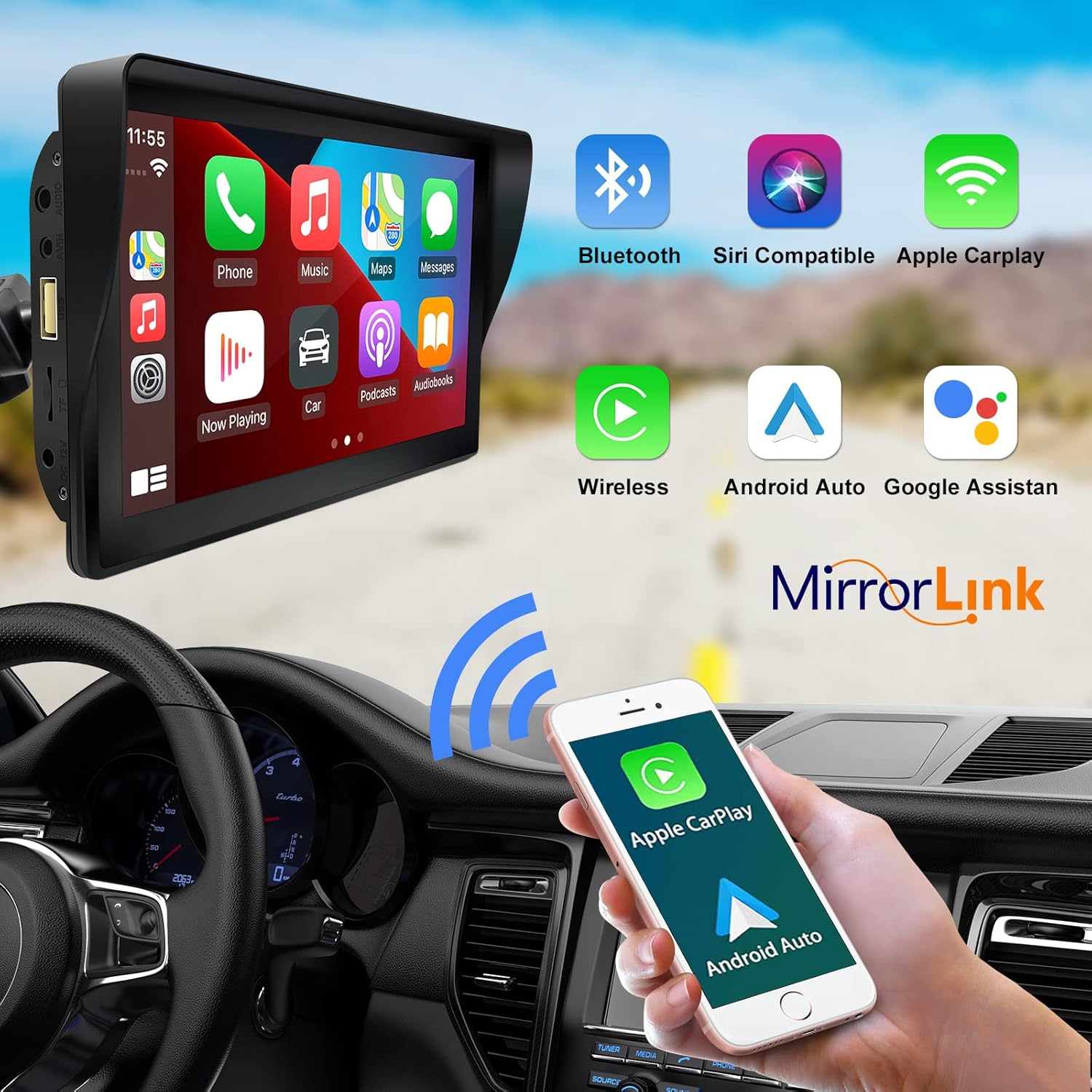
Figure 6: Voice control and connectivity features.
Media Playback (SD Card / USB)
The unit supports media playback from SD cards and USB devices.
- Insert an SD card into the designated slot or a USB drive into the USB port.
- Navigate to the media player application on the car stereo.
- Sélectionnez le fichier audio ou vidéo souhaité. files pour la lecture.


Figure 7: USB and SD card media playback options.
Dépannage
If you encounter issues with your EZoneTronics PCD001, refer to the following common problems and solutions:
| Problème | Cause/solution possible |
|---|---|
| L'appareil ne s'allume pas. |
|
| Cannot connect to Apple CarPlay / Android Auto wirelessly. |
|
| Aucun son ne sort des haut-parleurs de la voiture. |
|
| L'écran tactile ne répond pas. |
|
| La navigation GPS est imprécise ou ne fonctionne pas. |
|
Caractéristiques
| Fonctionnalité | Détail |
|---|---|
| Nom du modèle | PCD001 |
| Marque | EZoneTronics |
| Taille de l'écran | 7 pouces |
| Type d'affichage | IPS |
| Type d'écran tactile | Capacitif |
| Système opérateur | Android (Internal OS for unit functions, supports CarPlay/Android Auto) |
| Technologie de connectivité | Wireless CarPlay, Wireless Android Auto, Bluetooth, FM Transmitter, AUX Out |
| Mode de sortie audio | AUX, Stéréo |
| Système de navigation par satellite pris en charge | GPS (via connected smartphone) |
| Type de montage | Support de tableau de bord, support de pare-brise |
| Appareils compatibles | Smartphones (Apple iOS and Android) |
| Type de service de véhicule | Car (Universal 12-24V compatibility) |
Entretien
Proper maintenance ensures the longevity and optimal performance of your EZoneTronics PCD001.
- Nettoyage de l'écran : Utilisez un chiffon doux non pelucheux pour essuyer délicatement l'écran. Pour les traces tenaces, frottez légèrement.ampNettoyez le chiffon avec de l'eau ou un nettoyant pour écran. Évitez les produits chimiques agressifs ou abrasifs.
- Gestion des câbles: Ensure all cables are neatly routed and secured to prevent entanglement or damage.
- Température: Évitez d'exposer l'appareil à des températures extrêmes, chaudes ou froides, pendant des périodes prolongées.
- Mises à jour logicielles : Vérifiez périodiquement les instructions du fabricant. website or device settings for any available software updates to improve performance and add features.
Garantie et assistance
Informations sur la garantie
The EZoneTronics PCD001 Portable Wireless Car Stereo comes with a Garantie d'un an À compter de la date d'achat, cette garantie couvre les défauts de fabrication et les dysfonctionnements liés à une utilisation normale. Elle ne couvre pas les dommages causés par une mauvaise utilisation, un accident, des modifications non autorisées ou une installation incorrecte.
Veuillez conserver votre preuve d'achat pour les réclamations au titre de la garantie.
Assistance clientèle
For technical assistance, warranty claims, or further inquiries, please contact EZoneTronics customer support:
- Website: www.ezonetronics.com
- E-mail: support@ezonetronics.com
When contacting support, please provide your product model (PCD001) and a detailed description of the issue.